
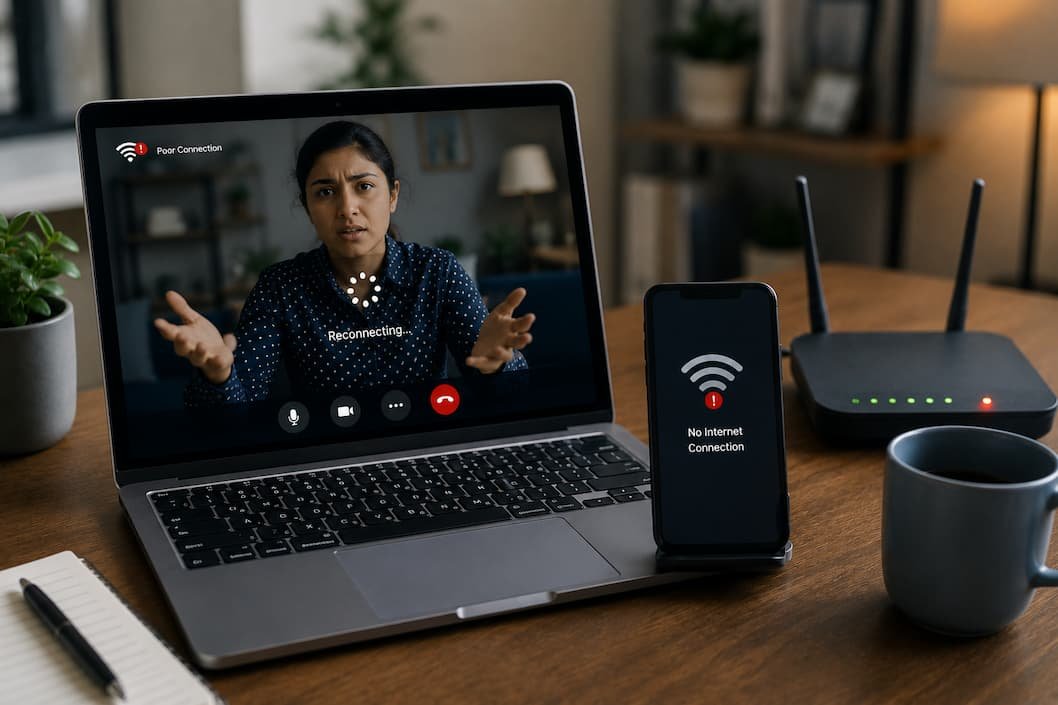
You join a video meeting, everything works normally for ten minutes, and then your Wi-Fi disconnects without warning. Before you have time to investigate, the connection returns on its own. The browser reloads, messages start arriving again, and by the time you open the network settings, everything looks perfectly normal. That’s what makes random Wi-Fi problems so frustrating—they often disappear before you can see what actually happened.
Unlike a complete internet outage, dozens of different factors can cause an intermittent disconnect. It might be your Windows laptop, your wireless adapter, the router, a driver update, power management, or even another device competing for the same wireless channel. Guessing rarely works because changing the wrong setting can introduce new problems while leaving the original one untouched.
The most reliable way to solve this type of issue is to treat it like an investigation. Instead of applying ten different fixes in one afternoon, narrow the possibilities one by one until the evidence points to a specific cause. That approach usually takes less time, and it gives you confidence that the problem is actually solved rather than temporarily hidden.
Before Changing Anything, Learn Exactly What “Disconnect” Means
People often describe every network problem as a Wi-Fi disconnect, but Windows can lose connectivity in several different ways. Understanding which one you’re experiencing is the first step toward finding the right solution.
For example, your laptop might still show that it’s connected to Wi-Fi while websites refuse to load. In that case, the wireless connection itself may be working perfectly, but Windows has lost access to the internet because of a router or DNS issue. On the other hand, if the Wi-Fi icon disappears completely or Windows reconnects to the network automatically after a few seconds, the wireless adapter itself may be dropping the connection.
Before making any changes, try to answer these questions the next time the problem occurs:
| Question | Why It Matters |
|---|---|
| Does the Wi-Fi icon disappear? | Suggests the adapter lost the wireless connection. |
| Do other devices lose internet too? | Points toward the router or internet provider. |
| Does Windows reconnect automatically? | Often indicates driver or signal issues. |
| Does it happen only in one room? | It may be caused by a weak signal or interference. |
| Does it happen at the same time every day? | Could indicate scheduled updates or router behavior. |
Those small observations eliminate many possible causes before you even open the Settings app.
Step 1: Find Out Whether Windows Is the Only Device Affected
One of the quickest diagnostic tests doesn’t involve your computer at all. The next time your laptop disconnects, immediately check another device connected to the same Wi-Fi network. Your phone is usually the easiest option because it’s already nearby.
If your phone, tablet, smart TV, and laptop all lose internet simultaneously, Windows probably isn’t responsible. The issue is much more likely to involve the router, your internet service provider, or a temporary interruption outside your home.
If every other device continues working normally while only your Windows PC disconnects, you’ve already narrowed the problem considerably. Now you can focus on your computer instead of spending time restarting the router or calling your ISP unnecessarily.
This simple comparison has saved me from chasing the wrong problem more times than I can count. It’s amazing how often people reinstall network drivers when the real culprit is a router that’s briefly losing its internet connection every few hours.
Step 2: Let Windows Tell You When the Disconnect Happened
Most people begin troubleshooting by opening browser settings or reinstalling drivers. I prefer checking Event Viewer first because it often records exactly when Windows detected a network problem.
Event Viewer has a reputation for looking complicated, but you don’t need to understand every log it displays. What matters is finding entries that match the exact time your Wi-Fi disconnected. If the logs repeatedly show warnings from the wireless adapter, Windows has already given you an important clue before you’ve changed a single setting.
[Insert screenshot: Event Viewer with System log selected]
Don’t worry if the event descriptions seem technical. At this stage, you’re simply searching for patterns. For example, if disconnects always generate warnings from the same network adapter, that information is much more valuable than randomly updating every driver on the system.
A useful habit is to note the time whenever your Wi-Fi drops. Later, compare that time with the system log in Event Viewer. Matching timestamps often reveal whether Windows detected a hardware issue, a driver reset, or another networking event at the exact moment the disconnect occurred.
Step 3: Check Signal Strength Before Blaming the Driver
Weak Wi-Fi doesn’t always mean you’re far from the router. Walls, furniture, appliances, neighboring wireless networks, and even the way your laptop is positioned can reduce signal quality enough to cause occasional disconnects.
One mistake I frequently see is assuming that three or four signal bars guarantee a stable connection. Signal strength and signal quality aren’t exactly the same thing. A network may appear strong while still suffering from interference that interrupts communication for a few seconds at a time.
Move closer to the router and use the computer normally for a while. If the disconnects disappear entirely, you’ve learned something important. The issue may not involve Windows at all—it could simply be that your usual workspace has unreliable wireless coverage.
[Insert screenshot: Windows Wi-Fi status showing signal strength]
If possible, test in another room as well. Consistent results across different locations often indicate a very different situation than problems that occur only at one desk or one corner of the house.
Step 4: Windows Power Management Can Disconnect Wi-Fi Without Warning
Laptops are designed to conserve battery power whenever possible, and occasionally that includes temporarily reducing power to the wireless adapter. Most of the time this procedure works without issue, but certain Wi-Fi chipsets become overly aggressive, especially after driver updates.
Open Device Manager, locate your wireless adapter, and check its Power Management settings. If Windows is allowed to turn off the device to save power, the adapter may occasionally fail to wake correctly during periods of inactivity or after the computer resumes from sleep.
[Insert screenshot: Wi-Fi adapter Power Management tab]
I encountered this issue on an older ultrabook that disconnected several times each afternoon but never while it was actively being used. The problem wasn’t the router or the internet connection—it was the wireless adapter entering a low-power state and occasionally failing to reconnect properly. Disabling that power-saving option immediately stopped the random disconnects.
This setting doesn’t cause every Wi-Fi problem, but it’s one of those small Windows features that’s deceptively simple to overlook because everything appears normal once the connection comes back.
Step 5: Recent Driver Updates Deserve a Closer Look
Updating drivers is often presented as the universal solution for networking problems. In practice, driver updates can solve issues—but they can also introduce them.
If your Wi-Fi disconnects started shortly after installing Windows updates or downloading a new driver from your laptop manufacturer, don’t ignore the timing. Drivers interact directly with your hardware, so even small changes can affect how the wireless adapter communicates with your router.
Rather than installing multiple driver versions one after another, check Device Manager to see whether the adapter was recently updated. If the timeline matches the start of your problems, rolling back to the previous version may be a smarter first step than searching for an even newer driver.
On the other hand, if you’re still using a driver that’s several years old, updating it may improve compatibility with newer routers and Windows builds. The important lesson is not to assume that newer always means better. Good troubleshooting depends on understanding when the problem started, not simply installing the latest available software.
Step 6: Check Whether Your Router Is Disconnecting You—or Your Laptop Is Walking Away
Not every Wi-Fi interruption starts on the computer. Modern routers constantly manage connected devices, switch channels, and balance traffic between different frequency bands. Under normal conditions, the process happens so smoothly that you never notice it. When something isn’t working correctly, however, your laptop may appear to disconnect even though the router is actually forcing the connection to reset.
A simple way to investigate is to sign in to your router’s administration page and review the event or system logs if they’re available. Many routers record when a device disconnects, reconnects, or requests a new IP address. If the timestamps match the moments you experienced Wi-Fi dropouts, you’ve confirmed that the router was involved in the process instead of assuming Windows was at fault.
If your router doesn’t provide logs, don’t worry. The earlier comparison with your phone or another laptop is still useful. When multiple devices experience the same brief interruption, the evidence points away from Windows and toward the network itself.
[Insert screenshot: [Example router event log page]
Step 7: Don’t Overlook VPN Software and Network Utilities
VPN clients, firewall software, traffic monitoring applications, and network optimization tools all install components that sit between Windows and your network adapter. These components usually work reliably, but if one crashes or restarts unexpectedly, it can briefly interrupt your internet connection.
This phenomenon is particularly noticeable if disconnects began immediately after installing a VPN application or security suite. Some VPN clients automatically reconnect when the encrypted tunnel drops, making it appear as though Wi-Fi disconnected when the wireless connection itself never actually failed.
A quick diagnostic test is to temporarily disable the VPN or exit the network utility completely, then use the computer normally for a while. If the disconnects disappear, you’ve narrowed the problem significantly. That doesn’t necessarily mean you need to uninstall the software—it may simply require an update or a different configuration.
Step 8: Bluetooth Can Interfere More Than You Expect
Most people associate wireless interference with microwave ovens or thick walls, but Bluetooth devices deserve attention too—especially if you’re using the 2.4GHz Wi-Fi band.
Wireless headphones, keyboards, mice, game controllers, and smart home devices all share parts of the same radio spectrum. Modern hardware handles these issues much better than older equipment, but in crowded environments interference can still occur. I’ve seen laptops that disconnected only while streaming audio through Bluetooth headphones because both technologies were competing for limited wireless resources.
This doesn’t mean Bluetooth is inherently bad. Instead, you should check whether Wi-Fi problems happen only when you connect specific Bluetooth devices. If your router supports both 2.4GHz and 5GHz networks, connecting your laptop to the 5GHz band often reduces this type of interference while also providing higher speeds at shorter distances.
Step 9: Mesh Wi-Fi Networks Sometimes Create Their Own Problems
Mesh Wi-Fi systems are excellent for improving coverage in larger homes, but they introduce one behavior that traditional routers rarely encounter: roaming between access points.
As you move around the house, your laptop decides when it’s time to disconnect from one mesh node and connect to another. Ideally this transition happens so quickly that you don’t notice it. In practice, some wireless adapters are more aggressive than others and may switch access points even when the current connection is still perfectly usable.
If your disconnects happen while walking between rooms rather than while sitting at your desk, your mesh network may be worth investigating. Testing the laptop in one location for an extended period can quickly determine whether movement plays a role.
This is one of those situations where updating the wireless adapter driver can genuinely help, as manufacturers frequently improve roaming behavior through driver updates.
Resist the Urge to Reset Everything Immediately
When Wi-Fi starts dropping randomly, it’s tempting to reset the router, reinstall drivers, flush DNS, reset network settings, and change Windows configuration all in the same evening. While that feels productive, it actually makes troubleshooting much harder because you no longer know which change affected the outcome.
A better approach is to change one thing at a time and use the computer long enough to evaluate the result. Random disconnects may occur only once every few hours, so making five changes within ten minutes provides almost no useful information.
Troubleshooting Tip: Keep a simple note of what you changed and when you changed it. If the disconnect returns later, you’ll know exactly which adjustment didn’t solve the problem instead of relying on memory.
This slower approach may seem less efficient, but it almost always reaches the correct solution faster than repeatedly resetting the entire network.
A Quick Diagnostic Path You Can Follow
If you’re not sure where to continue, this simple workflow keeps the process organized.
| If This Happens… | Check This Next |
|---|---|
| Every device disconnects | Router or ISP connection |
| Only your Windows PC disconnects | Wi-Fi adapter, drivers, power settings |
| Disconnects after sleep | Power Management settings |
| Disconnects after Windows Update | Network driver compatibility |
| Disconnects while moving around | Signal strength or mesh roaming |
| Disconnects only with VPN enabled | VPN client or network software |
| Disconnects only on 2.4 GHz. | Wireless interference or Bluetooth |
Instead of jumping randomly between solutions, follow the evidence until one pattern becomes obvious.
Habits That Help Prevent Future Wi-Fi Problems
Not every disconnect can be prevented, but a few simple habits reduce the chances of recurring problems.
- Install driver updates from your laptop or adapter manufacturer when they address networking issues.
- Restart your router occasionally instead of leaving it running for many months without interruption.
- Keep Windows updated, but pay attention if problems begin immediately after a major update.
- Avoid installing multiple network optimization or security utilities that modify the same network settings.
- Place the router in an open location instead of inside cabinets or behind large furniture.
- Review connected devices occasionally to ensure old equipment isn’t consuming unnecessary wireless resources.
These aren’t magic fixes, but together they create a more stable wireless environment and make future troubleshooting much easier.
Diagnose First, Fix Second
Random Wi-Fi disconnects are frustrating because they rarely point to a single obvious cause. The connection may fail for a few seconds, recover before you can investigate, and leave Windows looking perfectly normal. That’s exactly why replacing hardware or reinstalling Windows should never be your initial response.
Instead, treat the problem as an investigation. Identify whether the issue affects one device or the entire network, pay attention to when the disconnect occurs, compare it with Windows logs, and make one change at a time. Those observations usually reveal far more than any “one-click network repair” utility ever could.
By understanding where the connection is breaking rather than applying every available fix, you’ll spend less time chasing temporary solutions and much more time solving the real problem. Often, the answer turns out to be something surprisingly small—a power-saving setting, a driver update, a mesh roaming issue, or a VPN client quietly interrupting the connection—rather than a faulty laptop or an expensive new router.

Daniel Kareem is a digital productivity and technology writer focused on simplifying everyday tech use. He creates practical guides on online safety, device optimization, and efficient workflows. His approach centers on clear, step-by-step advice that helps users stay organized, secure, and productive. Through straightforward and realistic content, he aims to make technology easier to understand and more useful in daily life.