
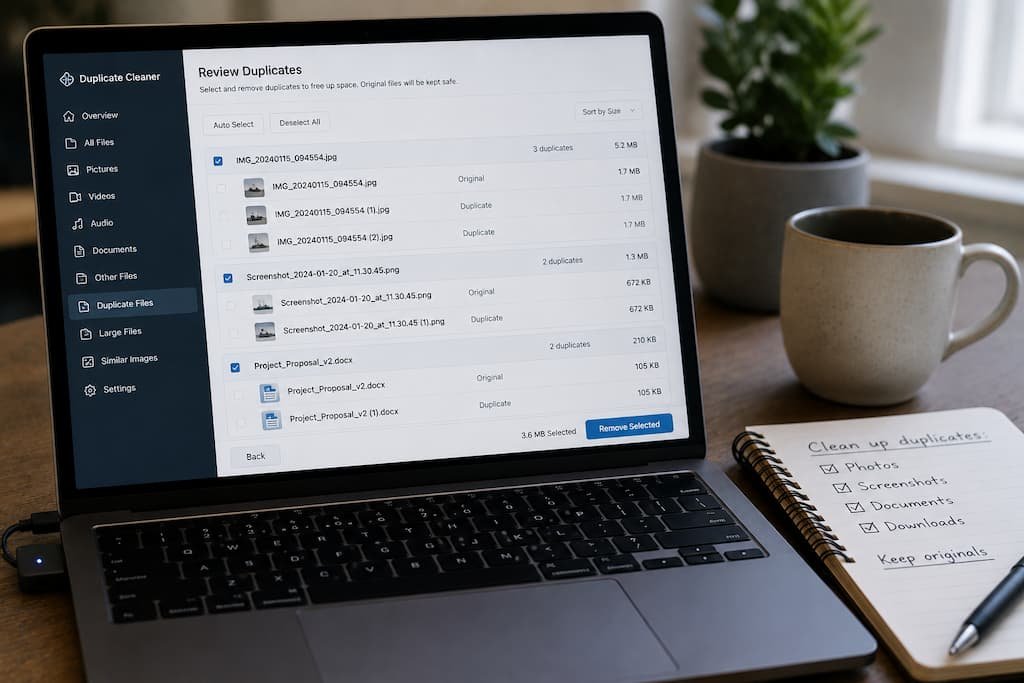
Imagine spending an entire weekend organizing your photo library. You finally remove hundreds of “duplicate” images, empty the Recycle Bin, and feel satisfied that you’ve recovered nearly 40GB of storage. A few days later, you open an old project only to realize the original RAW photos are gone, while the smaller edited JPEG versions are still there. Nothing was technically broken—you simply deleted files that looked identical but served entirely different purposes.
That’s a surprisingly common mistake. Duplicate files aren’t always useless copies, and software can’t always understand the difference between two files that look the same to you but play different roles in your workflow. Whether you’re managing family photos, work documents, music collections, or years of downloaded files, deleting duplicates safely is less about finding them and more about knowing which ones deserve a second look.
This guide isn’t about cleaning your drive as quickly as possible. It’s about building enough confidence that when you finally press Delete, you know you’re removing clutter—not something you’ll wish you had kept.
The Biggest Myth About Duplicate Files
Ask someone what a duplicate file is, and they’ll usually say, “Two files that are exactly the same.” That’s true in theory, but Windows doesn’t always work that neatly.
Two files can share the same name while containing entirely different data. Likewise, two files can have different names yet be perfect duplicates because one was renamed after being copied. Relying solely on filenames is one of the easiest ways to make mistakes, especially if you’ve moved files between external drives, cloud storage, or multiple computers over the years.
Here’s a simple comparison that illustrates the difference:
| Looks Like a Duplicate? | Actually Safe to Delete? | Why |
|---|---|---|
| Same filename, different file size | ❌ Usually not | They likely contain different content. |
| Different filename, identical content | ✅ Often yes | The data may be exactly the same. |
| Photo.jpg and Photo (1).jpg | ⚠ Maybe | Compare both before deciding. |
| Backup copies in another folder | ❌ Usually not | They’re often your only recovery option. |
| Cloud sync conflicts | ⚠ Depends | One version may contain newer changes. |
A reliable duplicate finder compares more than names. It looks at file size, modification dates, and often, a unique digital fingerprint known as a hash. That fingerprint is one of the safest ways to confirm two files are truly identical.
Windows Creates Copies More Often Than You Think
Not every duplicate appears because you accidentally copied a folder. Windows, applications, and cloud services regularly create additional versions of files for perfectly legitimate reasons.
Take Microsoft Office as an example. If you’re editing a document stored in OneDrive and your internet connection briefly drops, Office may create a temporary copy while trying to preserve your work. Most of these files disappear automatically, but occasionally they remain behind after an unexpected shutdown.
Photo editing software behaves similarly. Programs like Adobe Lightroom or Affinity Photo often generate preview files, exported images, and backup catalogs. At first glance they seem redundant, but each serves a different purpose. Deleting the wrong one might not erase your original image, but it could remove edits you’ve spent hours making.
That’s why experienced users rarely ask, “Is this a duplicate?” Instead, they ask, “Why does this copy exist?” Understanding its purpose is far more valuable than simply knowing there are two versions.
Some “Duplicates” Are Actually Part of Your Backup Strategy
One of the easiest ways to lose important files is by cleaning up without thinking about your backup system. If you regularly copy family photos to an external hard drive or store project folders in two different locations, you’ll naturally have duplicates—and that’s precisely what you want.
I’ve seen people scan both their computer and backup drive with a duplicate finder and then delete every matching file from one location because the software labeled them as redundant. Unfortunately, they had just removed the backup that was protecting them against drive failure.
Before deleting anything, ask yourself where the file came from. If it’s stored in a backup folder, on a NAS device, or on an external drive that exists solely for recovery purposes, leave it alone. Saving a few gigabytes isn’t worth compromising your backup plan.
Quick Check: If deleting a file would leave you with only one remaining copy, pause for a moment. That file may not be clutter—it may be your safety net.
Don’t Trust Every Duplicate Finder the Same Way
Search online for duplicate file software and you’ll find dozens of applications claiming they can recover hundreds of gigabytes with a single scan. Some are genuinely useful, while others prioritize speed over accuracy or overwhelm you with results that require careful interpretation.
The biggest difference between a good duplicate finder and a mediocre one isn’t how fast it scans—it’s how much information it gives you before deleting anything. A trustworthy tool lets you compare file locations, preview images, inspect file sizes, and verify matches before taking action. If a program immediately encourages one-click deletion without showing enough context, that’s a sign to slow down.
Another feature worth looking for is the ability to exclude specific folders. System directories, cloud storage caches, application data, and backup locations generally shouldn’t be scanned unless you have a very specific reason. Excluding these areas not only speeds up the scan but also reduces the risk of accidentally deleting files that software expects to find.
[Insert screenshot: Duplicate finder showing file preview and comparison options.
Start With the Places That Usually Collect Duplicates
Scanning an entire drive sounds thorough, but it’s rarely the smartest approach. Most duplicate files accumulate in a handful of predictable locations, and starting there keeps the results manageable.
The downloads folder is usually the first place I’d check. It’s common to download the same installer more than once, save multiple copies of PDF manuals, or keep ZIP archives long after extracting them. Desktop folders are another frequent source, especially if you temporarily copied files while working on a project and never cleaned them up afterward.
Photo collections deserve special attention because they often contain edited versions alongside originals. A folder full of vacation pictures may include RAW files from your camera, JPEG exports for sharing, resized images for social media, and compressed copies sent through messaging apps. They may look almost identical when viewed as thumbnails, but deleting the wrong version could remove the highest-quality original you still have.
File Hashes: The Detail Most People Never Hear About
When duplicate finder software says two files are identical, it’s usually referring to something called a hash. Think of a hash as a digital fingerprint generated from the contents of a file. If even a single pixel changes in a photo or you edit one word in a document, the hash changes as well.
This is why hashes are far more reliable than filenames. You can rename a file ten different times and move it into five different folders, but if the content hasn’t changed, the hash remains the same. Conversely, two files with identical names but different contents will have entirely different hashes.
You don’t need to calculate hashes manually for everyday file management, but it’s useful to know that reputable duplicate finders use this technique in the background. It’s one of the main reasons they’re able to distinguish genuine duplicates from files that merely look similar.
Photos, Videos, and Documents Need Different Rules
One mistake I see repeatedly is treating every file type the same. Duplicate detection works well for downloaded installers or copied PDFs, but personal photos, edited videos, and work documents deserve a more careful approach because they often exist in multiple versions for a reason.
Take a smartphone photo as an example. You might have the original image from your phone, an edited version with color adjustments, a resized copy for social media, and another copy automatically uploaded to cloud storage. At a glance they appear identical, yet each serves a different purpose. Deleting the original means losing the highest-quality version, while deleting the edited image could remove changes that can’t easily be recreated.
The same applies to work documents. It’s common to keep files such as Proposal_Final.docx, Proposal_Client.docx, and Proposal_Final_v2.docx. The filenames may look messy, but they often represent different stages of a project. Before deleting document “duplicates,” compare the modification date and, if possible, open both versions. A few extra seconds can prevent hours of trying to recover missing work.
Don’t Ignore File Dates and Folder Locations
If I had to choose one habit that prevents the most accidental deletions, it would be checking where a file is stored before deciding whether it’s redundant.
Imagine finding two identical PDF files. One is in your Downloads folder, while the other is neatly organized inside your Documents folder with the rest of your project files. Even if both files are identical, deleting the organized copy simply because it appeared first in the scan isn’t a wise decision. Folder location often tells you more about a file’s purpose than its name ever could.
Modification dates also provide valuable context. If two files have the same name but one was updated yesterday and the other hasn’t changed in three years, there’s a good chance the newer version contains revisions that haven’t been copied elsewhere. Good duplicate management isn’t about removing every matching file—it’s about understanding which copy should become your primary version.
[Insert screenshot: File Explorer showing Date Modified and Folder Path columns]
A Safe Workflow That Minimizes Mistakes
After testing several duplicate-finding tools over the years, I’ve found that the safest approach is surprisingly simple. Instead of scanning everything and deleting immediately, work through the process in small, manageable steps.
- Scan one folder at a time. Start with Downloads, Desktop, or a specific media library instead of your entire drive.
- Review the results manually. Pay attention to folder paths, file dates, and file sizes before selecting anything for deletion.
- Preview photos and documents. Most duplicate finders include preview options—use them whenever possible.
- Please move files to the Recycle Bin first. Avoid permanent deletion until you’ve confirmed everything still works.
- Wait a few days. If you don’t notice anything missing, empty the Recycle Bin and reclaim the storage permanently.
This approach takes a little longer, but it dramatically reduces the chance of deleting something important. Saving twenty minutes isn’t worth losing years of photos or project files.
When Duplicate Finder Software Gets It Wrong
No matter how advanced a duplicate finder claims to be, it doesn’t understand your workflow. It only compares technical details such as file size, names, hashes, and metadata. That means it can’t tell whether one photo has sentimental value, whether a document is part of an active project, or whether two identical videos belong in different client folders.
Cloud storage services add another layer of complexity. If OneDrive or Google Drive encounters synchronization conflicts, it may create files with names like “Filename (Conflicted Copy)” or “Filename-ComputerName.” These aren’t random duplicates—they’re Windows’ way of preventing data loss when two versions of the same file were edited separately.
Another situation involves exported media. Video editors often produce several versions of the same project: a high-bitrate master file, a compressed version for email, a vertical version for social media, and another optimized for YouTube. A duplicate finder may report some of these as similar, but deleting the wrong one can mean recreating exports that took hours to render.
Duplicate Files Aren’t Always the Biggest Storage Problem
Many people begin searching for duplicates because they’re running out of disk space. Ironically, duplicate files are often only a small part of the problem.
On several Windows PCs I’ve cleaned up, far more storage was recovered by removing forgotten ISO files, uninstalling unused software, clearing temporary Windows update files, and deleting old video exports than by removing actual duplicates. That doesn’t mean duplicate cleanup isn’t worthwhile—it simply means it’s one piece of a larger storage management strategy.
If your SSD is almost full, take a quick look at these areas before assuming duplicates are to blame:
| Storage Area | Worth Checking? | Why |
|---|---|---|
| Downloads Folder | ✅ Yes | Often contains repeated installers and archives. |
| Temporary Files | ✅ Yes | Windows may be holding update leftovers. |
| Video Export Folders | ✅ Yes | Large rendered files accumulate quickly. |
| Cloud Storage | ✅ Yes | Offline copies can consume significant space. |
| Duplicate Photos | ⚠ Sometimes | Review carefully before deleting. |
| Backup Drives | ❌ Usually No | Matching files are often intentional backups. |
Looking at storage this way helps you recover more space while taking fewer risks.
Build Better Habits Instead of Repeating the Same Cleanup
Finding duplicates once is helpful, but preventing them from returning saves a lot more time over time. Most duplicate files are created because downloads are scattered across different folders, projects are copied instead of archived, or files are renamed without removing older versions.
A few simple habits make a noticeable difference. Keep active projects in one location instead of copying them across multiple folders. Archive completed work instead of leaving it on the Desktop. Review your Downloads folder every few weeks rather than once a year. If you use cloud storage, understand whether files are being synchronized, backed up, or both. Those small habits reduce clutter naturally, meaning you’ll rely on duplicate finder software less often.
It’s also worth creating a consistent naming system for documents and photos. Clear filenames and organized folders make it much easier to recognize genuine duplicates without depending entirely on software.
The Best Duplicate Finder Is Still Your Judgment
Duplicate finder software has become remarkably accurate, especially when it compares files using hashes instead of filenames alone. But even the most advanced tool can’t decide which copy matters most to you. It doesn’t know which photo contains the original camera data, which document is the final client version, or which folder serves as your backup.
The safest approach is to let software do what it’s best at—finding potential matches—while you make the final decision. Review the results carefully, delete in small batches, and always keep at least one verified copy of anything that’s difficult or impossible to replace.
Recovering storage should never come at the cost of losing valuable memories or important work. A careful cleanup might take a little longer, but it’s almost always faster than recovering files that you accidentally deleted. Once you treat duplicate finders as assistants rather than decision-makers, you’ll reclaim disk space with far more confidence and far fewer regrets.

Daniel Kareem is a digital productivity and technology writer focused on simplifying everyday tech use. He creates practical guides on online safety, device optimization, and efficient workflows. His approach centers on clear, step-by-step advice that helps users stay organized, secure, and productive. Through straightforward and realistic content, he aims to make technology easier to understand and more useful in daily life.