
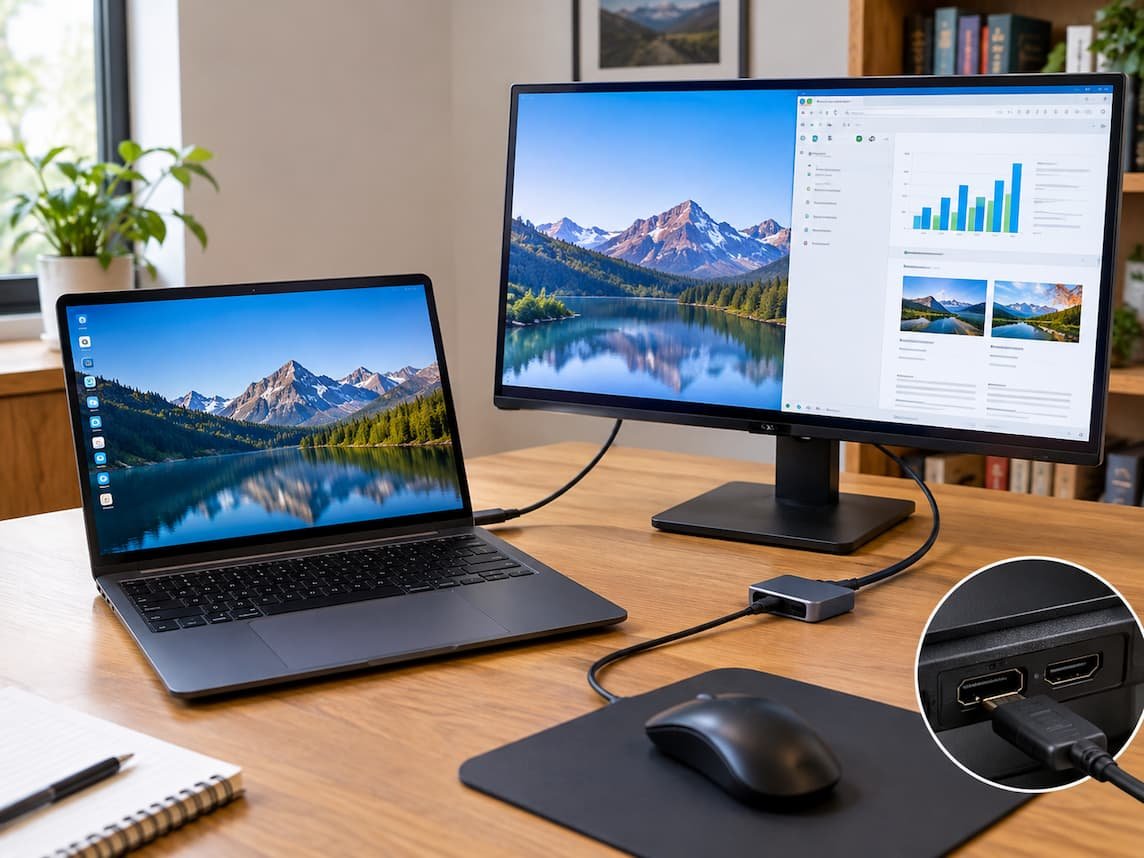
Adding a second monitor can make everyday computer work more comfortable. You can keep a document open on one screen while researching on another, attend a video meeting without hiding your notes, or move between applications without repeatedly switching windows. However, connecting an extra display involves more than plugging in a cable. The computer, monitor, connection method, and Windows display settings must all work together. This guide walks through the complete setup process, from checking hardware compatibility to arranging your screens and resolving common display problems. The instructions primarily cover Windows 11, with relevant differences for Windows 10.
Step 1: Check Your Computer and Monitor Before Connecting
Before purchasing a cable or adapter, identify the connections available on both devices. Look at the back or side of your monitor. Common video inputs include HDMI, DisplayPort, and USB-C. Some monitors have several inputs, while others offer only one or two. The labels beside the ports usually identify their types.
Next, inspect your computer. A desktop PC may have video outputs on a graphics card or motherboard, while a laptop commonly has HDMI, USB-C, or Thunderbolt connections. On a desktop, use the outputs that are appropriate for your installed graphics hardware. A motherboard video port may not work if the processor or system configuration does not support it. Write down the available connections on both devices. For example, a laptop with an HDMI output and a monitor with an HDMI input may be connectable with a standard HDMI cable. If the monitor has DisplayPort but the laptop only offers HDMI, the connection requires a compatible solution for those particular interfaces.
Understand What Each Connection Supports
The connector’s shape is only the starting point. The actual video capabilities depend on the hardware and supported connection standards.
- HDMI: Common on laptops, desktops, televisions, and monitors. Supported resolution and refresh rate depend on the HDMI versions and capabilities of the devices and cable.
- DisplayPort: Frequently used with desktop monitors and graphics cards. Supported resolutions, refresh rates, and multi-display features vary by implementation.
- USB-C: A compact connector that may carry data, power, and video. A USB-C port does not automatically support video output. The computer must support a suitable video feature, such as DisplayPort Alternate Mode, or a compatible display solution.
- Adapters: These connect different interface types, but compatibility is not guaranteed by the connector shape alone. For example, converting HDMI to DisplayPort may require an active adapter, depending on the direction and devices involved.
A USB-C dock may also support external displays, but its capabilities depend on the computer, dock design, drivers, and connection technology. Some docks use DisplayLink technology, which relies on software and a compatible USB connection rather than simply passing through a native video signal. Check the computer manufacturer’s specifications for the exact model and port. This is especially important when you want a high-resolution monitor, a high refresh rate, or multiple external displays.
Step 2: Confirm How Many Displays Your Computer Supports
Do not assume that a laptop can drive two external monitors simply because it has two physical video-capable ports. Graphics hardware and manufacturer restrictions can limit the number of displays that operate simultaneously. Some laptops support one external monitor, while others support two or more. Certain systems can run multiple monitors only through particular ports or compatible docks. The supported resolution and refresh rate may also change when several displays are connected. A computer that drives one monitor at a high refresh rate might offer lower settings when additional displays are attached.
To check compatibility:
- Find the full model number of your laptop, desktop, or graphics card.
- Open the manufacturer’s specifications or support documentation.
- Look for the maximum supported external display count.
- Check the supported resolution and refresh rate for the connection you intend to use.
- If using a dock, confirm that it supports your computer and the number of displays you want.
For example, a laptop might support its built-in screen and one external monitor through HDMI. Connecting a second external monitor to a USB-C dock will not necessarily make three active displays possible. The laptop’s graphics capabilities and the dock’s technology determine whether that arrangement works. Confirming these details early can prevent unnecessary spending on adapters or docks that cannot deliver the intended setup.
Step 3: Connect the Monitor and Select Its Input
Once you have confirmed compatibility, connect the equipment.
- Place the monitor on a stable desk, leaving enough space for its stand and cables.
- Connect the monitor’s power cable and switch it on.
- Connect the video cable to the computer’s supported output and the monitor’s matching input.
- Make sure both ends of the cable are firmly seated.
- Use the monitor’s physical buttons or on-screen menu to select the input corresponding to the connected cable.
For example, if an HDMI cable connects your laptop to the monitor’s HDMI 1 input, select HDMI 1 in the monitor menu. Some monitors automatically detect the active input, but others may remain on a different source.
Give the monitor a few seconds to establish a signal. If the screen remains blank, check the monitor’s power indicator and input selection before changing Windows settings. Avoid forcing connectors into ports. If the plug does not fit naturally, check that you have identified the correct interface.
Step 4: Find the Second Display in Windows
After connecting the monitor, open Windows display settings. In Windows 11, right-click an empty area of the desktop and select Display settings. You can also open Settings, select System, and then choose Display. Windows may show numbered rectangles representing the available displays. Select Identify to display a number on each physical screen. This helps you distinguish the laptop screen from the external monitor.
If both displays appear, Windows recognises them, and you can proceed to configuration. If the external monitor does not appear, expand the Multiple Displays section and select Detect if that option is available. You can also disconnect and reconnect the cable after checking the monitor’s selected input.
In Windows 10, the process is similar: right-click the desktop, select Display settings, and look for the Identify and Detect controls. If Windows still cannot find the monitor, do not immediately assume that the display is faulty. A connection problem, unsupported port, incompatible adapter, or graphics limitation may prevent detection.
Step 5: Choose the Right Display Mode
Windows provides different ways to use connected screens. The correct mode depends on whether you want more workspace or the same image on multiple displays. Open Display settings and locate the section for multiple displays. Depending on your Windows version and connected hardware, you can choose from the following arrangements.
Extend These Displays
Extend creates a larger desktop across multiple screens. You can place a browser on one display and a document on the other, then move the pointer and windows between them. This is generally the most useful option for everyday productivity. It gives each monitor its own workspace rather than showing identical content everywhere.
Duplicate These Displays
Duplicate shows the same desktop on both screens. This is useful when presenting information to someone sitting nearby or mirroring a laptop screen onto a larger monitor. The available resolution and refresh rate may be restricted by the capabilities shared by both displays. A laptop screen and an external monitor may have different native resolutions, so duplicated output might not look equally sharp on both.
Show Only One Display
Windows can also show content on just one screen.
- Show only on 1 uses display 1 and turn off the desktop output on the other screen.
- Show only on 2 uses; display 2 and turn off the desktop output on the first screen.
The numbering depends on the system’s display arrangement. Identify the displays before choosing one. You can switch between common projection modes by pressing Windows + P. The projection panel offers options such as PC screen only, duplicate, extend, and second screen only.
Step 6: Arrange the Screens So the Pointer Moves Naturally
When using extended mode, the positions of the numbered rectangles in Windows should match the physical positions of your monitors. Suppose your laptop sits to the left of an external monitor. In Display settings, drag the rectangle representing the external monitor to the right of the laptop’s rectangle. Select Apply when prompted. If the external monitor is physically above, below, or slightly offset from the laptop, arrange the rectangles accordingly.
This step matters because Windows uses the on-screen arrangement to determine where the pointer crosses from one display to another. If the rectangles are incorrectly positioned, moving the pointer toward the right edge of one physical screen may cause it to appear somewhere unexpected.
Move the rectangles until their edges line up reasonably well with the actual screens. Exact alignment is not always necessary, especially when the monitors have different sizes. After applying the arrangement, move the pointer across the shared edge. If the pointer crosses in the wrong place, return to Display settings and adjust the positions again.
Step 7: Set the Resolution and Scaling
A monitor can be detected and still look blurry, oversized, or uncomfortable to use. Resolution and scaling control different aspects of the display.
Choose the Native Resolution
Select the external monitor’s rectangle in Display settings and locate the Display resolution option. Windows normally marks the recommended resolution. This is usually the monitor’s native resolution, meaning the physical pixel dimensions it was designed to display.
For example, a monitor with a native resolution of 1920 × 1080 is designed to display 1,920 horizontal pixels and 1,080 vertical pixels. Running it at that resolution generally produces the sharpest text and images. A lower resolution may make interface elements appear larger, but it can also make text and images less crisp. Start with the recommended resolution and change it only if there is a specific reason.
If the expected resolution is missing, check the monitor’s specifications, cable or adapter capabilities, graphics driver, and connection method. Some combinations cannot deliver every resolution or refresh rate supported by the monitor.
Adjust Scaling for Comfortable Reading
Scaling changes the apparent size of text, icons, and application controls without necessarily changing the monitor’s resolution. For instance, a high-resolution screen may display small interface elements at 100% scaling. Increasing scaling can make everything easier to read while allowing the monitor to continue using its native resolution.
In Windows 11, select the display you want to adjust, then find the Scale option under Scale & layout. Choose a recommended value as your starting point.
Different monitors can use different scaling levels. This is helpful when a laptop screen is physically smaller and has a higher pixel density than the external monitor. If text looks blurry in one application after changing scaling, close and reopen that application. Some older programs do not handle scaling changes as smoothly as newer software.
Check the Refresh Rate
The refresh rate controls how often the display updates its image, measured in hertz (Hz). A higher supported refresh rate can make pointer movement and scrolling appear smoother. In Windows 11, select the display in Display settings, open Advanced display, and check the available refresh rates. Choose a value supported by the monitor and connection.
If a monitor advertises 144 Hz but Windows offers only 60 Hz, possible explanations include the cable or adapter, the selected resolution, a dock limitation, or the capabilities of the computer’s output. Do not assume that the monitor is defective.
Step 8: Choose Your Main Display and Finish the Layout
If you extend your desktop across two monitors, decide which one should be the primary display. In Display settings, select the monitor you want to use as the main screen and look for Make this my main display, where available. The main display is generally where Windows places the taskbar’s primary arrangement and opens certain interface elements by default. Some applications remember the monitor on which they were last used, so not every window will always open on the primary display.
You can also adjust related options where supported, including display orientation and whether the taskbar appears across multiple screens. Portrait orientation can be useful for reading long documents, but check that the monitor stand allows the required rotation.
If you use a laptop with its lid closed, confirm that the laptop’s power and sleep settings allow the intended external-monitor arrangement. Closing the lid may otherwise put the computer to sleep. Apply your changes and spend a moment checking the entire workspace before moving on.
Troubleshooting Common Second-Monitor Problems
If the monitor is not working as expected, begin with simple checks before buying replacement equipment. Confirm that the display is powered on, the correct input is selected, and Windows is using the intended display mode.
| Problem | First check | Possible explanation |
|---|---|---|
| Monitor is not detected | Open Display settings and select Detect | Unsupported output, loose connection, adapter incompatibility, or graphics driver issue |
| Monitor says No Signal | Check the selected input and both cable ends | Wrong input source, disconnected cable, or no active video signal |
| Both screens show the same image | Open Multiple displays settings | Duplicate mode is selected instead of Extend |
| Monitor works at an unexpected resolution | Select the monitor and check Display resolution | Connection bandwidth, adapter limits, driver issues, or an unsupported display mode |
| Screen repeatedly disconnects | Reseat the cable and check the connection | Loose connector, unreliable cable, adapter or dock problem, or unstable connection |
| Second monitor remains blank through a dock | Test the supported direct connection if available | Dock limitations, missing software, incompatible video technology, or insufficient display support |
| Text looks blurry or too small | Check native resolution and scaling | Non-native resolution or unsuitable scaling settings |
| Pointer moves between screens incorrectly | Reposition the display rectangles | The Windows arrangement does not match the physical monitor positions |
If the Monitor Is Not Detected
First, verify that the monitor is switched on and set to the correct input. Then check that the cable is connected securely at both ends. If possible, connect the monitor directly to a supported computer output, temporarily bypassing the dock or adapter. If it works directly, the dock or adapter may be responsible. You can also test a known-compatible cable or try the monitor with another computer. Change one component at a time so you can identify which part affects the result.
If the Screen Is Blank or Keeps Disconnecting
A blank screen can mean the monitor is powered off, receiving no video signal, or receiving a signal it cannot display. Check its power indicator and on-screen menu. If the menu appears but the computer’s image does not, concentrate on the video connection and source selection.
For repeated disconnections, inspect the connectors for looseness and make sure any dock or adapter is securely connected. If the problem occurs only through one adapter, that adapter may not support the required connection mode or bandwidth.
Avoid assuming that every USB-C port supports video. Consult the computer specifications to confirm whether the port supports a suitable display feature. If it does not, a standard USB-C-to-HDMI cable may not work as intended. A compatible alternative might require a different computer output or a supported display adapter or dock.
If the Resolution or Refresh Rate Is Wrong
Check the monitor’s recommended resolution and supported refresh rates first. Then inspect Windows Advanced display settings. If the expected options remain unavailable, verify the specifications of the computer output, cable, adapter, and dock. The weakest link in the connection can limit the available modes. Updating the graphics driver from the computer or graphics manufacturer’s official support source may help when the hardware should support the missing option.
If the hardware does not support the intended resolution or refresh rate through that connection, changing Windows settings cannot remove the limitation.
Step 9: Test the Complete Setup
Once the screens are configured, perform a short test before relying on the arrangement for work.
- Check both displays: Confirm that each screen shows a stable image without unexpected blanking.
- Test pointer movement: Move the pointer across every shared edge and confirm that it enters the neighboring display naturally.
- Move an application: Drag a browser or document window from one monitor to the other. Confirm that the window remains visible and behaves as expected.
- Verify the display mode: Make sure the screens extend, duplicate, or operate individually according to your preference.
- Check clarity: Read a few lines of text on each monitor and confirm that the resolution and scaling are comfortable.
- Check smoothness: Scroll a page and move a window to see whether the selected refresh rate feels appropriate.
- Reconnect if necessary: If you normally use a dock or frequently disconnect the laptop, check that the display arrangement returns correctly after reconnecting.
If everything works during this test, your second monitor is ready for regular use.
Final Setup Checklist
- Confirmed that the computer supports the intended display arrangement.
- Matched the computer output, monitor input, and connection method.
- Selected the correct monitor input source.
- Detected both displays in Windows.
- Chosen the correct display mode and screen arrangement.
- Set the recommended resolution, suitable scaling, and supported refresh rate.
- Tested pointer movement, application placement, and connection stability.
FAQs
1. Can I use two external monitors with any laptop?
No. The maximum number of supported displays depends on the laptop’s graphics hardware, manufacturer restrictions, available ports, and connection method. Check the specifications for your exact model.
2. Why does my USB-C port not display anything on the monitor?
Not every USB-C port supports video output. The computer must support a compatible video feature or display technology, and the cable or adapter must work with that implementation.
3. Should I lower my monitor’s resolution to make text bigger?
Usually not. Keep the monitor at its recommended native resolution and adjust Windows scaling to enlarge text, icons, and interface elements while preserving sharpness.
4. Why does my second monitor show the same content as my laptop?
Windows may be set to Duplicate mode. Press Windows + P and select Extend if you want separate workspaces on the two screens.
5. Do I need a new cable if Windows does not detect my monitor?
Not necessarily. First check the monitor’s input selection, Windows display settings, cable connections, supported ports, and hardware compatibility. Replace or change the cable only when testing or specifications indicate that the existing connection may be the problem

Daniel Kareem is a digital productivity and technology writer focused on simplifying everyday tech use. He creates practical guides on online safety, device optimization, and efficient workflows. His approach centers on clear, step-by-step advice that helps users stay organized, secure, and productive. Through straightforward and realistic content, he aims to make technology easier to understand and more useful in daily life.