
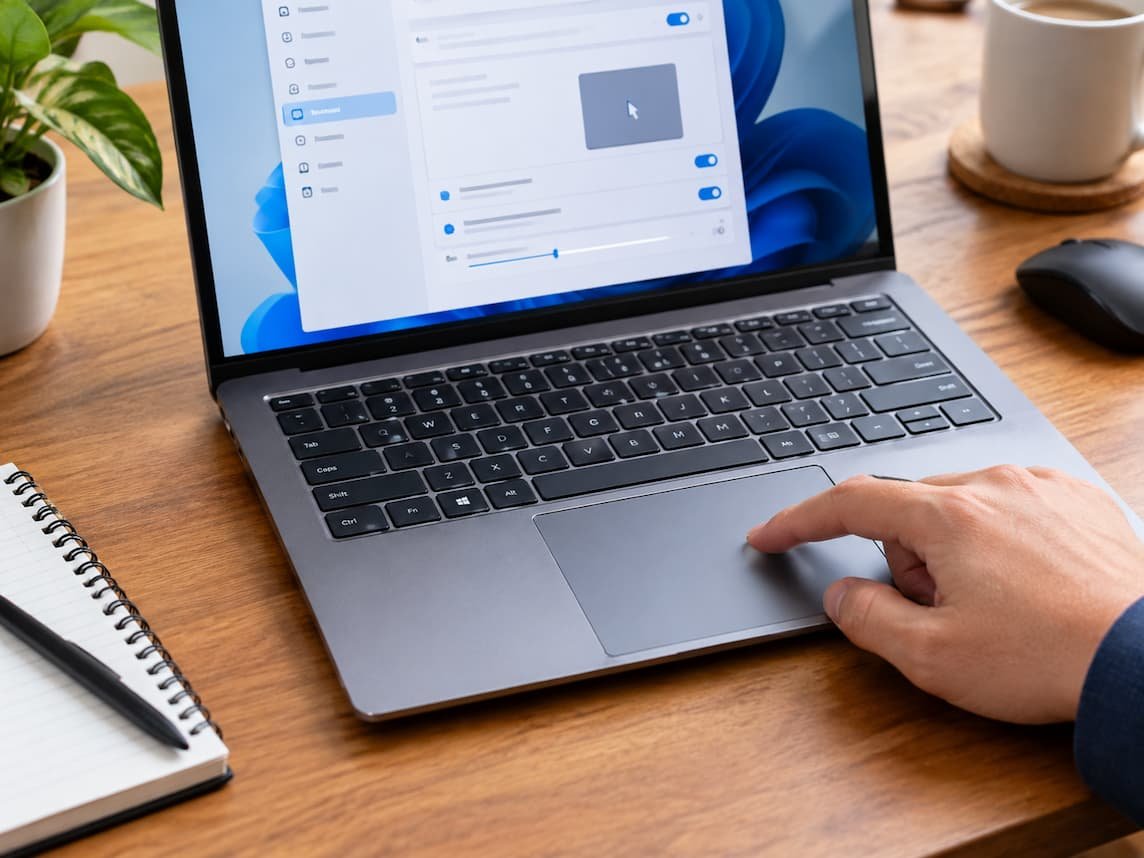
A laptop touchpad can behave unpredictably for several reasons. The pointer may jump across the screen while you type, move too quickly with small finger movements, ignore two-finger scrolling, or stop responding without warning. Although these symptoms can indicate a hardware problem, they can also result from sensitivity settings, accidental palm contact, disabled gestures, driver issues, dirt, moisture, or interference from another input device.
Replacing the touchpad without identifying the cause can lead to unnecessary expense. A setting that needs adjustment does not require new hardware, and a driver problem may be resolved through the laptop manufacturer’s supported software. The most useful approach is to identify exactly how the touchpad misbehaves, test the simplest possible explanation, and change one thing at a time. This makes it easier to recognise which adjustment helps and which symptoms require further investigation.
The instructions below primarily refer to Windows 11. Windows 10 uses some different menu names and locations, while individual laptop manufacturers may provide additional controls through their own applications. The settings available on your computer also depend on its touchpad hardware and driver.
Start by identifying the touchpad symptom.
Before changing settings, determine when the problem occurs and what the pointer actually does. A touchpad that jumps only during typing suggests a different cause from one that remains erratic when the laptop is sitting idle.
First, save your work and place the laptop on a stable surface. Make sure your hands are clean and dry, and remove anything resting against the touchpad. Move one finger slowly across its surface, then test clicking, tapping, and scrolling separately.
Notice whether the problem occurs consistently or only occasionally. Also consider whether it started after a Windows update, a manufacturer software update, a settings change, or the connection of a mouse. These observations provide a starting point for troubleshooting without introducing additional variables.
Clean and Dry the Touchpad Before Adjusting Settings
Dirt, skin oils, moisture, and residue can interfere with finger detection. If the touchpad registers unintended movement or misses some finger movements, check its physical surface before changing software settings. Shut down the laptop if necessary, then gently wipe the touchpad with a soft, lint-free cloth. If cleaning requires moisture, follow the laptop manufacturer’s instructions and avoid spraying liquid directly onto the device. Let the surface dry completely before testing it again.
Your hands should also be dry. Moisture or residue on your fingertips can make touch recognition less predictable. Retest the same movement that previously caused trouble. If the pointer becomes stable, contamination or moisture may have contributed to the problem. If the behaviour remains unchanged, continue to the relevant diagnostic check. Do not press hard on the touchpad, scrape its surface, or apply cleaning products that the manufacturer has not approved. Cleaning can address surface-related problems, but it will not correct a faulty sensor, damaged cable, or driver issue.
If the Pointer Jumps While You Type
Unexpected pointer movement during typing often results from accidental contact between your palm and the touchpad. This can happen when your hands rest near the keyboard’s lower edge, especially during long typing sessions.
Check Palm Rejection and Touchpad Sensitivity.
Palm rejection is the touchpad’s ability to distinguish intentional finger movements from accidental contact with your palm or other parts of your hand. When it works poorly, typing may cause the pointer to jump, text to become selected, or the insertion point to move unexpectedly. In Windows 11, open Settings and select Bluetooth & devices > Touchpad. Depending on the device, expand the Taps section and look for options controlling touchpad sensitivity or accidental touches.
If a sensitivity setting is available, try a less sensitive option. This may help the touchpad ignore light, unintended contact while still responding to deliberate finger movements. The exact labels and available choices vary by device. Test the same typing activity again. If the pointer no longer jumps, the adjustment may have addressed the problem. If intentional finger movements now fail to register reliably, the setting may be too restrictive. Choose a balanced option rather than assuming the lowest sensitivity is always best. If there is no suitable control, check the laptop manufacturer’s touchpad utility or documentation. Some devices manage palm rejection through hardware-specific software rather than exposing every control in Windows.
Determine Whether Typing Is the Only Trigger
Move the pointer without typing, then type while keeping your palms away from the touchpad as much as practical. If the pointer behaves normally during movement but jumps when your hands approach the touchpad, accidental contact becomes a stronger possibility. If the pointer jumps even when you are not typing, palm contact may not explain the entire problem. Continue by checking sensitivity, external devices, and driver behaviour.
If Pointer Movement Is Uneven or Too Sensitive
A touchpad that responds to the slightest movement may have a sensitivity setting that is too high for your preferences. However, uneven movement can also result from an inconsistent finger position, surface contamination, or a driver problem.
Adjust Pointer Speed and Sensitivity Separately
Pointer speed controls how far the pointer travels in response to finger movement. Touchpad sensitivity determines how readily the device registers contact. They are related in everyday use, but they do not serve exactly the same purpose. Open Settings > Bluetooth & devices > Touchpad in Windows 11. Look for the sensitivity and cursor-speed controls available on your laptop.
If small finger movements send the pointer too far, reduce the available pointer speed gradually. If light or unintended touches trigger movement, adjust sensitivity instead. Avoid changing both settings repeatedly at once, because you may not know which change affected the result.
Move one finger slowly across the touchpad several times, then try faster movements and precise positioning. If movement becomes easier to control, keep the adjustment. If the pointer still skips, pauses, or changes direction unexpectedly, investigate whether the issue occurs across different applications and after a restart. A sensitivity adjustment should not be treated as a repair for persistent, unexplained jumps. If movement remains irregular despite clean hands and a dry surface, the cause may lie elsewhere.
If Two-Finger Scrolling or Other Gestures Stop Working
Touchpads commonly support gestures such as two-finger scrolling, two-finger tapping, and multi-finger actions. These features allow users to scroll pages, open context menus, or perform other tasks without separate mouse buttons. A gesture can stop working even when ordinary pointer movement remains normal. This distinction matters because it suggests that the entire touchpad has not necessarily stopped functioning.
Check Scrolling and Gesture Settings.
Open Settings > Bluetooth & devices > Touchpad. Review the sections for scrolling, zooming, and three- or four-finger gestures, where available. Make sure the desired gesture is enabled. For two-finger scrolling, check whether the relevant scrolling option is available and switched on. For other gestures, review the assigned actions and make sure they match what you expect to happen.
Test the gesture in a suitable application. For example, use two fingers to scroll a long webpage. If the gesture works in one application but not another, the application may handle input differently rather than the touchpad being defective. If pointer movement works but several gestures have disappeared, check whether the settings changed after a Windows update or driver installation. Some manufacturer-specific controls may also be available through a supported touchpad utility. If the required gesture options are missing entirely, that does not automatically mean the hardware is damaged. The touchpad model, installed driver, and supported gesture features may limit what Windows can display.
If Taps or Clicks Behave Inconsistently
A touchpad may move the pointer normally while tapping fails, produce unexpected selections, or behave differently from pressing the physical touchpad surface. Start by distinguishing between a tap and a physical click. Tap-to-click registers a light touch as a click, whereas a physical click usually involves pressing the touchpad mechanism. These actions may use different controls and behave differently depending on the hardware.
Test Tap-to-Click and Physical Clicking
In Windows 11, open Settings > Bluetooth & devices > Touchpad and examine the Taps section. If tap-to-click is available, check whether it is enabled. Try tapping once on an empty area, then click using the touchpad’s physical mechanism if your model supports it. Observe whether one method works consistently while the other fails.
If physical clicking works but tapping does not, the tap setting or touch-recognition behaviour deserves closer attention. If tapping works but physical clicking does not, the mechanical click mechanism may require further inspection. Also check whether the touchpad supports different click actions at different positions. Some models provide separate left- and right-click areas, while others use gestures or configurable controls. Do not force the touchpad to click if it feels unusually stiff, loose, raised, or physically damaged. Such symptoms require a different approach from ordinary settings adjustments.
If the Touchpad Stops Working After a Restart or Update
A touchpad that stops responding after restarting the laptop, installing an update, or changing settings may be affected by a temporary software problem, a disabled device, or a driver issue.
Check Whether the Touchpad Is Enabled
Open the Windows touchpad settings and look for the main touchpad enablement control. If it is switched off, enable it and test pointer movement. Some laptops also have a dedicated keyboard key or function-key combination that disables the touchpad. The symbol and key combination differ by manufacturer, so consult the laptop’s documentation rather than assuming a particular key will work.
If the touchpad setting is unavailable or the device is not detected, open Device Manager by searching for it from the Windows taskbar. Examine the available pointing-device entries, which may be listed under categories such as Human Interface Devices or Mice and other pointing devices. Names vary by hardware and driver. Do not disable, uninstall, or change unrelated devices simply because their names appear unfamiliar.
Restart Before Making Further Changes
If the touchpad is enabled but still unresponsive, restart Windows and test it again. A restart can clear a temporary problem, although it does not establish that the underlying cause has been resolved. If the problem began immediately after a Windows or driver update, check Windows Update and the laptop manufacturer’s support resources for relevant guidance. If Device Manager offers a driver rollback option for the affected device, it may be appropriate when a problem began after a recent driver change.
Driver rollback is not available on every system. Likewise, reinstalling a driver is not always necessary and should not be the first response to every touchpad problem. Obtain drivers only through Windows Update, the laptop manufacturer’s official support website, or another source explicitly recommended by the manufacturer. Avoid random driver-download websites and tools that promise to repair every device automatically.
If the Problem Appears Only When a Mouse Is Connected
Some laptops have settings that change touchpad behavior when an external mouse is attached. Depending on the device, Windows or manufacturer software may disable the touchpad automatically or alter how both pointing devices operate. Disconnect any external mouse or unnecessary input devices, then test the touchpad on its own. If the touchpad becomes reliable, reconnect the devices one at a time to identify which connection coincides with the problem.
Next, review the touchpad settings for an option controlling whether the touchpad remains enabled when a mouse is connected. The wording and availability of this option vary between Windows versions and laptop models. If the touchpad works reliably when the mouse is disconnected but becomes unavailable when the mouse is attached, an intentional setting may explain the behavior. If the pointer becomes erratic only when both devices are active, check for conflicting input settings or manufacturer-specific controls. If disconnecting the mouse makes no difference, do not assume the mouse is responsible simply because it is connected. Continue testing the touchpad independently.
Diagnostic Table: Match the Symptom to the First Check
Use the table below to select the most relevant starting point. These results suggest possible explanations rather than proving a specific cause.
| Symptom | First Check | What the Result May Indicate |
|---|---|---|
| Pointer jumps while typing | Review touchpad sensitivity and palm contact | Accidental palm contact or overly sensitive detection |
| Pointer moves too far with small finger movements | Adjust pointer speed gradually | Pointer-speed settings may be unsuitable |
| Pointer skips or changes direction unexpectedly | Clean and dry the surface, then repeat the movement | Surface contamination or a problem requiring further diagnosis |
| Two-finger scrolling stops working | Check scrolling and gesture settings | A disabled gesture or configuration change |
| Taps fail but pointer movement works | Check tap-to-click settings | Tap configuration or touch-recognition behavior |
| Physical clicks feel abnormal | Inspect the touchpad without forcing it | Possible mechanical wear or damage |
| Touchpad stops after an update | Check enablement and supported driver guidance | A setting change, temporary software issue, or driver problem |
| Touchpad works only when the mouse is disconnected | Review mouse-related touchpad settings | An intentional disablement rule or input-device interaction |
| Pointer moves without deliberate contact | Disconnect external devices and repeat the test | Unintended contact, input interference, or a possible device fault |
| Touchpad remains erratic across settings and applications | Test after a restart and review manufacturer guidance | A persistent software, sensor, connection, or hardware problem |
If the Basic Checks Do Not Resolve the Problem
When settings appear correct, the next step is to determine whether the issue is limited to a particular application, follows a recent software change, or persists throughout normal Windows use.
Test the Touchpad Across Different Conditions
Try moving the pointer on the desktop, within a settings window, and in a familiar application. Test ordinary movement, tapping, clicking, and scrolling separately. If the problem occurs in only one application, investigate that application’s behavior before changing system-wide settings. If the same problem occurs everywhere, a broader touchpad configuration or device issue becomes more plausible.
Restart the laptop and repeat the same tests. If the symptom returns immediately, note whether it appears before or after signing in and whether it began after a specific update. These observations can help support staff narrow down the cause.
If the laptop manufacturer provides an approved hardware diagnostic utility or touchpad test, follow its instructions. You can also use Microsoft’s official Windows support resources for relevant troubleshooting guidance. The exact built-in troubleshooting options available depend on your Windows version and device. Do not begin with registry edits, unfamiliar diagnostic commands, or broad driver-removal procedures. Such changes can create additional problems and make it harder to identify the original fault.
When Professional Repair or Replacement Becomes Reasonable
Settings and driver checks can resolve many touchpad problems, but they cannot repair every physical fault. Professional inspection becomes reasonable when symptoms persist after appropriate software checks or when the touchpad shows signs of physical damage.
Look for the following warning signs:
- The touchpad is visibly cracked, loose, or physically damaged.
- Clicking becomes unusually stiff, uneven, or impossible.
- The touchpad surface appears raised or the laptop’s case is bulging.
- Pointer movement remains erratic despite cleaning, suitable settings, and supported driver troubleshooting.
- The device repeatedly disappears from Windows or is not detected after the manufacturer’s recommended checks.
A raised touchpad or bulging laptop case may indicate a swollen battery. Stop using and charging the laptop if you suspect battery swelling, and seek qualified service. Do not press the surface down or attempt to open the battery compartment yourself. Persistent problems can also result from a loose internal connection, a damaged touchpad, or a fault elsewhere in the input system. These possibilities cannot be confirmed from pointer behavior alone.
Before paying for replacement, ask a qualified technician to determine whether the fault lies in the touchpad itself, its connection, or related electronics. Depending on the laptop’s design, replacing the touchpad may involve additional components or more extensive disassembly. The repair cost and availability of parts should guide the final decision.
A Symptom-Based Action Plan
Choose the next step according to what the touchpad actually does:
- Jumps during typing: Check palm contact and sensitivity.
- Moves too quickly or unevenly: Clean the surface and adjust pointer speed or sensitivity separately.
- Loses scrolling or gestures: Review the available gesture settings.
- Misses taps or clicks: Test tap-to-click separately from physical clicking.
- Stops after an update or restart: Check enablement, restart, and review supported driver guidance.
- Misbehaves only with a mouse connected: Disconnect the mouse and review the relevant settings.
- Remains erratic everywhere: Repeat controlled tests and use the manufacturer’s supported diagnostic resources.
- Shows physical damage or a raised surface: Stop forcing the touchpad and seek qualified service.
The key is to change one setting at a time and repeat the same test after each adjustment. If the symptom disappears, you have useful evidence about its cause. If it persists, the results can help a technician distinguish a configuration problem from a driver fault or a hardware issue before you spend money on replacement.
FAQs
1. Can a Laptop Touchpad Become Less Accurate Over Time?
It can become less reliable because of surface wear, contamination, mechanical damage, or developing hardware faults. However, a change in behavior does not necessarily mean the touchpad has reached the end of its useful life. Clean the surface, review the settings, and compare the symptoms before deciding whether repair is necessary.
2. Why Does My Touchpad Work Intermittently Rather Than Failing Completely?
Intermittent behavior can have several explanations, including inconsistent finger detection, temporary software problems, driver issues, or an internal connection problem. Note whether the issue follows a particular action, restart, or connection change. Repeated patterns are more useful for diagnosis than an isolated failure.
3. Will Updating Windows Always Fix a Touchpad Problem?
No. An update may provide a relevant driver or correct a software issue, but it may also coincide with a configuration change or introduce a compatibility problem. Check the manufacturer’s guidance and the timing of the symptom before deciding which update-related action is appropriate.
4. Is It Safe to Disable and Re-Enable the Touchpad in Device Manager?
It can be appropriate when you have positively identified the touchpad device and understand how to restore it. However, disabling the wrong device may affect other input functions, and not every touchpad is listed under the same category. Check the manufacturer’s instructions first, particularly if the touchpad is your only available pointing device.
5. Should I Replace the Touchpad If an External Mouse Works Normally?
Not immediately. An external mouse working normally shows that you have another usable pointing device, but it does not prove the touchpad is defective. The touchpad may have a disabled setting, a driver problem, or a hardware fault. Complete the relevant checks before authorizing replacement.

Daniel Kareem is a digital productivity and technology writer focused on simplifying everyday tech use. He creates practical guides on online safety, device optimization, and efficient workflows. His approach centers on clear, step-by-step advice that helps users stay organized, secure, and productive. Through straightforward and realistic content, he aims to make technology easier to understand and more useful in daily life.