
A few years ago, I had a habit of installing almost every app that promised to make life easier. A faster PDF reader? Installed. A clipboard manager with AI features? Why not? A note-taking app everyone seemed to be talking about? Downloaded before I had even finished reading the reviews.
The result wasn’t a more productive computer. It was a system filled with overlapping tools, background services I didn’t remember approving, startup apps that quietly slowed boot times, and dozens of programs I opened once and never touched again. Removing them took far longer than installing them.
That experience changed the way I look at new software. Today, I rarely decide based on flashy features or marketing pages. Instead, I ask a series of practical questions that help me determine whether an app is genuinely solving a problem or simply adding another layer of digital clutter. Not every useful app deserves a place on your computer, and I’ve learned that saying no to a download is often the better decision.
I Start With the Problem, Not the App
When I come across a new application, the first thing I ask isn’t “Is this app good?” It’s “What problem am I actually trying to solve?” That question sounds simple, but it prevents many unnecessary installations.
For example, if I’m looking at a new screenshot utility, I stop and think about what I’m missing today. Is the built-in Windows Snipping Tool preventing me from getting work done, or am I simply curious because someone recommended another app? I’ve found that many downloads happen because an app looks impressive rather than because it fills a real gap. If I can’t clearly describe the problem before installing it, there’s a good chance I won’t use the app for very long.
Built-In Tools Have Improved More Than People Realize
One reason I install fewer applications today is that Windows, Android, and modern browsers already include tools that used to require third-party software. Years ago, I relied on separate applications for screen recording, clipboard history, archive management, PDF viewing, note-taking, and image editing. Today, many of those tasks are handled perfectly well by features already included with the operating system or browser.
That doesn’t mean third-party software has become unnecessary. It simply means I no longer assume another download is automatically better. Before installing anything, I spend a few minutes checking whether my existing tools already do the job. Quite often, they do.
Popular Doesn’t Always Mean Practical
Download numbers and five-star ratings can make an app look like an obvious choice, but I’ve learned not to let popularity make the decision for me. Some applications become popular because they’re genuinely excellent. Others become popular because they’ve been around for years, receive aggressive marketing, or offer features that sound more useful than they actually are.
Instead of looking only at ratings, I usually pay attention to questions like these:
- Has the app been updated recently?
- Does the developer clearly explain what’s changed?
- Are users discussing real improvements or only complaining about advertisements?
- Does the app still appear actively maintained?
A smaller application that’s updated regularly often inspires more confidence than a famous one that hasn’t received meaningful attention in a long time.
Every App Has a Cost Beyond Disk Space
Storage isn’t what worries me most anymore. Modern computers usually have enough capacity for another application, but every installation has other costs that are easier to overlook. Some apps automatically start with Windows. Others install background services, schedule update checks, add right-click menu entries, create browser extensions, or display notifications throughout the day.
None of those changes are necessarily bad. The problem is that they accumulate. One application might add only a tiny background process. Install twenty similar apps over a couple of years, and suddenly your computer is doing far more work than you realize before you’ve even opened your first program. That’s why I don’t just ask what an app can do. I also ask what it will continue doing after I close it.
I Read the Feature List Backwards
This habit has saved me from installing a surprising number of unnecessary programs. Instead of getting excited by a long list of features, I look for the one or two functions I actually need.
If a note-taking application advertises AI assistants, team collaboration, whiteboards, templates, project management, calendar integration, and dozens of export options—but I simply want somewhere to write meeting notes—most of those features add complexity rather than value. Feature-rich software isn’t automatically better. Sometimes it’s simply solving problems you don’t have. The more closely an application’s core purpose matches my actual needs, the more likely I am to keep using it six months later.
I Think About Six Months From Now
Whenever I consider installing something new, I imagine what my computer will look like half a year later. Will this application become part of my daily workflow, or will it quietly sit unused until I eventually wonder why it’s still installed? This small mental exercise has become surprisingly effective because it shifts my attention away from today’s curiosity and toward long-term usefulness.
If I struggle to picture myself opening the app regularly, I usually postpone the installation rather than downloading it immediately. More often than not, I forget about it entirely—which tells me I probably didn’t need it in the first place.
Free Doesn’t Automatically Mean Low Cost
One of the easiest mistakes to make is assuming that because an application is free, there’s no downside to trying it. In reality, free software often asks for something else in return. That might be advertising, optional subscriptions, data collection, frequent upgrade prompts, or a constant stream of notifications encouraging you to unlock premium features.
I’m not opposed to free software. Some of the best tools I use every day cost nothing. What matters is understanding how the developer supports the application. If the business model is transparent and reasonable, that’s usually a positive sign. If it’s difficult to understand why the software is free, I spend a little more time researching before clicking Install.
The First Installation Isn’t the Real Test
Years ago, I judged applications based on my first impression. Now I pay much more attention to what happens after a few days of use. Some apps feel polished during the first five minutes but become frustrating once notifications begin appearing, background syncing starts consuming resources, or menus become more complicated than necessary.
Others make a much quieter first impression but gradually become indispensable because they stay out of the way and simply perform their job well. That experience has taught me not to rush into deciding whether software deserves a permanent place on my computer.
Questions I Always Ask Before Installing Anything
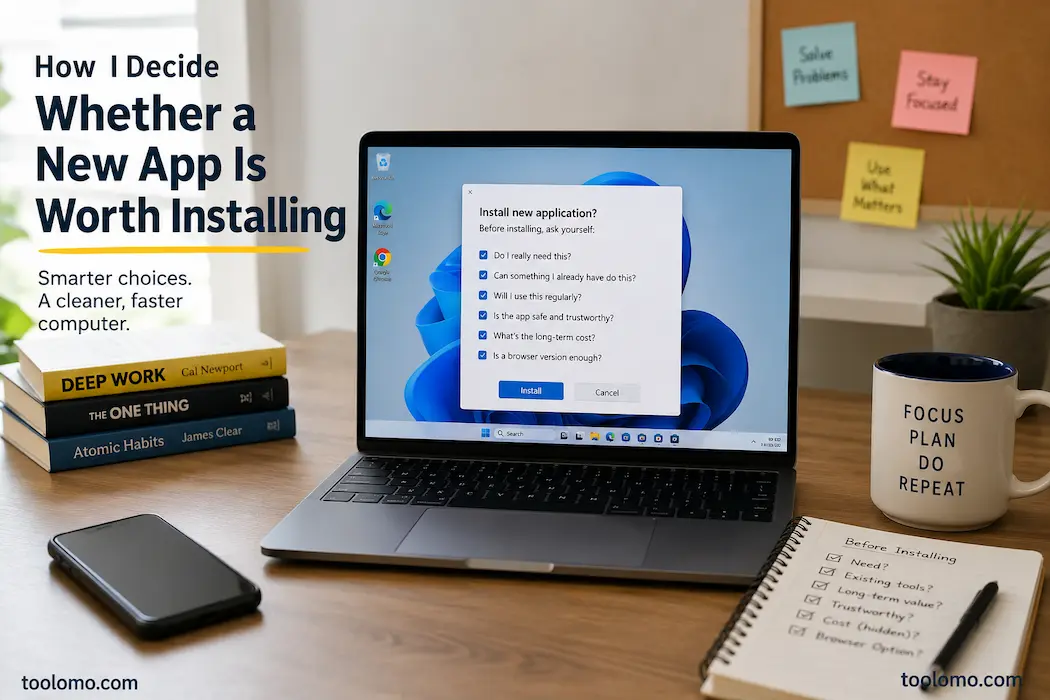
Instead of following a rigid checklist, I usually pause for a moment and ask myself a few practical questions:
- Am I solving a real problem or chasing a new feature?
- Can something I already have do this well enough?
- Will I probably use this next month?
- Does the app seem actively maintained?
- Will it add background services or startup tasks?
- Is there a browser version that would meet my needs without another installation?
These questions rarely take more than a minute to answer, but they’ve dramatically reduced the number of applications I end up uninstalling later.
Sometimes a Browser Is the Better App
Over the past few years, I’ve noticed that many desktop applications now have capable web versions. Email clients, document editors, task managers, design tools, PDF editors, and even lightweight photo editors often run perfectly well in a browser.
That doesn’t mean desktop software has become unnecessary. If I work with large files, need offline access, or depend on keyboard shortcuts throughout the day, a dedicated application usually makes more sense. But for tools I only use occasionally, opening a browser tab is often enough. Choosing the web version also has a practical advantage: there’s nothing new running in the background, no extra startup entries, and one less application to keep updated.
Permissions Matter, but Context Matters More
Many articles recommend checking app permissions first, and that’s certainly important. However, I’ve found that permissions make much more sense when viewed alongside the app’s purpose. For example, a video conferencing app requesting access to the microphone and camera is completely reasonable. A flashlight app asking for your contacts or precise location deserves a closer look.
Instead of reacting to every permission request, I ask whether it supports the feature I’m actually planning to use. If there’s no clear connection, I start asking more questions before proceeding. This approach keeps me focused on how the software behaves rather than simply counting the number of permissions it requests.
I Pay Attention to the First Week, Not the First Hour
An application often makes a strong first impression because everything is new. The interface feels modern, animations are smooth, and exploring features is genuinely enjoyable. The real evaluation begins after that excitement fades.
During the first week, I notice things that don’t appear on the installation page. Does the app interrupt my work with unnecessary notifications? Does it constantly ask me to upgrade? Has it quietly added itself to Windows startup? Does it stay responsive after extended use?
I’ve removed apps that looked excellent on day one simply because they became distracting during everyday work. On the other hand, some of my favorite tools made a fairly ordinary first impression but proved reliable month after month.
An App Should Fit Into My Workflow
One lesson I’ve learned is that even excellent software can be the wrong choice if it forces me to change the way I naturally work. A task manager might have outstanding collaboration features, but if I mainly keep personal to-do lists, that extra complexity slows me down. Likewise, a powerful image editor isn’t automatically better if I only need to crop screenshots a few times each week.
Rather than asking whether an application is objectively the best, I ask whether it fits naturally into the habits I already have. Software should reduce friction. If using it creates more decisions than it removes, it’s probably not the right tool for me.
I Keep an Eye on What Changes After Installation
One habit that’s become surprisingly useful is paying attention to what an installer changes beyond adding the application itself.
After installing something new, I usually check:
- Has it added itself to Windows startup?
- Did it install background services?
- Has the right-click menu become more crowded?
- Did it change my default browser or search engine?
- Has it added scheduled tasks or update services?
None of these changes automatically make an app bad. Many legitimate programs need update services or startup components. The important thing is that those changes should be expected and easy to understand—not hidden behind default installation options.
Uninstalling an App Isn’t a Failure
For a long time, I hesitated to uninstall software because I felt I hadn’t given it enough time. Now I see things differently. Trying an application for a few days and deciding it doesn’t improve my workflow is a perfectly successful outcome. It means I tested it, learned from the experience, and avoided carrying unnecessary software for the next several years.
In fact, I regularly review my installed applications every few months. If I can’t remember the last time I used something—or if another tool has replaced it—I remove it. Keeping a computer tidy isn’t just about freeing storage space. It’s also about reducing complexity.
The Apps I Keep Usually Share the Same Qualities
After looking through the software that has stayed on my computer the longest, I noticed an interesting pattern.
| Quality | Why It Matters |
|---|---|
| Reliable | I can depend on it without unexpected issues. |
| Well maintained | Updates improve the app instead of introducing confusion. |
| Doesn’t interrupt me | Minimal notifications and background activity. |
| Easy to learn | I don’t need to relearn the interface after every update. |
| Solves one problem well | Focused tools often age better than feature-heavy alternatives. |
Final Thoughts
The biggest change in my approach hasn’t been becoming more skeptical of new software. It’s becoming more selective about what deserves a permanent place on my devices.
Every application competes for attention, storage, updates, and a small part of your daily workflow. Installing something new should feel like inviting another tool into your workspace—not collecting another icon you’ll ignore after a week. I’ve found that asking a few practical questions before downloading anything leads to a cleaner, faster, and less distracting computer than constantly searching for the next “must-have” app.
FAQs
1. Should I avoid installing recently released applications?
Not necessarily. New software can be excellent, especially if it comes from reputable developers. I usually just wait a while to see how well the application is maintained, whether early issues get resolved, and what real users say about their long-term experiences.
2. Is it better to use desktop applications or web applications?
That depends on how often you use the tool. For frequent, intensive, or offline work, desktop applications are generally a better choice. Browser-based tools are often better suited for occasional tasks, as they don’t add extra installers to your system.
3. How many applications is too many?
There is no specific number. A computer with 50 frequently used applications installed might actually be more manageable than one with 20 programs that haven’t been opened in years. The most important thing is whether each application is still useful.
4. Should I remove applications I haven’t used recently?
If you haven’t used an application for months and have no clear reason to keep it, it is usually wise to remove it. If your needs change, you can usually reinstall the application later.
5. What are the most common mistakes people make before installing new software?
In my experience, people download an app because it looks good, not because it solves a real problem. Taking a moment before clicking ‘install’ can often save you from ending up with a lot of unnecessary software.
A Better Way to Build a Software Library
Over time, I’ve come to the conclusion that the goal isn’t to find every useful app out there, but to build a truly valuable library of tools. The best apps are often the ones you don’t have to pay attention to, because they quietly do their job without requiring constant monitoring.
The next time you consider installing new software, pause and ask yourself a simple question: Will it actually make my daily work easier six months from now? Or am I just excited to try something new? The answer often tells you—better than you might think—whether the download was truly worth it.

Daniel Kareem is a digital productivity and technology writer focused on simplifying everyday tech use. He creates practical guides on online safety, device optimization, and efficient workflows. His approach centers on clear, step-by-step advice that helps users stay organized, secure, and productive. Through straightforward and realistic content, he aims to make technology easier to understand and more useful in daily life.