
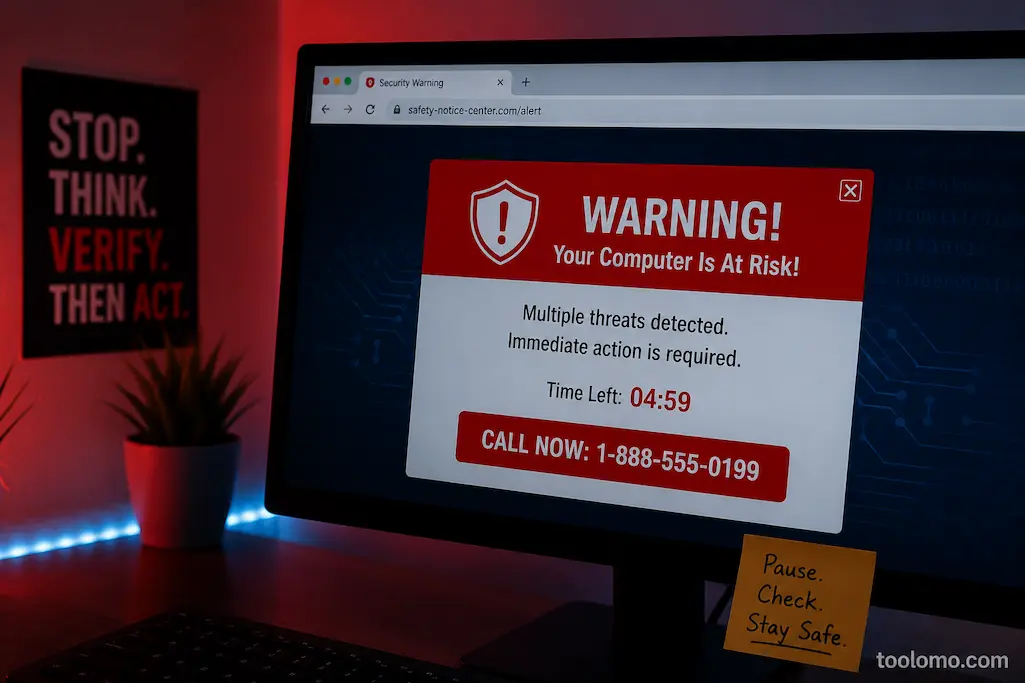
A compelling false security notice is easy to believe the first time. A bright red warning appears in a browser, an alarm sounds, and a message claims your computer contains multiple deadly infections. Before you can think, another text warns you not to close the window or lose your files.
These scams don’t fool most people because they lack technical knowledge. They believe them because the message disrupts thinking. The alarm makes you feel powerless, urgent, and compelled to act before you can think. Learning to spot phony security alerts doesn’t require knowing every type of internet fraud. Constantly changing scam designs. Recognizing the patterns that most phony warnings share, even when phrasing or images change, is the true expertise.
Real Security Warnings Rarely Scare you into action.
Tone distinguishes real security notifications from fakes. Windows Security, good antivirus software, and modern browsers alert you to problems and help you fix them. They don’t usually pressure you into making a quick decision. However, fake notifications often use emotional pressure. It includes sentences like the following:
- Computer is infected badly!
- Need immediate action!
- Never shut down your PC!
- Your banking info is stolen immediately!
The phrase is deliberate. It’s supposed to cause terror before logic arrives. Slow down when a warning appears; it’s more concerned with alarming you than clarifying the situation.
Watch Where the Alert Appears
Placement of the warning typically reveals more than the message. If the warning appears in a browser tab and the address bar shows a normal website, you’re probably viewing web content rather than a Windows security notification.
Windows alerts are usually from the OS or security software you’ve installed. They behave differently than regular websites. Fake warnings often obscure the browser. Some use full-screen mode to hide the address bar, making the message appear to come from Windows. A quick F11 key push typically exits full-screen mode and exposes the scary “system warning,” actually a webpage.
Phone Numbers Are One of the Biggest Warning Signs
A genuine security notification may recommend running a scan, updating software, or reviewing suspicious activity. What it almost never does is display a large phone number and insist that you call technical support immediately. Scammers know that once they get someone on the phone, they can guide the conversation, create additional fear, and convince the victim to install remote access software.
Whenever you see an alert saying something like
Call Microsoft Support Now OR Certified Windows Technician Available 24/7
You should immediately become suspicious. Microsoft, Apple, Google, and other major technology companies don’t display random emergency phone numbers inside browser pop-ups asking individual users to call because of malware.
Loud Alarms and Countdown Timers
If you’ve ever encountered one of these scams, you probably remember the sound before you remember the words. Many fake alerts play continuous warning tones, spoken messages, or looping alarm sounds that repeat every few seconds. Some even display countdown timers claiming your computer will be permanently damaged unless you act immediately.
Those features aren’t technical—they’re psychological. Real security software doesn’t need dramatic sound effects to convince you that an update is available or that malware has been detected. It simply reports the problem and gives you reasonable options for dealing with it. The louder and more dramatic the alert becomes, the less likely it is to be legitimate.
Compare the Behavior, Not Just the appearance.
Modern scam pages are surprisingly well designed. Some imitate Windows Security, antivirus dashboards, or browser notifications so closely that even experienced users may pause for a second.
That’s why I pay more attention to behavior than appearance.
| Legitimate Security Alert | Common Fake Alert |
|---|---|
| Gives clear information | Uses frightening language |
| Comes from Windows or trusted software | Appears inside a webpage |
| Lets you close the notification | Tries to stop you leaving |
| Suggests scanning or updating | Demands you call someone |
| Doesn’t pressure immediate action | Uses urgency and countdowns |
| Uses familiar system interface | Often imitates it imperfectly |
Even if the graphics look convincing, the behavior usually gives the scam away.
Browser Notification Spam Isn’t the Same as Malware
One situation that confuses many people is receiving repeated security warnings even after leaving a suspicious website. In many cases, the computer isn’t infected at all. The browser has simply been given permission to display notifications from a website. This usually happens after clicking Allow a prompt that appeared while visiting a page asking you to “confirm you’re not a robot,” “enable video playback,” or “download your file.”
Once permission has been granted, that website can continue sending alarming notifications even when you’re browsing somewhere entirely different. These messages often imitate antivirus warnings, prize notifications, software updates, or urgent account alerts. Fortunately, removing notification permissions is usually much easier than removing actual malware.
What to Do During the First Minute
The first sixty seconds after seeing a suspicious warning are usually the most important. Instead of reacting immediately, try to answer a few simple questions:
- Is this warning inside my browser or from Windows itself?
- Is anyone asking me to call a phone number?
- Can I still access the address bar?
- Does the message explain the problem calmly, or is it trying to frighten me?
- Have I recently allowed notifications from an unfamiliar website?
Simply pausing long enough to answer those questions often prevents the mistake scammers are hoping you’ll make. If you’re unsure, resist every instruction shown on the screen until you’ve verified where the message actually came from.
When Closing the Browser Doesn’t Work
Some malicious websites deliberately make themselves difficult to close. They may repeatedly open confirmation boxes, trigger continuous pop-ups, or play looping audio that makes it feel like the computer has become completely locked.
In situations like this, don’t continue clicking random buttons inside the page. Instead, close the browser using Task Manager if necessary, or end the browser process entirely. When reopening the browser, avoid restoring the previous session until you’ve confirmed the suspicious page won’t reload automatically. This approach deals with the browser itself rather than interacting with the scam page, which is almost always the safer option.
Don’t Confuse Browser Warnings
One mistake I’ve seen repeatedly is people assuming every warning that appears on the screen comes directly from Windows. In reality, your browser can display messages that look remarkably similar to operating system notifications.
A useful habit is to check who is speaking before worrying about what is being said. If the notification comes from Windows Security or security software you intentionally installed, it deserves attention. If it appears inside a browser window or is linked to a website you’ve never heard of, treat it with much more caution. This small change in thinking helps you slow down instead of reacting automatically.
Be Careful With Remote Access Requests
One of the most dangerous stages of these scams comes after the initial warning. Instead of asking you to download antivirus software, many fake support operations ask you to install remote access programs so a “technician” can fix the problem for you.
Once someone gains remote access, they may browse personal files, install unwanted software, request payment for unnecessary services, or even attempt to access financial accounts while you’re watching. If you didn’t contact a trusted support provider yourself, don’t allow anyone to connect remotely to your computer simply because a warning told you to. A genuine support session begins because you requested help, not because a random webpage demanded it.
If You’re Unsure, Verify From a Trusted Source
Not every security message is fake. The challenge is knowing how to verify it safely. Instead of clicking buttons inside the warning, open the security software you already trust. If you use Windows Security, open it directly from the Start menu. If you rely on another antivirus program, launch it yourself rather than following links from the alert.
Running a manual scan from software you intentionally installed is far safer than interacting with an unknown webpage. This approach also avoids one of the biggest mistakes people make—letting the suspicious message control what happens next.
A Few Habits That Prevent Most Fake Alerts
The best defense usually starts long before you encounter a scam page. Some simple habits dramatically reduce the chances of seeing fake security alerts in the first place:
- Keep your browser updated.
- Install software only from trusted sources.
- Review browser notification permissions every few months.
- Be cautious when websites ask you to click Allow.
- Avoid downloading “free” utilities from unfamiliar websites.
- Use built-in protections like Microsoft Defender SmartScreen or your browser’s safe browsing features.
None of these habits eliminate every risk, but together they make it much harder for common scams to reach you.
Final Thoughts
The most successful phony security warnings don’t work because they have great technology behind them; they work because they disturb regular thinking. They substitute judicious decisions with rush, noise, and fright.
What I’ve found is that the people who avoid these scams are not necessarily They are simply the ones who pause long enough to ask a few questions before responding. questions before they answer. The alert typically provides much more information than the warning itself, including what it is, where it is located, whether it instructs you to act immediately, and if it tells you to call someone. A few seconds of careful observation is usually worth much more than pressing the first button that promises to “fix” the problem.
FAQs
1. Can a website actually tell whether my machine has a virus?
Usually not. A normal website cannot do a full anti-virus scan of your computer. Almost often such claims that a website has already detected dozens of infections are untrue or deceptive.
2. Why do bogus warnings occasionally lock up my browser?
Certain scam pages will bombard you with pop-ups, employ JavaScript to present confirmation dialogs, or switch to full-screen to make it more difficult to escape. Such behavior can be frustrating, but it doesn’t typically signify that you’ve been infected on your computer.
3. I get a false security alert. Can I restart my computer safely?
Usually, yeah. If a browser page won’t close, it’s better to restart the computer or kill the browser process in Task Manager than to interact with the questionable page.
4. If you clicked Allow on a questionable web site by mistake, what should you do?
Head over to your browser’s notification settings and revoke permission to that site. If you additionally downloaded software or submitted personal information, do a scan with reputable security tools and consider resetting any impacted passwords.
5. How can I identify if a notice is from Windows or my browser?
See where it shows up and what it does. You will receive Windows Security alerts from your operating system or trusted security software; fake alerts usually show up in a browser tab, mimic system windows, or try to get you to call a phone number now.

Daniel Kareem is a digital productivity and technology writer focused on simplifying everyday tech use. He creates practical guides on online safety, device optimization, and efficient workflows. His approach centers on clear, step-by-step advice that helps users stay organized, secure, and productive. Through straightforward and realistic content, he aims to make technology easier to understand and more useful in daily life.