
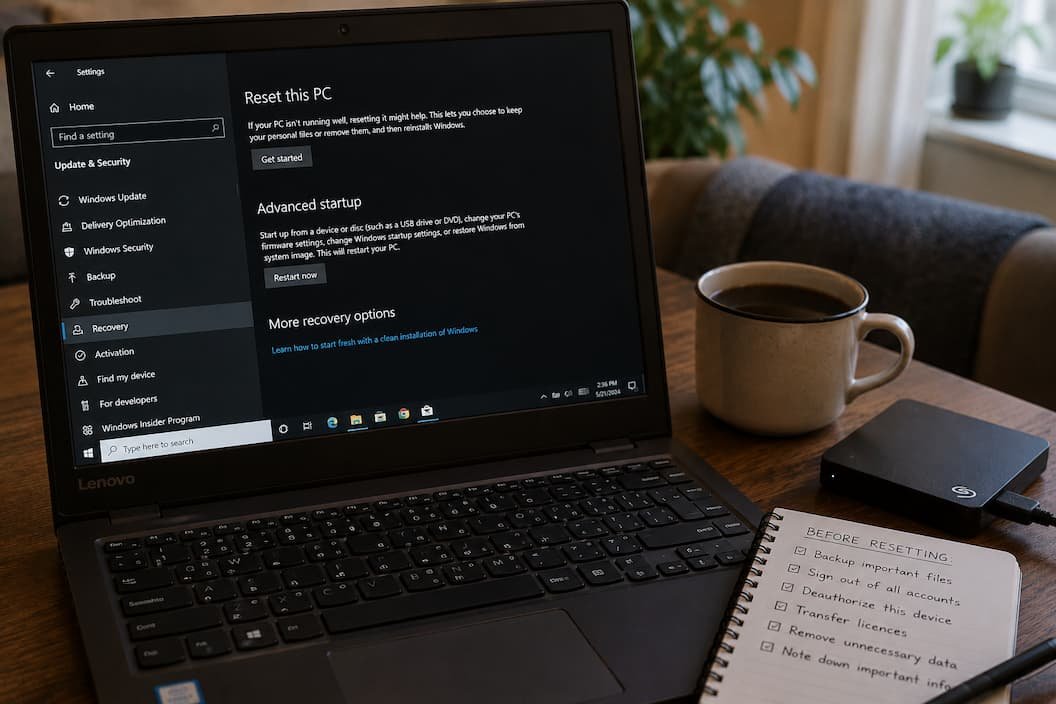
A Windows reset sounds like the perfect solution when your computer has become slow, unstable, or cluttered with years of software you no longer use. You click Reset this PC, choose Keep my files, and expect to return to a clean, faster version of Windows with everything important still waiting for you. Then reality hits. Applications are gone, browser settings don’t look right, license keys are missing, and a few folders you assumed were backed up never synced to the cloud.
The reset itself usually isn’t the problem. Most disappointment comes from misunderstanding what Windows actually does during the process. Many users begin a reset hoping it will resolve every issue without fully understanding what stays, what disappears, and what still needs to be backed up manually.
If you’re considering resetting your PC, don’t think of it as pressing a magic repair button. Think of it as moving into a newly renovated house—you may keep some belongings, but everything still has to be unpacked, reorganized, and verified. Spending a little time preparing beforehand can save hours of frustration afterward.
Before You Click “Reset,” Ask Yourself One Question
Not every Windows problem requires a full reset. In fact, some issues can be resolved more easily with less disruptive tools that leave your applications and settings untouched.
For example, if Windows suddenly became slow after installing a graphics driver, resetting the entire operating system is probably excessive. Likewise, if File Explorer crashes occasionally or a recent update caused unexpected behavior, troubleshooting the specific problem may be quicker than rebuilding your computer from scratch.
A reset becomes more reasonable when multiple problems have accumulated over time—persistent software conflicts, severe performance degradation, corrupted system files that resist repair, or a computer changing hands to a new owner. In those situations, starting fresh often takes less time than resolving every issue individually.
Before you decide, take a look at this comparison:
| Problem | Is a Reset Usually the Best Option? |
|---|---|
| Slow PC after installing one program | ❌ Usually not |
| Driver problem after Windows Update | ❌ No |
| Years of accumulated software and clutter | ✅ Often yes |
| Preparing the PC for resale | ✅ Yes |
| Frequent crashes caused by unknown software conflicts | ✅ Often |
| Minor Windows glitches | ❌ Try other repairs first |
The goal isn’t to avoid resetting Windows. This is to ensure you are using it for the right reason.
Mistake #1: Assuming “Keep My Files” Keeps Everything
This is probably the biggest misunderstanding surrounding Windows reset.
When Windows offers the Keep my files option, many people assume it preserves their entire working environment. It doesn’t. The feature is designed primarily to keep personal files stored in your user folders while removing installed applications and resetting many system settings.
That means programs such as Microsoft Office, Adobe Photoshop, development tools, VPN clients, virtual machines, accounting software, and games will usually need to be installed again afterward. Even applications that remain licensed online may still require you to sign in, reactivate, or restore custom settings.
Browser profiles deserve special attention. If your bookmarks, saved passwords, or extensions aren’t synchronized with an online account, resetting Windows can leave you rebuilding your browser from memory instead of simply signing back in.
Good Habit: Before resetting, make a list of the software you use regularly. It’s much easier to reinstall applications when you already know what belongs on the computer.
Mistake #2: Trusting Cloud Storage Without Checking It
Cloud storage has made file protection much easier, but it has also created a false sense of security.
Many users believe that because they’re signed into OneDrive, Google Drive, or Dropbox, every important file automatically exists in the cloud. In reality, synchronization only protects files stored inside specific folders. Documents saved elsewhere—or files waiting to sync because the computer has been offline—may never have reached the cloud at all.
I’ve helped people recover from failed resets where thousands of family photos were perfectly safe in OneDrive, while a critical work folder sitting on the desktop had never finished syncing because storage space had run out weeks earlier.
Before resetting, open your cloud storage application and confirm that synchronization has completed successfully. Better yet, log into the web version of your cloud account from a browser and verify that your newest files are actually there.
Mistake #3: Forgetting About Software Licenses
Applications can usually be downloaded again. Licenses aren’t always that straightforward.
Some software uses online activation that automatically recognizes your account after reinstalling Windows. Others still rely on product keys, activation files, or a limited number of device activations. If you reset your PC without checking those details first, you may spend more time recovering licenses than reinstalling the software itself.
Creative applications, professional engineering tools, accounting software, and older desktop programs are particularly worth reviewing. Even if you know the installation files are easy to download again, confirm that you also know how to activate them afterward.
A few minutes spent locating license information now is much easier than searching through old emails after your system has already been reset.
Mistake #4: Ignoring Hardware Drivers That Didn’t Come From Windows
Modern versions of Windows are excellent at installing drivers automatically, but they’re not perfect.
If your computer uses specialized hardware—a gaming mouse with custom macros, a professional audio interface, a drawing tablet, RAID storage controller, or manufacturer-specific touchpad software—you may discover that Windows installs only the basic driver after the reset.
The hardware still works, but advanced features disappear. You may need to download gesture controls, programmable buttons, color calibration tools, audio enhancements, or performance utilities separately.
Before resetting, visit your computer or hardware manufacturer’s support page and note any drivers or utilities that aren’t included with Windows by default.
Mistake #5: Thinking a Reset Will Automatically Make an Old PC Fast Again
A Windows reset removes software clutter, but it doesn’t repair aging hardware.
If your laptop struggles because it has a nearly full hard drive, failing SSD, insufficient RAM, or excessive heat caused by dust buildup, resetting Windows may provide only a temporary improvement. Within a few weeks, the computer often feels just as slow because the real limitation was never software in the first place.
One simple clue is whether the slowdown occurs immediately after startup or only when specific applications open. Constantly high disk usage, noisy cooling fans, or unusually long boot times often point toward hardware or maintenance issues rather than Windows itself.
Resetting can absolutely improve performance on systems burdened by years of accumulated software, but it’s important to have realistic expectations. Occasionally the operating system isn’t the bottleneck.
Mistake #6: Overlooking Files Stored Outside Your User Folders
When people think about backing up their computer, they usually remember documents, pictures, and the desktop. Unfortunately, not every important file lives there.
Developers may store projects on another drive. Video editors often keep large media libraries on secondary SSDs. Some applications save databases inside custom folders, while virtual machines, game mods, and downloaded installers may be scattered across different locations.
One habit I’ve adopted before every major reset is searching the computer for folders I created myself rather than relying on Windows’ default libraries. It’s surprising how many important files end up on another drive simply because they were too large for the system SSD.
Walking through the file structure one last time often uncovers folders you’ve completely forgotten about.
Mistake #7: Not Knowing the Difference Between a Local Reinstall and a Cloud Download
One decision that can be surprising during the reset process is choosing between a local reinstall and a cloud download. Both options reinstall Windows, but they don’t get the installation files the same way.
A local reinstall uses files that are already stored on your computer. It’s usually faster because nothing large needs to be downloaded, and it works even without an internet connection. However, if those local recovery files have become corrupted, the reset may fail or reinstall Windows with existing problems.
Cloud download retrieves a fresh copy of Windows directly from Microsoft’s servers. It generally requires a stable internet connection and several gigabytes of data, but it can be a better choice if you suspect the local installation files are damaged.
Neither option is universally better. If your Windows installation has been stable apart from software clutter, a local reinstall is often perfectly adequate. If you’ve experienced repeated system corruption or failed updates, downloading a fresh installation image is usually worth the extra time.
Mistake #8: Forgetting That Browser Data Isn’t Always Fully Synced
Many people assume signing into Chrome, Edge, or Firefox automatically protects everything inside the browser. In reality, synchronization depends on which options you’ve enabled.
Bookmarks are usually synchronized without much attention, but open tabs, saved passwords, autofill information, extensions, browsing history, and payment details may not all be included. Some users intentionally disable password synchronization for privacy reasons and forget they’ve done so until after resetting Windows.
Before beginning the reset, open your browser’s sync settings and confirm exactly what’s being backed up. It’s also worth exporting bookmarks or password data if you rely heavily on your browser for work. That extra backup may never be needed, but it’s reassuring to have if something doesn’t restore correctly.
Mistake #9: Leaving External Drives Connected During the Reset
External hard drives and USB flash drives are incredibly useful for storing backups, but they don’t need to remain connected while Windows is resetting.
Keeping unnecessary storage devices attached can occasionally create confusion during the installation process, especially if multiple drives contain bootable partitions or recovery files. Although Windows usually handles these situations correctly, you should disconnect any drives that aren’t required to remove another possible source of complications.
If you’ve copied important files to an external drive, safely disconnect it once you’ve verified the backup. Reconnect it only after Windows has finished resetting and you’ve confirmed the installation completed successfully.
Tip: Leave only the keyboard, mouse, display, and power cable connected unless another device is absolutely necessary.
Mistake #10: Not Preparing for Life After the Reset
Most people spend all their energy preparing for the reset itself and almost none planning what comes next.
A fresh Windows installation feels clean, but it also means rebuilding the environment you rely on every day. You’ll likely need to reinstall applications, configure printers, reconnect cloud storage, customize File Explorer, adjust privacy settings, and download hardware utilities.
One simple trick I’ve found helpful is taking screenshots of important settings before resetting the PC. That includes taskbar layout, browser extensions, network configuration, display scaling, and any application preferences you’ve carefully adjusted over time. Recreating those settings from memory is much harder than referring to a few screenshots.
Another useful habit is keeping a folder that contains installers for frequently used software. Having everything in one place makes setting up the computer feel much less overwhelming.
A Few Alternatives Worth Trying Before You Reset
If your PC is still usable, consider whether a less drastic repair could solve the problem without removing installed applications.
| Problem | Better First Step |
|---|---|
| Windows became slow after a recent update | Uninstall the update or check drivers |
| Corrupted system files | Run SFC and DISM |
| Startup problems | Use Startup Repair |
| Driver-related crashes | Roll back or reinstall the driver |
| Application conflicts | Perform a Clean Boot |
| Storage running low | Clean unnecessary files instead of resetting |
These options aren’t always enough, but they’re much less disruptive than rebuilding your entire Windows environment. If they solve the issue, you’ve saved yourself several hours of reinstalling software and restoring settings.
Frequently Asked Questions
Will resetting Windows remove my personal files?
It depends on the option you choose. Keep my files is designed to preserve personal data stored in your user account, while Remove everything erases both personal files and installed applications. Even with Keep My Files, it’s always wise to create a separate backup before starting.
Do I need to reinstall all my programs after a reset?
In most cases, yes. Windows removes installed desktop applications during the reset process, even if you choose to keep your personal files. Make a list of the software you use regularly so reinstalling it later is much easier.
Is resetting Windows better than reinstalling Windows from scratch?
For many home users, resetting this PC is simpler because it automates much of the process. A clean installation from bootable media can be useful in situations involving severe corruption or when you want to completely remove existing partitions, but it also requires more preparation.
How long does resetting Windows usually take?
The time varies depending on your hardware, storage speed, and whether you choose a local reinstall or cloud download. The reset itself may finish within an hour on modern systems, but reinstalling applications, restoring files, and configuring settings often takes considerably longer.
Can resetting Windows fix every performance problem?
No. If aging hardware, insufficient memory, overheating, or a failing storage drive causes poor performance, resetting Windows alone won’t solve the underlying issue. It’s important to identify whether the bottleneck is software or hardware before deciding on a reset.
Conclusion
Resetting Windows can be one of the quickest ways to recover from years of accumulated software problems, persistent system instability, or a computer that’s simply become difficult to manage. But it’s most successful when it’s treated as a planned maintenance task rather than an emergency solution.
The biggest mistakes usually happen before the reset even begins—assuming cloud storage contains every file, overlooking software licenses, forgetting specialized drivers, or expecting Keep my files to preserve an entire working environment. Spending just a little time preparing can prevent hours of unnecessary recovery work later.
If you’ve confirmed that a reset is truly the right solution, take a few extra minutes to verify your backups, review what you’ll need afterward, and understand exactly what Windows will remove. Once those preparations are complete, you can reset your PC with far more confidence, knowing you’re starting fresh without accidentally leaving important files, settings, or software behind.

Daniel Kareem is a digital productivity and technology writer focused on simplifying everyday tech use. He creates practical guides on online safety, device optimization, and efficient workflows. His approach centers on clear, step-by-step advice that helps users stay organized, secure, and productive. Through straightforward and realistic content, he aims to make technology easier to understand and more useful in daily life.