
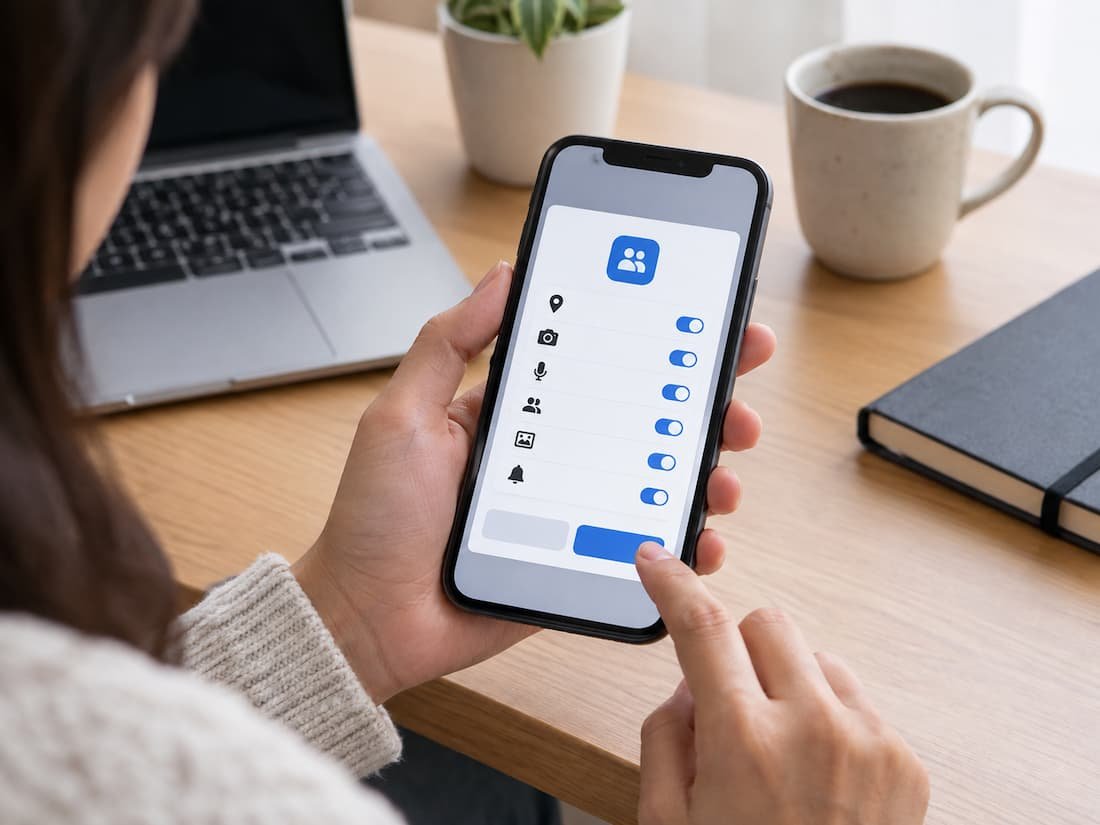
When you install an app, the permission requests can sometimes feel like a routine part of setup. You tap Allow, move to the next screen, and start using the app. After a while, you may have dozens of apps with access to your camera, microphone, location, contacts, photos, or other information.
The problem is not that permissions are automatically dangerous. Apps often need access to parts of your phone to provide their main features. A video-calling app needs the microphone and camera. A navigation app needs location. A photo editor needs access to photos. The useful question is therefore not “Is this permission dangerous?” It is “Does this app have a good reason to need this permission for something I actually want to do?”
That small change in thinking makes permission decisions much easier. You do not have to approve everything, and you do not have to deny everything. Instead, you can match each permission to the app’s actual purpose, decide whether access is necessary, and choose a more limited option when your device provides one.
Start With the App’s Main Job
Before responding to a permission request, think about what the app is supposed to do. Imagine you install a messaging app. Access to contacts may make sense because the app can use them to help you find people you know. Camera and microphone access may also be reasonable if you want to make video or voice calls.
Now imagine the same requests appearing in a simple flashlight app. The situation is different. A flashlight needs access to the phone’s light hardware, but a request for your contacts or calendar would not obviously relate to its core function. This does not automatically prove that an app is unsafe. There can be technical or optional features that explain an unusual request. But an unrelated permission deserves a closer look before you approve it.
A useful way to classify requests is
| Type of permission | What it means |
|---|---|
| Necessary | The permission directly enables an important feature you want to use. |
| Optional | The app can work without it, but another feature may be unavailable. |
| Convenience-based | The permission makes something faster or easier but is not essential. |
| Unrelated | You cannot see a sensible connection between the permission and the app’s purpose. |
The most important category is not “dangerous.” It is unrelated. If you cannot explain why an app needs access to something, pause and investigate before allowing it.
Camera
Camera access allows an app to use your device’s camera for taking pictures or recording video. A social media app may reasonably need the camera when you want to take a photo or record a video directly inside the app. Video conferencing, document scanning, barcode scanning, augmented reality, and some translation apps can also have legitimate reasons to request it.
The request deserves more attention when the app’s main purpose has no obvious connection to images or video. A calculator, simple notes app, or basic weather app may not need camera access for its primary function.
Ask yourself:
- Will I actually use a camera feature in this app?
- Does the app explain why camera access is needed?
- Can I use the feature by selecting an existing image instead?
- Can I deny access now and enable it later if I need it?
You can often make the decision based on the feature you are about to use rather than granting camera access permanently during setup.
On iPhone, camera access can be reviewed under Settings > Privacy & Security > Camera. Apple also indicates when the camera is being used with a green indicator. (Apple Support) On Android, supported versions show a green indicator when an app is using the camera or microphone, and the indicator can be used to identify the app accessing them. (Google Help)
Microphone
Microphone permission allows an app to record or capture audio. Voice and video calling apps have an obvious reason to request it. Voice recorders, speech-to-text tools, language-learning apps, and some accessibility features may also need microphone access.
The request deserves closer examination when an app’s main purpose does not involve recording, calls, voice commands, or audio. If an app asks for microphone access while you are not using a feature that requires it, you can usually deny the request and see whether anything important stops working.
Ask:
What feature am I trying to use that actually requires the microphone?
If the answer is “none,” there may be no reason to grant access immediately.
Location
Location permission can be more complicated because there are different levels of access. Maps and navigation apps clearly need location information. Ride-hailing apps may need it to find your pickup point. Weather, local search, fitness, and travel apps can also have legitimate location-based features.
But you should distinguish between an app needing your location for a feature you are actively using and an app having access to your location when you are not using it. Android can provide options such as allowing only while using the app, asking every time, and, depending on the device and permission, continuous access. Android can also let you choose between precise and approximate location for supported permissions. (Google Help)
On iPhone, location services can be controlled for individual apps, and Apple’s privacy settings let you review which apps have location access. (Apple Support)
Before approving location access, ask:
- Does the app need my location to perform its main function?
- Do I need the location feature right now?
- Does the app really need precise location?
- Does it need access when I am not actively using it?
When a less precise or more limited option will do the job, it can be a sensible choice.
Contacts
Contacts permission can expose the names, phone numbers, email addresses, or other information stored in your address book, depending on the platform and access granted. Messaging and communication apps may reasonably use contacts to help you find people who already use the service. Some business or productivity apps may also have a legitimate reason to work with contacts.
But you should be more careful when an unrelated app asks for your entire address book.
Ask:
What will this app actually do with my contacts?
If you only want to communicate with one person, there may be another way to share that person’s information without giving the app broad access to your address book. On iPhone, Contacts access can be reviewed and changed under Settings > Privacy & Security. Apple provides individual controls for apps that have requested access to information such as Contacts, Photos, and Calendar. (Apple Support)
Photos and Media
Photo access is common because many apps allow you to upload pictures. A social network may need photos when you want to publish an image. A photo editor needs them to edit pictures. A document app may need them to import a photographed receipt or document.
However, an app may not need broad access to your entire photo collection simply because you want to upload one picture. When your device offers a way to select specific photos or limit access, consider whether that is enough for what you are trying to accomplish.
Ask:
- Do I need to give the app access to my whole library?
- Can I select individual photos instead?
- Is photo access required now, or only when I use an upload feature?
The best permission is often the smallest amount of access that lets you accomplish what you want.
Files and Storage
File access can be useful for document managers, backup tools, file-sharing applications, media players, and apps that need to open or save documents. But broad file access deserves careful consideration because your device may contain much more than the particular document you want an app to open.
If you are simply opening one PDF, importing one document, or saving a particular file, look for a system file picker or another limited method when available. On Android, permission categories can include files, photos and videos, music and audio, and other forms of device data. The exact choices vary by Android version and device. (Google Help)
The question is not whether file access is “bad.” Ask whether full access is necessary for the job you are doing.
Notifications
Notifications are different from permissions such as camera or contacts because they mainly control whether an app can send notifications to you. A messaging app may need notifications if you want to know when someone sends you a message. A delivery app may use them for order updates.
But many apps can still function perfectly well without sending notifications. Consider notification access an optional feature unless the app’s purpose depends on timely alerts. If an app is useful without notifications, you do not necessarily need to enable them just because the app asks during setup. If you later decide that notifications are useful, you can generally change the setting from your phone’s notification controls.
Bluetooth and Nearby Devices
Bluetooth or nearby-device access can be reasonable when an app needs to communicate with headphones, watches, fitness devices, printers, smart-home equipment, or other nearby hardware. The important question is what the app is trying to connect to.
A fitness application communicating with a wearable has a clear reason. A simple app that has no apparent need for nearby hardware deserves more scrutiny. Android uses permission categories such as Nearby devices, while Apple’s privacy controls include Bluetooth access. (Google Help) If the app says it needs nearby-device access, look for an explanation connected to a feature you actually intend to use.
Local Network Access
Local network permission can sound confusing because it is different from ordinary internet access. On iPhone and iPad, apps that want to interact with devices on your local network may need permission. This can make sense for apps that find smart TVs, streaming devices, printers, computers, or other equipment on your home network. Apple specifically gives examples such as games connecting to other players and streaming apps looking for a connected display. (Apple Support)
If a video-streaming app wants to find your television, the request makes sense. If an app has no feature involving other devices on your network, ask why it needs the access. You can deny the permission if you do not understand the reason. If a feature later fails because it needs local network access, you can reconsider the decision.
Calendar and Other Personal Information
Calendar access allows an app to interact with calendar information, while other permissions may provide access to reminders, health information, physical activity, or similar personal data. A scheduling application may need calendar access because integrating appointments is part of its purpose. A fitness application may reasonably need physical activity information for a feature you choose to use.
But the same permission should not automatically be accepted simply because an app asks for it.
Ask:
Does this permission support something I intentionally want this app to do?
If the answer is unclear, deny it for now and see whether the app still works.
What If You Deny a Permission and the App Stops Working?
This is where many people make the opposite mistake: they assume that because an app stopped working, they must give it every permission it requests. Instead, identify the specific feature that stopped working.
For example, suppose a document-scanning app works normally until you try to scan a paper document. If you denied camera access, the explanation is straightforward: scanning requires the camera. You can grant the permission when you need the feature and then review it later.
The same idea applies to a video-calling app that cannot make calls without microphone access or a navigation app that cannot provide turn-by-turn directions without location access. A permission request becomes much easier to evaluate when you connect it to a specific feature rather than treating it as a package deal.
Why “Deny Everything” Is Not the Best Strategy
It may feel safer to deny every permission. But that can make useful apps unnecessarily difficult to use. A navigation app without location access cannot provide the experience you installed it for. A video-calling app without microphone access cannot transmit your voice. A document scanner without camera access cannot scan documents. The goal is therefore not to minimize the number of permissions at any cost.
The better goal is appropriate access. Give an app the permission it genuinely needs for a feature you want, avoid permissions that are unnecessary, and choose limited access when your device offers it.
This approach is also more practical because permission needs can change. An app may not need camera access when you first install it, but you may later decide to use its camera-based feature.
Review Permissions After Installing Apps
Permission decisions should not end at installation. Apps change, your usage changes, and permissions you once approved may no longer be useful. Both Android and iPhone provide settings where you can review and change access later.
On Android, you can open Settings > Apps > [app] > Permissions to review an individual app. Android also provides a Privacy Dashboard on supported versions, showing which apps have accessed certain permissions and when. (Google Help)
On iPhone, Settings > Privacy & Security provides categories such as Camera, Microphone, Contacts, Photos, Bluetooth, Local Network, and Location Services, allowing you to review or change access. Apple also provides an App Privacy Report that can show how apps have used granted permissions and their network activity. (Apple Support)
A simple review can look like this:
- Pick an app you rarely use.
- Check its current permissions.
- Ask whether each permission still supports something you use.
- Remove access that is no longer necessary.
- Open the app again later if you need to restore a feature.
You do not need to inspect every app every day. An occasional review is enough to catch permissions that no longer make sense.
A Simple Permission Decision Framework
Whenever an app asks for a permission, pause for a few seconds and work through these questions:
1. What does the app actually do?
Ignore the permission request for a moment and think about the app’s main purpose.
2. What feature requires this permission?
Try to name a specific feature rather than accepting a vague explanation such as “for a better experience.”
3. Is the permission necessary or merely convenient?
If the app works without it, you may not need to grant it.
4. Can I grant less access?
Look for options such as limited photos, approximate location, while-using access, or asking each time when your device supports them.
5. What happens if I deny it?
If only one optional feature stops working, you can decide later whether that feature is worth the access.
6. Can I change my decision later?
On modern Android and iPhone devices, permissions can generally be reviewed and changed through system settings. (Google Help)
7. Does the request still make sense after I understand it?
If you can explain the connection between the permission and the feature you want, the decision is much easier.
If you cannot explain the connection, leave the permission disabled until you have a reason to enable it.
A Practical Permission-Review Checklist
Before approving an app permission, ask:
- What does this permission allow the app to access or use?
- What specific feature needs it?
- Is that feature something I actually plan to use?
- Is the permission required, optional, or mainly for convenience?
- Can I choose limited access instead?
- Does the app still work without it?
- If I deny it now, can I enable it later?
- Does the request seem unrelated to the app’s purpose?
- Have I reviewed this app’s permissions since installing it?
App permissions are not a simple list of good and bad choices. The same permission can be perfectly reasonable for one app and unnecessary for another. A camera permission makes sense for a video-calling app; it needs a much stronger explanation in a basic calculator. Location can be essential to navigation while being unnecessary for an offline note-taking app.
The most useful habit is to connect permission → feature → purpose. When those three things make sense, you can make an informed decision. When they do not, there is no need to approve the request immediately. You can deny it, test the app, check the available access options, and change your decision later if you discover that a particular feature genuinely needs it.

Daniel Kareem is a digital productivity and technology writer focused on simplifying everyday tech use. He creates practical guides on online safety, device optimization, and efficient workflows. His approach centers on clear, step-by-step advice that helps users stay organized, secure, and productive. Through straightforward and realistic content, he aims to make technology easier to understand and more useful in daily life.