
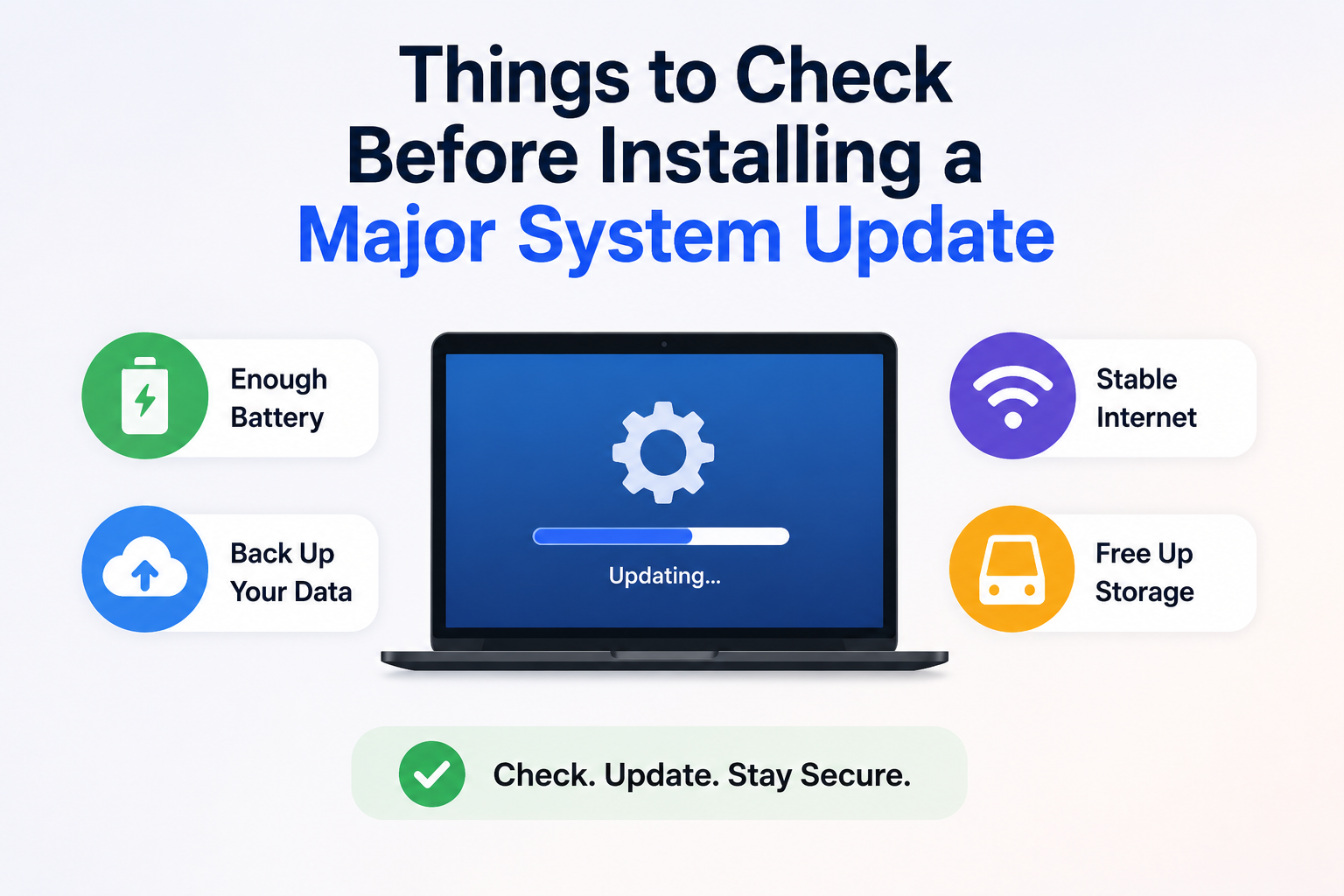
Major Windows updates promise new features, security improvements, and performance fixes, but they also make deeper changes to your system than the monthly patches you’re probably used to installing. Most updates finish without incident, yet when something does go wrong, it’s rarely because Windows “just failed.” More often, the update exposed an issue that was already waiting in the background—a nearly full SSD, an outdated driver, unstable hardware, or software that didn’t play well with the upgrade process.
After helping friends and colleagues recover from failed feature updates, I’ve noticed that the actual installation is usually not the difficult part. The problems almost always begin before the update starts. A laptop running low on storage, an external drive connected for no reason, or a forgotten BitLocker recovery key can turn what should have been a routine update into a stressful afternoon.
Instead of reacting after something breaks, spend a few minutes checking the health of your system beforehand. The following checkpoints aren’t meant to slow you down—they’re designed to reduce the chances of rollback errors, missing files, driver conflicts, or update failures that could have been avoided with a little preparation.
Your Pre-Update Checklist at a Glance
Before diving into the details, here’s a quick overview of the fifteen checks covered in this guide. Think of it as a pre-flight inspection rather than a list of random tips.
| Checkpoint | Priority | Time Required |
|---|---|---|
| Confirm free storage space | High | 2 minutes |
| Verify important backups | High | 5–10 minutes |
| Check BitLocker recovery key | High (if enabled) | 2 minutes |
| Disconnect unnecessary devices | Medium | 1 minute |
| Review pending driver updates | Medium | 5 minutes |
| Check SSD or HDD health | High | 5 minutes |
| Review startup errors | Medium | 5 minutes |
| Pause unnecessary background tasks | Medium | 2 minutes |
| Confirm laptop power source | High | 1 minute |
| Review antivirus status | Medium | 3 minutes |
| Verify Windows activation | Medium | 2 minutes |
| Check available restore options | Medium | 5 minutes |
| Review BIOS/firmware updates | Low–Medium | 10 minutes |
| Disable unstable overclocking | High (if applicable) | 5 minutes |
| Restart before updating | High | 2 minutes |
You probably won’t need every checkpoint every time, but together they cover many of the issues that lead to failed feature updates.
1. Don’t Judge Storage Space by the Number Windows Says You Have
Many people glance at File Explorer, see 25 or 30GB of free space, and assume they’re ready for a major update. While Windows may technically install with that amount available, feature updates create temporary working files, unpack installation packages, preserve rollback data, and rebuild parts of the operating system during the upgrade.
From experience, I try to keep at least 40–50GB of free space before installing a large Windows feature update, especially on laptops with 256GB SSDs. That extra breathing room doesn’t just help the installation—it also gives Windows enough space to clean up afterward without immediately filling the drive again.
Open Settings > System > Storage instead of relying solely on the free space shown in File Explorer. The Storage page also shows whether temporary files, old downloads, or previous update leftovers are quietly consuming space that you could reclaim before the upgrade.
[Insert screenshot: Windows Storage settings.]
2. A Backup Isn’t Useful If You Can’t Actually Restore It
Almost everyone knows they should back up important files, yet very few people check whether those backups are complete before installing a major update.
If you use OneDrive, make sure synchronization has finished rather than assuming every recent file has already uploaded. If you rely on an external drive, please verify that the folders you care about are actually present rather than trusting yesterday’s backup schedule.
I’ve seen users confidently start a feature update because they “had a backup,” only to discover later that the backup drive hadn’t been connected for several weeks. The files they expected to recover simply weren’t there.
Quick Check: Open a few documents and photos directly from your backup location. A backup you can verify is far more valuable than one you merely assume exists.
3. BitLocker Users Should Know Where Their Recovery Key Is
BitLocker usually works quietly in the background, protecting your data without demanding attention. However, certain hardware changes or major Windows updates can occasionally trigger a request for the BitLocker recovery key during startup.
If you don’t know where that key is stored, what should have been a routine reboot can quickly become stressful. Microsoft often saves recovery keys to your Microsoft account, but some organizations store them elsewhere depending on how the computer was configured.
Checking the status before updating takes only a couple of minutes and could save hours of frustration if recovery mode ever appears unexpectedly.
[Insert screenshot: BitLocker Recovery settings]
4. Remove Hardware That Doesn’t Need to Be Connected
Feature updates spend part of the installation process detecting hardware connected to your computer. The more devices attached, the more drivers Windows has to initialize and verify during the upgrade.
You don’t need to unplug your keyboard or mouse, but consider disconnecting devices that aren’t required for the update itself. External hard drives, USB flash drives, card readers, webcams, printers, docking stations, and older USB accessories occasionally introduce unnecessary complications during major upgrades.
I’ve encountered situations where Windows repeatedly tried to assign the wrong drive letter because an unused USB drive remained connected. Disconnecting it solved the installation problem immediately—not because the drive was faulty, but because it removed one more variable.
5. Don’t Ignore Driver Updates—But Don’t Install Everything Blindly Either
Drivers occupy an unusual position in the Windows ecosystem. Outdated drivers sometimes prevent smooth upgrades, while brand-new drivers occasionally introduce compatibility issues of their own.
Instead of installing every optional driver available just before a feature update, take a moment to review what’s actually being offered. If there’s a storage controller, chipset, or graphics driver update that specifically addresses stability or compatibility, it’s usually worth considering. On the other hand, if your system has been perfectly stable for months, installing a dozen unrelated drivers immediately before upgrading may create more uncertainty than benefit.
The goal isn’t to have the newest driver for every component. The goal is to avoid known compatibility problems while minimizing last-minute changes.
6. Your Drive Might Be Healthy Enough for Everyday Use—but Not for a Major Update
A computer can seem perfectly normal during daily tasks while quietly developing storage problems beneath the surface. Small read errors may go unnoticed when opening documents or browsing the web, yet a feature update that rewrites thousands of system files places much heavier demands on the drive.
Windows includes basic tools that can report storage errors, and many SSD manufacturers provide utilities capable of checking drive health in more detail. If you’ve recently noticed slower boot times, unusual file copy delays, or occasional freezing, it’s worth investigating those symptoms before asking Windows to perform one of its largest maintenance operations.
This isn’t about assuming your SSD is failing. It’s about confirming that the storage device responsible for your operating system is in good condition before trusting it with a major upgrade.
[Insert screenshot: Windows drive error checking tool]
7. Existing Windows Errors Don’t Magically Disappear During an Update
One misconception is that installing a major Windows update will automatically fix unrelated system issues. Sometimes that happens, but existing corruption, driver failures, or repeated service crashes are just as likely to complicate the upgrade process.
Open Reliability Monitor or review recent entries in Event Viewer if your PC has been behaving strangely over the past few weeks. Frequent application crashes, storage warnings, or hardware errors deserve attention before updating—not because they’ll always cause the installation to fail, but because they provide clues about problems already affecting the system.
[Insert screenshot: Reliability Monitor timeline]
If Windows has been stable, great—you can move forward with more confidence. If it hasn’t, resolving those issues first often results in a smoother update experience than hoping the new version will address everything automatically.
8. Give Windows a Clean Starting Point
A major Windows update already places significant demand on your processor, memory, and storage drive. If dozens of background applications are syncing files, downloading updates, or running scheduled tasks at the same time, you’re simply adding more work to an already busy system.
Before starting the update, close applications you don’t need. This includes cloud storage clients that are actively syncing large folders, virtual machine software, video editing applications, game launchers downloading updates, and backup utilities performing scheduled jobs. You don’t have to uninstall anything—just reduce unnecessary activity during the installation.
A simple restart immediately before beginning the update is also worthwhile. It clears temporary processes, finishes pending tasks, and gives Windows a cleaner environment to begin the upgrade.
9. Laptop Users Shouldn’t Rely on Battery Power Alone
Even if your battery indicator proudly shows 100%, plugging in the charger before installing a feature update is still the safer choice.
Major Windows updates can take anywhere from twenty minutes to well over an hour depending on your hardware. During that time, the processor and storage drive may remain active almost continuously. If the battery unexpectedly drains faster than expected—or someone accidentally starts a demanding workload while the update is running—the installation could be interrupted.
Most modern laptops are designed to continue running from external power once the battery is fully charged, so leaving the charger connected isn’t harmful. It’s simply one less thing to worry about while Windows is replacing thousands of system files.
Good Habit: If you’re updating a laptop, connect the charger before clicking Restart and install, even if the battery is nearly full.
10. Security Software Can Sometimes Slow the Upgrade Process
Antivirus software is important, but some third-party security suites monitor every file they create or modify. During a feature update, Windows rewrites a huge number of files in a relatively short period, which can occasionally trigger excessive scanning or compatibility issues.
This doesn’t mean you should immediately uninstall your antivirus. In most cases, simply keeping it fully updated is enough. If the vendor has released compatibility updates for the latest Windows version, install those first rather than waiting until after the upgrade.
If you’ve experienced update problems in the past with a particular security product, check the vendor’s support documentation before proceeding. Sometimes a temporary configuration change is recommended for major Windows releases.
11. Make Sure Windows Is Properly Activated
Activation problems don’t usually prevent Windows from updating, but they can complicate troubleshooting later if something unexpected happens during the upgrade.
Open Settings > System > Activation and confirm that Windows reports your license as activated. If activation is already showing warnings or errors, please resolve those first rather than introducing another major system change into the mix.
This checkpoint takes less than a minute, but it eliminates one more uncertainty before the installation begins.
[Insert screenshot: Windows Activation page]
12. A Restore Point Isn’t the Same as a Complete Recovery Plan
Many users think that creating a restore point fully protects them if something goes wrong. Unfortunately, that’s not always the case.
System Restore mainly protects Windows system files, drivers, and registry settings. It doesn’t function as a complete backup of your personal documents, photos, videos, or project folders. Even more importantly, System Protection may be disabled entirely on some computers, meaning restore points aren’t being created in the first place.
Before relying on System Restore, verify that it’s actually enabled for your system drive. If it’s disabled, don’t assume Windows has been quietly creating restore points in the background.
13. Firmware Updates Deserve a Quick Look
You don’t need to install every BIOS or UEFI update before every Windows upgrade, but it’s worth checking whether your computer manufacturer has recently released firmware specifically addressing stability, storage compatibility, or Windows support.
Pay particular attention if your laptop or motherboard manufacturer mentions improved compatibility with newer Windows versions. Those updates are often more valuable than firmware releases focused on adding minor hardware features.
That said, avoid updating firmware immediately before a deadline or important meeting unless there’s a clear reason to do so. BIOS updates carry their risks, and it’s better to perform them when you have time to verify everything is working correctly afterward.
14. Return Overclocked Systems to Stable Settings
If you’ve manually overclocked your processor, memory, or graphics card, consider returning those components to their stable default settings before installing a feature update.
An overclock that appears perfectly stable during gaming isn’t necessarily stable during an operating system upgrade. Windows updates stress hardware in different ways, repeatedly reading and writing system files while restarting multiple times throughout the installation process.
I’ve seen memory overclocks pass hours of benchmark testing yet still cause feature updates to roll back unexpectedly. Once the RAM returned to its default profile, the update completed without any additional changes.
Even if you plan to restore your performance settings afterward, installing the update on a known-stable system removes one unnecessary variable.
15. One Final Restart Can Prevent Small Problems
After completing all the preparation steps, hold off on starting the update right away if you’ve made a lot of changes.
Restart the computer one final time. This allows recently installed drivers, Windows services, and pending configuration changes to initialize properly before the feature update starts. It also confirms that your system can boot normally after any adjustments you’ve made.
Think of this restart as a final confidence check. If Windows starts cleanly and everything behaves normally, you’re beginning the update from the healthiest possible state.
If You Can Answer “Yes” to These Questions, You’re Ready
Before you click Download and Install, take a moment to run through this quick checklist:
| Question | Ready? |
|---|---|
| Do you have enough free storage space? | ✅ |
| Are your important files backed up and verified? | ✅ |
| Do you know where your BitLocker recovery key is? (If enabled) | ✅ |
| Have unnecessary USB devices been disconnected? | ✅ |
| Is your storage drive healthy? | ✅ |
| Has Windows been running without major errors recently? | ✅ |
| Are background applications closed? | ✅ |
| Is your laptop connected to power? | ✅ |
| Is Windows properly activated? | ✅ |
| Have you restarted the PC before beginning the update? | ✅ |
If you can comfortably answer “yes” to most of these, you’ve significantly reduced the chances of encountering avoidable problems during the installation.
Preparation Usually Matters More Than the Update Itself
Feature updates are now much more reliable, but they still depend on the system’s condition. Windows can’t compensate for a failing SSD, an unstable memory overclock, missing recovery information, or a drive that’s almost out of space.
The good news is that preparing for a major upgrade doesn’t require advanced technical knowledge or expensive software. A few minutes spent checking storage, backups, hardware health, and recent system behavior can prevent hours of troubleshooting later.
Instead of treating every feature update as something to fear, approach it like routine maintenance. Verify that your PC is in good shape, remove unnecessary risks, and let Windows do its job. That small amount of preparation often makes the difference between an update you barely notice and one that turns into an unexpected recovery project.

Daniel Kareem is a digital productivity and technology writer focused on simplifying everyday tech use. He creates practical guides on online safety, device optimization, and efficient workflows. His approach centers on clear, step-by-step advice that helps users stay organized, secure, and productive. Through straightforward and realistic content, he aims to make technology easier to understand and more useful in daily life.