
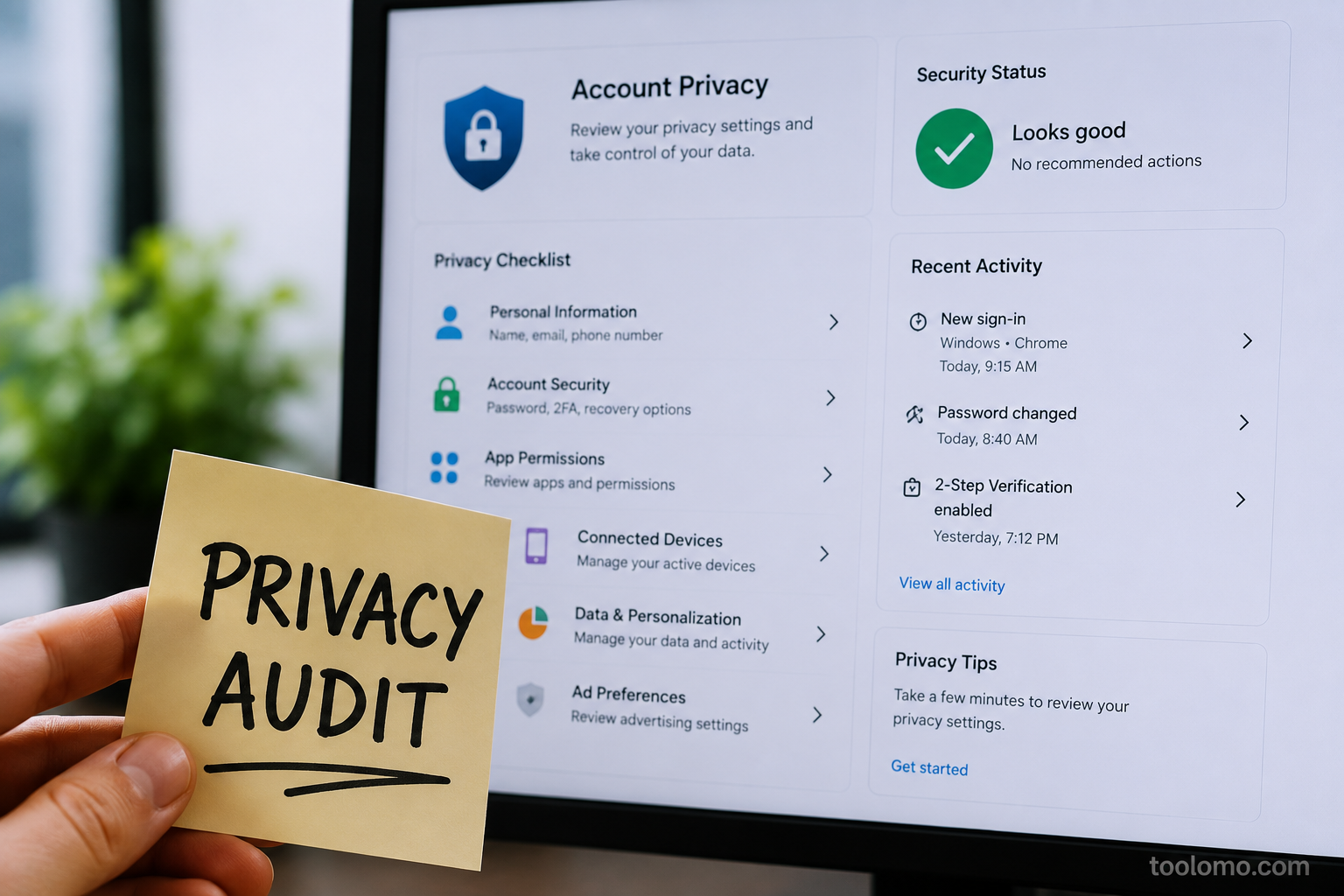
A few months ago, I logged into an old online account I hadn’t used in years. What surprised me wasn’t that the account still existed—it was that it still had my home address, an outdated phone number, a saved payment method, and access to apps I no longer remembered authorizing. Nothing had been hacked. Nothing looked suspicious. But it reminded me how quietly our digital lives grow over time.
Most people think about online privacy only after hearing about a data breach or installing a new phone. The reality is much less dramatic. Privacy usually changes in small ways: a new app requests additional permissions, an old shopping account keeps your credit card on file, or a cloud folder remains shared long after the project ended. Individually, these don’t seem important. Together, they create a digital footprint that’s much larger than most of us realize.
That’s why I like treating privacy as something to review rather than something to “fix.” Every six months, I spend less than an hour checking the accounts, devices, permissions, and services I use most. It’s not a technical security audit, and it doesn’t require special software. It’s simply a structured way to make sure I’m still comfortable with the information I’ve chosen to share.
Why Six Months Is a Practical Schedule
Checking your privacy settings every week isn’t realistic, and waiting several years almost guarantees you’ll forget what you’ve signed up for. Six months is a reasonable compromise. It’s long enough that meaningful changes have probably occurred—new apps installed, subscriptions started, devices replaced—but short enough that reviewing everything doesn’t become overwhelming.
Another advantage is that most major technology platforms release updates several times a year. Features change, privacy controls move, and permission requests evolve. Revisiting your settings twice a year helps you catch those changes before they become permanent habits. Rather than reacting to headlines about privacy, you’re creating a routine that works whether or not there’s a major news story.
Begin With an Inventory, Not Settings
One mistake I see people make is jumping straight into browser menus or phone settings without first understanding what they’re trying to review. Instead, start by making a quick inventory of the digital services you actually use. Think about your email accounts, cloud storage, banking apps, shopping websites, streaming services, social media platforms, productivity tools, and any devices connected to those accounts.
You don’t need an elaborate spreadsheet. A simple written list is enough. The purpose isn’t to document every password—it’s to create a clear picture of your digital ecosystem before you begin making changes.
I usually separate mine into categories like this:
| Category | Examples |
|---|---|
| Personal and work email accounts | |
| Cloud Storage | OneDrive, Google Drive, Dropbox |
| Shopping | Amazon, eBay, online retailers |
| Financial | Banking, payment apps, budgeting tools |
| Social | Facebook, Instagram, LinkedIn, X |
| Devices | Laptop, desktop, tablet, phone |
| Entertainment | Streaming and gaming accounts |
Review Accounts You No Longer Use
Old accounts are simple to ignore because they rarely demand attention. If you haven’t logged into an online forum, shopping site, or travel booking service for years, it’s tempting to assume it doesn’t matter anymore. The opposite is often true. Dormant accounts frequently contain personal information that hasn’t been updated in a long time. Old addresses, outdated recovery emails, previous employers, saved payment methods, and purchase histories can all remain attached to accounts long after you’ve stopped using them.
As I go through my account list, I ask three simple questions:
- Do I still use this account?
- Does it still contain personal information?
- Would I notice if it disappeared tomorrow?
If the first answer is “no” and the other two don’t justify keeping it, deleting the account is usually the simplest option.
Check Which Devices Still Have Access
Many online services allow you to stay signed in for months or even years. That’s convenient until you realize an old laptop, previous phone, or borrowed computer still has access to your account. Most major services provide a page where you can review currently signed-in devices. It’s worth taking a few minutes to look through that list carefully.
Sometimes you’ll recognize every device immediately. Other times you’ll spot an old tablet you sold years ago or a work computer you no longer use. Even if you wiped those devices before discarding them, removing them from your account adds another layer of reassurance. If you find something unfamiliar, don’t panic. Device names aren’t always descriptive. Instead, compare locations, operating systems, and recent activity before deciding whether to remove access or change your password.
App Permissions Deserve
Installing an app usually involves a quick tap on Allow, followed by months—or years—of forgetting what permissions you granted. The problem isn’t that apps request access. Many permissions are perfectly reasonable. Navigation apps need location data. Messaging apps need access to your camera and microphone. The issue is that our needs change while those permissions often remain untouched.
During my privacy review, I open the permission settings on my phone and computer and look at them category by category. Camera, microphone, location, contacts, notifications, and file access are usually enough to identify anything that no longer makes sense. For example, a barcode scanner I installed for a one-time project probably doesn’t need permanent access to my camera six months later. Likewise, a weather app may not need precise location access all day when an approximate location works just as well. Small adjustments like these don’t transform your privacy overnight, but they steadily reduce unnecessary data sharing.
Browser Extensions Can See More Than You Think
People often uninstall unused desktop programs while completely forgetting about browser extensions. Yet extensions can read website content, modify pages, access browsing activity, and interact with online accounts depending on the permissions they’ve been granted. Most are perfectly legitimate, but people often accumulate tools that they haven’t used in years. Every six months, I review my installed extensions with one goal in mind: if I can’t immediately explain why I still need it, it probably doesn’t belong there anymore.
Rather than asking, “Is this extension safe?” ask a different question:
“Would I install this extension again today?”
If the answer is no, removing it is often the simplest decision.
Look Beyond Passwords
Strong passwords are important, but they’re only one part of account security. Recovery email addresses, recovery phone numbers, backup codes, and two-factor authentication methods deserve equal attention during a privacy audit. If you’ve changed your phone number recently or stopped using an old email account, those recovery options may no longer help when you actually need them.
I also check whether important accounts still have two-factor authentication enabled. Occasionally, security settings get disabled while troubleshooting another issue and never get turned back on. This isn’t about making your accounts harder to use. It’s about making sure you can recover them if something unexpected happens.
Review What Your Cloud Storage Is Actually Sharing
Cloud storage services have made collaboration incredibly convenient, but they also make it deceptively simple to forget that files can remain shared long after a project has ended. Think about the last time you shared a folder with family members, coworkers, or a client. Once the work was finished, did you revoke their access, or did the folder simply stay online because nothing seemed urgent enough to clean it up?
Every six months, spend a few minutes reviewing your shared folders and links. Most cloud storage platforms let you see which files are still accessible to other people and whether they’re shared with specific individuals or through a public link. You don’t need to remove every shared folder. The goal is simply to make sure the people who still have access are the ones you actually intended to keep sharing with.
Check Saved Payment Methods Across Your Accounts
Many online stores and subscription services encourage you to save payment details for faster checkout. It’s convenient, especially for services you use regularly, but those payment methods often remain attached to accounts long after you’ve stopped shopping there.
During a privacy audit, I look through the shopping websites and subscription services I use most often and remove payment methods from accounts I rarely visit. It doesn’t take long, and it reduces the amount of financial information stored across dozens of different websites.
This is also a valuable opportunity to check whether expired cards, old billing addresses, or outdated contact information still attach to your accounts. Keeping those details current isn’t just about privacy—it can also prevent unnecessary problems when you need to verify your identity or update a subscription later.
Don’t Ignore Location History and Activity Logs
Many digital services quietly build a history of where you’ve been, what you’ve searched for, and how you use their platforms. Sometimes these records improve recommendations or make future searches easier. Other times, they simply accumulate because they’ve never been reviewed.
That doesn’t automatically mean you should delete everything. Search history, location timelines, and activity logs can be genuinely useful. The important question is whether you’re still comfortable with how much information is being stored.
Every six months, take a look at your activity history on the services you use most often. If you discover records you no longer want to keep—or features you didn’t realize were enabled—you can decide whether to delete existing history or adjust future data collection. The goal isn’t to erase your digital life. It’s to make conscious choices instead of accepting years of accumulated information by default.
Password Managers Need Housekeeping Too
Password managers make it much easier to use strong, unique passwords, but they also collect years of digital history. Over time, they become filled with accounts you’ve forgotten, duplicate entries, outdated passwords, and logins for websites that no longer exist. I treat my password manager like any other digital storage system. Every six months, I scroll through the vault and remove entries that clearly belong to services I’ve permanently left behind.
This review also helps identify accounts that deserve stronger protection. If I notice an important account still using an older password or missing two-factor authentication, I update it while I’m already reviewing everything else. A cleaner password manager isn’t just easier to navigate—it also gives you a more accurate picture of the accounts that still matter.
Use a Simple “Keep, Update, or Remove” Method
One reason privacy audits feel overwhelming is that people think every account needs a complicated review. In reality, most decisions fit into one of three categories.
| Decision | When to Choose It |
|---|---|
| Keep | You actively use the account, and the information is accurate. |
| Update | You still use it, but details like passwords, recovery options, or permissions need attention. |
| Remove | You no longer use the account or app and don’t need to keep it. |
Your Six-Month Privacy Checklist
Rather than trying to remember everything, work through a consistent checklist each time.
| Privacy Review | Completed |
|---|---|
| Remove unused online accounts | ☐ |
| Review devices signed into important accounts | ☐ |
| Check app permissions | ☐ |
| Remove unnecessary browser extensions | ☐ |
| Verify recovery email and phone numbers | ☐ |
| Review two-factor authentication | ☐ |
| Check shared cloud folders | ☐ |
| Remove unused payment methods | ☐ |
| Review location and activity history | ☐ |
| Clean up your password manager | ☐ |
| Check device security settings | ☐ |
FAQs
1. Do I need privacy software? Do I need to do a privacy audit?
No. You may do most of the assessment using options already included in your operating system, browser, cloud storage services, and online accounts. The aim is to review what you’ve previously provided, not install additional tools.
2. Should I delete all online accounts I do not use?
Not always. If the account is still useful or has information you might need later, there’s no harm in preserving it. But accounts you don’t use anymore and don’t need anymore are usually worth getting rid of.
3. Personal privacy audit: How long does it last?
The first inspection will usually take 45 minutes to an hour, because you are probably going to find forgotten accounts and permissions. Then doing it again every six months is usually significantly faster.
4. Is clearing browser history enough to increase privacy?
No, not by myself. Your digital footprint is more than just your browser history. Checking permissions, linked devices, shared files, saved payment methods, and dormant accounts can make a significant difference.
5. Why do you have to repeat the audit every six months?
Your digital existence is ever-changing. New devices, apps, subscriptions, and online services often add new permissions and personal information. Regular review keeps those changes under control rather than allowing them to build up over the years.
Conclusion
A personal privacy audit is not about being anonymous on the internet or deleting all your personal data from it. For most people such an approach is neither realistic nor necessary. The actual benefit is knowing what information you provided, who has access to it still, and whether those decisions still reflect how you use technology today.
If you audit your accounts, connected devices, browser extensions, cloud storage, permissions, and recovery options twice a year, you’re much less likely to be caught off-guard by forgotten accounts, outdated personal details, or unnecessary data sharing. Small changes often are so much easier than trying to unravel years of digital history all at once.
Think about this practice like you do backing up essential files or updating your equipment. You don’t do it because something has gone wrong; you do it to prevent problems from developing. And trust me, your self six months from now will thank you for taking the time to reflect before moving on.

Daniel Kareem is a digital productivity and technology writer focused on simplifying everyday tech use. He creates practical guides on online safety, device optimization, and efficient workflows. His approach centers on clear, step-by-step advice that helps users stay organized, secure, and productive. Through straightforward and realistic content, he aims to make technology easier to understand and more useful in daily life.