
Everyone has experienced it. You know the file exists because you created it yourself, but fifteen minutes later you’re still searching through folders with names like New Folder (3), Final Documents, Misc, or Old Stuff. Eventually, Windows Search finds the file, but you still have no idea where it was stored or why you put it there.
The frustrating part is that most digital filing systems don’t fail overnight. They usually work well for the first few weeks, when there are only a handful of folders and everything feels organized. The trouble begins months later. New projects arrive, priorities change, downloads pile up, and exceptions begin creeping into what was once a tidy structure. Before long, the system you’ve built no longer helps you find files—it slows you down.
A filing system that lasts isn’t necessarily the most detailed one. It’s the one that remains predictable even after hundreds or thousands of files have been added. The goal isn’t perfect organization; it’s making sure future-you can locate what you need without relying on memory.
Start With Your Work, Not Your File Types
One of the most common mistakes is organizing files by their format instead of their purpose. At first, folders named PDFs, Word Documents, Images, and Spreadsheets seem logical. After all, they describe exactly what’s inside.
The problem appears when a single project includes multiple file types. Imagine planning a home renovation. You might have contracts as PDFs, budget spreadsheets, inspiration photos, paint color charts, and scanned receipts. If you separate those files into different folders based on format, you break apart information that naturally belongs together.
Instead, organize around activities or projects. A folder called Kitchen Renovation keeps everything related to that project in one place, regardless of whether it’s a spreadsheet, image, or document. The file type becomes secondary because Windows already shows that information.
Compare the Difference
| File Type Structure | Project-Based Structure |
|---|---|
| Documents | Kitchen Renovation |
| PDFs | 2026 Tax Return |
| Photos | Freelance Clients |
| Excel Files | Family Photos |
| Videos | Travel Planning |
Over time, project-based folders usually require less searching because you’re thinking about what you were doing, not what format the file happened to be in.
Resist the Urge to Build Endless Folder Levels
When people first decide to “get organized,” they often create a deep folder hierarchy. It might start with Documents, then Work, then Clients, then 2026, then Invoices, then Paid, then March, and finally the file itself.
It looks impressive on day one. Six months later, navigating through six or seven folders just to save one document becomes frustrating enough that you start dropping files wherever it’s convenient. That’s usually the beginning of a filing system falling apart.
From experience, keeping your most frequently used files within three or four folder levels strikes a good balance. It’s structured enough to stay organized but simple enough that saving new files doesn’t feel like completing a maze.
If you constantly have to consider where something belongs, the structure is probably more complicated than it needs to be.
Your Folder Names Should Answer One Question
A surprisingly effective test is to imagine looking at a folder six months from now. Would the name immediately tell you what’s inside?
Folders named Important, Temporary, Random, Miscellaneous, or New Files rarely age well because their meaning changes over time. What’s important today may be irrelevant next year, and a temporary folder has a habit of becoming permanent.
Compare these examples:
| Less Helpful | More Useful |
|---|---|
| Work | Client Projects |
| Photos | Family Photos 2026 |
| Bills | Home Utilities |
| Downloads | Software Installers |
| Personal | Medical Records |
The better name isn’t always longer—it’s simply more specific. A folder should explain itself without requiring you to remember why you created it.
Don’t Let the Downloads Folder Become Permanent Storage
The Downloads folder quietly becomes one of the largest collections of forgotten files on many Windows computers. Installation programs, PDFs, ZIP archives, screenshots, manuals, duplicate photos, and old documents all end up there because it’s easy to do so at the time.
The problem isn’t having a Downloads folder. The problem is treating it like long-term storage.
One habit that’s made a noticeable difference for me is thinking of Downloads as a waiting room rather than a filing cabinet. New files arrive there first, but they shouldn’t stay there indefinitely. Once I know a file is worth keeping, it gets moved into its proper project or category. If it’s no longer needed, it’s deleted instead of becoming part of a growing digital junk drawer.
Even spending five minutes clearing downloads every couple of weeks prevents hundreds of unnecessary files from accumulating over the course of a year.
Decide on a Naming Style Before You Need One
Folders help you find groups of files. File names help you identify individual documents once you’re inside those folders.
Many people rename files only when confusion appears, but by then it’s often too late. A folder filled with names like Final, Final2, Updated, New Version, and Really Final quickly becomes difficult to understand.
A simple naming pattern works much better than an elaborate one. For example:
2026-Project-Budget.xlsxKitchen-Quote-BuilderA.pdfClient-Website-Proposal-v2.docxPassport-Scan-2026.pdf
Notice that each name describes the content rather than the circumstances under which it was saved. That’s far more useful a year later when the context has been forgotten.
Quick Tip: If dates are important, use the format YYYY-MM-DD. It sorts correctly in File Explorer and makes older and newer files much easier to identify.
Separate Active Work From Archived Material
One reason filing systems become overwhelming is that every completed project remains mixed with current work. Over time, active folders become crowded with documents that no longer need regular attention.
A cleaner approach is to separate files based on whether you’re still using them.
For example:
Documents
│
├── Active Projects
│     ├── Website Redesign
│     ├── Tax Documents 2026
│     └── Travel Planning
│
└── Archive
      ├── 2025
      ├── 2024
      └── Older Projects
With this structure, your everyday folders remain focused on current work while older material stays available without creating unnecessary clutter. You haven’t deleted anything—you’ve simply moved completed work into a place where it no longer competes for your attention.
Cloud Storage Should Support Your System, Not Replace It
Services like OneDrive, Google Drive, and Dropbox make it easy to access files from multiple devices, but they don’t automatically create an organized filing system. If your local folders are confusing, syncing them to the cloud simply means you’ll have the same confusion everywhere.
Treat cloud storage as a location where your filing system lives—not as the filing system itself. Whether a folder sits on your SSD or in the cloud shouldn’t determine how it’s organized. Consistent names, logical project folders, and clear file structures matter far more than where the files are stored.
This also makes moving between computers much easier. Instead of adapting to different folder layouts on each device, you’re working with the same familiar structure wherever you sign in.
Build a Home for Files Before You Create Them
One habit that has saved me a surprising amount of time is creating the folder before the project begins instead of after files have already started piling up.
Imagine you’re planning a holiday, replacing your kitchen, or starting a freelance project. Rather than saving everything to the desktop and organizing it later, spend two minutes creating the destination folder first. That small step gives every new document, receipt, screenshot, and PDF an obvious place to go from day one.
I’ve found this works particularly well for projects that involve files from different sources. Email attachments, downloaded manuals, invoices, contracts, and photos all end up together instead of being scattered across Downloads, Documents, and the Desktop.
Your Desktop Shouldn’t Become a Permanent Workspace
A cluttered desktop isn’t necessarily a performance problem, but it often signals that your filing system has started breaking down.
Many people use the desktop as temporary storage with the intention of organizing everything later. The trouble is that “later” rarely arrives. Weeks pass, then months, and suddenly dozens of screenshots, installers, PDFs, and folders are competing for attention every time the computer starts.
That doesn’t mean your desktop has to stay empty. I like treating it as a short-term workspace rather than long-term storage. If something stays there for more than a week or two, it’s usually a sign that it belongs somewhere else.
A quick desktop cleanup every Friday—or at the end of a busy project—keeps it useful without requiring constant maintenance.
Don’t Create a Folder for Every Small Task
When people become enthusiastic about organizing files, it’s easy to swing too far in the opposite direction. Instead of having too few folders, they end up creating one for every receipt, meeting, download, or email attachment.
That level of detail often creates more work than it saves. If you need six clicks just to store a two-page PDF, you’ll eventually stop following your system.
A better approach is to let related items live together naturally. For example, instead of separate folders for electricity bills, water bills, and internet invoices, a single Home Utilities folder with clearly named files is usually easier to manage.
The same idea applies to personal documents. You don’t need separate folders for every passport copy, insurance form, or tax receipt if a well-organized Personal Records folder already keeps everything easy to find.
Search Is Powerful, but It Shouldn’t Do All the Work
Windows Search has improved significantly over the years, and for many people, it’s the fastest way to locate a file. Even so, relying on search for everything usually means the underlying filing system isn’t doing its job.
Search works best when combined with sensible organization. If your folders have meaningful names and your files follow a consistent naming style, search results become far more accurate because Windows has better information to work with.
For example, searching for Invoice April 2026″ is much easier when the file is named 2026-04-Invoice-ClientA.pdf than when it’s still called that.
Think of search as a shortcut—not as a replacement for effective organization.
Review Your Filing System Once a Month
One reason filing systems slowly become messy is that people often build them once and then forget about them. Over time, new projects appear, old ones finish, and folders that once made perfect sense begin collecting unrelated files.
A monthly review doesn’t have to take long. Fifteen minutes is usually enough to catch small problems before they become frustrating.
During that review, I usually ask myself a few simple questions:
- Are there files still sitting in Downloads?
- Does the Desktop contain anything that belongs elsewhere?
- Have any completed projects been moved to the archive folder?
- Are there duplicate folders with similar names?
- Are new files following the naming style I’ve already chosen?
This isn’t about creating a perfect system. It’s about keeping small issues from becoming large ones.
A Simple Structure That Grows With You
One thing I’ve learned over the years is that a filing system shouldn’t depend on remembering complicated rules. The fewer decisions you have to make every time you save a file, the more likely you are to stay consistent.
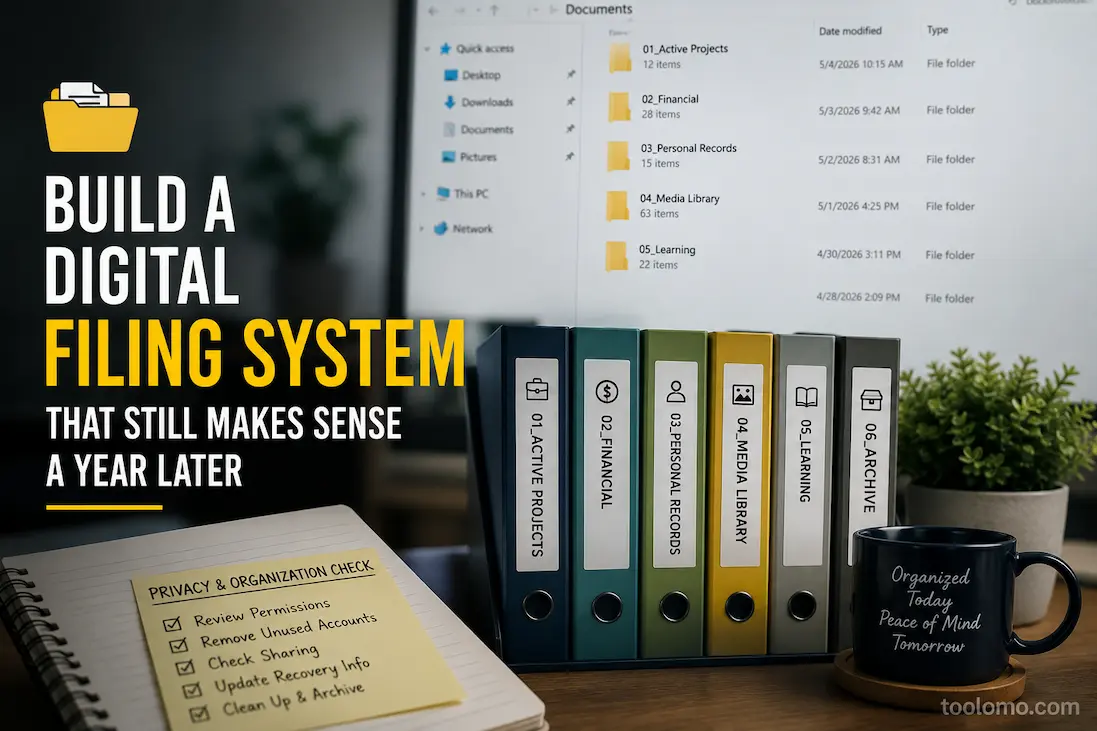
Here’s an example of a structure that’s flexible enough for most home users, freelancers, and small businesses:
| Main Folder | Typical Contents |
|---|---|
| Active Projects | Current work, ongoing plans, open tasks |
| Personal Records | IDs, insurance, medical documents |
| Financial | Tax records, invoices, receipts |
| Media Library | Photos, videos, music |
| Learning | Courses, eBooks, research, notes |
| Archive | Completed projects and previous years |
Notice that none of these folders depend on file type. Instead, they’re based on how people naturally think about their work and personal life.
[Insert screenshot: Example File Explorer folder structure]
Common Filing Habits That Create Problems Later
Some habits don’t seem harmful when you save a file, but they create unnecessary confusion over time.
| Habit | Long-Term Result | Better Alternative |
|---|---|---|
| Saving everything to Downloads | Important files become difficult to find | Move useful files into project folders regularly |
| Using names like Final or New | Multiple versions become confusing | Use descriptive names with dates or versions |
| Creating deeply nested folders | Saving files becomes slow and inconsistent | Keep folder depth to three or four levels |
| Mixing completed and active work | Everyday folders become cluttered | Archive finished projects periodically |
| Creating duplicate folders | Files end up scattered across locations | Maintain one clear location for each category |
Often, the biggest improvement comes from removing unnecessary complexity rather than adding more folders.
Frequently Asked Questions
Should I organize files by year or by project?
For most people, organizing by project or purpose works better. If dates matter, include the year in the folder or filename rather than making every top-level folder a separate year.
Is it okay to keep everything in cloud storage?
Yes, as long as the folder structure is logical and important files are fully synchronized. Cloud storage should improve accessibility, not replace good organization.
How often should I archive old files?
Once or twice a year is enough for most people. If you finish projects frequently, a quarterly archive keeps active folders smaller and easier to navigate.
What should I do with duplicate files?
Review them before deleting anything. Sometimes duplicates exist because one file has been edited while another is the original. Compare names, dates, and file sizes before removing copies.
Is there a perfect folder structure for everyone?
No. The best filing system is the one you’ll actually use consistently. A simple structure that matches how you work is usually more effective than a highly detailed system that’s difficult to maintain.
A Filing System Should Reduce Decisions, Not Create More
The real test of a digital filing system isn’t how organized it looks the day you create it—it’s whether you can still find what you need a year later without thinking twice. If saving a file feels complicated, the structure is probably trying to do too much.
A practical filing system grows naturally with your work, uses clear folder names, and separates active projects from completed ones. Combined with consistent file names and a quick monthly review, it becomes something you rely on rather than something you constantly have to fix.
Don’t aim for perfection. Aim for predictability. If every new file has an obvious home, every completed project has a logical archive, and future you can locate important documents without guessing, you’ve built a filing system that will continue to make sense long after today’s projects are finished.

Daniel Kareem is a digital productivity and technology writer focused on simplifying everyday tech use. He creates practical guides on online safety, device optimization, and efficient workflows. His approach centers on clear, step-by-step advice that helps users stay organized, secure, and productive. Through straightforward and realistic content, he aims to make technology easier to understand and more useful in daily life.