
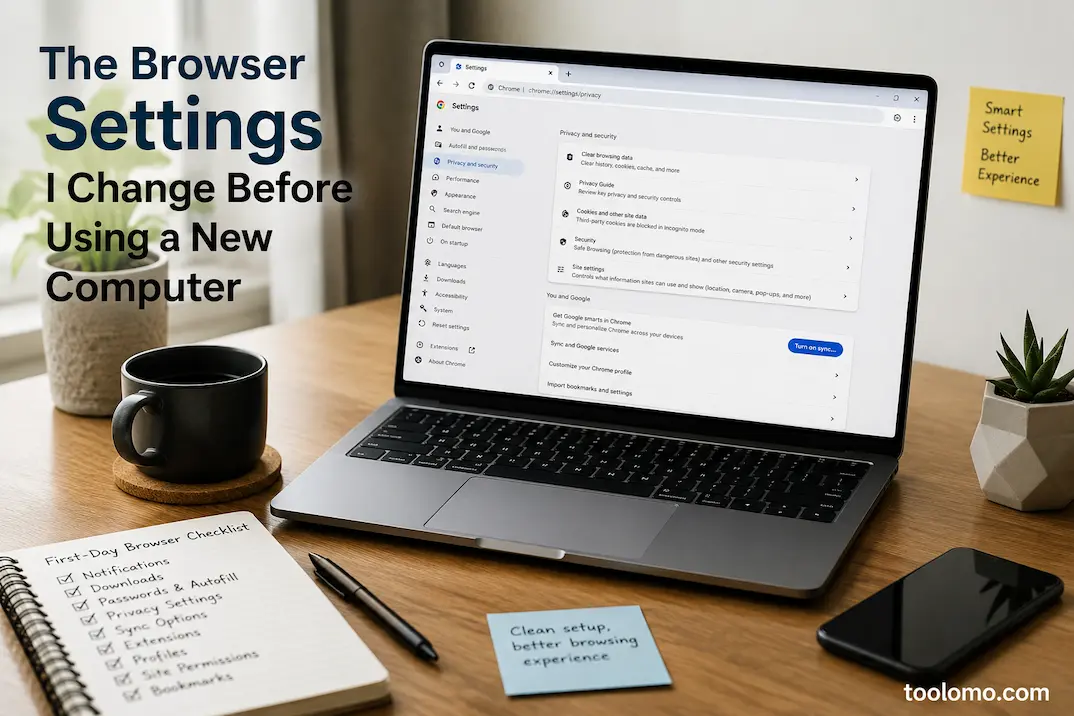
I normally open the browser first when I set up a new computer. Not because I want to browse immediately, but because it will handle most of it—downloading software, signing in, accessing cloud storage, reading documentation. I’ve learned that spending ten minutes adjusting browser settings upfront prevents months of minor issues.
I skipped this stage years ago. Signing into my browser, restoring everything from my old computer, installing my favorite extensions, and thinking I was ready. I often carried over years-old bookmarks, extensions, notification rights from forgotten websites, and settings that no longer fit my workflow.
I now view new browsers as clean workspaces. I configure a few fundamentals first and then add only the things I’ll utilize. The browser takes longer on day one, but it gets faster, cleaner, and easier to use over time.
I delay signing in.
Many new computer users sign into Chrome, Edge, or Firefox to restore everything automatically. Browser sync is convenient, so I get it. I find it helpful to wait a few minutes before checking in.
Doing so lets me review the default settings, see what’s enabled, and decide if I want to copy my browsing history to this new machine. Now is the time to simplify my browser instead of importing years of settings without thinking.
Reviewing Notifications First
I usually check the browser’s website notification settings early. Eventually, it’s easy to allow notification requests without recognizing how many websites can disrupt your day. If permissions accumulate, news sites, shopping stores, productivity tools, and discussion forums can compete for attention.
I like a clean slate with new computers. I block notifications by default and only allow them for calendar services and work-related collaboration platforms. This reduces distractions and makes my few alerts more important.
I check file locations before downloading.
One habit has made a bigger difference than expected. Many individuals don’t mind browsers saving downloads to a default folder. Installers, PDFs, screenshots, compressed archives, and work documents in one place for months cause problems.
When setting up a new computer, I decide how to handle downloads before installing software. I sometimes keep the default location but inquire where each file should be saved. I sometimes prefer a separate downloads folder on another drive, especially at work. Making that selection early prevents hundreds of unrelated files from gathering.
Extensions Must Prove Themselves
Installing every browser extension was a mistake. Ad blockers, note-taking apps, screenshot utilities, shopping assistants, grammar checkers, weather widgets, productivity timers—the list keeps increasing. I discovered that many of them hadn’t been used in months but still loaded when the browser started.
I now approach it differently. I only use extensions I need from the start. Using a missing functionality regularly over several weeks usually indicates that an extension should be deployed. This slower technique lightens the browser and makes it easier to spot odd behavior from new extensions.
I Check Passwords Before Saving
Modern browsers store passwords, passkeys, and payment information well. I spend a few minutes reviewing feature configurations before accepting defaults. For instance, I check password synchronization, whether the browser is using my preferred password manager, and whether I want payment details stored on that computer.
My laptop selections may differ from those on a family computer or business device. Reviewing those settings before signing into dozens of accounts is easier than changing them later.
Sync Is Useful, But I Prefer Selectivity
Although I don’t always synchronize everything, browser synchronization is one of my favorites. I sometimes want bookmarks and passwords but not browsing history. Sometimes I sync open tabs between devices but leave extensions alone until I’m sure they’re useful.
The power to choose what gets synced is often overlooked. Instead of seeing sync as an all-or-nothing option, I use it to pick what information goes on each device.
Several Minutes on Privacy Settings
Privacy settings are easy to overlook because most browsers perform fine without them. I still enjoy reviewing them before browsing.
It’s not my goal to make the browser anonymous or disable features. I want to know what information is exchanged, how cookies are handled, if tracking safeguards are activated, and how site permissions are controlled. Making these decisions while the browser is new is easier than revisiting dozens of websites after months.
Autofill Should Match your Computer
Autofill is practically unnoticeable until it fills forms with obsolete information. After synchronizing, I check if my browser has saved addresses, phone numbers, or payment methods on a new computer.
I sometimes erase inaccurate information before it appears on new websites. I sometimes don’t sync sensitive data if the device won’t be my main computer. Keeping autofill relevant speeds up online forms and reduces the chance of entering outdated information.
Browser Profiles are Better than Separate Browsers
I installed one browser for work and one for personal use because it was easiest to separate them. I discovered that browser profiles achieved the same thing more easily.
I can organize bookmarks, browsing history, add-ons, and saved logins without switching browsers with separate profiles. It also discourages signing onto work accounts while browsing personally. Once I started using profiles regularly, switching jobs was easier.
I Verify Site Permissions Before Building
After using a browser for months, I’ve noticed how many websites surreptitiously acquire permissions. Some can use the microphone, camera, location, notifications, or automatic file downloads. Most permits were issued for a legitimate cause, but many are never revisited.
I check these permissions before browsing dozens of websites on a new computer. Avoiding automatic approvals, I prefer granting access as needed. This improves privacy and prevents unnecessary permission prompts from becoming permanent.
Consider Reviewing Default Search Settings
Many folks are fine with using the default search engine. Configuring search suggestions, address bar searches, and new tab behavior is my focus. I like testing browsers before using them daily to make sure they work as expected.
It’s a little change, but when you search dozens or hundreds of times a day, it matters.
I Avoid Browser Prompt Software Installation
Many popular websites encourage you to install extensions or desktop apps when you visit them on a new computer. Cloud storage, messaging, office suites, retail portals, and productivity apps enable rapid installations. I now don’t immediately accept suggestions.
Instead, I use the browser normally for a few days. I’ll install a program if I frequently use a feature. Waiting helped me avoid installing software I rarely use on a new computer because setup suggested it.
Bookmarks Need a Refresh Too
Many years of browsing produce hundreds of useless bookmarks. Instead of importing everything automatically, I evaluate my bookmarks while setting up a new computer. It’s remarkable how many saved pages are from expired deals, websites that no longer exist, or stories I read years ago.
Keeping only my current bookmarks makes the collection easier to explore and lessens the temptation to save every interesting page without visiting it.
My First-Day Browser Checklist
Before I consider the browser ready for everyday use, I usually review these areas:
- Notification permissions.
- Download behavior.
- Password and autofill settings.
- Privacy and tracking preferences.
- Browser sync options.
- Installed extensions.
- Browser profiles.
- Site permissions.
- Bookmarks.
This isn’t a strict routine that has to be completed in one sitting. It’s simply a checklist that helps me avoid carrying unnecessary clutter from one computer to another.
The Goal Isn’t to Customize Everything
One mistake I made years ago was believing every browser setting needed to be changed. Eventually, I realized that modern browsers already have sensible defaults for most people. Now I focus only on settings that affect my everyday workflow, privacy, or organization. If a feature already works well, I leave it alone instead of changing it simply because an online guide recommended it.
That mindset keeps the browser simpler and makes future troubleshooting much easier because I know which settings I’ve intentionally modified.
Final Thoughts
A new computer is one of the few opportunities to start with a clean browser instead of years of accumulated settings, extensions, and permissions. I’ve found it’s worth resisting the urge to recreate the old setup immediately.
By spending a few minutes reviewing downloads, notifications, privacy settings, browser sync, extensions, and site permissions, I end up with a browser that feels faster, less distracting, and easier to maintain. More importantly, I’m making deliberate choices instead of inheriting habits I may have forgotten about years ago. The best browser setup isn’t the one with the most features—it’s the one that quietly supports the way you actually work.
FAQs
1. Should I sign into my browser immediately on a new computer?
It depends on your preference. Waiting a few minutes before signing in gives you a chance to review the browser’s default settings and decide what you actually want to synchronize instead of automatically restoring everything.
2. Do I really need browser extensions on a new computer?
Not necessarily. Start with the extensions you genuinely need and install others only after you’ve confirmed they’ll be useful. This keeps the browser simpler and can reduce compatibility or performance issues.
3. Is it safe to save passwords in my browser?
Modern browsers provide secure password management features, but it’s still worth reviewing how passwords are synchronized, whether two-factor authentication is enabled, and whether the device is one you personally trust.
4. How often should I review browser permissions?
Checking permissions every few months is usually enough. It’s also a good idea to review them after installing several extensions or using many new websites.
5. Should I import all my old bookmarks?
Not always. A new computer is a good opportunity to remove bookmarks you no longer use. Keeping only the sites you regularly visit makes your bookmark collection much easier to manage.
Start Fresh Instead of Copying Old Habits
Setting up a new browser isn’t just about getting back to where you were yesterday. It’s an opportunity to improve the way you browse, organize information, and protect your privacy.
Rather than importing years of accumulated settings without thinking, take a little time to decide what still fits the way you work today. Those small choices may not seem important during setup, but they’re the ones you’ll benefit from every time you open your browser in the months ahead.

Daniel Kareem is a digital productivity and technology writer focused on simplifying everyday tech use. He creates practical guides on online safety, device optimization, and efficient workflows. His approach centers on clear, step-by-step advice that helps users stay organized, secure, and productive. Through straightforward and realistic content, he aims to make technology easier to understand and more useful in daily life.