
Timing can reveal much. A sudden issue after a change may be distinct from a sustained performance reduction. If only one program is affected, the computer may not be the issue. Define the issue specifically. Instead of declaring, “My computer is broken,” analyze whether it starts slowly, freezes during one task, loses internet access, displays an error message, or shuts down unexpectedly. This basic distinction can reduce stress and guide troubleshooting. A PC without Wi-Fi is different from one that won’t power on.
Check Whether the Problem Is Temporary
Strange computer behavior doesn’t always mean a problem. Short-term process, background task, or application issues might cause poor performance. Wait for the computer to finish if it slows down. Heavy downloads, software updates, file transfers, and other procedures can momentarily slow responsiveness.
Restarting the computer can also help troubleshoot. Restarts close applications and resets many temporary system processes. It cannot repair all issues, but it can assist in deciding if they were transitory. Watch what occurs after restarting. That information is useful if the machine runs normally for several hours and then has the same problem. Rather than a hardware failure, a temporary software process may have caused the problem to disappear. Try not to restart without seeing results. Each step provides problem information, making troubleshooting more effective.
Check for Simple Causes Before Blaming Hardware
Hardware issues can cause strange computer behavior, although they are not usually the first cause. Software, configuration, connectivity, or environmental factors can cause many hardware faults. A computer that loses internet connectivity may still work. The router, network connection, or internet service may be to blame, not the computer.
A keyboard that stops responding may have a loose connection, low battery, or wireless connectivity issue. A monitor that displays nothing may have a cable issue or the wrong input source. Before presuming the PC failed, examine external devices. Reconnecting a cable, checking power, or testing another port might occasionally find a simple problem. This principle also applies to software. If one program breaks while others work, it may be the cause. Testing another software program can reveal whether the problem is local or system-wide.
Monitor Storage, Memory, and Programs
Computer performance issues can stem from resource usage. When storage space is low or several demanding apps are running, the system may slow down. First, check the free storage space. A nearly full drive can make file management difficult. Removing unnecessary files can help slow computers, but not always.
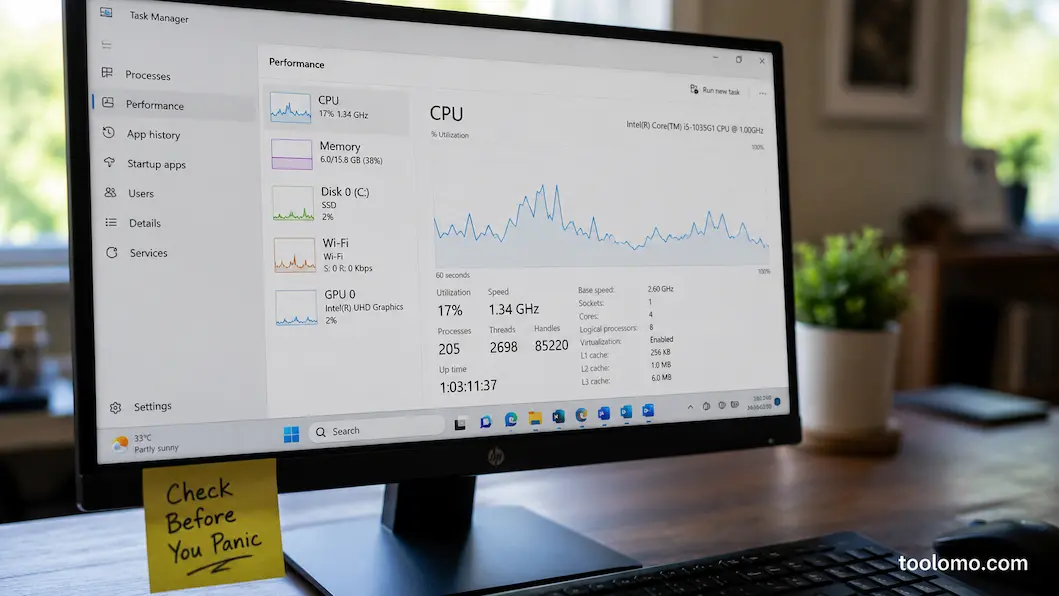
Finding programs and processes that utilize a lot of system resources is also helpful. Windows and macOS have built-in tools to identify processor, memory, and other resource-hogging apps. Closing an abnormally resource-intensive program may help determine if it is causing the problem. However, some background activities are essential to the operating system, so cancel them carefully. When multiple demanding applications or browser tabs are open, a computer with limited memory may struggle. Closing unnecessary programs is an effective technique to determine if workload is slowing performance.
Consider Recent Software Changes
After system changes, computer problems can arise. New apps, drivers, OS updates, and security tools can sometimes affect other software. Avoiding updates is not advised. Updating operating systems and apps is crucial to computer security. You can troubleshoot a new problem by remembering what changed immediately before it emerged.
If the problem started after installing an app, see if the developer offers updates or troubleshooting. If the problem affects only that application, its settings or installation may be worth examining. Be cautious about immediately reversing system upgrades or modifying complex settings without knowing the effects. Some changes can cause security or compatibility issues. Identifying the timing, documenting error messages, and using official operating system or software support is better. This simplifies finding the cause instead of making multiple unrelated modifications.
Sort One Problem From Several
It is tempting to think that multiple problems have one severe cause when they occur simultaneously. This is sometimes true, but often problems occur separately. Separating them simplifies troubleshooting. Imagine your computer is slow, a website won’t load, and a printer quits working. These issues may appear together but have different causes. Slow performance may be due to system resources, website connection issues, or printer offlineness.
Test each issue separately. See if other websites work. Launch another app. Disconnect the printer and observe the computer’s behavior. This method distinguishes similar and unrelated symptoms. This method avoids unnecessary changes. If you change multiple settings at once, you may not know which helped or caused the problem. Testing one hypothesis yields more valuable data. Troubleshooting frequently involves restricting the alternatives until the source is evident.
Avoid Ignoring Error Messages
Error warnings with confusing technical language are frustrating. However, they often reveal computer or application issues. Write or screenshot the exact wording if an error occurs repeatedly. A broad search like “computer broken” is unlikely to yield meaningful results. The error message may lead to official documentation or support.
Watch the message’s arrival. Opening one application with an error indicates a different issue than a starting error. Avoid downloading random software that purports to solve an error from a search result. Some websites market useless utilities or exaggerate computer issues. Starting with operating system or software manufacturer support pages is safer. Error messages don’t always indicate serious failure. A hint. Knowing when and why it appears can help you decide what to investigate.
Know Which Warning Signs Need More Attention
Applications crash and slow down occasionally, but some symptoms are more concerning. Unexpected shutdowns, startup failures, unusual noises, or overheating require attention. Instead of rebooting, investigate if a computer continually shuts down without notice. Software, power management, temperature, or hardware may be the reason, and the symptoms determine the remedy.
Unusual noises can also reveal information. If a quiet computer makes a clicking, grinding, or repeated mechanical noise, don’t dismiss it. Protecting essential files is crucial if you fear a storage device or component is failing. Heat is another warning sign. Computers inherently generate heat, but continuous overheating, abrupt shutdowns, or noisy cooling fans may suggest a problem. The computer may still be repairable despite these symptoms. They just suggest that basic troubleshooting may not be enough and that you may need further diagnostics.
Before Risking Anything, Check Your Important Files
Consider computer data before making substantial adjustments. Troubleshooting is crucial, but data protection comes first in hardware failure situations. If the computer is still working, back up important documents, photos, and other data securely.
This is crucial if you notice repeated crashes, unusual noises, or other hardware issues. Don’t wait until the computer shuts off to consider your essential files. Backups are helpful before reinstalling an operating system or resetting a device. These actions may change saved data, depending on the approach. A backup does not repair a computer problem, but it decreases the risk of losing important data while you address it.
Know When Basic Troubleshooting Is Insufficient
Basic troubleshooting helps with many ordinary issues, but experimenting might make things worse. If a computer crashes, won’t start, has hardware warnings, or develops serious health issues, you may need professional help. When the problem persists after reasonable troubleshooting, the same applies. Repeating acts without learning will usually provide the same results.
Collect useful data before contacting technical support. Note what happened, when the problem started, what you were doing, and what troubleshooting actions you tried. Provide precise error message text. If the issue affects one app or device, say so. Clear information helps technicians and support reps comprehend the situation faster. Seeking professional help does not mean you failed to troubleshoot. Good troubleshooting involves knowing when you lack tools, knowledge, or access.
Stress-Free Troubleshooting Saves Time
Beginners’ worst error when a computer acts strangely isn’t technical. Rushing. When something goes wrong, people may install a repair tool, change settings, or assume the worst. Calmness usually works best. First identify the symptom, then evaluate what happened, test simple theories, and then make one modification at a time. Keep notes on complicated issues.
This approach breaks down a vague issue into smaller questions. Does the issue affect the computer or an app? It started immediately or gradually? Does restarting affect anything? Does the problem involve a network or device? Each answer limits options. Even if you can’t fix it, your information can help professionals. Troubleshooting is not about proving everything is fine. It is to diagnose the problem before determining its severity.
Conclusion
Slow computer, frozen application, or unexpected error can be worrying, but they do not necessarily indicate a machine failure. You can often solve many issues with software, settings, temporary processes, external devices, or network connections. Define the issue before assuming the worst. Consider what changed, try the simplest options, and observe patterns. Avoid making multiple major changes at once, especially if you don’t know what caused the issue.
However, do not ignore repeated crashes, unusual physical symptoms, or signs of hardware failure. When simple troubleshooting fails, protect vital files and get help. Thoughtful troubleshooting provides better knowledge of the issue even if it does not fix it. That can save time, reduce stress, and improve decision-making.
FAQs
1. Is it okay to restart my computer if there are problems?
Restarting your computer can help fix temporary program or system issues. However, if the problem persists after restarting, further investigation may be required.
2. How do I determine if the problem is hardware- or software-related?
There is no universal test method that works in every situation. Is the problem limited to a single application, or does it affect the entire system? Did the problem arise after a software change? Are there signs of a physical malfunction, such as unusual noises or frequent shutdowns?
3. My computer has suddenly become very slow. What should I do?
Check for programs or background processes consuming significant system resources, verify if there is insufficient storage space, and determine whether the slowdown affects all applications or is limited to a specific one. You can also try restarting the system to see if the issue is temporary.
4. Should I use third-party PC repair tools?
Be careful! Not all products claiming to clean, optimize, or repair your PC are suitable for your needs. Before installing software from unknown sources, try using your system’s built-in utilities and consult the official support documentation.
5. When should I seek professional help?
Consider seeking professional help if your computer fails to start normally, frequently freezes, displays hardware warnings, makes unusual noises, or if the problem persists despite your troubleshooting efforts.
References
- Microsoft Support – Windows troubleshooting and device support:
https://support.microsoft.com/ - Apple Support – Mac troubleshooting and technical support:
https://support.apple.com/ - Microsoft Learn – Windows system administration and troubleshooting documentation:
https://learn.microsoft.com/ - Apple User Guide – Mac user documentation and support resources:
https://support.apple.com/guide/mac-help/welcome/mac

Daniel Kareem is a digital productivity and technology writer focused on simplifying everyday tech use. He creates practical guides on online safety, device optimization, and efficient workflows. His approach centers on clear, step-by-step advice that helps users stay organized, secure, and productive. Through straightforward and realistic content, he aims to make technology easier to understand and more useful in daily life.