
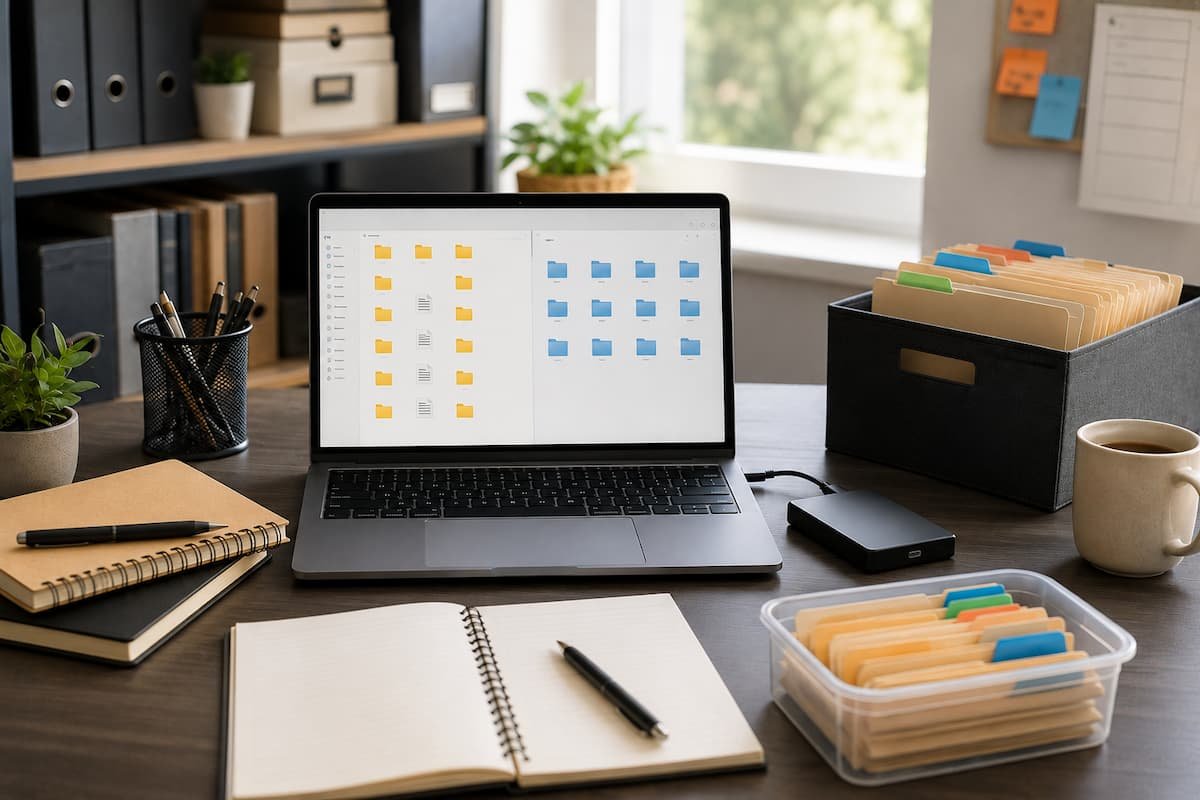
Why Temporary Files Cause Digital Organization Issues
Most people unintentionally clutter digitally. It usually happens slowly during computer use. A document is downloaded for a quick task, an email attachment is saved, a screenshot is taken for backup, or a draft copy is made before editing. Each temporary file looks innocent, but it might cause confusion over time.
The issue arises when temporary files become permanent. A folder for short-term objects becomes a repository for crucial documents, unfinished projects, old versions, and random files with no obvious purpose. Several daily issues arise. Finding the right document version is haa challengeImportant files may be unintentionally removed as superfluous. Duplicates can make it unclear which file has the latest modifications.
Digital organizing doesn’t require elaborate systems or hours of folder organization. Creating simple habits makes files easier to understand and maintain. A good temporary file system organizes files during their limited existence. It speeds up work and prevents transient items from becoming digital clutter.
The Difference Between Temporary and Important Files
File organization is complicated because individuals often treat temporary and important files the same. Both can be found in the same files with identical names and appear equally useful. Temporary files aid short-term tasks. They may include downloadable reference documents, screenshots, draft versions, exported files, or objects needed exclusively for a certain task.
Most important files serve a longer purpose. These may include finished projects, personal records, work documents, financial data, creative work, or items that you need to access later. Understanding this difference alters information organization. Temporary files need examination and removal, while vital data need secure, easy-to-find locations.
Making temporary files the default storage is a typical mistake. Many individuals save everything in Downloads because it’s convenient. Convenience in the near term can cause confusion later. A superior digital filing system starts with explicit temporary and permanent file separation.
Match Your Temporary File System to Your Workflow
A temporary file system works best when it matches your computer usage. The goal is to create a system that eliminates daily decisions, not copying someone else’s folder structure. A specialized temporary workstation is one option. This folder can hold active files before they are transferred or deleted.
A presentation preparer may keep photographs, research notes, and drafts in a temporary project folder. Only the final documents need to go into a long-term project folder after the presentation. Sorting temporary files by purpose rather than kind is another useful method. If all files are for the same job, a “Current Project” folder may be better than separate folders for documents, photos, and spreadsheets.
The system should answer “Where does this file belong right now?” Uncertain answers indicate a complicated organization system. Good temporary file systems eliminate reluctance. Instead of wondering where to save things, you have a place for used but unfinished files.
Avoid Confusion with Clear File Names
One of the easiest methods to organize digitally is file names. A well-named file can indicate its purpose without opening and searching. Many users label temporary files “document,” “new file,” or “final version.” These names may be fine while creating the file, but they get confused when there are multiple similar files.
A better file name offers vital details for later identification. The file’s format depends on your work, but the name should indicate its contents. Instead of saving many versions with confusing names, a person might label projects and stages. This simplifies identifying active, completed, and old files.
Avoid long names that complicate things. Quick recognition, not extensive filename descriptions, is the goal. Clear file names simplify cleanup, especially for temporary files. Choosing what to preserve and what to delete is easier with simple files.
Sort Active Work From Completed Projects
Keeping unfinished and completed work together causes many digital organizing issues. Active drafts, old versions, and final files in the same place make finding the right document challenging. Clearer workflow results from separating current and concluded jobs. Since they change, active files can be flexible, while you can retain completed files permanently.
A freelance designer may maintain client materials in an active workspace and archive completed jobs. Students may separate current assignments from prior semester coursework. This method reduces inadvertent errors. When finished work is clearly segregated, editing or removing earlier versions is less likely. Choosing when a file goes from temporary to permanent storage is essential. Without that decision, temporary folders become permanent, unpredictable storage.
Better Download, Email, and Screenshot Management
Daily use of unorganized spaces is a major source of temporary file clutter. Because of their convenience, people routinely store download folders, email attachments, and screenshots. The Downloads folder is usually improved first. Many files are there because a browser automatically saves them, but they shouldn’t stay. A downloaded document may only be needed for a few minutes, while another must be transferred into a project folder.
Reviewing downloads regularly helps. Check if each file is needed. For ongoing projects, please move it there. When no longer needed, please remove it. You should take similar care with email attachments. When the original material is safe in an email account, saving every attachment can produce needless copies. Save attachments for offline access or project inclusion.
Screenshot names are sometimes vague, making them tough. Instead of retaining hundreds of random photos, organize useful screenshots into folders with descriptive titles or delete them after use. Managing daily clutter prevents temporary files from quietly becoming permanent.
Create an Effective Simple Cleanup Routine
An organized file system only works if you keep it up. Even a well-designed system might become crowded without regular maintenance. File cleanup doesn’t have to be a big project. Regular, brief evaluations are easier to sustain than multi-hour digital cleaning operations.
A simple routine can include checking temporary folders after a project, evaluating downloads weekly, or rearranging files before a new task. How often you produce and manage files determines the timetable. Avoid rapid file deletion during cleanup because they appear old. First, assess the file’s future value. Temporary files with research, drafts, or references are useful later.
An archive folder can aid uncertain decisions. Older files can be archived so they’re still available but don’t interrupt everyday work. Cleaning is not about deleting everything. It builds trust that you can find crucial information.
Backup and Cloud Storage Wisely
Cloud storage simplifies file organizing but does not eliminate digital clutter. Unorganized cloud accounts can be as perplexing as cluttered computer folders. Accessibility is a cloud storage benefit. Many providers offer features to prevent inadvertent loss of important files between devices. Organization still requires distinct folders and naming patterns.
Temporary files should not be synchronized across devices forever. Extra files might make storage harder to manage and make critical papers harder to find. Cloud storage for active and vital files and regular removal of transient stuff is practical. Your digital environment will be cleaner and easier to use. Organization does not substitute protection; thus, backups are crucial. Hardware faults, inadvertent deletion, and other concerns might damage a well-organized folder system. Effective file management requires organization and backup.
Avoid these temporary file organization mistakes.
Systems that seem convenient but cause confusion cause many file organizing issues. Recognizing these flaws can help you develop a useful system. Having too many folders is a typical mistake. A tedious folder layout that requires numerous clicks to find a file can lead individuals to ignore the system and store files arbitrarily.
Avoiding labeling several versions is another issue. Drafts, copies, and exported files are sometimes needed, but confusing nomenclature makes it hard to choose. Another prevalent practice is saving things “just in case.” Retaining vital files is important, but retaining every temporary file clutters and slows searches.
Instead of organizing files, some users only use search tools. Search is helpful, but a logical structure simplifies document-project relationships. The best system is flexible and structured. Files should be easy to save, find, and delete when no longer needed.
Permanent Digital Filing Habit
Organizing temporary files doesn’t require extra computer management. Creating habits that save time later. A few simple daily decisions can save hours of searching and confusion. Simple methods usually work best. Set up temporary files, separate ongoing and completed tasks, use clear file names, and examine files often.
You should also be prepared for clutter to stay organized digitally. You always need temporary storage, new data, and project changes. Controlling clutter is the goal, not preventing it. Knowing where files go and when to transfer or delete them simplifies digital workspace management. You focus less on searching and more on work. A simple filing system goes beyond tidying files. It reassures that vital work won’t be lost in temporary files.
Final Thoughts on Temporary File Organization
Users expect temporary files on computers. They aid creativity, research, communication, and daily duties. When temporary storage becomes permanent without a method, problems arise.
A sensible system keeps balance. Files can be flexible while needed, but they should be moved or deleted when no longer useful. Complexity is not the ideal organization system. It’s straightforward to follow without disrupting work.
Create clear boundaries between temporary and important files, use simple naming conventions, and clean up regularly to secure your work and calm the digital environment.
FAQs
No. You may find certain temporary files handy, especially if you work on current tasks. Before removing review files, delete just those items that are no longer useful.
2. How frequently do I have to organize my computer files?
Your optimal timetable will depend on how many files you create. Some people find a weekly review useful, while others may only need a monthly upkeep. It’s not frequency that matters; it’s consistency.
3. Do I need to save older versions of documents?
Older versions can be beneficial for some tasks but should be explicitly marked or separated apart. This prevents the confusion between current and obsolete files.
4. File organization instead of cloud storage?
Cloud storage is good for access and backup, but it does not replace organization. Still, a clear folder structure and naming scheme is required to manage files successfully.

Daniel Kareem is a digital productivity and technology writer focused on simplifying everyday tech use. He creates practical guides on online safety, device optimization, and efficient workflows. His approach centers on clear, step-by-step advice that helps users stay organized, secure, and productive. Through straightforward and realistic content, he aims to make technology easier to understand and more useful in daily life.