
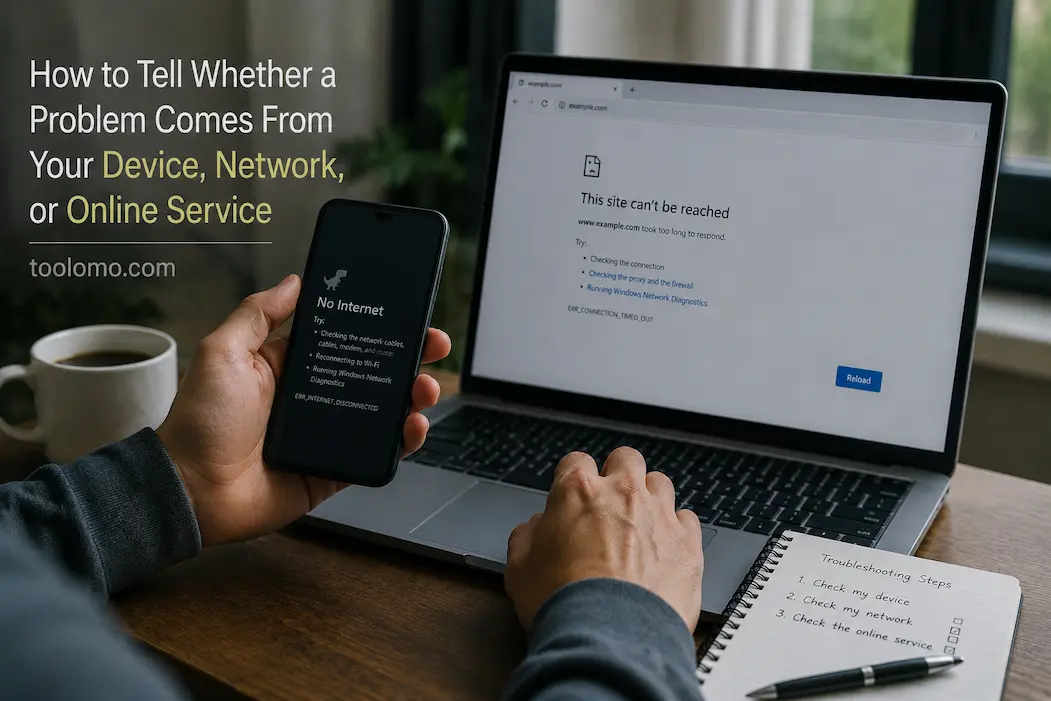
When something stops working online, the easiest reaction is often to blame the internet. A webpage will not load, a video call freezes, an application cannot connect, or a file refuses to synchronize, and the immediate thought is usually that the Wi-Fi is broken. Sometimes that is exactly what happened. But the same symptom can also be caused by the device itself, the local network, the internet connection, the online service, or even an account-specific problem.
That makes troubleshooting more difficult than simply restarting the router. The more useful question is not “What can I restart?” but rather, where does the failure actually occur? Once you separate the device, local network, internet connection, and online service into different parts of the journey, many confusing problems become easier to understand. You can test each part instead of changing several things at once and hoping something works.
Start By Defining Exactly What Is Failing
Before changing settings, describe the problem as specifically as possible. “The internet is broken” is too broad to be useful because it could describe dozens of different situations. A better description might be that one website fails to load while others work, that every device in the house has lost internet access, or that only one application on one computer cannot connect.
Pay attention to what still works. If you can browse several unrelated websites but one particular service refuses to open, your internet connection may be working normally. If your phone works on the same Wi-Fi network while your laptop does not, the problem is less likely to be a complete internet outage. If several devices cannot reach the same service while other websites work, the online service itself becomes more interesting as a possible cause.
This first step sounds simple, but it prevents a common troubleshooting mistake: treating a specific failure as though the entire technology stack has failed. The more precisely you describe the symptom, the fewer possibilities you need to investigate.
The Four Layers to Think About
For many everyday connection problems, it helps to think about the path between your device and the service as several separate layers. Your device is the computer, phone, tablet, television, or other hardware you are using. Your local network includes the Wi-Fi router, Ethernet connection, and other networking equipment in your immediate environment. Your internet connection is the link that carries traffic from your network to the wider internet. Finally, the online service is the website, application platform, cloud storage service, game server, or other destination you are trying to reach.
These layers can fail independently. Your laptop might have a problem while the router works perfectly. The router might be functioning while your internet provider is experiencing an outage. Even if a particular website is experiencing a technical incident, your internet connection might still be fine. You can even have a perfectly healthy device and network while an account-specific problem prevents one service from working correctly.
Thinking in layers gives you a troubleshooting map. Instead of randomly changing settings, you can ask which part of the path is actually behaving differently.
First Check Whether Other Devices Have the Same Problem
One of the quickest ways to narrow down a connection problem is to compare devices.
Suppose a website does not load on your laptop. Try accessing the same website from your phone while connected to the same Wi-Fi network. If the phone loads it normally but the laptop does not, the problem is less likely to be a complete internet or service outage. You can then focus more attention on the laptop, its browser, its network configuration, or something specific to that device.
The opposite result is also useful. If your laptop, phone, and tablet all experience the same problem on the same network, the issue may be farther upstream. It could involve the router, internet connection, DNS configuration, or the online service itself. This comparison is valuable because you are changing one major variable while keeping the destination the same.
You do not need a large collection of devices to perform this test. Even comparing two devices can provide meaningful evidence.
Then Check Whether The Problem Follows The Network
If possible, test the affected device on a different network. A phone’s mobile data connection can be particularly useful for troubleshooting because it bypasses your home Wi-Fi and router.
For example, if a website works normally on your laptop when connected to a phone’s hotspot but fails when the laptop uses your home Wi-Fi, the laptop itself becomes less likely to be the primary cause. The problem may be somewhere in the home network, router configuration, DNS behavior, or internet connection.
Be careful when interpreting this test, however. Changing networks can change several things at once, so it does not identify the exact component automatically. It simply tells you that the problem behaves differently under a different network path.
That distinction matters. A test can narrow the possibilities without proving a single cause.
Look At The Scope Of The Failure
The number of affected services is another useful clue. If only one website or application is failing while unrelated services work normally, a broad internet outage becomes less likely.
Imagine that you cannot access a particular cloud storage service, but you can browse news websites, send messages, and use other online applications. Your device clearly has some level of internet connectivity. The next question becomes whether the problem is specific to that service, your account, or the route between your network and that service.
On the other hand, if almost every website and online application stops working at the same time across several devices, investigating the local network and internet connection makes more sense.
This is why testing several unrelated services is more informative than repeatedly refreshing the same page. One failed destination does not tell you whether the whole connection is broken.
When Only One Application Has A Problem
A particularly confusing situation occurs when your browser works but one desktop or mobile application cannot connect.
That does not necessarily mean the internet is unstable. The application may have its own cached data, account session, network permissions, proxy configuration, DNS behavior, or server connection. It may also be experiencing a problem that affects only its own platform.
Try accessing the service through another supported method if one exists. If a desktop application cannot connect but the service’s website works in a browser on the same device, that is useful evidence. The network may be fine while the application needs further investigation.
Likewise, if the service fails in both the application and browser on the same device but works elsewhere, the problem may be specific to the device or account rather than the service itself.
Check Whether The Online Service Is Having Problems
Sometimes the simplest explanation is that the service itself is experiencing an outage or degraded performance.
Large online platforms can have technical incidents that affect some or all users. When such an event happens, repeatedly changing settings on your computer will not solve the underlying problem.
Look for an official status page if the service provides one. Some services also publish incident information through their official support channels. If many users are affected, independent outage reports can provide additional clues, although they should not be treated as definitive evidence by themselves.
The pattern matters here too. If a service suddenly stops working on multiple devices and networks while other online services remain available, the destination itself becomes a strong possibility.
An Account Problem Can Look Like A Network Problem
Not every connection failure is actually a connectivity failure.
A service may reject an account because of an expired session, changed password, verification requirement, billing issue, account restriction, or another problem. From the user’s perspective, the application may simply appear unable to work.
Try signing into the service through its official website if possible. Look for account notifications or messages that explain what is happening. If the same account fails on multiple devices while another account works normally, the account becomes a more likely source of the problem.
This is an important distinction because restarting your router cannot repair an account restriction. Troubleshooting becomes much faster when you identify whether the service is unreachable or whether the service is reachable but refusing a particular account.
DNS Can Create A Particularly Confusing Problem
DNS, which helps translate domain names into network addresses, can sometimes create situations where some websites work and others do not. You may have an active internet connection while certain domain names fail to resolve correctly.
You do not need to change DNS settings immediately just because one website is inaccessible. First establish the scope of the problem. If only a small number of destinations are affected, DNS is one possibility among several. If the same sites fail across multiple devices using the same network but work elsewhere, the network’s DNS configuration becomes more relevant.
Avoid making several networking changes simultaneously. If you change DNS, reset network settings, restart the router, and reinstall drivers all at once, you may eventually fix the problem without knowing what actually caused it. A structured process produces more useful information.
Do Not Forget The Browser
When a website works on one device but not another, the browser itself deserves attention.
Cached files, extensions, stored sessions, privacy settings, security software, and browser configuration can sometimes interfere with a particular website. Try a private browsing window or another browser as a diagnostic comparison. If the website works there, you have evidence that the problem may be related to the original browser environment rather than the network.
Again, this is not proof that one particular setting is responsible. It is a way to narrow the search.
If several browsers on the same device fail to access the service while another device on the same network works normally, the investigation should move beyond the browser and toward the device’s networking configuration or security software.
A Simple Comparison Can Reveal A Lot
When you are troubleshooting, write down the results instead of relying on memory. A small comparison can make the pattern obvious.
| Test | What It Can Suggest |
|---|---|
| Same service fails on several devices | Service, network, or internet path may be involved |
| Only one device fails | Device, browser, application, or local configuration |
| Other websites work normally | Problem may be specific to the service or destination |
| Device works on another network | Home network or internet connection becomes more likely |
| Service fails across different networks | Online service or account becomes more likely |
| Website works but app does not | Application-specific issue is more likely |
| Several unrelated services fail | Network or internet connection deserves attention |
| Another account works on the same device | Account-specific issue becomes more likely |
These results are not diagnoses by themselves. They are clues that help determine where to investigate next.
When Restarting Actually Makes Sense
Restarting equipment is useful, but it works best when you understand what you are trying to reset.
Restarting an application can clear its temporary state. Restarting a computer can reset certain software and network conditions. Restarting a router can establish a fresh connection with your internet provider and clear some temporary networking states.
The mistake is restarting everything simultaneously and then assuming that the problem has been diagnosed because it disappeared.
If you restart the computer, router, and application at the same time, you lose information about which component was actually responsible. When practical, change one thing at a time and observe the result. If the problem is urgent, getting the service working may be the priority, but for a recurring problem, preserving diagnostic information is more valuable.
What To Record If The Problem Keeps Returning
Recurring problems are much easier to solve when you keep a short record of what happened.
Write down the approximate time, the affected device, the affected service, the network being used, and what still worked. Note whether another device had the same problem and whether changing networks made a difference. If an error message appeared, record the exact wording rather than paraphrasing it.
Screenshots can also be useful, particularly when the error disappears after restarting.
You do not need a detailed technical diary. A few accurate observations can be enough to reveal a pattern. For example, a service that fails only on one laptop after waking from sleep indicates a very different issue than a service that fails for every device in the house at the same time.
When To Stop Troubleshooting Yourself
Some problems are better handed to the relevant support team once you have gathered useful information.
If an online service appears to be experiencing an outage, its support or status information is more relevant than changing your device configuration. If your internet connection repeatedly drops on every device, your internet provider may need to investigate the connection. When only one computer continues to have persistent networking problems after ordinary troubleshooting, it may be appropriate to contact manufacturer or technical support.
The useful information you have already collected can make that conversation much more productive. Saying “the internet doesn’t work” gives support very little to work with. Saying “three devices on the same Wi-Fi network cannot reach this service, but other websites work and the service also fails over mobile data” provides a much clearer picture.
Good troubleshooting is partly about knowing when you have gathered enough evidence to pass the problem to someone else.
Troubleshooting Gets Easier When You Stop Guessing
Connection problems often feel complicated because several different components can produce almost identical symptoms. A website that refuses to load could be caused by a browser, a computer, a router, DNS, an internet provider, an account, or the website itself. Restarting everything may occasionally restore access, but it does little to explain what happened.
A better approach is to compare devices, networks, applications, and services systematically. Ask what still works, whether the problem follows the device or the network, and whether the same service fails somewhere else. Each comparison removes possibilities and gives you a clearer direction.
You do not need specialized equipment or advanced networking knowledge to start. Often, two devices and a few carefully chosen tests are enough to determine whether you should investigate your computer, your network, or the service on the other end. The goal is not to diagnose every technical problem yourself. It is to identify the most likely layer before you start changing things, so that the next troubleshooting step has a reason behind it.
Frequently Asked Questions
How Can I Tell If My Wi-Fi Or The Website Is The Problem?
Test the same website on another device connected to the same network, and, if possible, test it on a different network, such as mobile data. If the service fails across multiple devices and networks while other websites work, the issue is more likely to be with the online service. If it fails only on your home network, investigate the network or internet connection.
Why Does One Device Have Internet While Another Does Not?
Different devices can have different network settings, applications, security software, DNS configurations, or connection problems. If one device works normally on the same network, that is useful evidence that the internet connection itself is not completely down. Focus next on the affected device and the software used to access the service.
Should I Restart My Router When A Website Stops Working?
You can, but please do not make it your first automatic response. If only one service is affected and other devices can access the internet normally, restarting the router may not address the actual cause. First determine whether the problem affects other devices or services.
Why Does A Website Work On Mobile Data But Not Wi-Fi?
That result suggests that something about the Wi-Fi network or its internet path may be involved, but it does not identify the exact cause. DNS configuration, router settings, ISP routing, filtering, or other network conditions could potentially produce the difference. Testing another device on the same Wi-Fi network can help narrow it down.

Daniel Kareem is a digital productivity and technology writer focused on simplifying everyday tech use. He creates practical guides on online safety, device optimization, and efficient workflows. His approach centers on clear, step-by-step advice that helps users stay organized, secure, and productive. Through straightforward and realistic content, he aims to make technology easier to understand and more useful in daily life.