
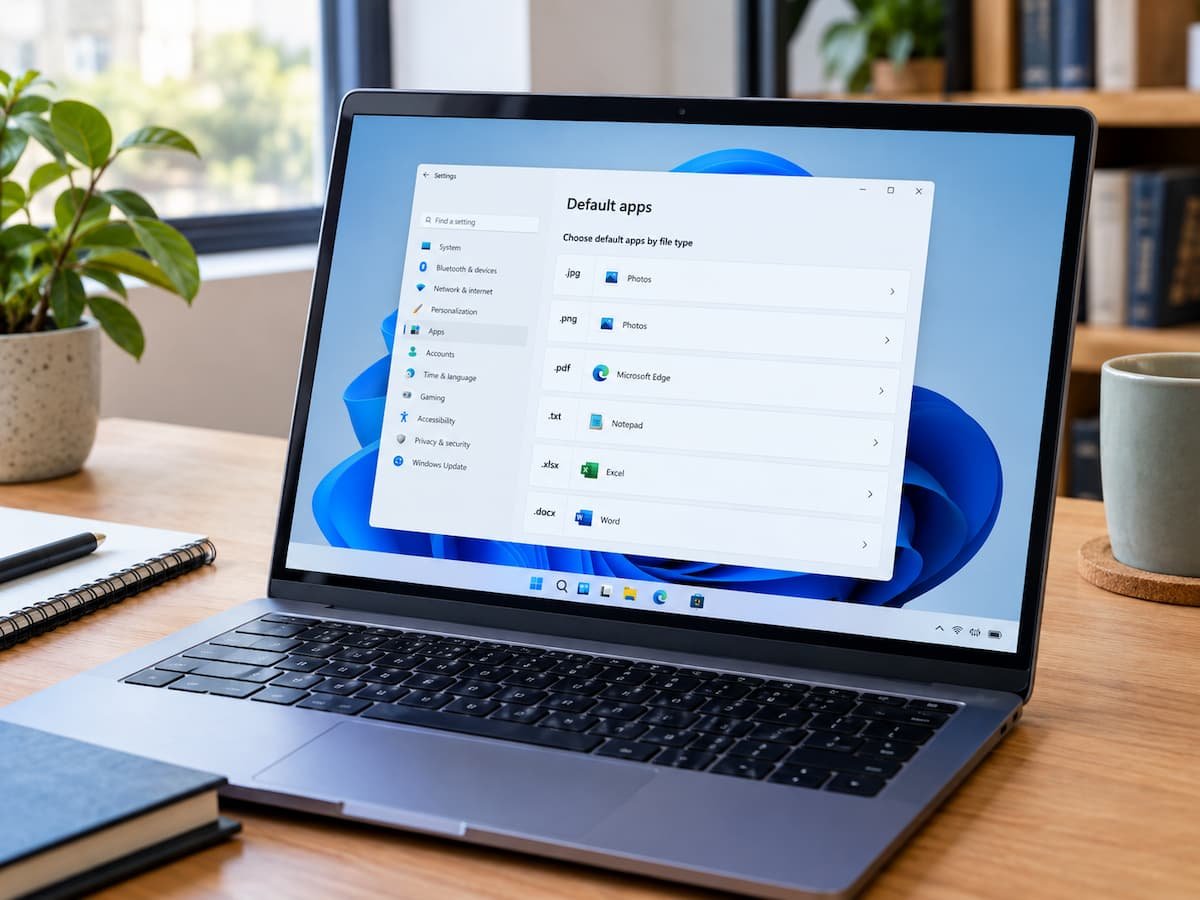
Why Windows Opens Files in the Wrong Application
You double-click a PDF, expecting it to open in your usual document reader, but Windows launches a browser instead. An image opens in an editing program when you only want to view it, or a text document starts in an application that makes simple reading inconvenient. These situations often occur because Windows has a different default application assigned to the file type than the one you prefer. The application itself may be working correctly. You usually do not need to uninstall it, reinstall Windows, or change the file.
The solution is to review the relevant default-app setting and assign the preferred program to the appropriate file type or link protocol. Windows 11 provides dedicated controls for managing these associations, although the exact options depend on the file type, installed applications, and Windows version. This guide explains how to change those settings, verify the result, and handle situations where Windows continues to open files in an unexpected program.
What Default Apps Mean in Windows
A default app is the application Windows normally uses when you open a particular type of file or follow a supported link. For example, Windows might use one application for PDF documents, another for photographs, and a third for plain-text files. Windows commonly identifies file types through their extensions. An extension is the short part of a filename that follows the final period.
Examples include:
.pdffor PDF documents.jpgand.pngfor image files.txtfor plain-text documents.docxfor Microsoft Word documents.mp4for video files
When you double-click a file in File Explorer, Windows uses the relevant file association to determine which registered application should open it. If the association points to an unexpected program, the file may still open normally, but not in the application you intended.
A default does not necessarily apply to every file a program can handle. For example, changing the application associated with .jpg files does not automatically change the application associated with .png or .webp files. This distinction is important when correcting an unwanted default. You need to change the association that controls the specific file or link you are opening.
How to Change Default Apps in Windows 11
Windows 11 allows you to manage defaults through Settings. You can search for a file extension, select an application, and assign that application to the relevant file type when Windows supports the association.
Step 1: Open the Default Apps Settings
- Open the Start menu and select Settings. You can also press
Windows + Ito open Settings directly. - Select Apps in the left-hand navigation panel.
- Open default apps.
- Locate the search field for finding an app or a file type or link type. Its wording and placement can vary slightly between Windows 11 releases.
You are now in the area where Windows manages which applications open supported file types and protocols.
You do not need to open the application that is currently launching incorrectly. The default can be changed directly through Windows Settings.
Step 2: Find the File Type That Opens Incorrectly
Suppose your PDF documents keep opening in a browser, but you prefer a dedicated PDF reader.
- In the Default apps settings, search for
.pdf. - Select the PDF file-type result.
- Review the application currently assigned to that file type.
- Select the current default to see the alternatives Windows offers.
The available choices depend on the applications installed on your computer and the file associations they register with Windows. You may see a browser, a PDF reader, or another compatible application. If your preferred program appears, you can select it. For an image problem, repeat the process using .jpg or .png. For plain-text files, search for .txt. Use the exact extension involved in the problem rather than assuming that one setting covers every related file.
Step 3: Select Your Preferred Application
After opening the file-type association, choose the application you want Windows to use.
- Review the available applications.
- Select your preferred programme.
- If Windows displays a confirmation button, select ‘Set default’ or the equivalent option shown on your version.
- Return to the Default apps page and check the association again if you want to confirm the selection.
The selection interface may differ between Windows 11 versions. Some releases display a prominent default-setting button, while others may present an application-selection dialogue with a confirmation option.
Follow the controls actually displayed on your computer rather than expecting every Windows installation to show an identical dialogue. Once the change is applied, Windows should use the selected application for that file type when you open it through the usual file-opening action.
Set a Default for One File Type or a Broader Category
Windows offers more than one way to manage application defaults. Understanding the difference helps prevent unnecessary changes.
Changing a Specific Extension
Selecting a particular extension changes the association for that file type. For example, you can assign .jpg files to an image viewer without changing how .png files open. This approach is useful when only one type of file is affected.
If your PDF reader is correct but image files keep launching in an inconvenient program, changing the .pdf association will not solve the image problem. You need to review the image extension separately. Some applications support many extensions, but support alone does not mean that all those extensions share a single Windows default.
Changing Defaults Through an Application
Windows 11 also lets you search for an installed application on the Default Apps page. Selecting an application generally opens a list of the file types and link protocols associated with it. This view can be useful when you want to review several associations for the same programme.
- Open Settings > Apps > Default apps.
- Search for the application’s name.
- Select the application from the results.
- Review its listed file types and protocols.
- Change the specific associations you want to use with that application.
The application view is not necessarily a single switch that assigns every supported format to that program. Depending on the application and Windows version, you may need to change individual associations.
For example, assigning a preferred image viewer .jpg does not guarantee that it will also become the default for .png, other image formats. Choose the approach that matches your goal: change one extension when one file type is affected, or review the application’s listed associations when several types need attention.
Change the Default for Web Links and Protocols
Web links are related to default-app settings, but they are not identical to ordinary file extensions. A PDF document usually has a filename ending in .pdf. A web address, by contrast, uses a URL scheme such as http or https. Windows handles these link protocols through their own associations.
This distinction matters if clicking a link opens the wrong browser even though your documents open correctly.
Review Browser and Link Defaults
- Open Settings > Apps > Default apps.
- Search for your preferred browser by name.
- Select it and review the listed file types and protocols.
- Check the associations relevant to web browsing, particularly
HTTPandHTTPS, where shown. - Change the applicable defaults using the options available on your system.
You may also be able to select a browser directly through its application settings. The exact controls depend on the browser and Windows version. Remember that changing a browser’s default does not automatically change PDF, image, or text-document associations. Likewise, assigning a PDF reader .pdf does not make it your default web browser.
Some applications also register specialised protocols. A link intended to open a particular application may therefore behave differently from an ordinary web address. If only a specific kind of link opens unexpectedly, inspect its protocol association instead of changing unrelated file types.
What to Do When Your Preferred Application Is Missing
Sometimes the application you want does not appear in the list of available choices. This does not necessarily mean that Windows cannot use it. The program may not be installed, may not have registered itself as a handler for that file type, or may not support the format in question.
Check Whether the Application Is Installed
First, open the Start menu and search for the application’s name. If it does not appear, check your installed applications through Settings > Apps > Installed apps. You can also check whether the program is available through its official installation source.
If the application is missing, install the appropriate version before trying to assign it as the default. If it is already installed, open it normally and check whether it can handle the file type you want to associate with it.
Check the Application’s Supported Formats.
Not every application can open every file type. A basic text editor may support .txt files but not Word documents. An image viewer may support JPEG and PNG images but not every specialised image format.
Check the application’s documented capabilities before attempting to assign a file type. Windows may not offer an application as a default for formats it does not register or support. If the program is intended to handle the format but remains unavailable, check whether it has an application update or a built-in option for registering supported file associations. Some applications provide such controls; others rely on Windows settings.
Avoid Unnecessary Manual Changes
Do not start by editing the Windows Registry or installing a third-party association manager. These approaches are rarely necessary for an ordinary default-app problem and can introduce additional complications. Use the available Windows controls first. If a supported application cannot register its association correctly, consult its official support documentation before attempting advanced changes.
Test the New Default Without Changing the File
After changing an association, verify that Windows uses the intended application.
- Open File Explorer and locate a file with the extension you changed.
- Choose a file you recognize and can safely open.
- Double-click it using the usual method.
- Confirm that the preferred application launches and that the file opens correctly.
- Close the application when you finish checking it.
Opening the file does not require you to rename, move, delete, or edit it. If you want to test a different extension, choose a file with that extension and repeat the procedure. Testing a .jpg file does not verify the association for .png files.
You can also use the right-click menu to choose another application for a single opening. In Windows 11, select Open with and choose the available application. This is useful for a quick comparison, but it does not always change the permanent default. To make the choice persistent, return to Default apps and change the relevant association. If the file opens in the correct application after the change, the association is working as intended.
Why a Previously Selected Default May Change
A default that worked yesterday may not remain unchanged after certain software operations. An application update, reinstallation, or system reset can sometimes affect file associations.
Windows or an application may display a request to change defaults during installation or after an update. A reset of app settings can also restore an association to another application. When this happens, you usually do not need to repeat every software installation step.
- Open Settings > Apps > Default apps.
- Search for the affected extension, such as
.pdf. - Check which application is currently assigned.
- Select your preferred application again if the association has changed.
- Open a known file to confirm the result.
If the default keeps changing, check whether the application is repeatedly requesting or applying its own associations. Review its settings and update information, and consult its official support guidance if the behavior continues. For multiple affected file types, inspect each relevant association. Do not assume that restoring one extension will restore every other default.
Common Mistakes to Avoid
Several simple misunderstandings can make a default-app problem harder to solve.
- Confusing the extension with the displayed filename. A file named
Meeting Notes.pdfhas the.pdfextension even though most of its name is descriptive text. Windows uses the file type and its registered association, not simply the words in the filename. - Assuming one default controls every file type. Different extensions can have different associations, even when they represent similar content. Review the exact extension involved.
- Using Open With without changing the permanent default. Choosing an application from the context menu may only open the file once. If the same problem returns, review Default apps and assign the desired association.
- Uninstalling an application too early. Removing a program is usually unnecessary when the issue is simply that another application has been assigned as the default. Change the association before considering software removal.
- Assuming every application can open every format. An application must support and register an appropriate handler for Windows to offer it as a suitable default. A missing option is not automatically a Windows malfunction.
- Changing browser settings to fix document defaults. Web protocols and file extensions are separate associations. Identify whether the problem concerns a web link, a PDF, an image, or another file before making changes.
Windows 10: What Is Different?
Windows 10 also provides default-app controls, but its interface differs from Windows 11.
To manage associations in Windows 10:
- Open Settings.
- Select Apps.
- Choose Default apps.
- Scroll to the relevant controls, which may include defaults by file type or protocol.
- Select the current default and choose an available alternative.
Windows 10 also provides an option to choose defaults by file type, which is useful when you want to change a specific extension. The precise layout and available choices may vary with the Windows 10 release and installed applications. Do not expect the Windows 11 application-search interface or its confirmation controls to appear in exactly the same place. The underlying principle remains the same: identify the relevant file type or protocol, select a supported application, and test the result.
FAQs
1. Will Changing a Default App Affect the File Itself?
No. Changing a default normally changes which application Windows uses to open the file. It does not alter the file’s contents or delete it.
2. Why Do My PDF Files Open in a Browser Instead of a PDF Reader?
Your .pdf association may be assigned to the browser. Open Default apps in Windows Settings, search for .pdf, and select a suitable PDF reader from the available options.
3. Can I Use Different Applications for JPG and PNG Images?
Yes. Windows can maintain separate defaults for different image extensions when the relevant applications register suitable handlers. Check .jpg and .png individually if you want different behavior.
4. Why Is My Preferred Program Not Listed?
The application may be missing, may not support that file type, or may not have registered itself as an available handler. Confirm that it is installed and supports the format, then check its official guidance for registering file associations.
5. Do I Need to Restart Windows After Changing a Default App?
Usually, no. Changes made through Default apps generally take effect immediately for new file-opening actions. If an application is already open, close it and test again. If the association still behaves incorrectly, verify the setting before considering more advanced troubleshooting.
A Simple Procedure for the Next Time a File Opens Incorrectly
When a file opens in the wrong program, follow this short routine:
- Identify the file’s actual extension, such as
.pdf,.jpg, or.txt. - Open Settings > Apps > Default apps.
- Search for that extension and inspect its current association.
- Select a suitable application that supports the file type.
- Open a known file with the same extension to test the change.
- If the wrong program still opens, recheck the association and determine whether the issue involves a different extension, a web-link protocol, or an application that has changed its registered defaults.
In most cases, correcting the relevant association is enough. By checking the exact file type and testing the result, you can restore the behavior you want without changing the file or removing software unnecessarily.

Daniel Kareem is a digital productivity and technology writer focused on simplifying everyday tech use. He creates practical guides on online safety, device optimization, and efficient workflows. His approach centers on clear, step-by-step advice that helps users stay organized, secure, and productive. Through straightforward and realistic content, he aims to make technology easier to understand and more useful in daily life.