
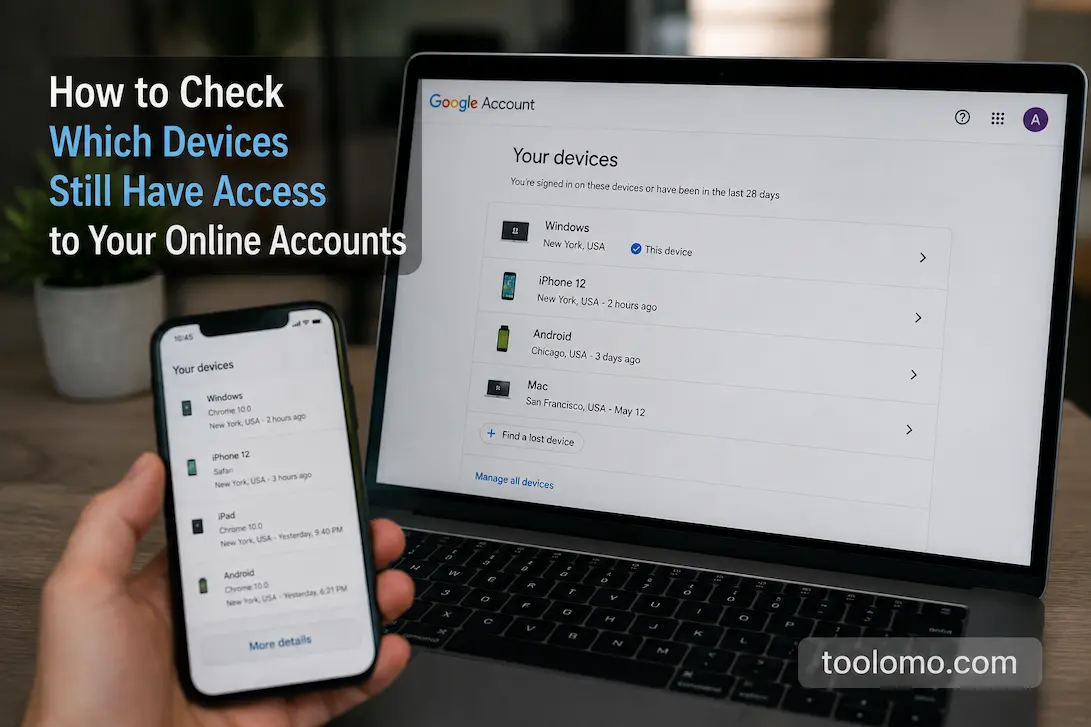
It is easy to forget how many devices you have used to sign in to an online account over the years. An old phone may still appear as a trusted device, a laptop you no longer use may have an active session, or a browser on a shared computer may still remember your account. None of these situations automatically means someone has accessed your account improperly, but they are worth checking because unused sessions create unnecessary exposure. The problem becomes even more confusing when an account lists several devices with unfamiliar names or locations. Instead of immediately assuming that every unfamiliar entry represents an attacker, it is better to investigate each one systematically. Reviewing connected devices is a simple maintenance task that can reveal forgotten access and help you regain control over accounts you no longer actively monitor.
Why Device Access Deserves A Regular Review
Many people concentrate on passwords when thinking about account security, but a strong password does not tell you what has already been authorized. If you signed into an account on several phones, computers, tablets, televisions, or browsers, some of those sessions may remain active even after you stop using the device. This can happen when you replace a phone, sell an old laptop, reset a browser, or simply stop using an application without signing out first. Depending on the service, an active session may continue until it expires or is manually revoked. That means an old device can remain connected long after you have forgotten about it. Checking the device list periodically gives you a much clearer picture of where your account is currently accessible.
This review is particularly useful after changing devices or recovering from a security incident. For example, if you lost a phone, gave an old tablet to someone else, or sold a computer, it is worth checking whether the account still recognizes that device. The same applies when you use public or shared computers, although you should ideally avoid saving personal accounts on those machines in the first place. A device list can also help explain unexpected account notifications because the service may be identifying a legitimate old device rather than reporting a completely new login. The purpose of the review is therefore not to create unnecessary alarm. It is to understand which devices and sessions are expected, which ones are outdated, and which ones require further investigation.
Start With The Account’s Security Settings
The exact location of device information varies from one service to another, but it is usually found somewhere within the account’s security, privacy, or login settings. Look for labels such as “Your devices,” “Where you’re signed in,” “Active sessions,” “Login activity,” “Security activity,” or “Devices.” Some services separate current sessions from devices that have been remembered or trusted, so you may need to inspect more than one section. Do not rely on a single list if the account provides several types of access information. An application can sometimes maintain its session even when the website presents a different device-management screen. Taking a few minutes to understand what each section represents is better than removing entries without knowing what they do.
When you open the device list, resist the urge to immediately remove anything that looks unfamiliar. First record what the account is showing you, including the device type, approximate location if provided, last activity, operating system, browser, or application name. Some services provide more information than others, and device names are not always descriptive. A laptop might show a generic model name, while a phone may show its operating system instead of its exact model. The information is most useful when you compare it with your device history. If you recognize the device but not the label, it may just be an older session you forgot about.
Match The Listed Devices With Devices You Actually Own
The easiest way to make sense of a device list is to work from what you currently own and regularly use. Think about your main computer, personal laptop, phone, tablet, work computer, smart television, gaming console, or any other device that legitimately accesses the account. Then compare those devices with the entries shown by the service. You may find several entries that immediately make sense and a few that require further thought. Do not worry if the names are slightly different from the names you use yourself because manufacturers and services do not always display the same identification information. What matters is whether you can reasonably connect the entry to a device or session you recognize.
Next, think about devices you no longer own. Old phones and laptops are particularly important because people often replace them without reviewing every account they signed into. A factory reset is useful, but it should not be your only assumption about account access. If an old device still appears in an account’s security settings, review whether it can be signed out or removed remotely. The same principle applies to devices that were lost, stolen, donated, traded in, or given to another person. Revoking their access is a sensible step even if you believe the device was reset before it left your possession.
Do Not Treat An Unfamiliar Location As Proof Of A Breach
Location information can be useful, but it is not always precise enough to identify a person or physical device. Online services may estimate location using an IP address, and that information can point to a nearby city, an internet provider, a mobile network, or another location that does not exactly match where you were sitting. A phone using cellular data can sometimes appear in a different area from your actual location. Likewise, a work computer or home connection may appear under a location associated with the internet provider rather than your neighborhood. For that reason, an unexpected location should be treated as a clue rather than conclusive evidence.
Look at the other information associated with the session before deciding what it means. A device type you recognize, a familiar operating system, and a recent time when you were using the account may make an apparently strange location much less concerning. On the other hand, an unfamiliar device combined with an unexpected login time and other unusual activity deserves more attention. This is why checking the whole session context is more reliable than reacting to one piece of information. If the service gives you a security alert with details about a login, compare those details with the account’s device and activity history before concluding.
Pay Attention To Old Sessions
Old sessions are easy to overlook because they may not look dangerous. A browser session from a computer you used six months ago may still appear in the list, even if you haven’t used that computer since. The same can happen with applications that you have left installed on old phones or tablets. Whether the session is still actively usable depends on the service, its session policies, and whether the credentials or tokens have been revoked. You do not necessarily need to understand the technical details to take the sensible action. If you no longer use a device and have no reason for it to remain connected, revoking its access is usually preferable to leaving it there indefinitely.
This step is particularly important after major changes in your technology setup. Replacing a phone, moving from one computer to another, changing jobs, or switching from a personal device to a managed work device are all particularly useful opportunities to review sessions. You can also make this part of a broader digital cleanup routine rather than waiting for something suspicious to happen. Accounts that you use frequently deserve periodic attention, while less important accounts can be reviewed whenever you sign in. The goal is not to constantly monitor every device. It is to avoid accumulating a long list of forgotten access points.
Remove Devices You No Longer Recognize Or Need
Once you have identified the sessions that are outdated, use the account’s sign-out, remove, or revoke option where available. Some services let you remove individual devices, while others provide an option to sign out of all sessions. The wording varies, so read the confirmation carefully before proceeding. If you are removing a device because you no longer own it, make sure you understand whether the action affects only that device or all devices connected to the account. Accidentally signing yourself out everywhere is not necessarily a disaster, but it can be inconvenient if you need to verify your identity again on several devices.
If an account offers a remote sign-out feature, use it for devices that have left your control. This can be particularly helpful after losing a phone or computer. After removing an old session, allow the account enough time to update its device list and then check again if necessary. Some services may continue showing a device for a while even after access has been revoked because they retain a record of previous activity. The important distinction is between a historical login record and an active session. If the service clearly indicates that the device is no longer signed in, its continued appearance in an activity history does not necessarily mean it still has access.
What To Do If A Device Really Is Suspicious
Occasionally the evidence does point to activity you do not recognize. If you find a genuinely unfamiliar device and cannot explain the login, avoid interacting with links in an unexpected email or message claiming to help you secure the account. Instead, open the service directly through its normal website or official application and use its security settings. Revoke the suspicious session if the service provides that option, then review recent account activity for other signs of unauthorized access. Search for changes to recovery information, unfamiliar applications, unexpected messages, new forwarding rules, or other account changes that you did not make.
Changing the password is also sensible when you have reason to believe someone else may have obtained it, particularly if the suspicious session remains active or the account reports an unauthorized login. Choose a new password that is not reused on other important services. Afterward, review the account’s authentication methods and recovery options so that an unknown device or person cannot simply regain access. If the account supports multi-factor authentication, make sure it is configured correctly and that you recognize the devices or methods being used for verification. The important point is to respond to evidence rather than panic over an unfamiliar device name.
Review Connected Apps As Well As Devices
Device access is only one part of account access. Many online services allow other applications, websites, or services to connect to an account. These connections can remain authorized even after you stop using the application that originally requested access. When reviewing your devices, look for a separate section such as “Connected apps,” “Third-party access,” “Authorized applications,” or “Sign in with…” services. The exact terminology depends on the account.
Review the list and ask yourself whether you still recognize and use each connection. An old application that you no longer use probably doesn’t need continued access to your account. Removing unnecessary connections reduces the number of services that can interact with your information. Be careful, however, when removing integrations you still rely on because doing so may interrupt a useful service or synchronization feature. If you are unsure about an entry, please investigate what it does before revoking it, rather than deleting access blindly.
Make Device Reviews Part Of Your Digital Maintenance
You do not need to check every account every day. A more practical approach is to review important accounts when something changes in your digital life. Replacing a phone, buying a new computer, leaving a workplace, recovering from a suspicious login, or changing a major password are all useful moments to perform a device-access review. You can also include the check in a periodic digital maintenance routine alongside reviewing old accounts, privacy settings, and recovery information. This turns a potentially stressful security task into ordinary account housekeeping.
It can help to keep a simple mental rule: if you no longer control a device, it should not casually remain connected to an important account. That does not mean every historical device entry needs to disappear immediately, because some services retain login history for security purposes. Instead, focus on active access and devices that you could still use. Keeping the number of active sessions understandable makes future security reviews easier as well. When you know which devices should be present, it becomes much easier to notice something that genuinely does not belong.
Frequently Asked Questions
How Often Should I Check Which Devices Are Signed In?
There is no universal schedule that applies to every account. Reviewing important accounts every few months is reasonable, but it is especially useful after replacing a phone or computer, losing a device, changing jobs, or responding to suspicious activity. Accounts containing sensitive information deserve more attention than accounts you rarely use. The goal is simply to prevent forgotten devices from remaining connected indefinitely.
What If I Do Not Recognize The Device Name?
Do not automatically assume the account has been compromised. Device names are sometimes generic, and services may identify a browser, operating system, or manufacturer rather than the exact device you expect to see. Compare the entry with your devices, login times, applications, and locations. If you still cannot explain it and the service allows you to revoke the session, revoking access is a reasonable precaution.
Does Removing A Device Delete My Account Data?
Usually, removing or signing out of a device affects that device’s ability to access the account, rather than deleting the account itself. However, services differ, so read the confirmation message carefully. Some options may sign you out everywhere instead of removing only one session. If the wording is unclear, check the service’s documentation before confirming the action.
Should I Change My Password If I Find An Old Device?
Not necessarily. If you recognize the device as one you previously owned and forgot to remove it, signing out may be sufficient. If you no longer control the device or cannot explain the session, changing the password is a more sensible precaution. If you find evidence of unauthorized access, you should also review other security settings instead of relying solely on a password change.
Is An Unfamiliar Login Location Always A Sign Of Hacking?
No. IP-based locations can be inaccurate, especially on mobile networks or connections routed through an internet provider. Look at the device, time, operating system, and other activity alongside the location. A combination of several unfamiliar details is more concerning than a location that is simply different from your exact physical location.
A Device List Is A Useful Security Snapshot
Checking which devices still have access to your online accounts is one of those maintenance tasks that is easy to postpone because nothing appears wrong. Yet forgotten phones, old computers, unused browsers, and abandoned sessions can accumulate quietly over time. Reviewing them gives you a clearer understanding of where your accounts are accessible and lets you revoke access that no longer has a legitimate purpose.
The most useful approach is straightforward: identify the devices you recognize, investigate anything unclear, revoke access from devices you no longer control, review connected applications, and respond appropriately if the evidence points to unauthorized activity. You do not need to become an expert in account security to do these tasks effectively. A careful review every so often can reduce unnecessary access and make your important online accounts much easier to manage.

Daniel Kareem is a digital productivity and technology writer focused on simplifying everyday tech use. He creates practical guides on online safety, device optimization, and efficient workflows. His approach centers on clear, step-by-step advice that helps users stay organized, secure, and productive. Through straightforward and realistic content, he aims to make technology easier to understand and more useful in daily life.