
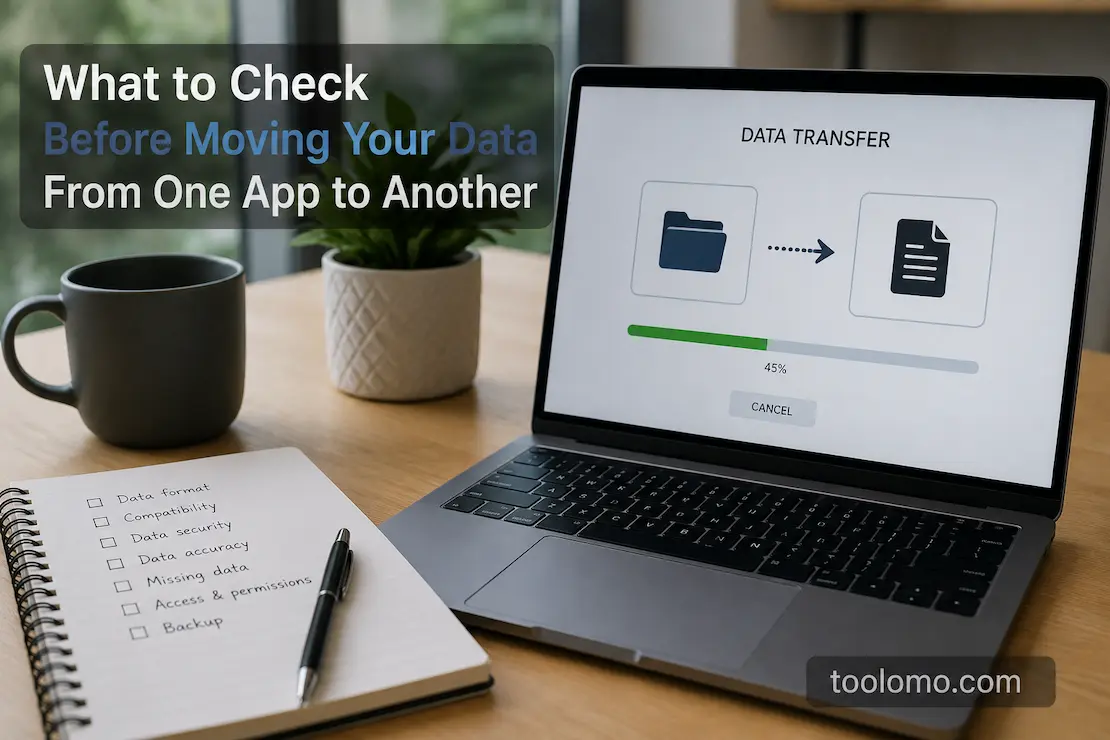
Moving your data from one app to another can sound like a simple matter of exporting a file and importing it somewhere else. Sometimes it is. More often, though, the process involves small details that are easy to overlook until something important is missing.
The problem is that two applications can store similar information in entirely different ways. One app may support tags, attachments, reminders, custom fields, and linked records, while another may only import the basic text or data. Even when an import finishes successfully, that does not necessarily mean everything arrived exactly as it was.
A safer approach is to treat an app migration as a transfer of information rather than a button-clicking exercise. Before making the move, find out what you have, what can be transferred, what needs to be recreated, and how you will verify the result. A little preparation can save you from discovering weeks later that an important collection of files, notes, contacts, or records never made it across.
Start By Deciding What Really Needs To Move
Before opening the export menu in your old app, take a look at the information you have accumulated there. You may discover that only a portion of it is still relevant.
For example, someone moving to a new note-taking app might have several years of meeting notes, temporary lists, screenshots, saved articles, abandoned projects, duplicate notes, and current work. Moving everything without looking through it first simply transfers the clutter into the new system.
This does not mean you should aggressively delete old information. Instead, separate the data into a few practical groups: information you actively use, information you need to retain for reference, information you are unsure about, and information that is clearly disposable. If something might become important later, it is safer to keep it in a separate archive than to permanently delete it during a migration.
This is also a useful opportunity to identify duplicates. If the same document, contact, note, or file exists several times, decide whether all copies are necessary. Cleaning up before the move can make the new application easier to use and can reduce the chance of importing unnecessary material.
Check What The New App Actually Supports
Never assume that because the new application has an import feature, it can reproduce everything from your old one.
Start with the application’s current documentation and look for its supported import formats and limitations. A service might accept CSV files but only recognize certain columns. Another might import text while ignoring attachments. A note-taking app may preserve basic formatting but discard tags, internal links, or reminders.
These differences can be surprisingly important.
Imagine moving a collection of contacts. Names and phone numbers may transfer correctly, but custom fields, notes, multiple addresses, labels, or profile images might not. The imported contacts could look complete at first glance while quietly losing information you depended on.
The same issue appears with calendars, task managers, accounting tools, project-management applications, and cloud storage services. Before beginning the migration, identify not only what the new app can import, but also what it cannot import.
If the documentation is unclear, test a small sample instead of making assumptions.
Look Closely At Attachments And Files
Attachments deserve special attention because they often follow different rules from the main data.
A note containing a PDF, for instance, may be exported as text while the PDF is stored separately. An application might preserve images but exclude audio recordings. Some services may replace attachments with links to their original location rather than embedding the files in the exported data.
Before migrating, make a list of the attachment types that matter to you. Think beyond ordinary documents and photographs. Depending on the application, you might have spreadsheets, scanned documents, recordings, presentations, compressed files, or other specialized formats.
Then find out how the new application handles them.
Do not rely solely on a successful import message. Open several migrated records and test their attachments. Check a mixture of file types and sizes. If the new application shows an attachment but cannot open it properly, you have found a migration problem that needs to be resolved before the old data is removed.
Find Out What Will Not Transfer
Every migration has limitations. The important thing is discovering them before they become surprises.
Information that often causes trouble includes custom fields, labels, tags, reminders, revision histories, comments, sharing permissions, saved searches, templates, automations, application-specific settings, and internal links.
Consider a task-management application. The task title and description might transfer perfectly, but its recurring schedule, workflow automation, project relationship, or custom status might not have an equivalent in the new service.
That does not necessarily mean you should abandon the migration. It means you need a plan for the information that cannot be transferred automatically.
Create a simple list of anything that will need manual recreation. Some items may be worth rebuilding, while others may be better kept in an archive. Making that decision before the migration is much easier than finding missing information after the old account closes.
Export Your Original Data Before Making Changes
A migration should never begin with your only copy of the information.
Export the data from the old application before making significant changes. If the service provides a native backup format as well as more common formats, consider keeping both when practical. A native backup may preserve more application-specific information, while a more widely supported format may remain accessible even if the original application is no longer available.
Please store the export in a location outside of the application you are leaving.
If your data is particularly important, having another backup in a separate location provides additional protection. The goal is to make sure that a failed import does not turn into a data-loss event.
There is another important step that people frequently skip: check the export.
Open some of the exported files. Look at recent information as well as older records. Verify whether attachments are present and whether the files can actually be opened. If you have different types of records, inspect several of them rather than assuming the first one represents the entire export.
An export that completes without showing an error is not automatically a complete backup.
Pay Attention To Links And Relationships
Data is often useful because it connects different pieces of information.
A project may contain tasks. A task may contain a link to a document. A contact may be associated with several records. A note may link to another note or reference a specific file.
Those relationships can be harder to transfer than the individual pieces of data.
Before moving your information, identify the connections you rely on most. Then find out whether the new application can recreate them.
This becomes particularly important when moving between applications built around different organizational models. A notebook-based app and a database-oriented app may both store notes, for example, but the way those notes relate to each other can be entirely different.
The information may arrive safely while its original structure disappears.
If you cannot preserve certain relationships, decide whether to rebuild them manually or keep the old application as an archive.
Make Sure Your Old Data Is Fully Synchronized
Cloud applications introduce another possible problem: the information you see on one device may not always represent the most current synchronized version.
Before exporting, make sure your devices have synchronized. This matters especially if you recently worked offline or regularly switch between a laptop, phone, tablet, and desktop computer.
Check the account itself rather than assuming that the newest information on one device has already reached the cloud.
Ownership also deserves attention. If the data belongs to an employer, school, organization, or shared workspace, you might have restricted permission to move it to another service. Account policies and organizational rules can affect what you can export or where you can store it.
For personal data, the issue is usually straightforward. For shared or professional data, it may require additional consideration.
Run A Small Test Migration First
One of the best ways to reduce migration risk is to avoid starting with everything.
Choose a small sample that represents the different types of information in your account. Don’t select only the simplest records because they may give you a false impression that the migration works perfectly.
For example, a note-taking migration test could include a plain text note, a note containing an image, a note with attachments, a note containing links, and a note with tags or special formatting.
Import that sample into the new application and compare the results with the originals.
Look for missing information, altered formatting, broken links, duplicate records, missing attachments, and changes in dates or categories. If the test reveals a problem, you can adjust your approach while the original data is still intact.
This small experiment is often much more valuable than immediately importing thousands of records.
Do Not Delete The Old App Too Quickly
Once the new application says the migration is complete, do not close your old account right away.
Keep the original application accessible until you have had enough time to use the new system normally. How long that takes depends on the type of information involved. A small collection of personal notes may be relatively straightforward to verify within days, while a large archive of work or financial records may require considerably longer.
During this transition period, treat the old system as your reference copy.
You may discover that something you rarely use did not transfer correctly. Perhaps an older attachment is missing, a search behaves differently, or a particular category was not imported. Keeping the original data available gives you a way to investigate the problem without trying to reconstruct information from memory.
Consider Privacy Before Uploading The Data
A migration is also a privacy decision.
Before uploading personal information to a new service, review how that application handles data. Consider what information it collects, what account protections it offers, whether third-party integrations can access your information, and whether you can export your data again later.
This is especially important when the information includes sensitive documents, personal correspondence, financial records, identity information, confidential work material, or other data that you would not want unnecessarily exposed.
Ask yourself a simple question: Does the new application actually need all of this information?
If you are moving a document-management system, for example, old files that have no connection to your current workflow may not need to be uploaded at all. Keeping unnecessary sensitive information out of a new service reduces the amount of data you have to manage there.
Verify The New App Before Calling The Migration Finished
The final assessment should be based on actual use, not just the import report.
Search for information that you know should exist. Open older and newer records. Check attachments. Follow important links. Look at dates, categories, labels, and other details that affect how you work.
It can also help to compare record counts before and after the migration. The numbers do not necessarily need to be identical because you may have intentionally excluded outdated or duplicate information. However, a significant unexplained difference deserves investigation.
Most importantly, use the new application for the tasks that caused you to migrate in the first place. If you regularly search, edit, share, export, organize, or collaborate on your data, make sure those workflows still function properly.
A migration is successful when the information is not only present but remains useful.
A Practical Pre-Migration Check
Before pressing the final export or import button, work through these questions:
- Have I identified exactly which information needs to move?
- Have I separated important records from unnecessary clutter?
- Do I know which formats the new app accepts?
- Do I know what will not transfer?
- Have I checked how attachments are handled?
- Have I created and verified a backup of the original data?
- Have I checked important links and relationships?
- Is the old account fully synchronized?
- Have I considered ownership and access restrictions?
- Have I tested a representative sample?
- Have I checked the new app’s privacy and security practices?
- Will I keep the original data available until the migration is verified?
If several of these questions still have unclear answers, the migration probably is not ready.
A Careful Migration Is Easier Than A Recovery
Moving data successfully is not really about finding the fastest import method. It is about understanding what you are moving and knowing what might change along the way.
Reviewing the data beforehand, checking compatibility, protecting the original information, testing a small sample, and verifying the finished migration may feel slower than simply clicking “Import.” In practice, those steps can save considerably more time than trying to recover missing information later.
The best outcome is not merely seeing a message that says the transfer has finished. It is opening the new application days later and knowing that the information you depend on is still there, still understandable, and still usable.
Frequently Asked Questions
Should I Delete My Old App After Importing Everything?
Not immediately. Keep the old application or an accessible copy of the original data until you have verified the new system thoroughly. This provides you something to compare against if you discover missing records or attachments later.
Can I Assume An Export Contains Everything?
No. An export can exclude certain information, particularly application-specific settings, attachments, relationships, or other features. Please inspect the exported data and refer to the application’s documentation for any limitations.
Is It Better To Move Everything Or Start Fresh?
It depends on how useful the old information remains. Moving everything can recreate years of clutter, while starting completely fresh can leave you without valuable historical records. A practical middle ground is often to move active information and keep older material in a separate archive.
What Is The Safest Way To Test A Migration?
Use a small, representative sample containing different types of records, attachments, formatting, and relationships. Import that sample first and compare it with the original before attempting the full migration.
How Long Should I Keep The Old App?
There is no universal period. Keep it available until you have used the new application enough to verify the information and your normal workflows. More important data generally deserves a longer verification period.

Daniel Kareem is a digital productivity and technology writer focused on simplifying everyday tech use. He creates practical guides on online safety, device optimization, and efficient workflows. His approach centers on clear, step-by-step advice that helps users stay organized, secure, and productive. Through straightforward and realistic content, he aims to make technology easier to understand and more useful in daily life.