
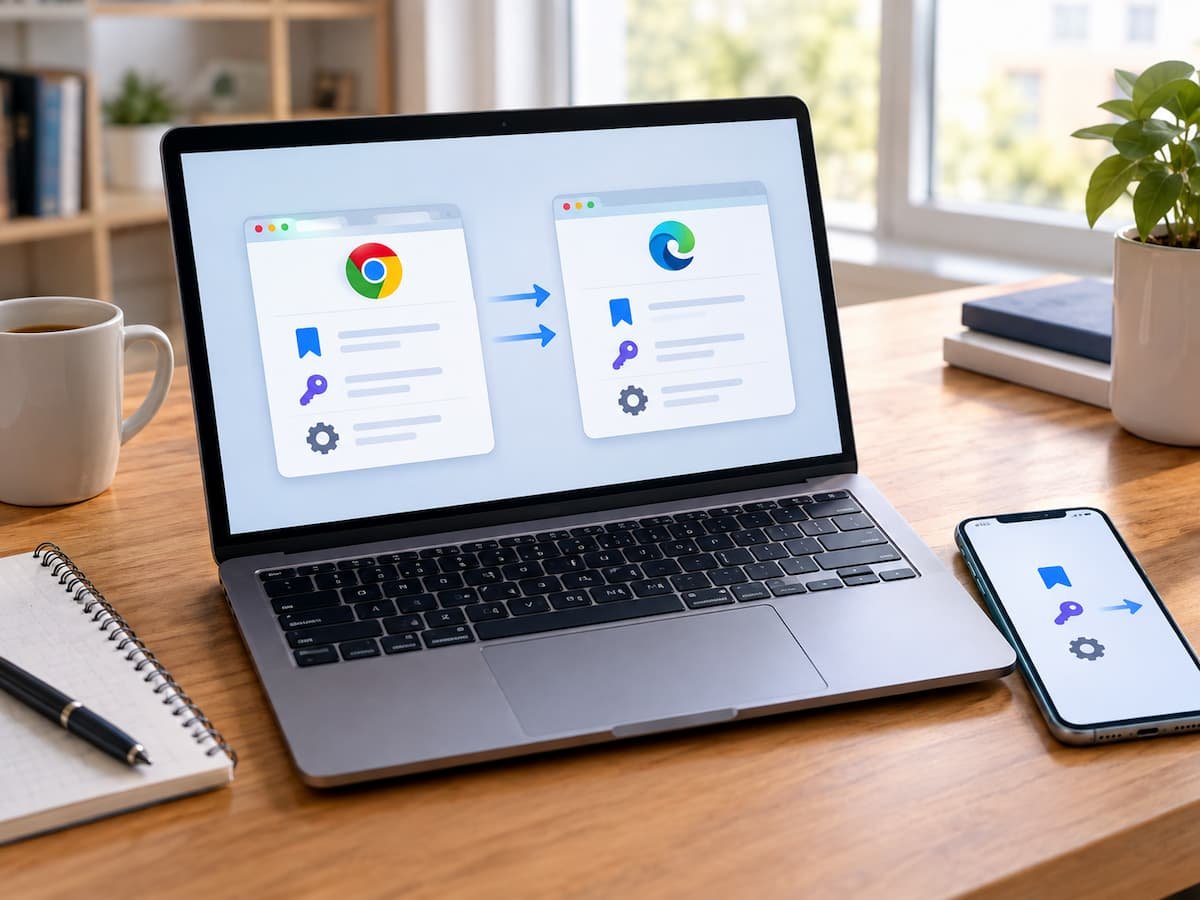
Moving your browser to another computer should not mean rebuilding your digital life from scratch. Your bookmarks are already organized, your passwords are saved, your favorite extensions are installed, and your browser feels familiar. The problem begins when you try to recreate that setup without knowing where the information currently lives.
A common mistake is to use every available transfer method at the same time. Someone signs into their browser account, waits for synchronization, then imports an old bookmark file. They may also copy an old profile folder because they want to be extra safe. The result can be duplicate bookmarks, multiple profiles, conflicting settings, and several versions of the same saved password.
The safer approach is much simpler: find out what you already have, decide what actually needs to move, and use one suitable migration method for each type of data.
Start With a Simple Question: Where Is My Browser Data Now?
Before touching the new computer, open the old browser and look at the profile you actually use. This sounds obvious, but it is easy to overlook if your browser has several profiles. A personal profile, work profile, school profile, and temporary testing profile can each have their own bookmarks, passwords, extensions, history, and settings.
The browser name alone is not enough. You need to know which profile contains the information you care about. Open the profile and check a few things you recognize. Look at your bookmark folders. Open the browser’s password manager and confirm that important saved accounts are there. Check which extensions are installed and notice any browser settings you have deliberately changed.
Now ask yourself whether this profile is connected to a browser account. If it is, some of this information may already be synchronized. That changes the way you should approach the move. You may not need to export or manually copy anything at all.
Syncing Is Not the Same as Importing
These two methods are often treated as if they do the same job, but they solve different problems.
- Synchronization is designed to keep supported browser information available across devices using the same browser account or profile. If you use Chrome on an old computer and sign into the appropriate Chrome profile on another computer, supported information can become available through Chrome’s synchronization system. Edge and Firefox have their own synchronization systems as well.
- Importing is different. It takes information from another source and brings it into the destination browser. This is particularly useful when changing browsers, such as moving from Chrome to Firefox.
- Exporting works in the opposite direction. It creates a separate copy of supported information, such as bookmarks, that you can keep as a backup or use as an import source later.
- Then there is profile copying, which is a more technical approach. Instead of transferring selected browser information, you are dealing with the browser’s stored profile data. This can be useful in specific recovery situations, but it should not be your first choice for an ordinary browser move unless the browser’s documentation specifically supports the method.
- Finally, signing into an existing browser account can restore or synchronize supported information without requiring you to manually export and import everything.
These methods can overlap. That is where migration problems begin.
The Biggest Mistake: Importing Data That Is Already There
- Imagine that your old browser contains 500 bookmarks.
- You sign into the same synchronized browser account on your new computer. The bookmarks appear.
- You then remember that you previously exported your bookmarks to an HTML file. To be safe, you import that file too.
- The browser now has two copies of many bookmarks.
- Nothing mysterious happened. You simply transferred the same information twice.
- The same principle applies to passwords and other browser data. Before importing anything, inspect the destination.
- If the bookmarks you need are already present, stop.
- If the passwords you need are already available, stop.
- If the correct extensions and settings have already appeared through synchronization, there may be no reason to import or copy them separately.
- A migration is not safer because you use more transfer methods. In many cases, using several methods creates the problem you were trying to avoid.
Treat the Old Browser as the Source of Truth
Before making changes, decide which browser environment is the one you trust. Suppose you have used the old computer for years, but you recently created a new browser profile on another device. Both profiles contain bookmarks, but they are not identical.
Which one is correct?
Do not merge them automatically.
First decide which profile should become the main version. If you combine two partially different collections without checking them, you may create duplicates and make it difficult to determine which information is current. The same issue can occur with passwords. You might have several saved credentials for the same website because you use different accounts. Those entries are not necessarily duplicates simply because they belong to the same domain. Migration requires judgment. The goal is not to make the destination contain the largest possible amount of browser data. The goal is to recreate the browser environment you actually want.
Moving to a New Computer: The Easiest Case
Moving from one Windows computer to another while keeping the same browser is usually the least complicated situation. Let’s say you have been using a Chrome profile on your old computer and want the same environment on a new laptop. Do not begin by copying browser folders.
Install the browser, open the appropriate profile, and determine whether your browser account is already set up for synchronization. If the information you need begins appearing, compare it with the old computer. Check your bookmarks first. Then check several important saved passwords. Look at your extensions and important settings.
There is no need to manually recreate information that has already arrived successfully. Keep the old computer untouched while you test the new one. That gives you a fallback if you discover that something important did not transfer. The old computer should not be treated as disposable until the new browser has been verified.
Switching From One Browser to Another
Changing browsers is different because synchronization normally does not provide a direct way to turn one browser’s entire profile into another browser’s profile. Suppose you are moving from Chrome to Firefox. Your Chrome bookmarks and passwords belong to the Chrome environment. Firefox has its own profile and storage system. This is where the destination browser’s import function becomes useful.
Firefox, Chrome, and Edge provide browser-data import features, but the supported data differs depending on the source browser, destination browser, operating system, and version. You should therefore check the current documentation for the browsers involved instead of assuming that every item will transfer.
Bookmarks are usually easier to move than everything else. Password migration can require more attention, particularly when moving between different browsers. Extensions also cannot always be transferred as working copies. Even when the destination browser supports importing extension information, you may need to install compatible versions separately. The important thing is to treat each category of data separately rather than assuming that an import means “copy my entire browser.”
Decide What Belongs in the New Profile
Multiple profiles are useful when you intentionally want separate environments. For example, you might want your personal browsing to have one set of bookmarks and extensions while your work browsing has another. In that situation, creating separate profiles is not a problem. It is the point of having profiles. The problem occurs when you accidentally create a second profile while trying to migrate the first one.
You may sign into your account, create a new profile, import old bookmarks, and then discover that your passwords are in one profile while your bookmarks are in another. Before transferring anything, decide whether the destination should:
- Continue an existing profile—useful when you want to recreate the same browser environment.
- Create a separate profile—useful when personal and work data should remain independent.
- Receive selected imported data—useful when switching browsers or deliberately starting with a clean setup.
Making this decision early prevents a surprising amount of cleanup later.
Bookmarks Need a Different Kind of Attention
Bookmarks are relatively easy to back up, but they are also very easy to duplicate. If your browser supports bookmark export, you can create an HTML backup before beginning the migration. Keep that file somewhere safe in case you need it later. But remember what the file is for.
If the destination already contains your bookmarks through synchronization, the exported file is now a backup, not something you necessarily need to import. If you are switching browsers and the destination is empty, the exported file may become the actual migration source. This distinction is simple but important. After an import, open the bookmark manager and look through your main folders. Check whether the structure looks familiar. Look for repeated folders and obvious copies of frequently used websites.
Do not start deleting large numbers of bookmarks until you understand why they are duplicated. If you imported the same collection more than once, removing the extra copies may be appropriate. If two entries contain different URLs or belong to different accounts, they may both be intentional.
Passwords Deserve Extra Protection
Saved passwords are more sensitive than bookmarks, so password migration should be handled carefully. If your browser provides synchronization, check whether the passwords you need are already available through the correct account and profile.
If you need to export passwords, use the browser’s own supported process rather than a third-party utility that asks for access to your saved credentials. An exported password file should be considered highly sensitive.
Someone who obtains such a file may be able to read the credentials stored inside it, depending on the browser’s export format. Do not leave the file sitting in a shared folder, attach it casually to an email, or upload it to an unfamiliar website.
Once the migration has been confirmed, remove password-export files that you no longer need. Also be careful before deleting saved passwords from the old browser. A successful-looking migration is not enough. Test several important accounts first. If you discover that one password is missing later, you will be glad the original browser was still available.
What About Browser Settings?
Settings are more complicated than bookmarks because there is no single universal definition of “browser settings.” Some settings are synchronized by a browser account. Some may be specific to the local installation or profile. Others can depend on extensions, operating-system settings, hardware, or the browser version. This is why manually copying a browser profile between computers can produce unexpected results.
A profile created on one machine may contain information that makes sense only in that environment. The browser may also change how its profile data is stored between versions. For an ordinary migration, it is usually better to use the browser’s supported synchronization, import, backup, or restoration features instead of treating the profile folder as a universal portable package. If you specifically need to restore a browser profile after a failure or reset, follow the browser vendor’s instructions for that browser and version.
Extensions Are Easy to Forget
Extensions can make a browser feel personal, so users often expect them to migrate along with bookmarks and passwords. That is not always how it works. An extension may need to be installed separately on the destination browser. Its settings may or may not synchronize, depending on the browser and extension.
This is another reason not to judge the migration solely by looking at your bookmarks. Make a short list of extensions you genuinely use. After the move, install or restore the required ones through the browser’s supported extension system and check their settings. Avoid copying extension files manually unless the browser documentation specifically calls for that approach.
When a Browser Has Been Reset
A reset changes the situation because the original local profile may no longer exist. If the browser data was synchronized, signing into the correct account may restore supported information. If you created a backup or export before the reset, that can provide another recovery path. The order matters.
First check what has already returned through synchronization or the browser’s normal recovery process. Then use your backup to fill a genuine gap. Do not import an old backup into a profile that has already restored the same information unless you have a specific reason to do so. Otherwise, you may turn a successful recovery into a duplicate-data problem.
If Something Is Missing, Do Not Start Over
One of the most useful habits during browser migration is to avoid repeating the entire process when one item is missing. Suppose your bookmarks and passwords transferred correctly, but one extension is missing. That does not mean you should import the browser again. Find out what type of information is missing and deal with that category specifically.
The same applies to a missing bookmark folder. Check whether it is somewhere else in the bookmark structure before importing another copy. If a password is missing, verify that you are looking at the correct browser profile and account before attempting another transfer. Migration becomes much safer when every problem is handled at the smallest possible level.
Remove the Migration Evidence Only After Testing
Once the new browser appears complete, spend a few minutes testing it. Open several frequently used bookmarks. Visit websites for which you rely on saved passwords. Check the profile name. Open the extensions you actually use. Review important browser settings. If you maintain multiple profiles, test each one separately.
Only after that should you remove temporary migration files. A bookmark export that you no longer need can be deleted. A password export should receive more careful treatment because of the sensitive information it may contain.
Do not rush to erase the old browser profile either. Keep the original source available until you are confident that the new setup works.
The Right Migration Method Depends on the Situation
There is no single method that is correct for every browser move.
| Situation | Usually the sensible starting point |
|---|---|
| Same browser, new computer | Sign into the correct profile and use supported synchronization |
| Different browser | Use the destination browser’s supported import tools |
| Separate personal and work environments | Use separate browser profiles deliberately |
| Browser reset with synchronized data | Sign back into the correct account/profile |
| Browser reset with local backup | Restore using the browser’s supported recovery method |
| Need an emergency bookmark backup | Export bookmarks when the browser supports it |
| Need a password backup | Use the browser’s supported password export method and protect the file |
These are starting points, not universal rules. Browser vendors change their interfaces and migration capabilities, and different browser combinations support different data.
When a particular transfer matters, check the current documentation for the browser you are actually using.
Pre-Migration Checklist
Before starting:
- Identify the exact browser and source profile.
- Confirm which bookmarks and passwords belong to that profile.
- Check whether synchronization is active.
- Determine what is already available online.
- Inspect the destination profile before importing anything.
- Decide whether you are continuing an existing profile or creating a separate one.
- Create backups or exports where appropriate.
- Protect exported password files.
Post-Migration Checklist
After the move:
- Check important bookmark folders.
- Look for obvious duplicate bookmarks.
- Test several saved passwords.
- Confirm that you are using the correct profile.
- Check important extensions.
- Review the settings that matter to your daily workflow.
- Investigate individual missing items instead of repeating the entire migration.
- Keep the original browser or computer available until verification is complete.
- Delete temporary exports and migration files when they are no longer needed.
A browser migration does not need to involve copying everything you can find.
The safest move is usually the more controlled one: identify the profile, understand what is already synchronized, choose the appropriate transfer method, and verify the result before doing anything else.
When you know what already exists, you can avoid importing the same bookmarks twice, mixing separate profiles, overwriting useful settings, or leaving sensitive password exports behind. The goal is not to create an exact pile of old browser data on a new computer. The goal is to end up with one clean, working browser environment that contains the information you actually need.

Daniel Kareem is a digital productivity and technology writer focused on simplifying everyday tech use. He creates practical guides on online safety, device optimization, and efficient workflows. His approach centers on clear, step-by-step advice that helps users stay organized, secure, and productive. Through straightforward and realistic content, he aims to make technology easier to understand and more useful in daily life.