
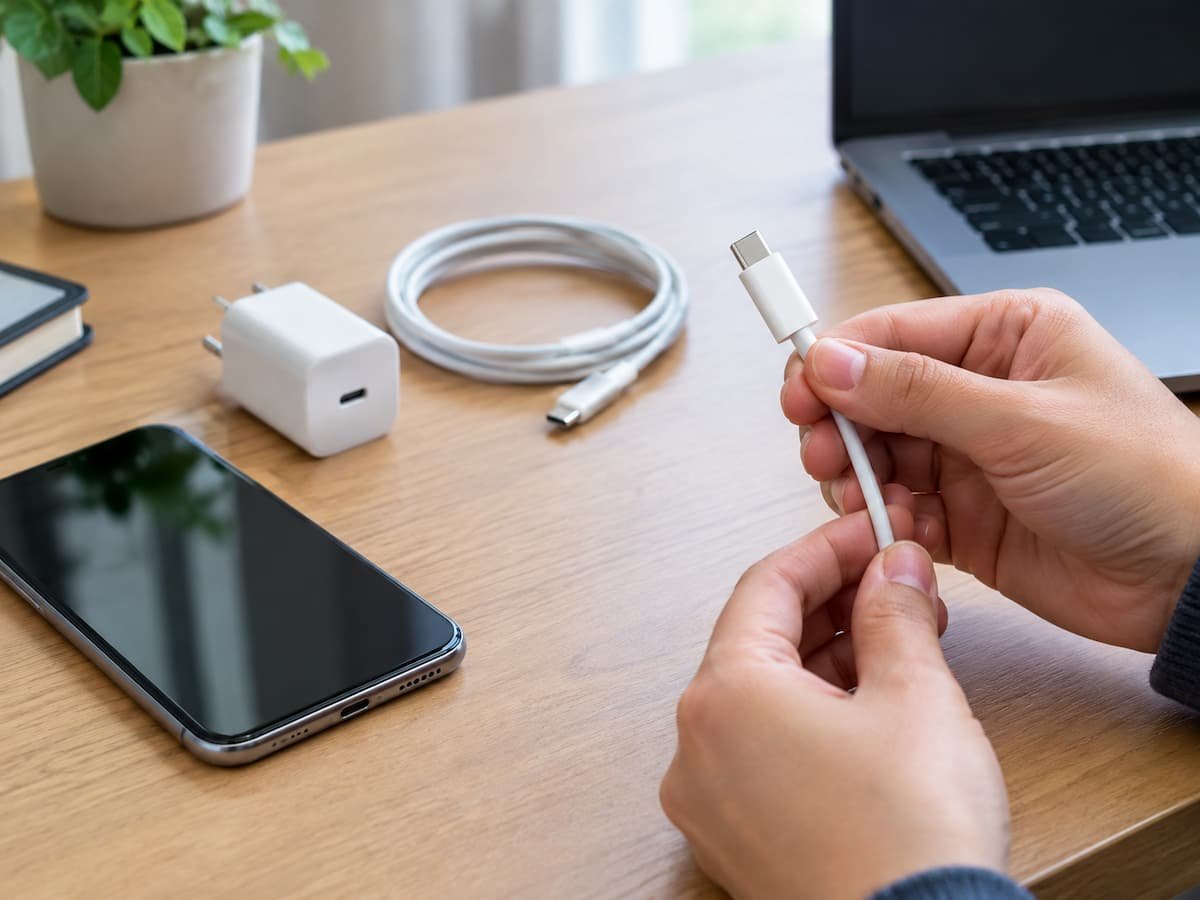
USB-C problems can be surprisingly difficult to diagnose because several different components are involved. A phone may refuse to charge, a laptop may charge slowly, a USB drive may disconnect, or an external monitor may remain blank. The connector can look perfectly normal even when the cable, charger, port, or accessory is the actual cause.
The most useful approach is to avoid changing everything at once. Test one component at a time and compare the result. This makes it much easier to identify what is actually failing. It is also important to remember that USB-C refers to the connector and port shape, not a guarantee that every cable or port supports the same functions. Two cables may fit the same USB-C socket but have different capabilities for charging, data, or display connections. This guide shows how to isolate those differences without opening equipment or performing electrical repairs.
Start by Identifying What Is Actually Failing
Before replacing anything, describe the problem as precisely as possible.
For example, these are different problems:
- The device does not charge at all.
- It charges, but much more slowly than expected.
- Charging starts and stops when the cable moves.
- A USB device is not detected.
- Files cannot be transferred through the cable.
- An external display does not receive a signal.
- An accessory repeatedly disconnects.
- The charger appears to provide power, but the device still loses battery while being used.
The distinction matters because a cable can successfully provide power while failing to provide the data or display connection you need. Likewise, a charger can be perfectly suitable for one device while being unsuitable for another. Write down exactly what works and what does not before beginning the tests.
Test One Variable at a Time
The easiest way to create confusion is to replace the cable, charger, and accessory simultaneously. Suppose a phone is not charging. You connect a different cable to a different charger, and the phone starts charging. You now know that the original setup had a problem, but you do not know whether the cable or charger caused it. Instead, change only one part between tests.
A useful sequence is
- Keep the device and charger unchanged and test another compatible cable.
- Keep the new cable and device unchanged and test another compatible charger.
- If necessary, test the original cable with another compatible device.
- Test another USB-C port on the same device when available.
- Test the accessory separately when the problem involves data, video, storage, or another peripheral.
This takes slightly longer, but the results are much more useful.
Inspect the USB-C Cable First
A cable is often the simplest component to test because it can be removed without changing the device itself.
Look closely at both USB-C connectors and the cable along its entire length. Watch for:
- Bent, cracked, or deformed connector housings
- Exposed wires
- Splitting near either connector
- Severe kinks or crushing
- Burn marks or unusual discoloration
- Dirt or debris on the connector
- A connector that feels unusually loose
- Damage caused by repeated bending
Do not continue using a cable that is visibly damaged, especially if it becomes unusually hot, smells burnt, or shows signs of electrical damage. Do not try to repair a damaged USB-C cable with tape or by modifying its connector. A cable that appears to work after physical damage can still behave unpredictably.
Check Whether the Cable Is the Problem
Use the same cable with another device that is known to support the function you are testing.
For example, if your phone does not charge:
Original device + original cable → fails
Then try:
Another compatible device + original cable → works
That result makes the original phone, its port, or its charging system more suspicious than the cable.
Now reverse the test:
Original device + known-good compatible cable → works
That strongly points toward the original cable. The comparison becomes even more useful when the cable fails with multiple compatible devices. However, a cable working with one device does not automatically prove that it supports every USB-C function. You still need to consider what that particular cable was designed or specified to support.
A USB-C Cable Can Fit Without Supporting the Function You Need
This is one of the most important points in USB-C troubleshooting. A USB-C connector can physically fit into a USB-C port, while the cable does not provide the capabilities required for a particular task.
For example, a cable may successfully connect two devices for charging but not provide the data capability required by another application. Similarly, a cable that works for ordinary charging should not automatically be assumed to support every possible high-speed data or display configuration. This is why “the cable fits” and “the cable supports this function” are two different questions.
When a problem involves data transfer, high-performance peripherals, or external displays, check the specifications for the exact cable, device, port, and accessory. Do not assume that replacing a USB-C cable with any other USB-C cable will produce the same result.
Check the USB-C port on the device.
If multiple cables produce the same problem, inspect the device’s USB-C port. Use good lighting and look for obvious dust, lint, debris, physical damage, or signs that the port has become loose. A port containing debris may prevent the connector from seating correctly. A physically damaged port can cause intermittent charging or repeated disconnections.
Do not force anything into the port to remove debris, and do not use metal objects to scrape inside it. If the port appears damaged or the connector no longer sits securely, professional service may be appropriate.
If the device has multiple USB-C ports, test the same cable and accessory through another port when the device’s specifications indicate that the second port supports the function you are testing. This qualification matters because different ports on the same computer or docking device may not provide identical capabilities.
Check Whether the Connection Is Loose
An intermittent USB-C connection can produce confusing symptoms. For example, charging may begin normally but stop when the cable moves. A storage device might appear for several seconds and then disappear. An external display might repeatedly lose its signal.
With the device sitting safely on a stable surface, observe whether normal movement of the cable causes the connection to change.
Do not deliberately bend, twist, or stress the connector to reproduce the problem. If ordinary handling causes repeated disconnections, that is already a useful warning sign. A loose connection may come from the cable, the connector, or the device’s port. Swapping only the cable is a simple way to narrow this down.
Test the Charger or Power Adapter Separately
When the problem involves charging, the power adapter needs to be tested independently from the cable. Start with a known-compatible charger that is appropriate for the device. Keep the original device and cable unchanged while replacing only the charger:
Device + original cable + charger A → problem
Then:
Device + original cable + compatible charger B → works
If the second setup works normally, charger A becomes a strong suspect. You can also perform the reverse test by using the original charger with another compatible cable and device, where appropriate. The goal is to establish whether the problem follows the charger or stays with the device.
Do Not Judge a Charger Only by Its Connector
A USB-C charger may have the same physical connector as another charger but still differ in its supported power capabilities or charging behavior. The correct charger depends on the requirements of the device and the charging method it supports. Manufacturer documentation is the safest source when you are unsure.
Avoid relying solely on a label such as “USB-C charger” as proof that the adapter is suitable for every USB-C device. Also avoid unsafe, damaged, counterfeit, or questionable power adapters. If an adapter becomes unusually hot, emits a burning smell, makes abnormal noises, or shows visible damage, stop using it. Never open a charger to investigate the problem. Chargers can contain components that remain hazardous even when disconnected from power.
When Charging Is Slower Than Expected
Slow charging does not necessarily mean that the cable is defective. Several things can affect charging behavior, including the device’s supported charging method, the charger, the cable, the current battery state, device temperature, and what the device is doing while connected.
Start with a simple comparison. Use the same device and charger, but substitute a known-compatible cable. If charging behavior changes substantially, the original cable deserves further investigation.
Then, if appropriate, use the same cable with another compatible charger. This helps determine whether the result follows the cable or the charger. If neither substitution changes the behavior, check the device manufacturer’s specifications and charging guidance before buying replacement equipment. Do not assume that a cable or charger advertising a particular capability will automatically make every connected device charge at that level.
When Data Transfer Does Not Work
Charging and data transfer should be tested separately. A device can receive power through a USB-C connection while the data connection is unavailable or unsuitable for the task. If your computer does not detect a connected phone, drive, camera, or other accessory, begin by testing the cable.
Try:
Device + cable A → not detected
Then:
Same device + known-compatible cable B → detected
If the second cable works, cable A is a likely cause. You can also test cable A with another compatible device that supports the same type of data connection. If it repeatedly works for charging but fails when used for the data function you need, check the cable’s specifications rather than assuming it is defective.
The device’s USB-C port also matters. Some ports or devices may have different capabilities, so manufacturer documentation can be important when determining what a particular port is designed to support.
When an External Display Does Not Work
Display problems require even more careful testing because not every USB-C connection is necessarily intended to carry video. If a USB-C monitor, adapter, dock, or other display setup does not work, first confirm that the device’s USB-C port supports the required display function. Then check the cable and accessory specifications.
A cable that successfully charges a laptop is not automatically proof that it can carry the display connection required by your setup. A useful test is to keep the computer and display unchanged while replacing only the cable with one whose specifications match the required connection. If that changes the result, the original cable becomes a likely suspect. If another cable makes no difference, investigate the device’s port, display accessory, and manufacturer’s compatibility information.
Test the Accessory or Peripheral
Sometimes the cable gets blamed for a problem that actually belongs to the connected accessory.
This can happen with:
- USB storage devices
- Hubs
- Docking stations
- Card readers
- Audio devices
- USB adapters
- External displays
- Other USB-C peripherals
If an accessory repeatedly disconnects, test it with another known-compatible cable and, where possible, another compatible host device.
For example:
Computer + cable A + accessory → disconnects
Then:
Computer + cable B + same accessory → stable
This points toward cable A. But if the accessory disconnects with multiple suitable cables and hosts, the accessory itself becomes more suspicious. Likewise, if several accessories fail through the same USB-C port while those accessories work elsewhere, investigate the port or host device.
Build a Simple Test Matrix
When a problem is difficult to isolate, write down the results instead of relying on memory.
| Test | Device | Cable | Charger/Accessory | Result |
|---|---|---|---|---|
| 1 | Original | Original | Original | Fails |
| 2 | Original | Known-good | Original | Works |
| 3 | Other compatible device | Original | Same charger | Works |
| 4 | Original | Known-good | Other compatible charger | Works |
The exact tests will depend on the problem, but the principle is the same: change one variable and record what happens.
Patterns become much easier to see when the results are written down.
Check Specifications When the Results Are Ambiguous
If your basic swaps do not identify the problem, stop guessing and check the specifications. Look at documentation from the device manufacturer, cable manufacturer, charger manufacturer, or the USB Implementers Forum (USB-IF), depending on what you need to verify.
Pay particular attention to whether the exact components support the function you are testing. For a charging problem, verify the device’s charging requirements and the charger’s supported capabilities. For data transfer, verify the relevant data capability of the device, port, accessory, and cable. For display output, verify that the device’s port and the rest of the connection support the required display technology.
The important detail is to check the specific product and port, rather than treating USB-C as one universal capability.
Know When to Stop Testing
A diagnostic test should not put your equipment or safety at risk.
Stop using a cable, charger, port, or accessory if you notice:
- Burning smells
- Smoke
- Visible melting
- Sparks
- Severe overheating
- Exposed conductors
- Cracked or badly damaged connectors
- A charger or cable that appears electrically unsafe
Do not force a connector into a port. USB-C connectors should not require excessive force. Do not open power adapters or chargers and attempt to repair them yourself. If a port or internal component appears damaged, have the device inspected by a qualified technician.
USB-C Troubleshooting Decision Tree
Use this sequence when you need to identify the most likely failing component.
1. What function is failing?
- Charging: test cable → charger → device port.
- Data: test cable → USB-C port → accessory/device.
- Display: verify port capability → cable capability → display accessory.
- Intermittent connection: inspect cable and port → test known-good cable → test another compatible port.
2. Does a known-good compatible cable solve the problem?
- Yes: the original cable is the main suspect.
- No: continue testing.
3. Does the original cable work correctly with another compatible device for the same function?
- No: the cable is more likely to be faulty or unsuitable.
- Yes: investigate the original device, port, charger, or accessory.
4. Does another compatible charger solve a charging problem?
- Yes: the original charger is a strong suspect.
- No: continue.
5. Does another compatible USB-C port work?
- Yes: the original port may be the problem, or the ports may have different capabilities.
- No: continue checking the cable, charger, accessory, and device specifications.
6. Does the cable physically connect but fail at a specific function?
Check its specifications. Physical compatibility does not guarantee the charging, data, or display capability required for the task.
7. Does the problem follow one particular accessory?
Test that accessory with another suitable cable and compatible host. If the problem follows the accessory, the accessory itself may be responsible.
The strongest diagnosis usually comes from a repeatable pattern: replace one component, repeat the same test, and see whether the problem follows that component.
USB-C troubleshooting becomes much less confusing when you stop treating the connection as a single thing. The device, port, cable, charger, and accessory each have to work together, and the USB-C shape alone does not tell you everything about their capabilities. By changing one variable at a time and checking the specifications when necessary, you can often identify the faulty or unsuitable component without replacing equipment unnecessarily.

Daniel Kareem is a digital productivity and technology writer focused on simplifying everyday tech use. He creates practical guides on online safety, device optimization, and efficient workflows. His approach centers on clear, step-by-step advice that helps users stay organized, secure, and productive. Through straightforward and realistic content, he aims to make technology easier to understand and more useful in daily life.