
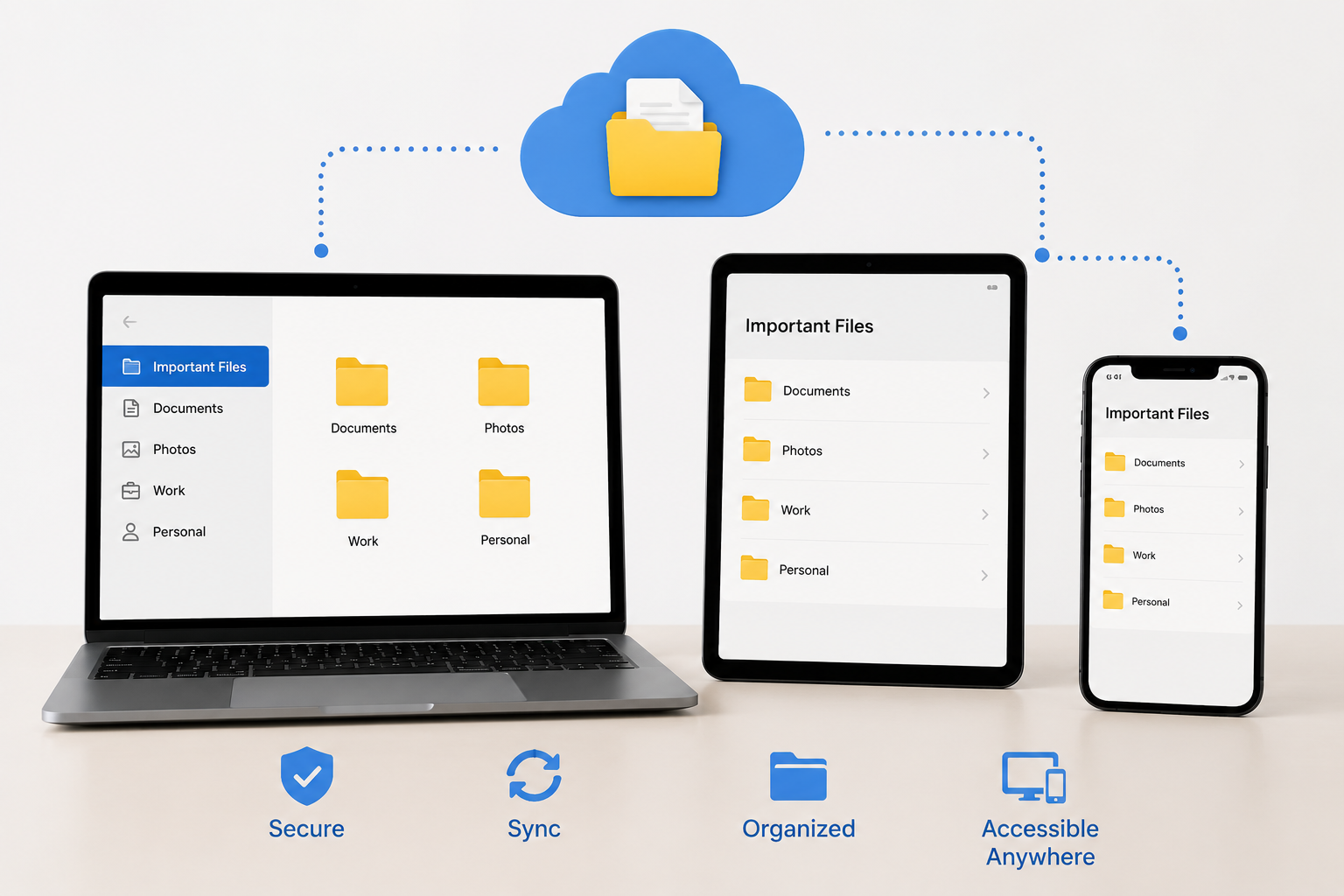
Most problems with file organization stem not from disorganization, but from complacency.
You save files to your desktop with the thought: “I’ll move them later.” Screenshots on your phone remain untouched. You download one or two PDFs because you can no longer remember where the original file was located. Eventually, the same file ends up on:
a laptop, in the cloud, on an external hard drive, on two phones, and as an attachment in an instant messaging app.
And no one is entirely sure which is the most recent version.
This is particularly true when people frequently use multiple devices:
- a laptop for work.
- a tablet.
- a phone for quick edits.
cloud storage that synchronizes in the background.
Individually, each device is not difficult to manage; but together, they create chaos.
Usually, storage space is not the biggest issue; the real challenge lies in the uncertainty.
People often ask themselves questions such as:
- “Where did I save that file again?”
- “Is this the most recent version?”
- “Has this file actually synchronized?”
- “Why do I have four copies of my file?”
The only way to eliminate this uncertainty is to build a robust system.
The Goal Is Not “Perfect Organization”
This matters because many people overcomplicate file management immediately.
They create:
- deep folder trees
- color systems
- naming conventions nobody remembers
- elaborate sorting rules
Then abandon the whole structure two weeks later.
One thing that helped me organize files more consistently was building a system around retrieval, not perfection.
If you can reliably:
- find files quickly
- know which version is current
- avoid accidental duplicates
- recover important documents safely
the system is already working.
Even if it isn’t beautifully arranged.
Start by Separating “Active” Files From “Archive” Files
A common issue I noticed:
people store everything together forever.
Current projects sit beside tax documents from 2018 and random screenshots from old devices. Over time, active workspaces become crowded and difficult to navigate.
A cleaner approach is separating files into two broad categories:
Active Files
Things currently in use:
- ongoing work
- recent documents
- current projects
- frequently accessed media
Archive Files
Things worth keeping but rarely touched:
- old records
- completed projects
- receipts
- historical backups
- older exports
This sounds simple, but it changes how clutter builds over time.
Instead of endlessly reorganizing the same folders, you periodically move older material out of the active environment.
That keeps daily navigation lighter.
Pick One “Home Base” for Important Files
This is probably the single most useful habit for multi-device organization.
Without a central location, files start scattering everywhere.
A common mistake people make is treating every device as permanent storage equally.
That usually creates:
- conflicting versions
- duplicate folders
- inconsistent backups
- sync confusion
One thing worth deciding early:
Where should the master copy of important files live?
For many people, that becomes:
- Google Drive
- OneDrive
- iCloud Drive
- Dropbox
- a NAS setup
- an external SSD
The exact platform matters less than consistency.
Once you establish a trusted “home base,” other devices become access points instead of independent storage islands.
Phones Create More File Disorder Than Most People Realize
Laptops at least encourage visible folders.
Phones quietly scatter files across:
- downloads
- messaging apps
- screenshots
- note apps
- gallery exports
- temporary editors
A common issue I noticed:
important documents living inside chat apps for months because users never moved them properly afterward.
One thing that helped reduce mobile clutter was creating a simple habit:
if a file matters long term, move it out of messaging apps within 24 hours.
Otherwise it disappears into endless chat history.
This applies especially to:
- PDFs
- IDs
- receipts
- contracts
- travel documents
Don’t Rely Entirely on Search
Modern search tools are excellent, but depending on them exclusively creates its own problems.
Search works well when:
- filenames are remembered
- files are indexed properly
- storage stays connected
- cloud sync behaves normally
It works poorly when:
- multiple similar versions exist
- filenames are vague
- devices are offline
- apps create duplicate exports
That’s why lightweight folder structure still matters.
Not overly detailed structure.
Just enough organization that you can navigate logically without needing perfect memory.
A Folder Structure That Usually Ages Well
Complicated hierarchies often collapse eventually.
Simpler systems survive longer.
One structure I’ve seen work consistently looks something like this:
- Personal
- Work
- Financial
- Photos
- Projects
- Temporary
- Archive
Inside those folders, years or project names handle the next level.
That approach avoids the “fthe next level is organised by years or project nameshat becomes exhausting later.
A common issue I noticed with overly detailed systems:
people stop filing things correctly because it takes too much thought.
Good organization should reduce friction, not create more of it.
File Naming Matters More Than Most Apps
People spend hours comparing storage platforms while naming files:
Document-final-v2-new.pdfIMG_8827Notes copy REAL final.docx
Then they wonder why search becomes painful later.
One thing that helped dramatically was using filenames that answer three questions immediately:
- what is this?
- when was it created?
- which version matters?
For example:
2026-Tax-Documents.pdfClient-Proposal-May-2026.docxPassport-Renewal-Receipt.pdf
Not glamorous.
Very effective.
Especially across multiple devices where visual context changes constantly.
Cloud Sync Is Helpful — Until It Isn’t
Cloud storage solves many problems while creating a few new ones.
A common issue I noticed:
people assuming synced equals backed up.
Those are not always the same thing.
If a file gets:
- deleted accidentally
- corrupted
- overwritten
- synced incorrectly
cloud services may instantly propagate that mistake everywhere.
That’s why important files still deserve independent backups occasionally.
Especially:
- financial records
- creative work
- family photos
- business documents
One thing worth checking first:
whether your cloud provider includes version history or recovery tools.
Many people don’t realize those features exist until something goes wrong.
The “Temporary Folder” Trick Helps More Than Expected
Desktop clutter often happens because people don’t know where unfinished files belong.
So everything lands on:
- desktops
- downloads folders
- random app directories
One surprisingly effective solution:
maintain a dedicated Temporary folder intentionally.
Anything unfinished goes there first.
Then once a week:
- rename files properly
- move important items
- delete junk
- archive completed work
This works better than pretending every file will be organized perfectly immediately.
Because realistically, it won’t.
External Drives Need Structure Too
People often treat external drives like digital junk drawers.
Over time they become filled with:
- unlabeled backups
- duplicate folders
- old device transfers
- mystery ZIP files
A common issue I noticed:
users backing up clutter repeatedly without reviewing what’s already stored.
One thing that helped simplify external storage management was creating:
- one drive for backup
- one drive for long-term archive
- clear date labels for major snapshots
Without that separation, backups become difficult to trust later.
Shared Files Create Their Own Problems
The moment multiple people edit files, organization becomes harder.
Especially across:
- family accounts
- shared drives
- collaborative projects
- business folders
Version confusion appears quickly.
One thing worth establishing early:
who owns the “final” copy location.
Without that clarity:
- people edit outdated files
- duplicates multiply
- conflicting versions spread everywhere
Even small shared systems benefit from basic rules.
What Usually Causes File Systems to Fall Apart
Interestingly, most organization systems fail for predictable reasons.
Usually:
- too complicated
- inconsistent across devices
- dependent on memory
- overloaded with duplicates
- never cleaned periodically
A sustainable system needs to feel lightweight enough that you’ll actually continue using it months later.
That matters more than elegance.
A Simple Monthly Cleanup Routine
Perfect organization isn’t realistic.
Maintenance is.
About once a month:
- clear Downloads folders
- review screenshots
- empty Temporary folders
- remove duplicate exports
- archive completed projects
- verify important backups
- review cloud sync warnings
One thing that helped reduce digital clutter long term was treating file maintenance like regular housekeeping instead of a huge once-a-year cleanup project.
Smaller resets prevent larger messes later.
FAQs
What is the best way to organize data across different devices?
Generally, it works best to use one primary storage location and maintain a consistent folder structure. Simpler is better than more complex.
Should I store all my data in the cloud?
Not necessarily. Cloud storage is great, but important files should still be backed up separately rather than merely synchronized with the cloud.
Why do files always appear as copies?
This is usually because files are downloaded repeatedly, edited on multiple devices, or synchronized with multiple applications simultaneously.
File type or project—which sorting method is better?
Generally, sorting by project or purpose is better. Simply categorizing similar content by file type is often too rigid.
How often should I clean up my files?
A quick monthly review is better than irregular, large-scale cleanup sessions.
Is an external hard drive still useful alongside cloud storage?
Absolutely. External hard drives remain useful for creating backups, archiving, and storing large quantities of media files.
Conclusion
The goal of building a system for managing critical data across multiple devices is not to create a perfect digital filing cabinet, but to reduce confusion.
You need a system that:
- provides a reliable location for critical files
- makes the latest versions easily accessible
- performs backups silently in the background
- keeps devices connected, rather than disconnected
This does not mean you need to over-organize everything.
Usually, it is sufficient to simply stick to a few consistent habits over the long term. Honestly, managing technology becomes much easier when you stop constantly asking yourself: “Where did I put that again?”

Daniel Kareem is a digital productivity and technology writer focused on simplifying everyday tech use. He creates practical guides on online safety, device optimization, and efficient workflows. His approach centers on clear, step-by-step advice that helps users stay organized, secure, and productive. Through straightforward and realistic content, he aims to make technology easier to understand and more useful in daily life.