
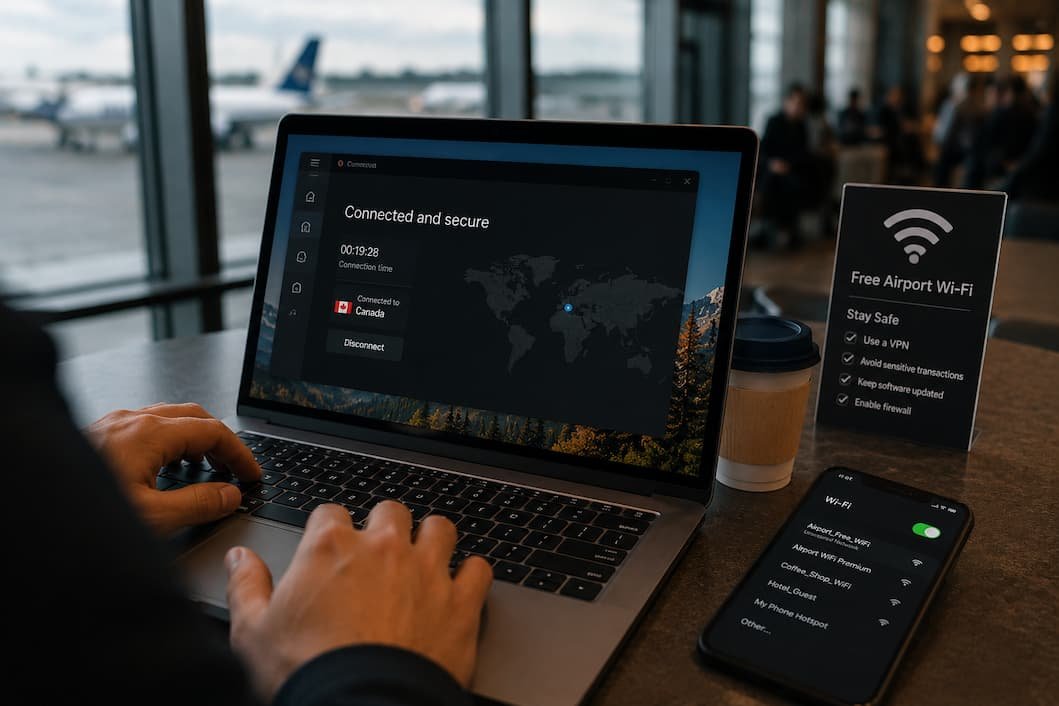
Most of us have connected to public Wi-Fi without giving it much thought. You’re waiting at an airport, sitting in a coffee shop, staying in a hotel, or killing time in a shopping mall. A network appears, you tap Connect, and within seconds you’re online.
The connection feels no different from your home network.
That’s exactly why public Wi-Fi deserves a little more caution.
Unlike your home router, public networks are shared with dozens—or sometimes hundreds—of strangers. You don’t know who configured the network, how well it’s secured, or whether someone nearby is trying to exploit it.
The good news is that you don’t have to avoid public Wi-Fi completely. You simply need to change a few habits. Most of them take only seconds, but together they make a significant difference.
Before You Connect, Make Sure the Network Is Legitimate
Imagine walking into a café called Bean Corner.
Your phone shows three wireless networks:
- BeanCorner WiFi
- BeanCorner_Guest
- Free Coffee Internet
Which one belongs to the café?
You can’t tell just by looking.
Attackers sometimes create fake wireless networks with names that closely resemble legitimate ones. Their goal is simple: convince nearby people to connect first and ask questions later.
If you’re unsure, ask an employee for the exact network name instead of guessing.
It feels like a small step, but it eliminates one of the easiest traps attackers set.
Don’t Treat Every Public Network the Same
Not all public Wi-Fi carries the same level of risk.
There’s a big difference between the following:
- Wi-Fi inside a major international airport
- A hotel network
- Your local library
- A random network called “Free Internet”
- An unsecured hotspot created by another person’s phone
The more anonymous the network, the more cautious you should be.
Here’s a simple way to think about it.
| Network | Risk Level |
|---|---|
| Home Wi-Fi | Very Low |
| Workplace Wi-Fi | Low |
| Hotel Wi-Fi | Moderate |
| Airport Wi-Fi | Moderate |
| Coffee Shop Wi-Fi | Moderate |
| Unknown Open Network | High |
This doesn’t mean airport Wi-Fi is unsafe. It means you should assume more people—and potentially more attackers—are sharing it.
Avoid Logging Into Important Accounts If It Can Wait
Here’s a question worth asking yourself before opening your banking app on public Wi-Fi:
Does this really need to happen right now?
If the answer is no, wait until you’re on a trusted connection.
The fewer sensitive accounts you access on a shared network, the fewer opportunities exist if something unexpected happens.
Tasks worth postponing include:
- Online banking
- Tax portals
- Government services
- Business administration panels
- Password manager recovery
- Changing account passwords
Browsing the news is very different from transferring money between bank accounts.
Not every online activity carries the same level of risk.
Look for HTTPS—But Don’t Assume It Solves Everything
Most modern websites use HTTPS.
You’ll usually recognize it by the padlock icon beside the web address.
That encrypted connection helps protect data traveling between your browser and the website.
However, HTTPS isn’t a magic shield.
It won’t protect you if:
- You visit a fake website.
- You type your password into a phishing page.
- Your device is already infected with malware.
- You accidentally connect to a fake login portal.
Think of HTTPS as one layer of protection—not the entire security strategy.
Turn Off Automatic Wi-Fi Connections
Many phones and laptops automatically reconnect to networks you’ve used before.
Convenient?
Absolutely.
Safe?
Not always.
Imagine you connected to airport Wi-Fi six months ago.
The next time you pass through, your phone might reconnect automatically before you even notice.
If someone nearby has created a fake network using the same name, your device may attempt to join it.
Disabling automatic connections for public networks gives you one extra opportunity to verify where you’re connecting.
Be Careful With File Sharing
Windows and other operating systems include features that make sharing files and printers easy on trusted home networks.
Those same features aren’t necessary when you’re connected to Wi-Fi in a hotel lobby.
Before joining a public network, check that:
- File sharing is disabled.
- Printer sharing isn’t exposed.
- Network discovery is turned off when appropriate.
These settings reduce the chance of unintentionally exposing folders or devices to other people on the same network.
Public Wi-Fi Isn’t the Best Place for Software Updates
Large downloads and operating system updates are generally better handled on a trusted connection.
Besides consuming bandwidth, updates sometimes involve restarting your computer or downloading important system files.
If possible, wait until you’re back on your home or workplace network.
The exception, of course, is urgent security updates that fix actively exploited vulnerabilities.
Use two-factor authentication everywhere you can.
Let’s imagine someone somehow obtains your password while you’re traveling.
If your account relies only on that password, they may be able to sign in immediately.
If you’ve enabled two-factor authentication, they still need access to your second verification method.
That extra step often prevents a stolen password from becoming a compromised account.
It’s one of the simplest security improvements you can make, regardless of where you connect to the internet.
Charge Carefully in Public Places
Security isn’t limited to Wi-Fi.
Public USB charging stations have occasionally raised concerns because they combine power and data through the same cable.
Most charging stations are harmless, but if you’re carrying your own wall charger or a power bank, those options remove the uncertainty altogether.
It’s a small habit that many frequent travelers adopt without thinking twice.
Think About Who Can See Your Screen
Not every privacy risk comes through the network.
Sometimes it’s the person sitting beside you.
Working from an airport lounge or coffee shop often means people can easily glance at your display.
Avoid leaving sensitive information visible, including:
- Banking details
- Password manager entries
- Medical records
- Business documents
- Tax information
A privacy screen protector can help, but simply being aware of your surroundings goes a long way.
Don’t Ignore Browser Warnings
If your browser suddenly warns that
- The certificate is invalid.
- The connection isn’t private.
- The website can’t be verified.
Don’t click Continue just because you’re in a hurry.
Those warnings exist for a reason.
Occasionally they’re caused by harmless configuration issues, but they can also indicate something much more serious.
When in doubt, close the page and access the website another way.
When Mobile Data Is the Better Choice
Sometimes the safest decision is not using public Wi-Fi at all.
If your mobile data connection is available and you’re handling something sensitive, using it may be the simpler option.
Situations where mobile data often makes more sense include:
- Online banking
- Password changes
- Business VPN access
- Government services
- Identity verification
- Financial transactions
You don’t have to avoid public Wi-Fi forever—you simply need to know when another connection is the better choice.
A Simple Routine I Follow Before Joining Any Public Network
Rather than remembering dozens of security tips, I prefer a short mental checklist.
Before connecting, I ask myself:
- Do I know who owns this network?
- Am I about to access anything sensitive?
- Can this task wait until later?
- Is my device fully updated?
- Would mobile data be a better option?
Those questions usually take less than ten seconds to answer.
They’ve also prevented me from making more than one questionable connection while traveling.
Common Myths About Public Wi-Fi
One misconception is that every public Wi-Fi network is inherently dangerous. That’s not really true. Many hotels, airports, and businesses invest heavily in securing their networks. The problem is that you usually don’t know how well a particular network is managed, so it’s safer to assume you’re sharing it with people you don’t know.
Another myth is that public Wi-Fi only threatens laptops. In reality, phones, tablets, and other connected devices can also be exposed if they’re poorly configured or running outdated software.
There’s also a belief that using incognito or private browsing mode makes public Wi-Fi safer. Private browsing helps protect your browsing history on your own device, but it doesn’t secure the network connection or stop phishing attacks.
Frequently Asked Questions
Is it safe to use public Wi-Fi for online banking?
If possible, avoid it. Using mobile data or a trusted private network is generally a better choice for financial transactions.
Can someone steal my passwords over public Wi-Fi?
Modern encrypted websites reduce that risk considerably, but phishing websites, fake Wi-Fi networks, malware, and poor security habits can still expose your credentials.
Should I disable Wi-Fi when I’m not using it?
If you’re traveling through unfamiliar places, turning off Wi-Fi when it’s not needed prevents your device from automatically searching for or reconnecting to wireless networks.
Is hotel Wi-Fi safer than coffee shop Wi-Fi?
Not necessarily. Both should be treated as shared networks. The same security precautions apply regardless of the location.
Does using a VPN make public Wi-Fi completely safe?
A VPN adds an important layer of privacy by encrypting your internet traffic, but it doesn’t protect you from phishing websites, fake login pages, malware, or poor password practices.
Is public Wi-Fi safe for streaming videos?
Generally, yes. Streaming entertainment carries much less risk than accessing sensitive accounts, provided you’re using legitimate websites and keeping your device updated.
Should I forget public Wi-Fi networks after leaving?
Yes. Removing networks you no longer use reduces the chances of your device reconnecting automatically in the future.
Conclusion
Public Wi-Fi isn’t something you need to fear, but it isn’t something you should trust blindly either. The network itself may be perfectly legitimate, yet the people sharing it, the websites you visit, or the habits you follow can still determine how secure your information remains.
Instead of avoiding public Wi-Fi altogether, build a few practical habits into your routine. Verify the network before connecting, postpone sensitive activities when possible, disable automatic connections, keep your devices updated, and use two-factor authentication on your important accounts. These simple precautions don’t make using public Wi-Fi inconvenient—they simply make it much safer.
The next time your phone finds a free wireless network, don’t ask, “Is it safe?” Ask yourself, “Am I using it safely?” That small change in thinking is often the biggest improvement you can make to your online security.

Daniel Kareem is a digital productivity and technology writer focused on simplifying everyday tech use. He creates practical guides on online safety, device optimization, and efficient workflows. His approach centers on clear, step-by-step advice that helps users stay organized, secure, and productive. Through straightforward and realistic content, he aims to make technology easier to understand and more useful in daily life.