
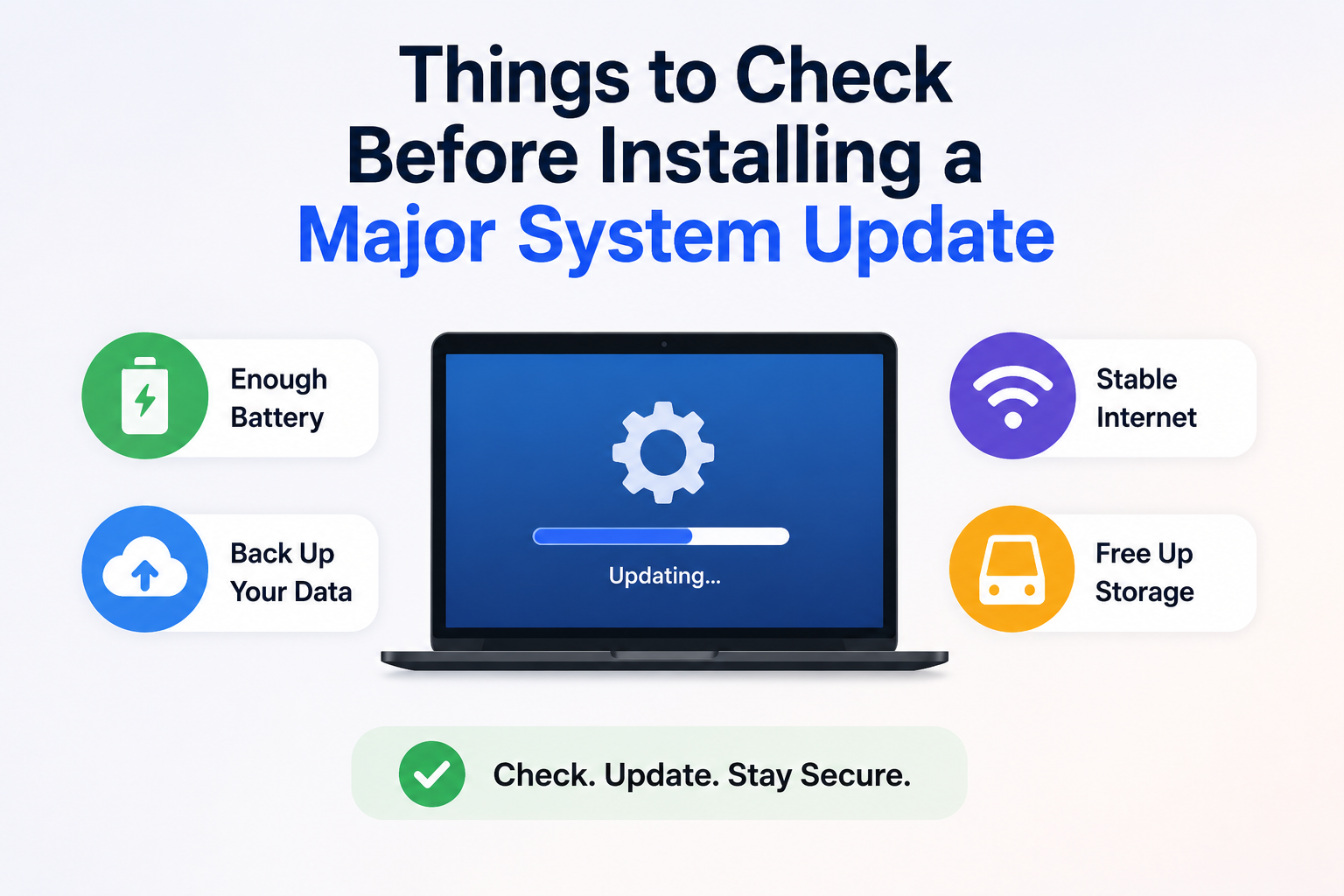
Before installing a major update, you might suddenly feel as though your device is more important than ever.
This could involve a Windows feature update, a new Android version, a major macOS update, or an iPhone update promising longer battery life and security patches. Most people click ‘Install’ without a second thought. Sometimes, that is sufficient. But other times, updates can trigger an entire night filled with login issues, missing files, crashing apps, or laptops that keep restarting.
The update itself is rarely the whole story. Usually, the problem lies elsewhere: insufficient storage space, outdated drivers, incomplete backups, software incompatibilities, or settings that have never been checked before.
A few minutes of preparation can prevent most frustrating problems.
Don’t Start With the Update Itself
One thing that helps is treating major updates more like a system change than a regular app refresh.
Small security patches are usually routine. Major updates are different. They often modify system files, drivers, permissions, startup behavior, privacy settings, and compatibility layers all at once. That’s why devices sometimes feel “off” after updating even when nothing technically failed.
Before installing anything large, check what kind of update it actually is.
Examples include:
- Windows feature upgrades
- Major Android version jumps
- iOS yearly releases
- macOS generation updates
- BIOS or firmware updates
- GPU driver overhaul packages
Those deserve a little preparation.
Make Sure You Actually Have a Working Backup
A surprising number of people think they have backups until they need one.
Cloud syncing alone is not always enough. Sync services can accidentally sync deletions or corrupted files too. A proper backup means you can fully recover important data if something goes wrong.
For laptops and desktops, it’s worth checking:
- Documents
- Photos and videos
- Browser bookmarks
- Password manager exports
- Important project folders
- Game saves if stored locally
- Two-factor authentication recovery codes
On phones, verify that backups completed recently instead of assuming they run automatically.
A common issue I noticed on Android devices is backup services silently failing because battery optimization restricted background syncing. On Windows PCs, external drives sometimes stop being included in scheduled backups after drive letters change.
Something worth checking first: open the backup settings directly and confirm the latest successful backup date.
Storage Space Matters More Than People Think
Low storage causes a huge number of failed updates.
Operating systems need temporary working space during installation. Even if the update technically downloads, the installation process may still fail halfway through because there isn’t enough room for unpacking files, rollback images, or temporary caches.
This becomes especially common on:
- Older laptops with 128GB SSDs
- Budget Android phones
- iPhones close to capacity
- Devices filled with cached media files
Don’t rely on the “minimum required” storage number either. Real-world usage usually needs more breathing room.
A safer approach:
| Device Type | Comfortable Free Space Before Major Update |
|---|---|
| Windows PC | 25–35GB |
| MacBook | 20GB+ |
| Android Phone | 10GB+ |
| iPhone/iPad | 10GB+ |
Temporary cleanup can help:
- Remove large downloads
- Empty recycle bins
- Delete old installers
- Clear app caches
- Move videos to external storage
- Uninstall apps you haven’t used in months
On Windows systems especially, old update files can quietly consume massive amounts of storage over time.
Check Battery Health and Power Stability
This sounds obvious until someone installs an update during a thunderstorm on a laptop with 8% battery.
Interrupted updates can corrupt operating system files, especially during firmware or BIOS changes.
For laptops:
- Plug directly into wall power
- Avoid unstable extension setups
- Disable sleep mode temporarily
For phones:
- Charge above 50%
- Avoid overheating during updates
- Remove heavy cases if the device runs hot
Older batteries can also behave unpredictably during long installations. Devices sometimes shut down suddenly even when the battery percentage looks acceptable.
Look for App Compatibility Warnings
Not every app handles major updates gracefully.
This matters most if you rely on specialized software for work, school, editing, development, or gaming.
A few examples where compatibility issues appear often:
- Printer software
- Audio drivers
- VPN clients
- Anti-cheat systems in games
- Older Adobe tools
- Virtual machine software
- Custom Android launchers
- Security utilities
One mistake people make is assuming the operating system vendor tests every third-party app. They don’t.
Before updating:
- Check whether critical apps support the new version
- Look through recent user reports
- Delay updating if major bugs are widely reported
This is especially relevant during the first few weeks after large releases.
There’s a reason many IT departments intentionally delay updates for business devices.
Disconnect Hardware You Don’t Need
This sounds minor, but extra hardware can sometimes complicate updates.
External drives, USB hubs, old printers, webcams, capture cards, and even certain Bluetooth adapters occasionally trigger installation conflicts or driver issues.
If the device doesn’t need it during the update, disconnect it temporarily.
One thing that helped on older Windows systems was leaving only:
- Keyboard
- Mouse
- Main display
- Power cable
Everything else stayed unplugged until the update finished.
Check Available Recovery Options Before You Need Them
People usually search for recovery tools after something breaks.
That’s the worst time to start learning where they are.
Before installing a major update, verify:
- Recovery email access
- Password manager access
- Device PINs
- Recovery keys
- System restore settings
- Boot recovery tools
Windows users should especially verify whether BitLocker recovery keys are accessible. After major hardware or firmware changes, Windows sometimes asks for them unexpectedly.
Mac users should confirm FileVault recovery access too.
For phones, please ensure you remember:
- Apple ID password
- Google account password
- Screen lock PIN
A surprising number of update disasters turn into account lockouts instead of technical failures.
Internet Quality Can Affect the Process
Slow or unstable internet connections sometimes corrupt downloads or interrupt cloud-based update stages.
Public Wi-Fi networks are especially risky for large updates.
If possible:
- Use stable home internet
- Avoid mobile hotspots for large system upgrades
- Pause heavy downloads on other devices
- Keep VPNs disabled unless necessary
Some updates now verify files continuously during installation, so connection stability matters more than it used to.
Security Software Can Occasionally Interfere
Ironically, security tools sometimes block system-level changes they don’t recognize.
This is more common on Windows PCs running aggressive antivirus suites or endpoint protection tools.
Symptoms may include:
- Endless restart loops
- Failed installations
- Stuck update percentages
- Rollback errors
Temporarily disabling third-party antivirus software before a major update sometimes prevents these problems.
Just remember to enable protection again afterward.
Built-in protections like Windows Security generally behave more predictably during updates than older third-party security suites.
Read Early User Feedback First
You don’t always need to install updates immediately.
Waiting a few days can reveal:
- battery drain problems
- overheating issues
- Wi-Fi bugs
- Bluetooth instability
- app crashes
- driver conflicts
Some of the worst update bugs become obvious within 48 hours of release.
That doesn’t mean avoiding updates forever. Security fixes still matter. But blindly installing version 1.0 of every major release the moment it appears isn’t always the smartest approach either.
A balanced approach works better:
- Install critical security updates promptly
- Delay major feature upgrades briefly if possible
- Watch for widespread reports of serious bugs
If It’s a Work Device, Double-Check Syncing
This gets overlooked constantly.
Before updating:
- Ensure cloud files finished syncing
- Confirm email accounts are functioning properly
- Verify local copies of important documents exist
Apps like:
- OneDrive
- Google Drive
- Dropbox
- iCloud Drive
can appear synced while still uploading background changes.
A common issue I noticed is people updating laptops while large folders are still syncing silently in the background. If something goes wrong during the update, the newest versions of those files may never fully upload.
Don’t Ignore Device Age
Older hardware sometimes struggles with modern updates even when officially supported.
You may notice:
- slower boot times
- higher RAM usage
- shorter battery life
- increased fan noise
- reduced app responsiveness
Sometimes the newest software simply isn’t the best experience for aging devices.
This happens frequently with:
- older Intel laptops
- budget Android phones
- base-model tablets
- low-storage systems
If the device already feels slow before updating, a major upgrade may amplify existing problems.
A Quick Pre-Update Checklist
If you want a simpler routine, this covers most important areas:
Before Installing
- Verify recent backups
- Check free storage space
- Plug into reliable power
- Confirm passwords and recovery access
- Update critical apps first
- Disconnect unnecessary accessories
- Read early bug reports
- Pause unnecessary background downloads
- Confirm internet stability
It usually takes less than 15 minutes.
That’s still shorter than troubleshooting a failed operating system installation afterward.
FAQs
Should I install a major update immediately?
Not necessarily. Security patches should generally be installed promptly, but for major feature updates, you might want to wait a little while to allow any known vulnerabilities to be identified and resolved as quickly as possible.
Can insufficient storage space really cause an update to fail?
Yes. Major updates temporarily require some storage space during the installation process. Insufficient storage space can lead to installation errors, rollback loops, or corrupted update files.
Is a cloud backup sufficient?
Sometimes, but not always. Cloud synchronization services are not full system backups. Local files should be stored in at least two locations before you perform any major updates.
Why do updates sometimes slow down older devices?
Newer operating systems typically require more system resources. Technically, an update may run on older hardware, but it can negatively affect performance.
Should I disable my antivirus software before updating?
If your antivirus software is known to interfere with updates, you should temporarily disable it. Many modern systems can update normally without disabling security programs, but some third-party antivirus programs can cause conflicts.
When is the best time to install a major update?
The best times are when:
- There is a stable power supply.
- You are not in a rush;
- backups are available;
- and your work or studies do not require the immediate use of the device.
Never install a major update right before a critical deadline.
Conclusion
Most system updates install successfully. The problem is that once issues do arise, they can escalate very quickly.
Files go missing. Applications fail to launch. Drivers stop working. Suddenly, your login credentials become more important than ever. The safest approach is not to stop updates entirely. This amounts to treating major updates as maintenance, rather than as random notifications.
Being well-prepared is crucial.

Daniel Kareem is a digital productivity and technology writer focused on simplifying everyday tech use. He creates practical guides on online safety, device optimization, and efficient workflows. His approach centers on clear, step-by-step advice that helps users stay organized, secure, and productive. Through straightforward and realistic content, he aims to make technology easier to understand and more useful in daily life.