
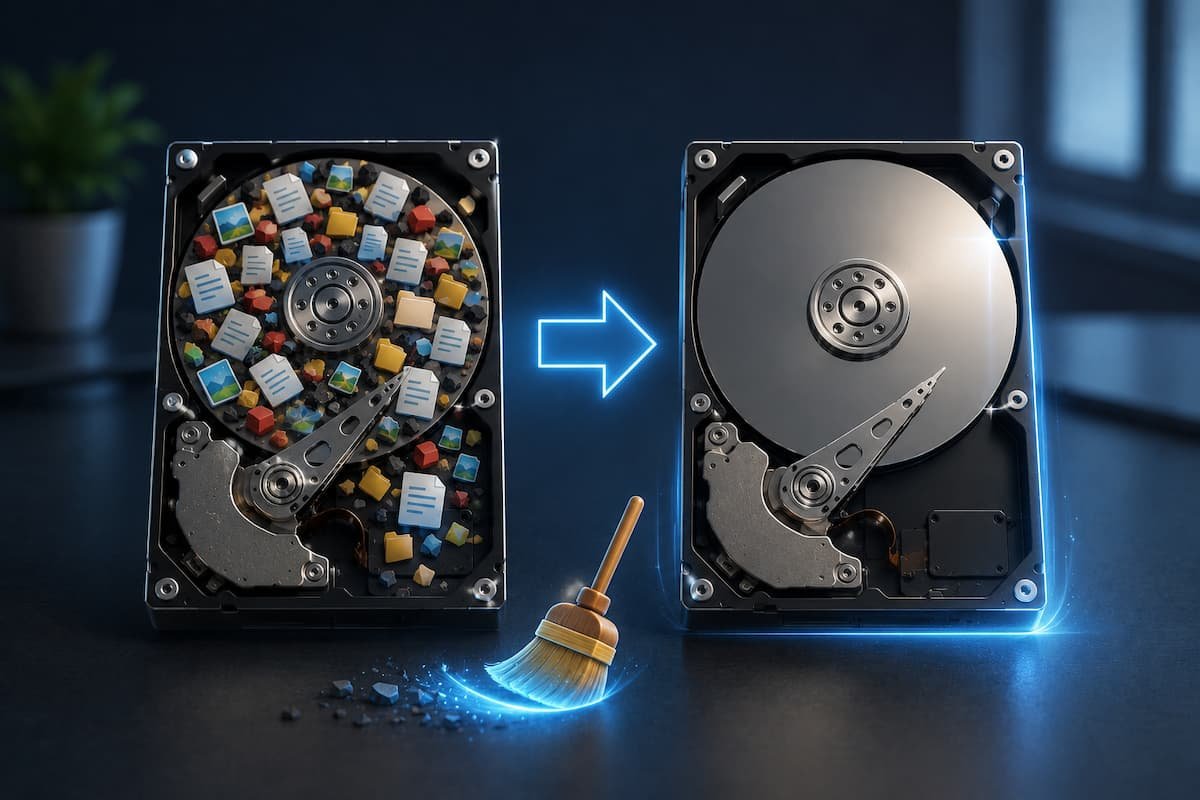
You don’t usually notice your storage filling up gradually. Instead, Windows waits until you’re installing a large application, downloading a game, or trying to apply a feature update before displaying the dreaded “Low Disk Space” warning. The confusing part is that when you start looking through your Documents, Pictures, and Videos folders, everything appears normal. If you haven’t intentionally saved hundreds of gigabytes of files, where could all that space have gone?
After working with Windows PCs for years, I’ve noticed one pattern again and again: most storage problems don’t come from a single massive folder. Dozens of smaller areas quietly grow over time. Windows keeps temporary update files, applications create caches, browsers save website data, cloud storage downloads offline copies, and uninstalling software rarely removes everything it created. None of these are necessarily problems on their own, but together they can consume a surprising amount of space without drawing attention.
The encouraging news is that you don’t need to reinstall Windows or rely on aggressive “PC cleaner” software to recover storage. Modern versions of Windows include useful tools for identifying what’s using your drive, but understanding how those tools work—and where they sometimes fall short—is what allows you to reclaim space safely without deleting something important.
Start by Investigating, Not Deleting
The biggest mistake I see people make is opening the C: drive, sorting folders by size, and immediately deleting anything that looks unfamiliar. While this method occasionally frees some storage, it’s just as likely to remove files that applications still rely on or overlook the actual cause of the problem. Storage management works best when you understand where Windows believes your disk space is being used before making any changes.
Open Settings > System > Storage and allow Windows a minute to finish scanning the drive. This page breaks storage into categories such as Installed Apps, Temporary Files, Documents, Pictures, Videos, Other, and System & Reserved. On Windows 11 24H2, I noticed the numbers occasionally change during the first minute after opening the page, especially immediately after startup, so it’s worth waiting until the analysis completes before making decisions based on the results.
Rather than focusing only on the largest category, compare how each section has grown over time. A computer used mainly for office work may have very little media but an unexpectedly large “Installed Apps” section. A gaming PC often has a different profile, while a work laptop may show cloud storage or cached project files taking up more space than personal documents.
Why File Explorer Doesn’t Always Tell the Whole Story
Many users assume they can manually calculate disk usage by selecting every visible folder on the C: drive. Unfortunately, Windows hides several important storage consumers because they’re system-managed, and File Explorer doesn’t always present an accurate picture of how your disk is being used.
Files such as the page file, hibernation file, restore point data, component store, and certain protected system folders are either hidden or managed differently from ordinary folders. As a result, you may only account for 180GB of visible files while Windows reports that 250GB is already occupied. This difference often leads people to believe storage has “disappeared,” when in reality it’s simply being used by parts of the operating system that aren’t designed for everyday browsing.
This is also why manually enabling hidden files doesn’t magically solve the mystery. Some protected operating system files remain inaccessible by design, and trying to delete them outside Windows’ built-in tools can create stability problems. It’s far safer to understand what these files do before deciding whether they should be removed.
Temporary Files aren’t as Temporary as Most People Think
The word “temporary” suggests files that disappear automatically after they’re no longer needed. In practice, that’s only partially true. Windows creates temporary files during updates, software installations, application crashes, and everyday system operations. While Windows eventually cleans up many of these files, others remain until it decides they’re safe to remove—or until you do it manually.
Open the Temporary Files section inside Storage Settings, and you’ll usually find several categories, including Delivery Optimization files, DirectX Shader Cache, Windows Error Reporting files, thumbnail cache, and previous Windows installation files. These aren’t all equal. Some occupy only a few hundred megabytes, while others can consume tens of gigabytes depending on how the computer has been used.
One thing I’ve noticed after major Windows feature updates is that many users ignore this page because their PC continues working normally. Weeks later, they discover that rollback files from the previous Windows version are still occupying a significant portion of the SSD. Keeping those files makes sense immediately after an upgrade in case something goes wrong, but once you’ve used the updated version for several weeks without issues, they’re usually no longer providing much value.
The Downloads Folder Deserves More Attention Than Any Cleanup Utility
If I had to choose one location responsible for wasted storage on the average Windows PC, it wouldn’t be a hidden system folder—it would be the Downloads folder. Many people treat Downloads as temporary storage, but over months or years it quietly becomes a permanent archive of installers, compressed folders, PDFs, ISO images, videos, software updates, and duplicate files that are never reviewed again.
A simple habit can reveal surprising results. Switch the Downloads folder to Details view, sort by Size, and scroll through the largest files first. On several systems I’ve helped organize, this process immediately uncovered Windows installation media that had already served its purpose, ZIP archives extracted months earlier, and software installers that remained even though the applications were already installed. Removing these files alone often recovered more storage than running automated cleanup software.
The same principle applies to your desktop. It’s common to think of the desktop as a convenient workspace, but every file stored there occupies the same drive space as any other folder. Large video recordings, virtual machine images, and compressed archives are frequently forgotten because they’re hidden beneath shortcuts or arranged across multiple monitors where they blend into the background.
When Applications Quietly Become Your Biggest Storage Users
People often blame Windows for running out of storage when the real culprit is software they’ve installed over time. Modern applications create much more than executable files. They generate logs, cache data, offline content, temporary working files, backups, and user settings, all of which continue growing long after installation.
Creative software provides one of the best examples. Video editors generate render caches and proxy files to improve editing performance, while photo editing applications create preview databases that expand as new images are imported. Developers working with Android Studio, Visual Studio, Docker, or virtual machines may discover that development environments consume significantly more storage than the programs themselves because they store SDKs, emulator images, build caches, and downloaded components.
Even after uninstalling these applications, leftover folders often remain inside AppData or ProgramData because developers intentionally preserve settings for future installations. While this behavior is convenient if you reinstall the software later, it also explains why uninstalling a large application doesn’t always recover as much space as expected. Before deleting these residual folders, make sure they don’t contain project files or data you may still need.
Browsers Cache More Than Websites
Modern web browsers are designed to improve speed by storing copies of images, scripts, fonts, and other website resources locally. This cache allows frequently visited pages to load faster, reducing both loading times and internet usage. Usually this system works quietly in the background, but heavy browsing habits can cause cached data to accumulate far beyond what many users realize.
Browsers now handle far more than web pages. Streaming platforms temporarily store media data, productivity apps create offline resources, extensions maintain their files, and websites using progressive web technologies often download content that remains available without an active internet connection. If you’ve used the same browser profile for several years, especially across multiple devices through synchronization, the amount of locally stored data can become surprisingly large.
Clearing browser cache occasionally is perfectly reasonable, but it shouldn’t become a weekly habit unless you’re troubleshooting a website. Removing cached files means frequently visited pages will initially load more slowly because the browser has to download those resources again. Instead of constantly deleting everything, treat browser cache as something to review periodically when storage is genuinely becoming limited rather than assume it’s the first place to clean up.
Cloud Storage can Quietly Fill an SSD
Cloud services like OneDrive, Google Drive, Dropbox, and iCloud Drive are excellent for keeping files synchronized across multiple devices, but they also create one of the most misunderstood storage issues on Windows. Many people assume that because their files are stored “in the cloud,” they aren’t occupying local storage. In reality, how you configure the synchronization settings determines whether files occupy local storage.
Most cloud platforms let you keep files online until you open them. Windows displays these files in File Explorer just like normal documents, but they only download when needed. Problems begin when entire folders are marked as “Always keep on this device.” It’s easy to enable this feature accidentally while trying to make a single document available offline, and before long, hundreds of gigabytes of photos, videos, or archived projects are stored on the SSD without the user realizing it.
I’ve also seen people migrate to a new Windows PC, sign in to OneDrive, and wonder why a 512GB SSD suddenly has only 100GB available. Often, Windows is simply downloading everything because offline availability was previously enabled. Reviewing your synchronization settings can sometimes recover more storage than deleting temporary files, and unlike removing personal data, it doesn’t require giving anything up because the files remain safely stored online.
[Insert screenshot: OneDrive folder showing “Free up space” and “Always keep on this device”]
Storage Sense is Useful, But Only After You Configure It Properly
Storage Sense is often presented as Windows’ automatic solution for managing disk space, yet many users are disappointed because they enable it once and never notice much difference. The reason is simple: Microsoft’s default settings are intentionally conservative. Windows avoids deleting anything that might surprise the user, which means Storage Sense often leaves behind exactly the files people expected it to remove.
It’s worth opening Settings > System > Storage > Storage Sense and reviewing every option rather than accepting the defaults. One setting that frequently goes unnoticed controls the Downloads folder. During testing on Windows 11, I found that Storage Sense leaves Downloads untouched unless you specifically allow automatic cleanup after a selected number of days. If your Downloads folder contains years of installers and compressed archives, Storage Sense won’t help unless you enable that option.
Another useful feature is cloud content management. When you enable it, Windows automatically makes rarely used OneDrive files online-only if you don’t open them for a certain period. This isn’t appropriate for everyone—especially users who frequently work offline—but it’s a practical option for laptops with limited SSD capacity.
Hidden storage Users Most People Never Think to Check
When a drive continues filling even after removing obvious files, it’s time to investigate less obvious storage consumers. These aren’t necessarily hidden in the technical sense, but they’re easy to overlook because they live outside the folders most people browse every day.
Virtual machines are one example. Applications like Hyper-V, VMware Workstation, and VirtualBox store complete operating systems as disk image files, and a single virtual machine can easily exceed 50GB. If you’ve experimented with Linux or another version of Windows months ago, those virtual disks may still be sitting on your drive even though you no longer use them.
Game launchers deserve attention as well. Steam, Xbox, Epic Games Launcher, and Battle.net all maintain download caches and update files. Uninstalling a game usually removes the main installation, but temporary download data, shader caches, screenshots, recorded gameplay clips, and mod folders can remain behind. Similarly, creative software often keeps exported previews and render caches that continue to grow until you clear them manually from within the application.
Developers encounter another challenge: build caches. Android Studio, Visual Studio, Docker Desktop, Node.js package managers, and other development tools prioritize speed by caching downloaded components. This behavior dramatically improves workflow efficiency but can also consume tens of gigabytes over time. Deleting these caches indiscriminately isn’t always the right choice because rebuilding them can take considerable time, so it’s important to understand the trade-off before reclaiming that space.
Resist the Temptation to Delete System Folders Manually
A quick internet search for “free up Windows storage” will often lead to forum posts suggesting that you delete folders from the Windows directory or disable system features without explaining their purpose. While some of these suggestions may appear to work, they often solve one problem by creating another.
For example, manually deleting files inside the Windows or ProgramData directories can interfere with updates or cause applications to behave unpredictably. Likewise, disabling hibernation solely to recover storage isn’t always a good decision. On desktop PCs that never use hibernation, it may be a reasonable choice, but on laptops using Fast Startup, turning it off can affect boot behavior. The key is understanding why a file exists before deciding whether it’s worth removing.
If Windows provides a built-in option to clean a category of files, use that method whenever possible. Microsoft designs these tools to avoid deleting data that’s still in use, whereas manually removing files from protected folders carries far greater risk with little additional benefit.
Quick Tip: If you’re unsure whether a folder is safe to delete, search for its purpose first rather than assuming it’s leftover junk. Five minutes of research is far easier than recovering a broken Windows installation.
Simple Monthly Routine Prevents Storage Problems from Returning
Recovering storage once feels satisfying, but the real goal is preventing the same situation six months later. Instead of waiting until Windows displays a low disk space warning, develop a routine that takes less than ten minutes each month.
Begin by opening the Storage page and checking which category has grown since your last review. If installed apps have increased significantly, think about whether you’ve recently installed software that you no longer need. If Temporary Files keeps expanding, let Windows clean them using its built-in tools rather than third-party utilities.
Next, review the Downloads folder and sort files by size. Large ISO images, installers, compressed archives, and exported videos often stand out immediately. Empty the Recycle Bin once you’ve confirmed nothing important remains inside, then check whether your cloud storage is keeping unnecessary files offline. Finally, if you work with creative software, virtual machines, or development tools, spend a minute reviewing their cache or project folders because these are often responsible for the largest unexpected increases.
This routine isn’t about obsessively deleting files. It’s about staying aware of where your storage is going so that nothing grows unnoticed for years. A small amount of regular maintenance almost always works better than an emergency cleanup after the drive has already filled.
Don’t Measure Success by How Many Gigabytes You Delete
One of the biggest misconceptions about storage management is that recovering the maximum possible space is always the goal. In reality, deleting 100GB of important project files simply because they’re large isn’t an improvement. Effective storage management is about removing files that no longer serve a purpose while preserving the ones that still add value.
Over the years, I’ve found that the biggest gains usually come from understanding how Windows works rather than searching for miracle cleanup software. Old Windows installation files, forgotten downloads, oversized application caches, offline cloud copies, and abandoned virtual machines consistently account for far more storage than the tiny temporary files many optimization tools focus on. Once you recognize these patterns, disk space stops feeling like a mystery.
The next time your Windows PC warns that it’s running low on storage, resist the urge to start deleting random folders. Spend a few minutes identifying what’s actually consuming the space, use Windows’ built-in management tools wherever possible, and clean with intention instead of guesswork. You’ll recover storage more safely, avoid accidental data loss, and gain a clearer understanding of how your computer manages files.
OneDrive Might Be Filling Your SSD Without You Realizing It
Cloud storage has made it much easier to keep files synchronized across multiple devices, but it has also introduced a new source of storage confusion. Many users assume that their files, stored “in the cloud,” don’t occupy local disk space. That isn’t always true. Whether a file stays online or downloads to your SSD depends on how your sync settings are configured.
OneDrive’s Files The On-Demand feature is designed to solve this problem by keeping files online until you open them. However, if you accidentally choose “Always keep on this device” for a large folder, Windows downloads everything for offline access. I’ve seen users fill over 150GB of a 256GB SSD simply by syncing years of photos and documents without realizing the setting had changed. The files were still in OneDrive—they were just stored locally as well.
[Insert screenshot: OneDrive context menu showing “Free up space” and “Always keep on this device”]
If your storage suddenly drops after signing into a Microsoft account or setting up a new PC, check your OneDrive folders before deleting personal files. Switching rarely used folders back to online-only can recover a significant amount of storage while keeping everything accessible whenever you have an internet connection.
Large Applications Rarely Leave Cleanly
Uninstalling software doesn’t always return as much storage as you’d expect. That’s because many applications intentionally leave behind configuration files, user preferences, logs, caches, and project data. This makes reinstalling easier, but it also means your SSD slowly accumulates folders from software you haven’t used in months.
Creative applications are some of the biggest offenders. Video editors store render caches and proxy media, photo editing software builds thumbnail databases, and music production tools often download sound libraries that remain even after the main program is removed. Development software such as Visual Studio, Android Studio, Docker Desktop, and game engines can consume tens of gigabytes through SDKs, emulator images, package caches, and build files.
Before deleting leftover folders, identify what they contain. A folder inside AppData may look unimportant, but it could contain saved projects or application settings that you’ll miss later. If you no longer use the software, removing its remaining data is usually fine—but it’s worth checking before assuming every leftover folder is safe to erase.
Game Launchers Keep More Than Just Games
If you’re a PC gamer, uninstalling a game isn’t always the end of the story. Modern game launchers maintain shader caches, downloaded updates, screenshots, recorded gameplay clips, controller profiles, and sometimes even backup files for cloud synchronization. Individually these folders aren’t huge, but together they can quietly occupy tens of gigabytes.
Steam is a good example. As you install and update games, Steam creates temporary download files and shader caches to improve loading times and compatibility. Deleting these manually isn’t usually necessary, but understanding that they exist explains why your available storage doesn’t always increase by the exact size of the game you just removed.
The same applies to launchers like Epic Games Launcher, Battle.net, Xbox, and EA App. If you’re running low on storage, don’t just look at installed games—review the launcher’s cache and screenshot folders as well. You may discover several gigabytes of data that you no longer need.
Storage Sense Works Better After a Few Small Changes
Storage Sense is one of Windows’ most useful built-in maintenance tools, but its default settings are intentionally cautious. Microsoft doesn’t want the feature to delete personal files unexpectedly, so it disables many cleanup options until you enable them yourself.
After turning on Storage Sense, spend a few minutes reviewing each setting instead of closing the window immediately. One option that many people overlook controls the Downloads folder. Unless you explicitly allow automatic cleanup, Windows won’t touch anything there—even if those files haven’t been opened for years. That’s a sensible default, but it also means Storage Sense can’t solve one of the most common causes of low storage on its own.
[Insert screenshot: Storage Sense configuration options]
You should also decide how often Windows empties the Recycle Bin and whether cloud files should automatically become online-only after a period of inactivity. These small adjustments allow Storage Sense to work much more effectively without putting important files at risk.
Be Careful With “Free Space” Tutorials on the Internet
Search for ways to free disk space and you’ll quickly find videos recommending registry cleaners, aggressive optimization tools, or commands that promise to recover dozens of gigabytes instantly. While some advice is legitimate, plenty of it is outdated or based on older versions of Windows.
One recommendation that still appears regularly is deleting files from the Windows folder after taking ownership of it. Another is removing everything inside AppData because “Windows will recreate it.” Both suggestions ignore an important fact: many of those files are actively used by installed applications. Deleting them may recover space temporarily, but it can also lead to broken software, missing settings, or failed updates.
A good rule is simple: if Windows provides a built-in way to clean a category of files, use that first. Microsoft has spent years refining these tools to remove unnecessary data while protecting files the operating system still needs. Manual deletion should always be the exception, not the first choice.
Warning: Avoid installing “PC cleaner” software simply because it promises dramatic results. Most modern versions of Windows already include the tools needed for routine storage maintenance.
Where Most People Recover the Most Space
Not every cleanup task produces the same results. Based on what I’ve seen across different Windows systems, a handful of areas consistently account for the majority of recovered storage.
| Storage Area | Typical Space You May Recover | Safe to Clean? |
|---|---|---|
| Downloads Folder | 5–50GB+ | ✔ Yes, after reviewing files |
| Previous Windows Installation | 10–30GB | ✔ Yes, through Windows Cleanup |
| Temporary Files | 1–10GB | ✔ Yes |
| Browser Cache | 500MB–5GB | ✔ Yes |
| OneDrive Offline Files | Varies greatly | ✔ Yes, if stored online |
| Unused Applications | Depends on software | ✔ Yes |
| Creative Software Caches | 5–100GB+ | ✔ Usually, check the application’s settings |
These numbers aren’t guarantees, but they reflect where meaningful storage savings usually come from. Notice that most of them involve forgotten data rather than critical Windows files.
A 10-Minute Routine That Keeps Storage Under Control
You don’t need to perform a major cleanup every weekend. A short monthly review is usually enough to prevent storage problems from building up in the first place.
Start by opening Settings > System > Storage and checking which category has grown since your last review. If temporary files are increasing, let Windows clean them using its built-in tools. If Installed Apps have grown, ask yourself whether you’re still using everything that’s installed.
Next, open your Downloads folder and sort files by size. Empty the Recycle Bin, review OneDrive’s offline folders, and take a quick look at any software you use regularly for video editing, software development, gaming, or virtual machines. These applications often create large caches that continue growing until you clear them manually.
The entire process usually takes less than ten minutes, but it prevents the frustrating situation where Windows suddenly reports that your drive is almost full right before an important update or project.
The Goal Isn’t More Free Space—It’s Smarter Storage Management
Running out of storage doesn’t automatically mean your PC has too many files. More often, it means the wrong files have been allowed to accumulate unnoticed. Windows update leftovers, oversized download folders, offline cloud copies, application caches, and abandoned project files account for far more storage than most people expect.
Instead of chasing every gigabyte with third-party cleanup software, spend a few minutes understanding how Windows manages your storage. Once you know where large files usually hide and which cleanup methods are genuinely safe, reclaiming disk space becomes a simple maintenance task rather than a stressful troubleshooting session. More importantly, you’ll be far less likely to delete something important while trying to solve a problem that Windows can already manage safely.

Daniel Kareem is a digital productivity and technology writer focused on simplifying everyday tech use. He creates practical guides on online safety, device optimization, and efficient workflows. His approach centers on clear, step-by-step advice that helps users stay organized, secure, and productive. Through straightforward and realistic content, he aims to make technology easier to understand and more useful in daily life.