
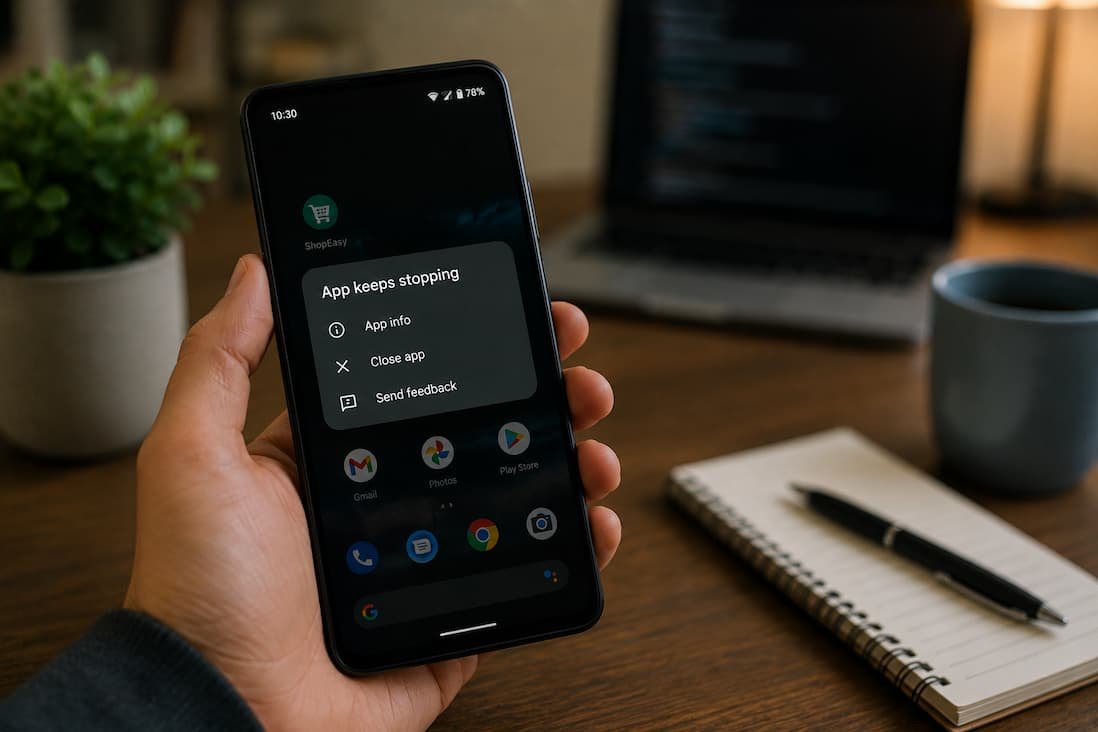
There’s a particular kind of frustration that almost every Android user has experienced. An app has been working perfectly for months, an update appears in the Play Store, you install it without giving it much thought, and the next time you open the app, it immediately closes. Sometimes it crashes before the home screen appears. Other times it works for a few minutes before freezing or shutting down without warning.
The first reaction is usually to blame the update itself, and occasionally that’s exactly what happened. Developers can introduce bugs that weren’t discovered during testing, especially when an app supports thousands of Android devices with different processors, screen sizes, and manufacturer software. But updates often receive the blame for problems they didn’t actually create. In many cases, the update simply exposes an issue that was already developing on the device, such as corrupted temporary files, low storage, outdated system components, or a conflict with another application.
That distinction matters because it changes how you approach the problem. If the update is genuinely broken, there may be little you can do except wait for the developer to release a patch. If the crash is caused by something on your device, however, you can often fix it within a few minutes without uninstalling the app or losing your data.
Before Trying Random Fixes, Pay Attention to How the App Crashes
Many troubleshooting guides jump straight into clearing the cache or reinstalling the application. Those steps sometimes work, but they also waste time when they’re aimed at the wrong problem. A better approach is to spend a minute observing what actually happens.
Does the app crash immediately after you tap its icon? Does it open normally but fail when you sign in? Does it only crash after performing a specific action, such as uploading a photo or opening the settings page? These small details often reveal whether the problem is related to the app itself, your account, or something happening in the background.
It’s also worth asking one simple question: Did anything else change besides the app update? Perhaps your phone installed a major Android update overnight. Maybe you recently enabled a VPN, changed battery optimization settings, or installed another application that interacts with the same files. Looking at the bigger picture prevents you from assuming the newest update is automatically responsible.
Not Every “Update” Is Really Just an App Update
One mistake I see surprisingly often is treating Android as though it’s a single piece of software. In reality, several components work together every time you launch an app, and an update to any one of them can affect stability.
For example, an application may rely on Google Play Services, Android System WebView, graphics drivers, or manufacturer-specific software running underneath the operating system. If one of those components hasn’t updated correctly—or updated before the others—you can end up with crashes that appear to be caused by the app even though the real problem lies elsewhere.
That’s one reason two people with the same phone model can install the same app update and have completely different experiences. Their phones may be running different security patches, carrier firmware, beta features, or background services, creating conditions that developers couldn’t fully reproduce during testing.
The Simplest Explanation Is Often the Correct One
People naturally assume that a crashing app must have a complicated technical cause. Sometimes the explanation is much simpler.
Android apps constantly create temporary files while they’re running. These files help speed up loading times, remember recent activity, and reduce the amount of information that needs to be downloaded repeatedly. After an update, however, those older temporary files don’t always match the newer version of the application.
Imagine renovating a house while leaving some of the old blueprints scattered around. Most of the structure works, but certain instructions no longer match the finished design. That’s similar to what can happen when outdated cache files remain after a major update.
Clearing an app’s cache doesn’t erase your account or personal documents. It simply removes temporary files so the updated version of the app can build fresh ones that match its current code. Because it’s safe and quick, it’s usually one of the first troubleshooting steps worth trying.
When Clearing Cache Makes Sense
You don’t need to clear cache every time an app updates. In fact, doing it routinely offers little benefit.
It becomes more useful when:
- The app worked normally before updating.
- Crashes started immediately afterward.
- The app freezes while loading.
- Images or interface elements fail to display correctly.
- Buttons stop responding after the update.
If the problem continues after rebuilding the cache, it’s a sign that the issue likely runs deeper than temporary files alone.
Low Storage Can Trigger Problems That Look Like Software Bugs
It’s easy to overlook storage space because Android usually warns you only when you’re getting close to the limit. Long before you see those warnings, however, the operating system may already be struggling to create temporary files, unpack updates, or allocate working space for applications.
This is especially common on older devices with 64 GB of storage—or less—that have accumulated years of photos, videos, downloads, offline maps, and messaging attachments. The app update itself may install successfully, but the application doesn’t have enough working room to operate reliably afterward.
Rather than focusing only on total free space, look for unusually large folders that have grown quietly over time. Messaging apps, camera backups, downloaded videos, and forgotten files in the Downloads folder are often responsible for consuming far more storage than people realize.
If you’re consistently running below a few gigabytes of available storage, improving free space may stabilize multiple apps at once instead of fixing only the one that’s crashing.
Sometimes the App Isn’t Crashing—Android Is Closing It
There’s another possibility that’s easy to miss.
Android is designed to manage memory automatically. When system resources become limited, the operating system may close background processes to keep the phone responsive. Most of the time this happens invisibly, but aggressive battery management or limited memory can occasionally interfere with apps that expect to remain active.
This often creates the impression that an application has become unstable after an update, when in reality the operating system is repeatedly stopping parts of it in the background. Messaging apps may fail to synchronize properly, navigation apps may restart unexpectedly, and cloud storage applications may interrupt uploads without displaying a clear error message.
Manufacturers sometimes modify Android’s memory management even further. Samsung, Xiaomi, OnePlus, OPPO, Vivo, and other companies each include their own battery optimization features, which means identical apps can behave differently depending on the device they’re running on.
That doesn’t necessarily indicate a software bug. It simply reflects the complex relationship between Android itself, manufacturer customizations, and third-party applications.
A Quick Health Check Can Save You From Hours of Guesswork
Before making major changes, it’s worth spending two or three minutes checking whether your phone is otherwise healthy. Many app crashes turn out to be symptoms rather than the underlying problem.
The table below provides a useful starting point.
| Check | Why It Matters |
|---|---|
| Available storage | Low storage can prevent apps from functioning normally. |
| Android version | Older system software may not work well with newer app releases. |
| Google Play Services | Many apps depend on it for authentication, notifications, and background functions. |
| Internet connection | Some crashes occur only when apps fail to communicate with online services. |
| Battery optimization | Aggressive background restrictions may interrupt app processes. |
| Recent system updates | Android updates sometimes introduce temporary compatibility issues. |
Running through these checks first helps narrow the problem before you start uninstalling software or resetting settings unnecessarily.
One Crash Doesn’t Always Mean the Update Is Broken
When thousands of people install the same update on the same day, it’s easy to assume every crash points to poor development. In reality, software updates interact with an enormous variety of devices, Android versions, regional firmware, installed applications, and user settings. A bug affecting one group of phones may never appear on another.
That’s why developers often release small follow-up updates within days of a major release. They aren’t necessarily fixing a universally broken application—they’re responding to issues that only became visible after millions of people started using the update in real-world conditions.
Understanding that makes troubleshooting much less frustrating. Instead of assuming your phone is failing or the developer made a disastrous mistake, you can approach the problem methodically and identify whether the issue is unique to your device or part of a wider compatibility problem.
When Clearing the Cache Isn’t Enough
If the app continues crashing after rebuilding its cache, the next question is whether the problem is tied to temporary files or to the app’s stored data. These two things are often confused, but they serve different purposes.
An app’s data includes information such as your preferences, downloaded content, login status, offline files, and other settings that allow you to pick up where you left off. If that information becomes corrupted during or after an update, the application may repeatedly crash because it’s trying to load data that no longer matches the newer version of the software.
This is where many users make an expensive mistake. They immediately tap “Clear Data” without checking what will be removed. On some apps, this simply signs you out. On others, it may erase downloaded files, offline notes, saved projects, or locally stored information that hasn’t been synchronized to the cloud. Before choosing this option, confirm whether your important data is backed up or linked to an online account.
Cache vs. App Data
| Option | What It Removes | Usually Safe? |
|---|---|---|
| Clear Cache | Temporary files created by the app | Yes |
| Clear Data | App settings, login information, and locally stored data | Only after confirming important data is backed up |
If you’re unsure, clearing the cache should always come first. Clearing app data is better treated as a later troubleshooting step rather than the default solution.
A Reinstall Can Fix More Than You Might Expect
Sometimes an update doesn’t install cleanly. The download may have completed successfully, but one or more files may not have been written correctly, especially if the phone was running low on storage or another process interrupted the installation.
In these situations, uninstalling and reinstalling the application often replaces damaged program files with a fresh copy from the Play Store. Unlike clearing the cache, this recreates the entire application rather than just its temporary working files.
Before uninstalling anything, take a moment to determine whether the app stores information locally or in the cloud. Banking apps, email clients, and most streaming services usually synchronize your information automatically, but note-taking apps, voice recorders, or file managers may rely more heavily on local storage. Losing unsaved information because of a rushed reinstall is far more frustrating than the original crash.
Don’t Ignore Google Play Services and Android System WebView
Many Android users never think about Google Play Services or Android System WebView because they work quietly in the background. Even so, they’re among the most important components in the Android ecosystem.
Google Play Services handles features such as account authentication, notifications, location services, and communication between apps and Google’s infrastructure. Android System WebView allows applications to display web content without opening a separate browser. If either component becomes outdated or develops a problem, seemingly unrelated apps may begin crashing.
Fortunately, checking them is straightforward. Visit the Google Play Store, search for both components, and install any available updates. If updates are already installed, restarting the phone afterward can sometimes resolve temporary communication issues between system services and recently updated applications.
Safe Mode Can Tell You Whether Another App Is Responsible
It’s easy to assume the crashing application is the source of the problem, but occasionally another app is creating the conflict.
Android’s Safe Mode temporarily starts the device with only essential system software, preventing third-party applications from loading automatically. If the crashing app works normally in Safe Mode, there’s a good chance another installed application is interfering with it.
This situation is more common than many people realize. VPNs, security software, screen recording tools, accessibility utilities, floating widgets, aggressive battery optimizers, and even some customization apps can affect how other applications behave. They don’t necessarily contain bugs themselves, but they may interact with updated software in unexpected ways.
Safe Mode doesn’t tell you exactly which app is responsible, but it helps narrow the investigation. Instead of troubleshooting your entire phone, you can focus on applications that were installed or updated shortly before the crashes began.
Sometimes the Problem Isn’t on Your Phone at all.
Not every update-related crash can be fixed locally.
Developers occasionally release updates that behave perfectly during internal testing but begin failing after reaching millions of real devices. There are simply too many hardware combinations, Android versions, regional firmware releases, and manufacturer modifications to reproduce every possible environment before an update goes live.
One useful habit is checking whether other users are reporting the same problem. Visit the app’s Play Store listing and sort recent reviews by date. If dozens of users suddenly report identical crashes after the latest update, you’ve probably identified a wider compatibility issue rather than something unique to your device.
You can also check the developer’s official support channels or community forums. Many companies acknowledge widespread problems quickly and release follow-up patches within a few days. In those cases, repeatedly resetting your phone or reinstalling the app is unlikely to help because the underlying issue still exists in the current version.
Why Older Phones Experience More Update Problems
People often assume older phones become slower simply because manufacturers want users to upgrade. While hardware limitations certainly become more noticeable over time, software evolution is another important factor.
Modern applications are designed with newer Android APIs, larger displays, faster processors, improved graphics hardware, and additional security features in mind. Developers generally try to maintain compatibility with older devices, but supporting five or six generations of hardware inevitably involves compromises.
As apps become more feature-rich, older phones have less processing power and memory available to keep everything running smoothly. An update that works perfectly on a flagship phone released this year may push an older budget device much closer to its practical limits.
That doesn’t mean older phones can’t remain reliable. It simply means users may need to be more selective about running numerous background applications, installing resource-heavy launchers, or leaving dozens of browser tabs open alongside demanding apps.
Habits That Reduce the Chances of Future App Crashes
No troubleshooting method can eliminate software bugs entirely, but a few good habits make update-related problems much less common.
- Keep several gigabytes of free storage available instead of waiting until the device is almost full.
- Install Android security and system updates regularly, especially Google Play system updates.
- Avoid force-closing apps constantly unless they’re genuinely frozen.
- Remove applications you no longer use instead of letting them consume storage and background resources.
- Restart your phone occasionally. While Android is designed to run continuously, an occasional reboot clears temporary processes that may contribute to instability over time.
- Install apps from trusted sources such as the Google Play Store to reduce compatibility and security risks.
These habits won’t prevent every issue, but they create a healthier software environment where updates are less likely to expose existing weaknesses.
Frequently Asked Questions
Why did my app start crashing immediately after an update?
The update may contain a software bug, but it’s also possible that outdated cache files, corrupted app data, limited storage, or compatibility issues with your device are contributing to the problem.
Will clearing the cache delete my personal information?
No. Clearing the cache removes temporary files that the app can recreate automatically. It doesn’t normally erase your account, documents, or saved content.
Should I clear app data before reinstalling the app?
Not necessarily. Clearing app data may remove locally stored information. If your important files aren’t backed up, reinstalling or clearing data without checking first could result in data loss.
Why do some users experience crashes while others don’t?
Android runs on thousands of device models with different hardware, manufacturer software, and Android versions. An issue affecting one group of devices may never appear on another.
Can Google Play Services cause apps to crash?
Yes. Many Android applications depend on Google Play Services for essential functions such as authentication, notifications, and communication with Google’s infrastructure. Problems with that component can affect multiple apps.
Is it better to wait for another update?
If many users are reporting the same issue after a recent release, waiting for the developer to publish a corrective update is often more effective than repeatedly resetting your phone.
Conclusion
An app crashing after an update doesn’t automatically mean the update is defective. While developers occasionally introduce bugs, many post-update problems are caused by outdated cache files, storage limitations, incompatible system components, background software conflicts, or issues unique to a particular device. Understanding the difference saves time and helps you choose the right solution instead of trying every fix you find online.
The most effective approach is to troubleshoot methodically. Start with simple checks, such as available storage, cache, and pending system updates, before moving on to more advanced steps like Safe Mode or reinstalling the app. If the issue turns out to be part of a wider software bug, keeping the app updated and monitoring the developer’s releases is usually the quickest path to a permanent fix.

Daniel Kareem is a digital productivity and technology writer focused on simplifying everyday tech use. He creates practical guides on online safety, device optimization, and efficient workflows. His approach centers on clear, step-by-step advice that helps users stay organized, secure, and productive. Through straightforward and realistic content, he aims to make technology easier to understand and more useful in daily life.