
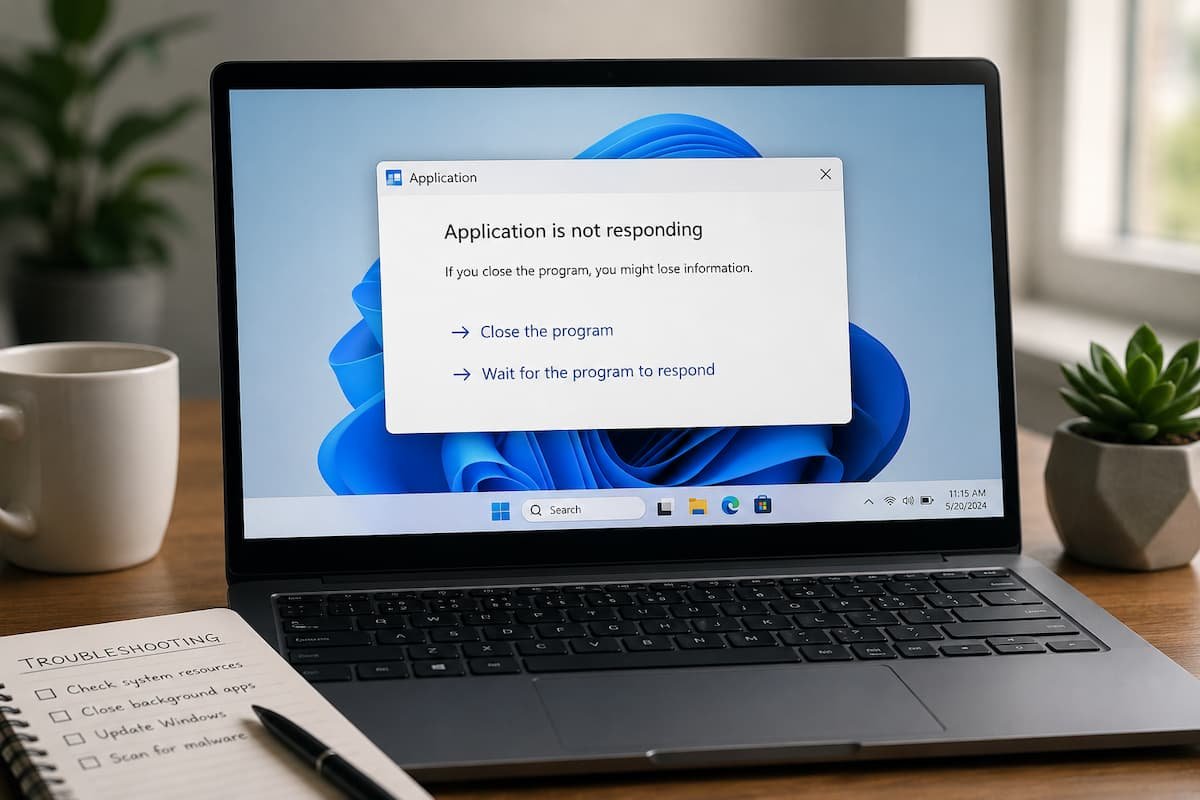
A Windows application that suddenly shows “Not Responding” can be frustrating, especially when you have unsaved work open. The message does not necessarily mean that the application has crashed permanently. Windows may simply be waiting for the program to finish an operation, respond to a system request, access a file, or recover from a temporary slowdown. The useful question is therefore not just how to close the frozen program. It is why the application stopped responding in the first place.
A single occurrence may be harmless. If the same application freezes repeatedly, however, forcing it closed every time can hide the underlying problem. The cause could be a temporary resource shortage, damaged application data, an outdated application, compatibility problems, problematic drivers, corrupted Windows system files, or another program interfering with it. The best approach is to start with the least disruptive checks and become more aggressive only when the simpler solutions do not work.
First Determine Whether the App Is Actually Frozen
When Windows displays “Not Responding,” give the application a moment before immediately terminating it. Some operations legitimately take longer than expected. A large spreadsheet, video project, database, archive, or file stored on a slow or unavailable drive can temporarily make an application appear frozen.
Look at the rest of the computer. If other applications respond normally and the affected program eventually becomes usable again, the problem may have been temporary. If the entire desktop is sluggish, the mouse is lagging, or several programs are becoming unresponsive, the issue may be broader than one application. This distinction matters because repeatedly reinstalling an application will not solve a system-wide performance problem.
If the application remains completely unresponsive and you have already waited long enough to rule out a temporary operation, Windows Task Manager can be used to end the task. Press Ctrl + Shift + Esc, select the affected application, and then choose End task. Be aware that ending a task can discard unsaved work. If the program becomes responsive again, save your files before doing anything else.
Check Whether Other Programs Are Having the Same Problem
One of the quickest ways to narrow down the cause is to open another application. Suppose a web browser freezes while File Explorer, Settings, and another desktop program continue working normally. That points more strongly toward the browser or something it depends on.
Now imagine that several unrelated applications become unresponsive within a short period. In that situation, investigate Windows itself, available system resources, drivers, storage, and recently installed software rather than concentrating exclusively on the first application that froze. Task Manager can provide useful clues. Press Ctrl + Shift + Esc and look at CPU, memory, disk, and network activity. A resource reaching a very high level does not automatically identify the cause, but it can explain why applications are struggling to respond.
For example, an application performing a demanding task may temporarily use substantial CPU resources. A computer with limited available memory may also become sluggish when many applications and browser tabs are open. The goal is not to chase a particular percentage. Instead, search for a pattern that matches the moment the application becomes unresponsive.
Restart Windows Before Making Major Changes
A restart is simple, but it can eliminate temporary conditions that survive while Windows remains running. An application may have left a background process running, encountered a temporary system-service problem, or entered an unusual state that disappears after restarting. Restarting also gives Windows an opportunity to complete certain pending operations.
Use Start > Power > Restart instead of simply closing the affected application and continuing to work.
After Windows starts again, open the same application before launching everything else. If it works normally after the restart, use the computer for a while and see whether the problem returns. This is particularly useful for distinguishing an occasional problem from a repeatable one. If the application freezes again every time you perform a particular task, you have a much stronger clue than if it simply stopped responding once.
Update the App and Windows
Software that worked correctly several months ago may behave differently after changes to Windows, drivers, services, or other components. For Microsoft Store applications, please verify the Microsoft Store for available updates. Microsoft also recommends making sure Windows itself is up to date when troubleshooting Store applications.
For traditional desktop software, verify the application’s official publisher for an updated version. This is especially relevant when the problem began after a Windows update or when the application is several years old.
You should also check Settings > Windows Update and install available updates when appropriate.
Updating is not a guaranteed solution. A new application version can occasionally introduce its problems, and an update may not address the actual cause. Nevertheless, running an old application on a newer Windows environment can create compatibility issues, so keeping both the operating system and important software reasonably current is a sensible troubleshooting step. Microsoft specifically recommends checking compatibility and available updates for older applications.
Repair the Application Before Reinstalling It
If the problem is limited to one application, Windows may provide a repair option that is worth trying before you remove the program.
In Windows 11, go to Start > Settings > Apps > Installed apps, find the affected application, open its menu, and select “Advanced options” when available. Microsoft provides a repair option for supported applications. If repairing does not solve the issue, a reset option may also be available.
Repair is preferable as an early troubleshooting step because it can address problems with the application without immediately removing everything associated with it. Reset is more disruptive. Depending on the application, it can remove stored application data or settings. Before using it, consider whether the program contains locally stored preferences, profiles, downloads, templates, or other information that you may need. Not every Windows application provides these options, so their absence does not indicate that anything is wrong with your installation.
If the App Freezes After a Particular Action, investigate that action.
Repeated freezing is much easier to troubleshoot when you can identify what happens immediately beforehand. For example, suppose a photo editor becomes unresponsive only when you open a particular large image. The image file, available memory, storage location, or a related plug-in becomes more relevant than general Windows performance.
Similarly, if an office application freezes whenever you open a particular document, try testing a different document. If only one file causes the problem, avoid assuming that the entire application is defective. A useful troubleshooting habit is to change one variable at a time.
Open a different file. Disable any recently added extensions if the application supports them. Try the same operation without an external device connected. Test another user account if appropriate. Compare what happens immediately after a restart. This process may seem slower than trying ten fixes at once, but it creates evidence. If you make several changes simultaneously, you may resolve the problem without ever learning what caused it.
Check Compatibility When the App Is Older
Older software deserves special attention when it begins freezing after a Windows upgrade. Microsoft provides a Program Compatibility Troubleshooter for applications that have compatibility problems. In Windows 11, it can be accessed through Settings > System > Troubleshoot > Other troubleshooters, where available, and Microsoft also recommends checking whether the application has an updated version from its publisher.
Compatibility problems can appear in different ways. An older application may launch but behave incorrectly, display visual glitches, or become unresponsive during particular operations. If the application is essential and no compatible update exists, check the software publisher’s documentation before experimenting with compatibility settings. Older programs can depend on components or behaviors that newer Windows versions handle differently.
This is also a useful point to check whether the software is officially supported on your version of Windows. If the publisher no longer supports it, recurring problems may not have a permanent Windows-side fix.
Consider Drivers and Hardware-Related Problems
Some applications depend heavily on particular hardware components. Driver problems can affect graphics-intensive programs, video editors, games, CAD software, audio applications, and other specialized tools. If only one graphics-heavy application freezes, while ordinary programs work normally, a display-driver or application compatibility issue becomes more plausible.
Start with Windows Update and the device manufacturer’s supported driver channels rather than downloading random driver packages from third-party websites. Pay attention to timing. If the freezes began immediately after a driver change, that information is valuable. If they started after installing a new graphics-intensive application, compare the application’s requirements with your hardware.
Hardware does not have to be defective for an application to become unresponsive. An application can simply place demands on the system that expose limitations, driver conflicts, or compatibility problems that are not visible during ordinary desktop use.
Repair Windows System Files When Multiple Apps Misbehave
If several unrelated Windows programs are freezing or Windows itself is showing other unusual behavior, corrupted system files become worth investigating. Microsoft provides two built-in tools for this situation: Deployment Image Servicing and Management (DISM) and System File Checker (SFC). Microsoft recommends running DISM before SFC when repairing corrupted Windows components.
Open Command Prompt as administrator and run the following:
DISM.exe /Online /Cleanup-image /RestorehealthAfter it completes, run:
sfc /scannowPlease allow the scans to finish instead of closing the Command Prompt while they are running. Microsoft explains that SFC checks protected system files and can replace corrupted files with cached copies when possible. These commands are not the first thing to try when one ordinary application freezes once. They become more relevant when the symptoms suggest that Windows itself may be damaged.
A Clean Boot Can Help Identify Conflicting Background Software
Sometimes the application is not the only software involved. Security tools, hardware utilities, overlays, startup applications, synchronization software, and other background components can interfere with programs. If an application works normally in a minimal troubleshooting environment but repeatedly fails during ordinary startup, a background service or startup application becomes a stronger suspect.
Windows also provides Safe Mode as a diagnostic environment that starts the system with a limited set of drivers and services. Microsoft notes that if a problem does not occur in Safe Mode, this approach can help narrow down possible causes involving default settings, drivers, and services. This type of troubleshooting is more advanced than restarting or repairing an application. Make changes carefully and record what you disable so that you can restore the normal configuration afterward.
When Reinstalling the App Makes Sense
Reinstalling is useful when the application’s installation or local configuration appears damaged and simpler repair options have failed. Before uninstalling, check whether the application stores important data locally. Some programs keep documents separately, while others store settings, profiles, templates, or databases inside application-specific folders.
If the application has an account-based synchronization system, confirm that important data has synchronized successfully before removing it. After reinstalling, test the application before restoring every extension, plug-in, customization, or third-party integration. If the clean installation works but the problem returns after restoring one particular component, you have a much clearer lead. A reinstall should therefore be treated as a diagnostic step as well as a repair step, not simply a ritual performed whenever Windows displays “Not Responding.”
When You Should Look Beyond the Application
If multiple programs repeatedly become unresponsive, Windows becomes unstable, or problems persist after application repairs and system-file checks, stop treating the issue as an isolated app problem. Look at recent Windows updates, driver changes, newly installed software, storage health, available disk space, and other system-wide changes. If the computer has started behaving badly after a particular installation or configuration change, Windows recovery options may also be appropriate. Microsoft lists System Restore and other recovery methods for situations where a PC stops working properly after software or system changes.
A Windows reset should be considered a much later option, not a first response to one frozen application. Microsoft warns that resetting reinstalls Windows and can remove applications and settings, while different reset choices affect personal files differently. Important files should be backed up before starting the process. The more disruptive the solution, the stronger the evidence should be that the underlying problem justifies it.
A Practical Order for Troubleshooting a Frozen App
When you want the shortest sensible troubleshooting path, work from the least disruptive action to the more substantial ones:
- Wait briefly to determine whether the application is completing a legitimate operation.
- Save work if the application becomes responsive again.
- End the task if the program remains completely frozen.
- Restart Windows.
- Check whether other applications have the same problem.
- Update Windows and the affected application.
- Repair the application when Windows provides that option.
- Investigate compatibility, drivers, extensions, and recently installed software.
- Use DISM and SFC when symptoms point toward Windows system-file problems.
- Reinstall the application if its installation appears damaged.
- Consider Windows recovery options only when the problem extends beyond the application.
The important part is not completing every step. If updating the application resolves the problem, there is no reason to continue with system recovery procedures.
What the “Not Responding” Message Really Tells You
The message itself is a symptom, not a diagnosis. An application can stop responding because it is overloaded, waiting for another component, processing a demanding operation, encountering damaged data, dealing with incompatible software, or experiencing a more profound system problem. That is why a single universal solution does not exist.
The most useful troubleshooting approach is to establish the scope and pattern of the problem first. One application freezing during one particular task calls for a different investigation than several unrelated applications freezing throughout the day.
Start with reversible changes. Observe what happens. Make one significant change at a time. Record when the problem occurs and what you were doing immediately beforehand. That approach is far more likely to reveal the real cause than repeatedly clicking End task and hoping the next launch will be different.
Conclusion
When a Windows app says “Not Responding,” the right response is to wait, not automatically uninstall it or restart the entire computer. First determine whether the program is temporarily busy, whether other applications are affected, and whether the problem can be reproduced. For an isolated application, updating, repairing, checking compatibility, or reinstalling may be enough. If several programs are unstable, investigate Windows, drivers, background software, and system-file integrity instead.
The key is to escalate gradually. Simple troubleshooting can resolve many application problems without risking files or changing the rest of the system, while more advanced recovery tools should be reserved for cases where the evidence points to a broader Windows problem.
FAQs
1. Why does Windows say an app is not responding?
Windows displays “Not Responding” when an application is not responding to Windows requests normally. This can happen during heavy processing, while waiting for another resource, because of application problems, compatibility issues, or broader system instability.
2. Should I wait or close a Windows app that is not responding?
If the application is processing a large task, wait briefly before closing it. If it remains completely unresponsive and there is no sign that it will recover, you can use Task Manager to end the task, although unsaved work may be lost.
3. Will restarting Windows fix an unresponsive application?
A restart can clear temporary application, service, or system states and may resolve an isolated problem. If the same application repeatedly freezes after restarting, investigate the application itself rather than relying on repeated restarts.
4. Is it safe to use Repair and Reset for a Windows app?
Repair is generally the less disruptive option when it is available. Reset can remove application data or settings, depending on the application, so check what the program stores locally before using it. Microsoft documents Repair and Reset as available options for supported Windows applications.
5. Should I reinstall Windows if one app keeps freezing?
Usually not. Reinstalling or resetting Windows is a major step and is generally unnecessary when the problem is limited to one application. Investigate the application, its updates, compatibility, drivers, and installation first.

Daniel Kareem is a digital productivity and technology writer focused on simplifying everyday tech use. He creates practical guides on online safety, device optimization, and efficient workflows. His approach centers on clear, step-by-step advice that helps users stay organized, secure, and productive. Through straightforward and realistic content, he aims to make technology easier to understand and more useful in daily life.