
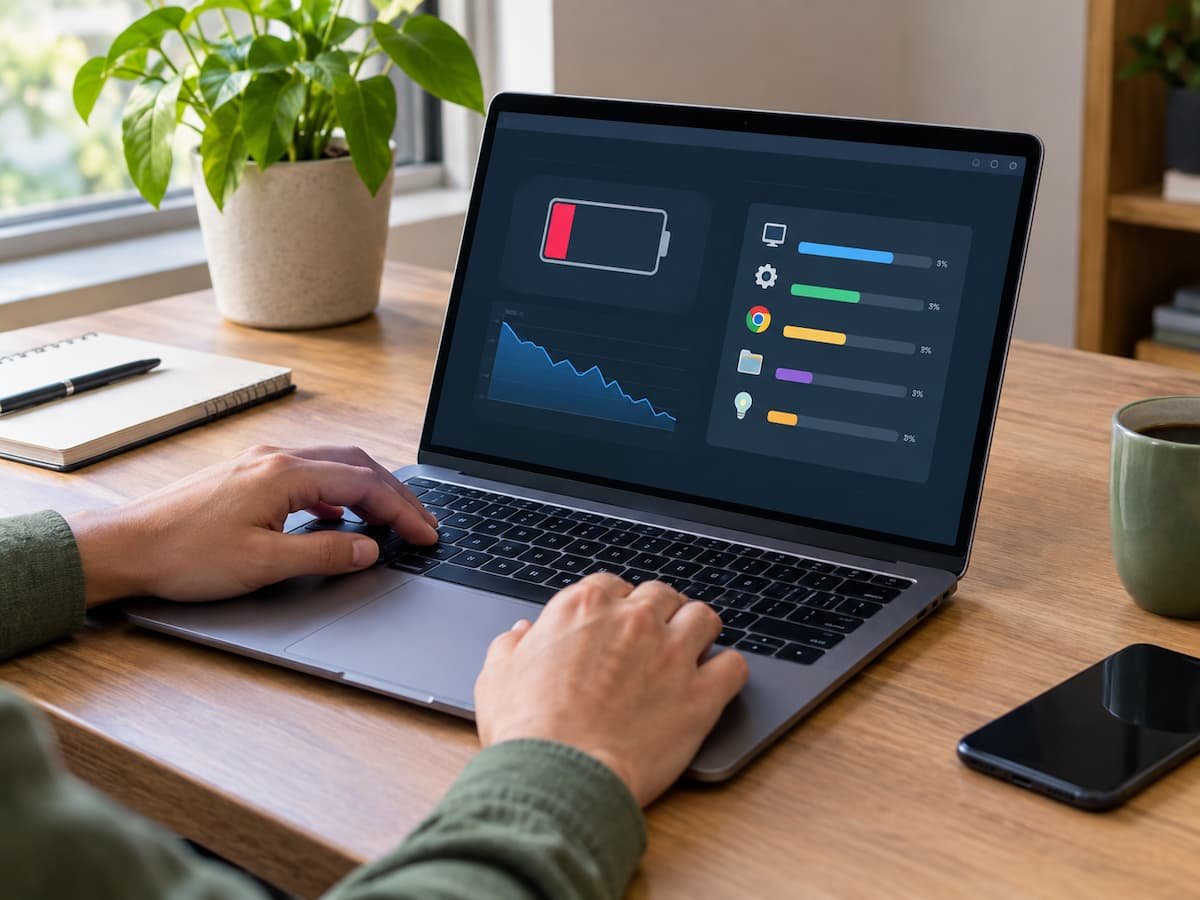
A laptop battery that suddenly drains much faster than expected does not always mean the battery is failing. A demanding application, a bright display, a high-performance power mode, connected hardware, background activity, or unusual sleep behavior can all increase power consumption. The important question is not simply, “How can I make my battery last longer?” It is, “What is actually using the battery?”
That distinction matters because the right solution depends on the cause. If a video editor is using substantial power during a heavy workload, changing unrelated Windows settings may accomplish very little. If the battery has lost much of its original capacity, however, software adjustments cannot restore the lost capacity.
This guide explains how to investigate battery drain on a Windows laptop and how to decide whether the problem is caused mainly by software, usage, power settings, connected devices, sleep behavior, or battery degradation.
First, Decide Whether the Battery Drain Is Actually Abnormal
Battery life varies considerably between laptops. A gaming laptop with a powerful processor and dedicated graphics hardware will behave differently from a lightweight laptop designed for office work. Screen size, display technology, processor, graphics hardware, battery capacity, Windows settings, connected accessories, and the workload all affect consumption.
Your own recent experience is therefore a better starting point than a generic battery-life number. Think about what changed before the battery began draining quickly. Did you install a new application? Start using a browser with more tabs? Connect an external display? Begin using the laptop for video calls or gaming? Change the Windows power mode? Install a driver or Windows update?
Also consider whether the drain happens only during demanding work or even when you are doing very little. For example, rapid battery loss while playing a demanding game may be expected for that hardware. Rapid loss while reading a simple document with nothing else running deserves more investigation. The first goal is to identify the situation in which the drain occurs.
Identify When the Battery Drains
Before changing settings, observe the laptop for a short period and compare different situations.
Start by asking these questions:
- Does the battery drain quickly only during demanding applications?
- Does it drain quickly during ordinary browsing or document work?
- Does the battery fall noticeably while the laptop is supposed to be sleeping?
- Does the problem occur only when certain accessories are connected?
- Did the behavior begin after a software, driver, or Windows change?
- Does the laptop lose charge while turned off?
- Does the battery percentage behave strangely, such as dropping rapidly at certain levels?
This separates several problems that can look similar. If the battery drains mainly while you are actively using the laptop, investigate power consumption from applications, the display, hardware activity, and Windows power settings.
If it loses a significant amount of charge while sleeping or apparently inactive, investigate standby behavior and unexpected wake activity. If the laptop shuts down unexpectedly even though Windows reports a reasonable percentage, battery health becomes more suspicious.
Check Windows Battery and Power Information
Windows provides battery-related information that can help you understand what is happening. The exact appearance and available options can vary between Windows versions and laptop manufacturers, so do not assume that every battery setting will appear on every computer.
Start with Settings > System > Power & battery. Look through the available battery and power information and note which applications or usage periods appear associated with battery consumption.
The useful information is not simply the battery percentage. Look for patterns. For example, if battery use is consistently higher during periods when a particular application is active, that application deserves further investigation. If the laptop consumes much more power when connected to an external display or other hardware, test the system without that hardware.
Windows may also provide battery usage information for recent periods. Use it as a clue rather than treating the displayed application figures as a laboratory measurement of every watt used by the laptop. The purpose of this step is to narrow the investigation.
Generate a Battery Report When You Need More Detail
Windows also includes a battery-report feature that can provide useful information about the battery’s design capacity, current full-charge capacity, and charging history. You can generate a report by opening Command Prompt as an administrator and running:
powercfg /batteryreport
Windows will report where the HTML file was saved. Open that file in a browser. Pay particular attention to the relationship between design capacity and full charge capacity.
Design capacity represents the battery’s original intended capacity. Full-charge capacity represents what the system currently estimates the battery can hold. If the current full-charge capacity is substantially lower than the original design capacity, the battery has aged. That does not automatically mean it is defective, but it does mean the laptop has less stored energy available than it had when the battery was new.
Battery reports can also show recent usage and charging information, which can help reveal whether the battery is losing charge during periods when you expected the computer to be inactive.
Find the Workload That Is Consuming the Power
Once you know when the drain occurs, look at what the laptop is doing during that period. Demanding applications are one of the most obvious causes of battery consumption. Video editing, 3D applications, games, virtual machines, large data-processing tasks, and some creative software can place sustained demand on the processor or graphics hardware.
The browser deserves special attention because it can combine many different types of activity. A browser window may contain video playback, interactive web applications, online meetings, large documents, advertisements, background scripts, or multiple active tabs. A browser can therefore be relatively light in one situation and surprisingly demanding in another.
Do not assume that the application with the most visible activity is automatically responsible for all battery use. Instead, compare what happens when that application or workload is closed. For example, if your battery drains quickly during a video meeting but behaves normally when you browse simple websites, the meeting software, camera, microphone, network activity, display brightness, or a combination of these may be contributing to the difference.
Compare Active and Light Workloads
A controlled comparison is often more useful than changing ten settings at once. Charge the laptop to a convenient level, disconnect unnecessary accessories, and perform a simple task such as reading a document or browsing lightly. Observe how the battery behaves.
Later, under similar conditions, perform the activity that normally causes rapid drain. You are not trying to establish a universal number of minutes. You are looking for a difference in behavior under comparable conditions. If battery consumption changes dramatically when a particular workload starts, that workload is a strong candidate for further investigation.
Check the Display and Power Mode.
The display can be an important part of a laptop’s power use, particularly when brightness is high or the laptop has a power-hungry high-resolution or high-refresh-rate panel. If the screen is much brighter than necessary, test the laptop at a more comfortable brightness level and observe whether the drain changes.
Display features can also matter. Depending on the hardware and Windows configuration, features such as a high refresh rate may increase power use. If your laptop provides an option to reduce the refresh rate while running on battery, you can test whether that makes a meaningful difference. Windows power mode is another factor.
A performance-oriented power mode may allow the processor and other hardware to operate more aggressively. That can be useful when performance is the priority, but it can also increase energy consumption. For diagnosis, compare the laptop’s behavior under its available power modes rather than assuming one setting is always best. If changing the power mode makes a noticeable difference without changing your workload, power management is contributing to the problem.
Look at Connected Devices and Wireless Activity.
External devices can also affect battery consumption. USB accessories, external storage, wireless peripherals, webcams, external displays, and other connected hardware may require power from the laptop. Some devices use very little, while others can have a more noticeable effect. As a simple test, disconnect nonessential accessories and compare battery behavior.
Wireless connections can matter as well. Wi-Fi and Bluetooth activity is usually not enough by itself to explain every case of severe battery drain, but continuous network activity can contribute to overall consumption. A laptop actively transferring data, streaming video, syncing files, or maintaining communication with connected devices is doing more work than one sitting idle. The goal is not to disable every wireless feature. Instead, temporarily remove one variable when testing the cause.
Investigate Battery Drain During Sleep
A laptop that loses noticeable battery charge while you expect it to be sleeping needs a different investigation from one that drains quickly during active use. Windows laptops can use different sleep and standby behaviors depending on the hardware. Some systems support modern standby behavior, while others use different sleep states. Manufacturer firmware and device drivers can also influence what happens while the computer is inactive.
Start by checking whether the laptop is actually entering the expected sleep state. If the computer becomes warm inside a bag, the battery falls much faster than expected overnight, or you find that the laptop is unexpectedly awake, something may be preventing normal low-power behavior. Connected devices, network activity, scheduled tasks, drivers, firmware, and applications can all play a role.
Windows’ power configuration tools can help investigate this. For example, the powercfg command includes options for examining power requests and sleep-related behavior. The exact useful command depends on the symptom, so avoid randomly changing advanced power settings without understanding what they control.
If the laptop repeatedly wakes itself or fails to remain in a low-power state, the problem may be related to software, drivers, firmware, or hardware rather than ordinary battery aging.
Separate Battery Aging From Excessive Power Consumption
One of the most important diagnostic decisions is determining whether the laptop is using power too quickly or whether the battery simply cannot store as much energy as it once could. These are different problems.
A degraded battery can cause shorter runtime even when Windows, applications, and power settings are behaving normally. Rechargeable batteries naturally lose capacity over time and use.
Several signs point toward battery degradation:
- The full-charge capacity is substantially below the original design capacity.
- Runtime has gradually become shorter over a long period.
- The laptop loses charge unusually quickly even during light work.
- Battery percentage drops unpredictably.
- The computer shuts down sooner than expected despite the reported charge level.
- The battery becomes physically swollen or damaged.
The last sign requires particular caution. A swollen battery should not be pressed, punctured, opened, or repaired at home.
By contrast, signs of excessive power consumption include:
- Drain becomes much faster when a particular application is running.
- Battery use changes significantly with workload.
- The laptop becomes unusually warm during otherwise demanding activity.
- Changing the power mode has a noticeable effect.
- Disconnecting a peripheral changes the drain.
- Battery behavior is reasonable during light use but poor during one specific task.
A laptop can also have both problems at once. An aging battery provides less capacity, while demanding software consumes power quickly. In that situation, improving software power consumption may help, but it cannot restore the battery’s lost capacity.
Consider Recent Software and Driver Changes
If the battery problem appeared suddenly, ask what changed around the same time. A Windows update, application update, graphics driver, chipset driver, firmware update, or newly installed application can sometimes change how hardware behaves. This does not mean the newest update is automatically responsible. Timing is a clue, not proof.
If the problem started immediately after a specific change, compare battery behavior before and after that change where possible. Check the laptop manufacturer’s support information for your exact model and review available driver or firmware information before making changes. Avoid installing random “battery optimizer” or driver-cleaning utilities simply because they promise longer battery life. Such programs can make diagnosis harder and may introduce additional background activity.
Know When Charging Hardware May Be the Problem
Battery drain and charging problems can sometimes be confused. If the laptop reports that it is plugged in but the battery continues losing charge, check the charger, cable, connector, and charging behavior. Some laptops may also reduce or stop charging under certain conditions or settings, so the exact battery status message matters.
A charger that is damaged, underpowered, incompatible, or intermittently connected can create symptoms that look like a bad battery. If charging repeatedly stops and starts, the connector feels loose, the charger becomes unusually hot, or the laptop cannot maintain charge under normal use, stop treating the issue as a simple battery-drain problem. Use the charger and charging equipment appropriate for the laptop and consult the manufacturer’s support documentation. Do not attempt to repair the battery or charging circuitry yourself.
Decide Whether You Need a Battery Replacement
Do not replace the battery simply because the laptop’s runtime has become shorter. First determine whether the battery has actually lost significant capacity and whether the laptop is consuming more power than expected. Replacement becomes more reasonable when the battery’s reported capacity has declined substantially, the laptop has noticeably reduced runtime even during light use, or battery behavior has become unreliable.
If the battery is swollen, physically damaged, unusually hot, or showing other safety-related symptoms, treat that as a hardware issue rather than a performance problem. Have the battery inspected or replaced by the manufacturer or a qualified technician.
For a removable battery, replacement may be straightforward if the manufacturer provides an approved replacement. For an internal battery, professional service is usually the safer choice.
A Practical Battery-Drain Diagnosis Checklist
Work through this checklist in order rather than changing everything at once:
- Establish the baseline. Decide whether the current battery behavior is genuinely different from your laptop’s normal behavior.
- Identify the timing. Determine whether the drain happens during heavy use, light use, sleep, or when the laptop is powered off.
- Check Windows power information. Review the available information under Settings > System > Power & battery.
- Generate a battery report. Use
powercfg /batteryreportto compare design capacity with current full-charge capacity and review recent usage. - Identify the workload. Look for demanding applications, browser activity, video calls, games, media work, or other tasks that coincide with rapid drain.
- Test a lighter workload. Compare battery behavior during simple work without changing several settings simultaneously.
- Test power mode and display settings. See whether the drain changes when using a less demanding power mode or a lower display brightness.
- Disconnect unnecessary hardware. Temporarily remove external displays, USB devices, storage, and other accessories to identify whether they affect consumption.
- Investigate sleep behavior. If the battery drains while inactive, determine whether the laptop is actually entering and remaining in its intended low-power state.
- Consider recent changes. Check whether a new application, driver, Windows update, or firmware change coincided with the problem.
- Assess battery health. If capacity has fallen substantially or the laptop behaves unpredictably even under light use, battery degradation becomes more likely.
- Check charging hardware. If the laptop cannot charge reliably or loses charge while connected to power, investigate the charger and charging system.
- Choose the next step. Continue software troubleshooting when a particular workload is responsible; seek battery service when the battery itself appears degraded or unsafe.
The most useful battery troubleshooting does not begin with a long list of settings to disable. It begins with finding the pattern.
If the laptop drains quickly only during a demanding workload, the solution may simply involve managing that workload or choosing a different power mode when running on battery. If it drains quickly during light use, while sleeping, or despite having very little activity, the cause deserves closer investigation. And if the battery has clearly lost substantial capacity, software changes cannot bring that lost capacity back.
By separating power consumption from battery health, you can avoid unnecessary settings changes, avoid replacing a healthy battery, and know when a genuine hardware problem needs professional attention.

Daniel Kareem is a digital productivity and technology writer focused on simplifying everyday tech use. He creates practical guides on online safety, device optimization, and efficient workflows. His approach centers on clear, step-by-step advice that helps users stay organized, secure, and productive. Through straightforward and realistic content, he aims to make technology easier to understand and more useful in daily life.