
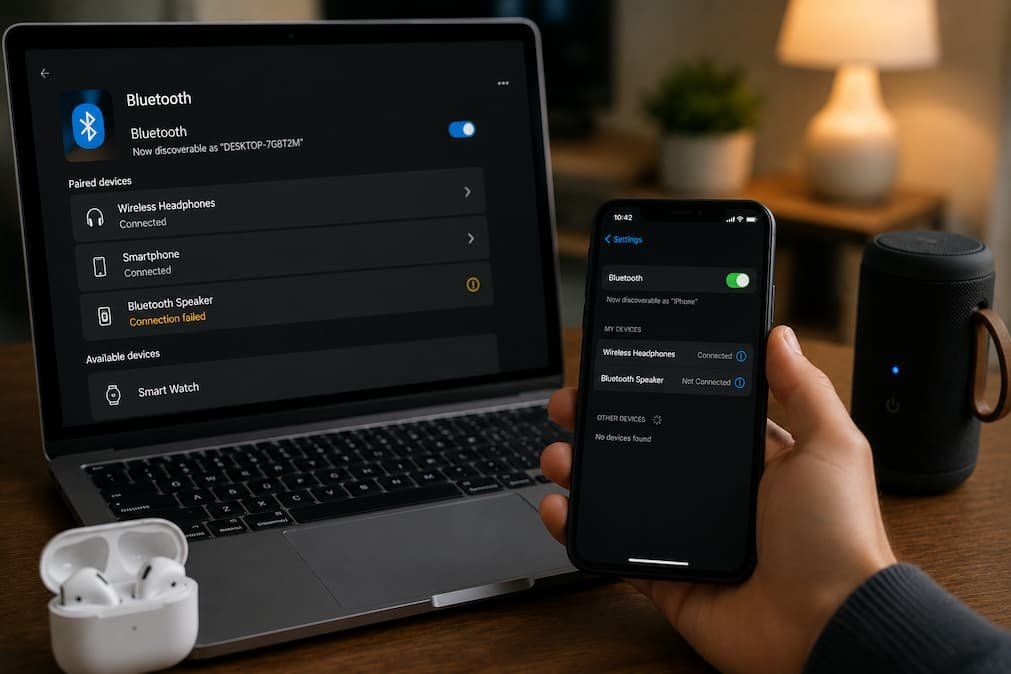
You sit down to work, switch on your wireless headphones, and… nothing happens. Windows doesn’t detect them. Maybe your Bluetooth mouse has stopped responding, or the Bluetooth toggle has disappeared entirely from Settings. You restart the computer, hoping it’s just a temporary glitch, but the problem is still there. At that point, it’s natural to assume the Bluetooth adapter has failed.
In reality, Bluetooth problems on Windows are rarely that straightforward. Two computers can show the same symptom while suffering from entirely different issues. A missing Bluetooth switch might point to a driver that failed to load, while frequent disconnects could be caused by power management, wireless interference, or even outdated firmware. Treating every Bluetooth problem with the same fixes often wastes time because you’re solving the wrong problem.
Instead of trying every suggestion you find online, the smarter approach is to identify how Bluetooth is failing. Once you understand the pattern, the list of possible causes becomes much smaller, making it easier to find a solution that actually lasts.
Start by Identifying the Symptom, Not the Solution
One reason Bluetooth troubleshooting feels confusing is that people often describe every issue the same way: “Bluetooth isn’t working.” Windows, however, can fail at several different stages of the Bluetooth process. Knowing which stage has failed immediately changes where you should start looking.
| What You’re Seeing | Most Likely Area to Check |
|---|---|
| Bluetooth toggle is missing | Driver, Windows service, hardware detection |
| Devices won’t appear during pairing | Discovery mode, signal, pairing process |
| The device connects but disconnects later | Power management, interference |
| Bluetooth audio stutters | Wireless congestion, drivers |
| Bluetooth stopped after Windows update. | Driver compatibility |
| Bluetooth disappears after sleep | Power management or firmware |
Don’t worry about fixing anything yet. Simply identifying the symptom prevents you from changing settings that have nothing to do with the actual problem.
When the Bluetooth Switch Disappears Completely
One of the most alarming situations is opening Settings > Bluetooth & devices and discovering there’s no Bluetooth option at all. Many users immediately assume the hardware has failed, but that’s only one possibility.
Windows only displays the Bluetooth controls after it successfully detects a functioning Bluetooth adapter. If the adapter fails during startup, if the driver doesn’t load correctly, or if Windows temporarily loses communication with the device, the entire Bluetooth section can disappear. That’s why restarting the Bluetooth service alone often doesn’t help—the operating system may not even recognize that Bluetooth hardware exists.
Before making any major changes, restart the computer completely rather than simply putting it to sleep and waking it again. A full restart reloads hardware drivers from scratch, while sleep and hibernation reuse much of the existing hardware state.
If the Bluetooth switch remains missing after a restart, the next place to investigate is Device Manager.
Device Manager Can Tell You More Than Settings Ever Will
Windows Settings only shows whether Bluetooth is available. Device Manager helps explain why it is not working.
Expand the Bluetooth category first. If it appears normally, Windows has at least detected the adapter. If the category is completely missing, please don’t panic just yet. Click View > Show hidden devices to see whether Windows recognizes hardware that isn’t currently active.
Occasionally you’ll find a Bluetooth adapter with a small warning icon beside it. Other times, the adapter appears faded because Windows previously detected it but isn’t communicating with it anymore. Both situations point in different directions, which is why it’s important not to treat every Device Manager result the same way.
Another useful clue is the Unknown Device category. After certain Windows updates or interrupted driver installations, Bluetooth hardware may appear there instead of under its proper category. It’s easy to overlook because nothing explicitly says “Bluetooth,” yet the missing driver is preventing Windows from identifying the adapter correctly.
Not Every Driver Update Improves Bluetooth Stability
A common recommendation is to install the newest Bluetooth driver available. While that can certainly solve compatibility issues, newer drivers aren’t automatically better for every system.
I’ve seen laptops where Bluetooth worked perfectly for months until a Windows Update replaced the manufacturer’s driver with a newer generic version. Pairing still worked, but wireless headphones began disconnecting every hour. Rolling back to the previous driver restored stable performance almost immediately.
The lesson isn’t to avoid updates. Instead, pay attention to timing. If Bluetooth problems begin shortly after a driver update, that sequence of events is valuable evidence. Rather than downloading multiple drivers from different websites, compare the installation date with the day the issue first appeared.
If nothing changed recently, updating the driver is a reasonable next step. If the problem started immediately after an update, rolling back deserves equal consideration.
Pairing Problems Often Have Nothing to Do With Windows
When Windows can’t discover a Bluetooth device, it’s tempting to assume the operating system is responsible. In practice, many pairing failures begin with the accessory itself.
Bluetooth devices usually enter pairing mode only for a short period. Wireless headphones, keyboards, and speakers often require holding a button for several seconds before they become discoverable. Simply turning the device on isn’t always enough. If Windows scans before the accessory enters pairing mode, it won’t appear in the list of available devices.
There’s another detail that catches many people by surprise. Some Bluetooth accessories remember previous connections and automatically reconnect to the last paired phone or laptop. In that situation, your Windows PC isn’t failing to detect the device—the device is already connected somewhere else.
Before troubleshooting Windows, disconnect the accessory from any nearby phones, tablets, or other computers. You’ll often find that Windows detects it immediately after you clear those previous connections.
Sleep Mode Can Create Strange Bluetooth Behavior
If Bluetooth works perfectly after restarting Windows but stops responding after the computer wakes from sleep, the issue may have very little to do with pairing or drivers.
Modern laptops use sophisticated power-saving technologies that place hardware into low-power states while the computer sleeps. Most Bluetooth adapters recover without any problems, but occasionally the adapter fails to initialize correctly when Windows wakes. The result is a Bluetooth device that appears connected but refuses to transfer data—or disappears completely until the next restart.
This type of issue is particularly confusing because restarting the PC seems to “fix” Bluetooth every time, leading people to believe the problem has vanished. In reality, the restart is simply resetting the hardware before the same sleep-related problem returns later.
If you notice that Bluetooth failures consistently occur after waking the laptop, make a note of that pattern. Recognizing when the issue appears is often more valuable than immediately changing random settings.
Wireless Interference Doesn’t Always Affect Wi-Fi and Bluetooth Equally
Bluetooth and Wi-Fi often share the same 2.4GHz radio spectrum, but they don’t react to interference in exactly the same way. It’s entirely possible for your internet connection to remain stable while Bluetooth headphones begin cutting out every few minutes.
This usually becomes noticeable in busy environments filled with wireless devices. Bluetooth speakers, game controllers, smart home products, wireless keyboards, and neighboring Wi-Fi networks all compete for limited radio space. While modern hardware handles interference surprisingly well, crowded environments can still reduce Bluetooth reliability.
A simple experiment is to move closer to the computer and temporarily switch off nearby Bluetooth accessories that aren’t being used. If audio interruptions or connection drops disappear, you’ve learned that the problem may be environmental rather than software-related.
Why Bluetooth Works With One Device but Refuses Another
One of the more confusing situations is when Bluetooth appears to be functioning normally, yet only certain devices refuse to connect. Your wireless mouse works without any issues, but your headphones won’t pair. Or perhaps your phone connects instantly while a Bluetooth keyboard remains invisible.
This usually tells you something important: the Bluetooth adapter itself is probably working. Instead of looking for a Windows-wide problem, focus on compatibility, pairing history, or the specific accessory that’s failing.
Many Bluetooth devices remember previously paired computers and phones. Once they reach their pairing limit, they may stop accepting new connections until older pairings are removed. I’ve seen users spend an hour reinstalling Windows drivers when the real solution was simply resetting the headphones’ pairing memory.
Before changing anything on your PC, check whether the accessory offers a factory reset or a way to clear previously paired devices. It’s a small step that often solves selective connection problems surprisingly quickly.
The Bluetooth Support Service Is Worth Checking
Windows relies on several background services to manage wireless communication, and one of the most important is the Bluetooth Support Service. If this service fails to start correctly or is interrupted by another process, Bluetooth devices may stop appearing even though the adapter itself is detected.
Open the Services console and locate the Bluetooth Support Service. Its startup type should normally be set to Automatic or Automatic (Delayed Start), depending on your system configuration. More importantly, please verify that the service is running.
[Insert screenshot: Services window showing Bluetooth Support Service]
Avoid changing other services unless you know exactly what they do. Many online guides recommend disabling or modifying multiple Windows services in the hope of improving performance, but unnecessary changes often create new issues that are much harder to diagnose later.
USB Bluetooth Adapters Have Their Own Set of Problems
External Bluetooth adapters are convenient because they can add Bluetooth support to almost any desktop PC. However, they also introduce a few variables that built-in adapters don’t have.
USB power management is one example. Windows may temporarily suspend idle USB devices to reduce power consumption. Usually the adapter wakes up correctly, but occasionally it doesn’t respond until it’s unplugged and connected again. If your Bluetooth dongle works perfectly after reconnecting it, power management is worth investigating before replacing the hardware.
Another overlooked factor is the USB port itself. Connecting a Bluetooth adapter to a busy USB hub alongside external drives, webcams, and other peripherals can sometimes affect reliability. Plugging the adapter directly into a motherboard USB port—or trying a different port altogether—is a simple test that costs nothing and often provides useful information.
Windows Updates Don’t Always Break Bluetooth—But Timing Matters
Major Windows updates receive the blame for many hardware problems, and sometimes that criticism is justified. Driver compatibility changes, firmware updates, and new power management behavior can all influence Bluetooth performance.
That said, not every Bluetooth problem that appears after an update is actually caused by it. Occasionally the timing is purely coincidental. An aging wireless adapter, for example, may begin failing around the same time Windows installs a feature update, making it all too simple to connect two unrelated events.
Instead of assuming the update is responsible, please compare the timeline carefully. Did Bluetooth stop working immediately after restarting from Windows Update, or did the issue begin several days later? Were other hardware changes made around the same time? Looking at the sequence of events helps separate genuine software issues from unrelated hardware failures.
Event Viewer Can Reveal Patterns You Might Otherwise Miss
Most Windows users never open Event Viewer, but it’s one of the few tools that can show what happened when Bluetooth stopped responding.
You don’t need to understand every warning or information message. The important part is checking whether Bluetooth-related events appear at the exact time your connection failed. Repeated driver resets, service failures, or hardware communication errors often leave traces in the System log even if Windows never displays an error message on the desktop.
Think of Event Viewer as supporting evidence rather than the final answer. On its own, an error message may not explain everything. Combined with the time the issue occurred and the symptoms you observed, it often confirms whether Windows detected a driver problem, a hardware interruption, or a service restart.
When the Problem Might Not Be Windows at All
After working through Windows settings, drivers, and services, it’s worth considering that the Bluetooth hardware itself could be developing a fault. While this scenario isn’t the most common outcome, it does happen—particularly on older laptops that have seen years of daily use.
A simple way to test the hardware is by using another operating system. If you can boot from a Linux live USB without installing anything, try pairing the same Bluetooth device there. When Bluetooth works normally, it suggests that Windows is the more likely source of the problem. If the issue follows you into another operating system, the adapter or the device itself deserves closer attention.
You don’t need advanced technical knowledge to perform this test, but it’s one of the most effective ways to distinguish between software and hardware without replacing parts unnecessarily.
A Practical Troubleshooting Checklist
If you’ve reached this point and Bluetooth is still not behaving normally, please work through this checklist before making any more drastic changes.
| Check | Why It’s Important |
|---|---|
| Restart Windows completely | Reloads Bluetooth drivers and hardware. |
| Verify the adapter appears in Device Manager | Confirms Windows can detect the hardware. |
| Review recent driver updates | Identifies compatibility changes. |
| Reset the Bluetooth accessory | Clears old pairing information. |
| Confirm Bluetooth Support Service is running | Ensures Windows can manage Bluetooth devices. |
| Test another USB port (for dongles) | Rules out USB-related issues. |
| Compare behavior after sleep and restarts. | Helps identify power management problems. |
| Review Event Viewer logs | Looks for recurring hardware or driver errors. |
Following a consistent process is far more effective than trying random fixes from multiple websites.
Don’t Rush to Replace the Hardware
Bluetooth failures can be surprisingly deceptive. A missing toggle doesn’t always mean the adapter has failed. Choppy audio isn’t automatically a driver issue. A device that refuses to pair may simply be connected to your phone in the next room.
The biggest mistake people make is assuming every Bluetooth problem has the same solution. In reality, successful troubleshooting comes from recognizing the pattern first and making changes based on evidence instead of guesswork.
Before you order a new Bluetooth adapter or restore Windows, take a moment to identify exactly how Bluetooth is failing. Whether the issue turns out to be a recent driver update, a power management setting, a pairing conflict, wireless interference, or an aging adapter, you’ll reach the right answer much faster by following the clues instead of chasing every possible fix. That’s not only safer for your system—it also gives you a much better chance of solving the problem permanently rather than temporarily masking it.

Daniel Kareem is a digital productivity and technology writer focused on simplifying everyday tech use. He creates practical guides on online safety, device optimization, and efficient workflows. His approach centers on clear, step-by-step advice that helps users stay organized, secure, and productive. Through straightforward and realistic content, he aims to make technology easier to understand and more useful in daily life.