
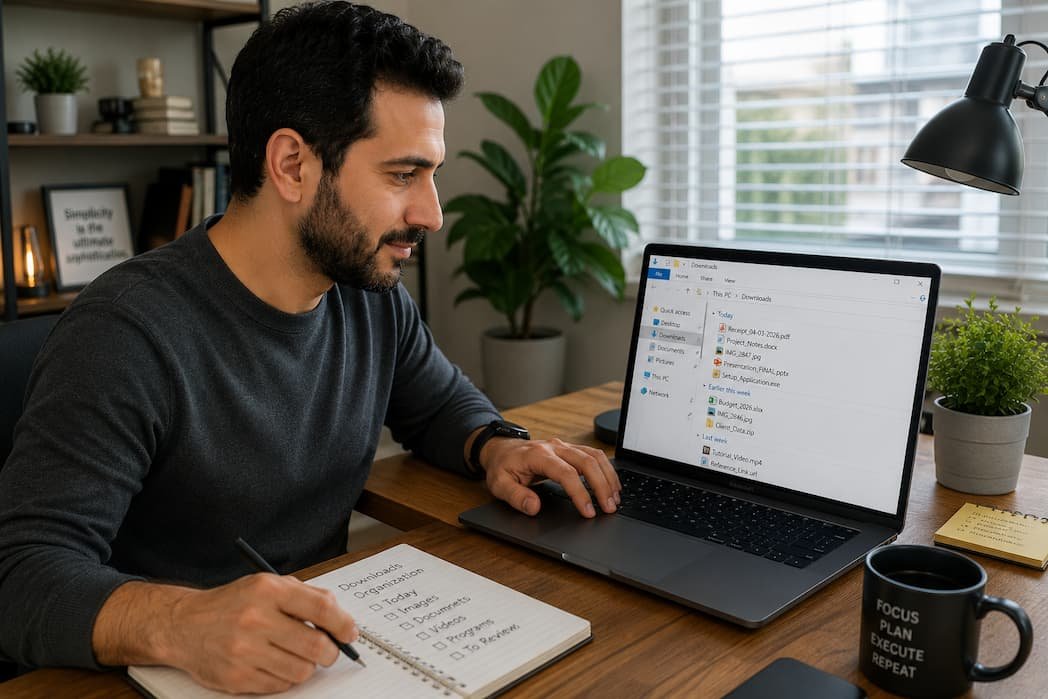
Open your Downloads folder right now.
If you’re like most people, you’ll probably see a strange mix of files collected over months—or even years. There might be software installers you used once, PDFs you forgot to read, duplicate photos, ZIP archives, screenshots, invoices, and documents with names like final_v3_new(2).pdf.
The Downloads folder isn’t supposed to become permanent storage, but that’s exactly what often happens. Every browser saves files there by default, and unless you actively move or remove them, they simply accumulate.
The result isn’t just visual clutter. An overloaded Downloads folder makes it harder to locate important files, wastes storage space, and increases the chances of opening the wrong document or forgetting where something important ended up.
Fortunately, organizing it doesn’t require complicated software or hours of work. A few practical habits are usually enough to keep it under control.
Stop Thinking of Downloads as Storage
One of the biggest reasons the Downloads folder becomes unmanageable is psychological.
People often treat it like another documents folder.
It isn’t.
A better way to think about it is as a temporary holding area.
Imagine receiving packages at your front door.
You wouldn’t leave every package sitting on the doorstep forever.
You’d bring it inside, decide where it belongs, throw away the packaging, and move on.
Your Downloads folder works the same way.
Every file should eventually fall into one of four categories:
- Keep
- Move
- Archive
- Delete
If a file stays in Downloads for six months, it’s probably waiting for a decision that never came.
Start With the Largest Files First
If your Downloads folder contains thousands of items, don’t begin by sorting alphabetically.
Sort by Size.
Large files usually stand out immediately.
These often include:
- Video recordings
- Software installers
- ISO images
- ZIP archives
- Old backups
- High-resolution photos
Ask yourself:
“Do I still need this?”
A single unused installer from several years ago may consume more storage than hundreds of documents combined.
Starting with large files gives you quick wins and makes the cleanup feel much more rewarding.
Don’t Organize by File Type Alone
A common mistake is creating folders like
PDFs
Pictures
ZIP Files
Documents
Videos
It seems logical at first.
A few months later, every folder contains hundreds of unrelated files.
Instead, organize around purpose.
For example:
Work
Personal
Taxes
Travel
Receipts
Courses
Software
Projects
Now each folder tells a story.
When you’re looking for an airline confirmation from last year, you already know where it belongs.
Create Folders That You’ll Actually Remember
There’s a temptation to build an elaborate folder structure with dozens of nested folders.
Something like:
Documents
 └── Personal
      └── Finance
            └── 2026
                  └── Credit Cards
                        └── Statements
It looks beautifully organized.
Until you need to save something quickly.
Complex systems often fail because they’re inconvenient.
Most people do better with fewer folders and clearer names.
A practical folder structure is one you’ll continue using six months from now.
Rename Files While They Still Make Sense
Downloads frequently arrive with names that aren’t helpful.
Examples include:
download.pdf

document(7).pdf

invoice-final-new.pdf

setup.exe

IMG_4837.jpg
Those names might seem obvious today.
Three months later, they’re meaningless.
Take a few extra seconds to rename important files before moving them.
For example:
Electricity Bill - April 2026.pdf

Laptop Warranty.pdf

Vacation Budget.xlsx

Passport Renewal Receipt.pdf
Future you will appreciate the effort.
Separate Software Installers From Installed Programs
One mistake I see surprisingly often is people keeping every installer they’ve ever downloaded.
Ask yourself:
If the program is already installed, do you really need the installer?
Sometimes the answer is yes.
Examples include:
- Older software versions
- Drivers unavailable elsewhere
- Offline installation packages
Most of the time, though, installers become unnecessary once installation is complete.
Removing them can free a surprising amount of space.
Give Screenshots Their Own Home
Screenshots have a way of multiplying quietly.
You capture one to remember a receipt.
Another to report a bug.
Another for work.
Before long, hundreds of screenshots are mixed into Downloads alongside unrelated documents.
If you regularly take screenshots, create a dedicated folder for them.
Better yet, review it every month.
Many screenshots only serve a temporary purpose and can be deleted once they’re no longer needed.
Don’t Ignore ZIP Files
Compressed files are easy to forget because they often sit untouched after extraction.
A typical pattern looks like this:
- Download ZIP archive.
- Extract files.
- Use extracted files.
- Forget the original ZIP exists.
If you’ve already extracted everything you need and confirmed it works correctly, keeping the archive may no longer be necessary.
Exceptions include backup archives or installation packages you intend to reuse.
Create a Weekly “Five-Minute Rule.”
The biggest mistake isn’t downloading too many files.
It’s waiting until there are thousands.
Instead of scheduling a massive cleanup every year, spend five minutes once a week.
During those few minutes:
- Delete files you no longer need.
- Move important documents.
- Rename new files.
- Empty duplicate downloads.
- Remove completed installers.
Five minutes each week feels almost effortless.
Ignoring the folder for two years rarely does.
Let Search Do Some of the Work
Many people scroll endlessly through downloads trying to locate one file.
Windows Search is usually much faster.
Instead of searching only by file name, try searching for:
- File type
- Month
- Extension
- Keyword inside the document (where supported)
For example:
pdf

invoice

jpg

march

tax
Search becomes even more useful when files have meaningful names.
Build a Habit Around Browser Downloads
Browsers don’t have to save everything into the same location forever.
When downloading something important, pause for a second.
Ask yourself:
“Where will I actually want this file next month?”
Sometimes saving directly into the correct folder is faster than downloading first and organizing later.
It’s a small habit that gradually reduces clutter before it even appears.
Don’t Keep Everything “Just in Case”
Storage is larger than ever, but that doesn’t mean every downloaded file deserves a permanent place on your computer.
Many files lose their value quickly.
Examples include:
- Temporary manuals
- Restaurant menus
- Product catalogs
- One-time forms
- Event brochures
- Installation guides you’ve already finished using
Keeping everything makes finding the files that truly matter much harder.
If something can easily be downloaded again from the official source, you may not need to store it indefinitely.
A Simple Folder Structure That Works for Most People
There isn’t one perfect system, but this layout balances simplicity with organization.
Downloads
│
├── Review Later
├── Software
├── Documents
├── Receipts
├── Photos
├── Work
├── Personal
└── Delete Soon
Notice what’s missing.
There aren’t dozens of folders.
Everything has an obvious destination.
If a system requires a diagram to understand, it’s probably more complicated than necessary.
Warning Signs Your Downloads Folder Needs Attention
You don’t need to count files to know it’s time for a cleanup.
These situations are usually enough:
- You download the same file twice because you can’t find the first copy.
- Search results return multiple versions of the same document.
- Installers from computers you no longer own are still present.
- You regularly search through hundreds of unrelated files.
- You’re running low on storage without knowing why.
These aren’t serious problems—but they’re signals that your organization system could use a reset.
What I Avoid Keeping in Downloads
Over the years, I’ve found that certain files almost never belong there permanently.
These include:
| File Type | Better Location |
|---|---|
| Tax documents | Documents → Taxes |
| Family photos | Pictures |
| Work files | Work folder or cloud storage |
| Software installers | Delete after installation or archive separately |
| Receipts | Finance or Receipts folder |
| Warranty documents | Product Records folder |
| Medical documents | Secure Documents folder |
Downloads work best as a temporary stop, not the final destination.
Frequently Asked Questions
How often should I clean my Downloads folder?
A quick review once a week or every two weeks is enough for most people. Regular maintenance prevents clutter from building up.
Is it safe to delete old installers?
Usually, yes. If the software is already installed and you can download the installer again from the official website if needed, keeping old installation files often isn’t necessary.
Should I move important documents out of Downloads?
Yes. Important files are easier to find and back up when they’re stored in dedicated folders such as Documents, Work, or Personal rather than remaining in Downloads.
What’s the easiest way to find large files?
Sort the Downloads folder by file size. Large files often account for the majority of storage space and are the quickest place to begin cleaning.
Can deleting files from Downloads break installed programs?
Generally, no. Deleting the installer usually doesn’t affect software that’s already installed. However, avoid deleting files if you’re unsure whether they’re still required.
Should I organize by file type or by project?
For most people, organizing by project or purpose is easier to maintain than organizing strictly by file type.
Is it okay to use cloud storage instead?
Cloud storage can be an excellent place for important documents, provided you organize those files just as carefully and keep appropriate backups.
Conclusion
An organized Downloads folder isn’t about making your computer look tidy—it’s about making your files easier to manage. When every download has a clear destination, important documents become easier to find, duplicate files become less common, and your computer stays cleaner without requiring major cleanup sessions.
You don’t need a complicated filing system to achieve that. Treat downloads as a temporary workspace rather than permanent storage, spend a few minutes reviewing them regularly, and move valuable files to folders where they actually belong. Over time, those small habits create a system that’s far easier to maintain than trying to sort through years of accumulated downloads all at once.

Daniel Kareem is a digital productivity and technology writer focused on simplifying everyday tech use. He creates practical guides on online safety, device optimization, and efficient workflows. His approach centers on clear, step-by-step advice that helps users stay organized, secure, and productive. Through straightforward and realistic content, he aims to make technology easier to understand and more useful in daily life.