
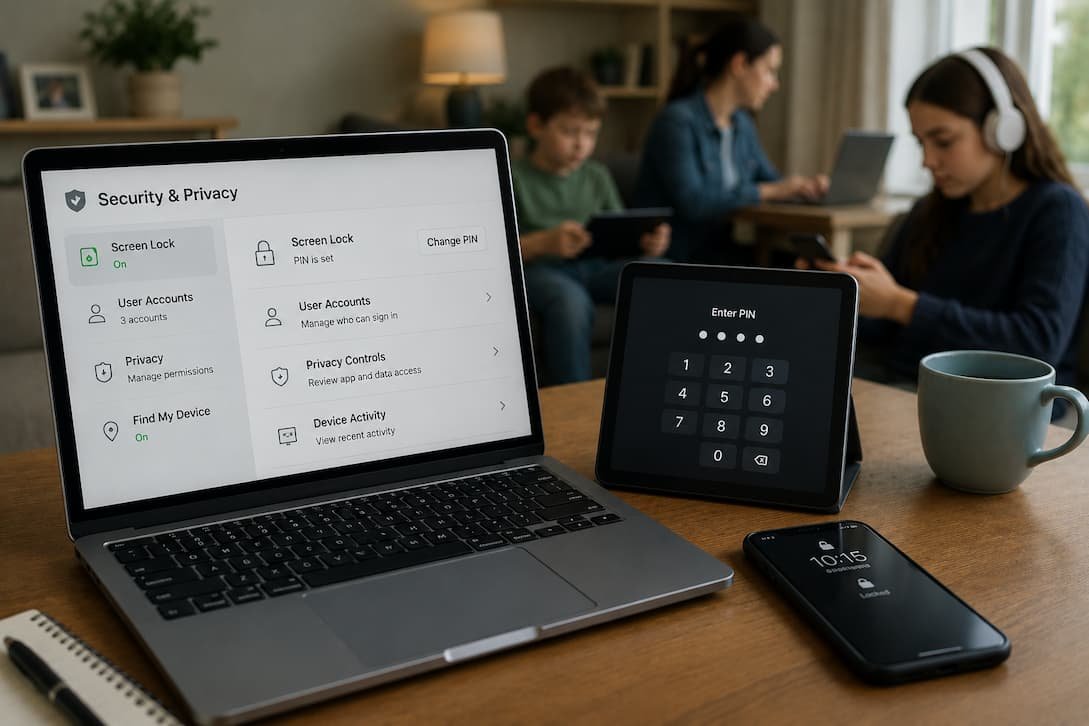
The kitchen tablet wakes up at 6:15 when Maya, fourteen, checks her homework. By 7:30, her younger brother Leo has taken it for a game before school. At noon, their grandmother uses it for video calls with relatives overseas. In the evening, their father catches up on news. The same device, four different users, none of them thinking about what the previous person left open, logged in, or downloaded.
This is the reality of shared devices. Not a security breach waiting to happen. A normal household, with normal people, using technology in normal ways. The goal is not to turn the home into a fortress. It is to add gentle friction where it matters, so accidents become harder and intentional misuse becomes obvious.
Here is what that looks like, room by room, person by person.
The Living Room Tablet: A Public Space
Tablets and shared computers in common areas are the most exposed. Anyone can pick them up. Guests. Children. The neighbor who came over to borrow a charger. The risk is not malice. It is curiosity and accident.
Separate profiles for each family member. Android and iOS both support multiple user profiles. Set them up. Each person has their own apps, their own wallpaper, their own browser history. When Maya switches to her profile, she sees her homework apps. When Leo switches to his, he sees his games. They cannot access each other’s downloads or messages without the other’s password.
Guest mode for visitors. Never hand a primary profile to someone outside the household. Guest mode opens a blank slate that deletes itself when the session ends. No history, no passwords, no access to family photos. The guest checks their email, hands the device back, and nothing remains.
Require a PIN or pattern for every profile switch. Without this, Leo can tap Maya’s profile and browse freely. The PIN is not about distrust. It is about boundaries. Everyone has drawers in the physical house that are understood as private. Digital profiles deserve the same understanding.
The Grandma Exception
My mother-in-law finds PINs frustrating. She forgets them, writes them on sticky notes, or avoids the device entirely. For her, we created a simplified profile with large icons, no browser, and pre-installed video call apps only. The security is lower, but the usability is higher. The trade-off is explicit and agreed upon. She knows not to check banking or enter passwords on that profile. We handle sensitive tasks on her phone, which she keeps private.
The Family Computer: Where Work and Play Mix
Shared desktops and laptops are harder because they often hold serious work alongside casual use. A parent might have tax documents, work emails, and financial spreadsheets in the same user account that a child uses for homework.
Never share a work account. Create a standard user account for children, not an administrator account. Standard users cannot install software, change system settings, or access other users’ files. They can browse, write documents, and use approved apps. That is enough.
Browser profiles, not just user accounts. Even within an adult’s account, use separate browser profiles for work and personal use. Chrome, Edge, and Firefox all support this. Work profile has bookmarks to corporate tools, stays logged into work accounts, and uses work extensions. Personal profile has YouTube, shopping, and personal email. The separation prevents accidental cross-contamination — sending a personal email from a work account, or worse, vice versa.
Auto-lock after inactivity. Five minutes of no use, the screen locks. This prevents the “I stepped away for a minute” scenario where a child or guest sits down and sees everything. The lock is not suspicion. It is habit. Like locking the front door when you leave.
The Phones: Personal but Sometimes Shared
Phones are theoretically personal. In practice, they get passed around. “Can I call Mom?” “Can I look up that recipe?” “My phone died, can I use yours for a minute?” The pass is quick, the risk is brief, but the exposure is real.
App lockers for sensitive apps. Banking, investment, work email, and password managers should require a separate PIN or biometric unlock even if the phone itself is unlocked. Many Android skins include this natively. iOS has Guided Access for temporary restriction, though it is less elegant. Third-party app lockers exist but research carefully — some are malware in disguise.
No saved passwords on shared-pass phones. If a phone is frequently lent, do not save banking or shopping passwords in the browser. Autofill is convenient until someone else is holding the device. Type passwords manually or use a password manager with biometric lock.
Notification privacy. Messages, emails, and banking alerts should not preview on the lock screen. A borrowed phone showing “Your $2,400 deposit has cleared” or “Appointment reminder: Dr. Chen, 3 PM, oncology” is a privacy violation waiting to happen. Settings → Notifications → Show on lock screen → Hide sensitive content. On iOS, this is under Settings → Notifications → Show Previews → When Unlocked.
The Borrowing Ritual
In our house, lending a phone includes three steps: check what’s visible on the screen, lock sensitive apps if not already locked, and hand it over with the explicit statement “don’t open banking or messages.” The verbal boundary matters. It makes the expectation clear without implying distrust. After use, the phone is returned to the owner, not left on the counter. Small rituals prevent large problems.
The Smart TV and Streaming Accounts
Televisions are shared by definition. So are the streaming accounts logged into them. The risk here is not data theft. It is account misuse and algorithmic confusion.
Separate profiles for each service. Netflix, Disney+, Amazon Prime, and most others support multiple profiles. Use them. Leo’s recommendations should not be polluted by Maya’s anime or their father’s documentaries. More importantly, parental controls apply per profile. Leo’s profile can be restricted to age-appropriate content without affecting anyone else.
Log out of purchase-capable accounts. If the TV has Google Play, Amazon, or Apple TV with purchase authority, log out after use or require a PIN for every purchase. Children do not always understand that “buy” means real money. One-click ordering was designed for convenience, not for households with curious children.
The Router: The Invisible Shared Device
Everyone forgets the router. It is not a phone or tablet. It does not have a screen. But it is the gateway for every device in the home. Compromising the router compromises everything.
Change the default admin password. Not the Wi-Fi password. The router’s administrative password. Every router ships with a default like “admin/admin” or “password.” These are published online. Anyone who connects to your network can access the router settings and redirect traffic, install malware, or lock you out. Change it to something only the adults know.
Separate guest network. Visitors get the guest Wi-Fi, not the main network. The guest network cannot access printers, file shares, or other devices on the main network. It is internet-only. This prevents a compromised guest device from attacking your home devices.
Regular firmware updates. Router manufacturers release security patches. Most routers do not auto-update. Check quarterly. Log into the router admin panel, check for updates, install them. The process takes five minutes. The protection lasts months.
<
| Device | Primary Risk | Simplest Fix |
|---|---|---|
| Living room tablet | Accidental access to family member’s accounts | Separate profiles with PINs |
| Family computer | Children installing software or seeing work files | Standard user accounts, browser profiles |
| Shared phones | Brief lending exposes sensitive notifications | App lockers, hidden lock screen previews |
| Smart TV | Unauthorized purchases, inappropriate content | Per-profile restrictions, purchase PINs |
| Router | Network-wide compromise from single weak point | Admin password change, guest network, firmware updates |
Talking About It Without Creating Fear
Security conversations in families often go wrong. They become lectures. They imply distrust. They create anxiety where there should be understanding. The goal is not to make children afraid of technology. It is to make them competent with it.
I frame it as house rules, not warnings. “We lock the front door. We don’t share toothbrushes. We use our own profiles on the tablet. These are just how we live together safely.” The analogy to physical space is deliberate. Children understand boundaries in houses. Digital boundaries are the same idea, applied to a different room.
When something goes wrong — and it will — the response matters. A child who accidentally sees something inappropriate should feel safe telling a parent, not scared of punishment. The conversation after the incident is more important than the prevention before it. Trust is the actual security layer.
What I Learned the Hard Way
I once restricted Leo’s tablet so aggressively that he stopped using it entirely and started borrowing friends’ devices instead, where I had no visibility. The restriction pushed the behavior underground. We relaxed the rules, added conversation instead of blocking, and he started using the home tablet again. The goal is not perfect control. It is enough trust that problems surface before they escalate.
Conclusion
A busy household cannot be perfectly secure. Perfect security requires perfect control, and perfect control is not a family. It is a facility. The aim is reasonable security: enough protection to prevent accidents, enough trust to maintain relationships, and enough flexibility to let everyone use technology comfortably.
Start with profiles and PINs. Add guest networks. Update the router. Talk about why these exist. Adjust as children grow and needs change. The system that works for a six-year-old will not work for a sixteen-year-old. Adaptation is part of the design.
Technology in a shared home is not a private tool. It is a shared space, like the kitchen table or the family car. The same principles apply: respect boundaries, clean up after yourself, and ask before borrowing. The digital version just requires slightly different locks.
Related Articles
- A Simple Cyber Safety Routine for Everyday Protection — The household rules in this article are part of a broader daily routine. This guide connects them into habits.
- Fixing Weak Password Habits for Better Security — Shared devices need strong, distinct passwords. This article shows how to build them without frustration.
- Setting Up Two-Factor Authentication for All Your Accounts — For accounts that must stay secure even on shared devices, 2FA adds the critical second layer.
- How to Audit Your Digital Footprint in Under 30 Minutes — Family members share digital footprints. This audit helps you understand what’s visible and what to address together.
- Staying Safe on Public WiFi While Traveling — The guest network principle from this article applies to hotels, cafes, and airports too.
Sources and References
<
- Google Android Help. “Set up multiple users on a tablet.” support.google.com
- Apple Support. “Set up Screen Time for family on iPhone and iPad.” support.apple.com
- Federal Trade Commission. “Protecting Kids Online.” consumer.ftc.gov
- Consumer Reports. “Router security: How to protect your home network.” consumerreports.org
- Common Sense Media. “Family tech agreements and digital citizenship.” commonsensemedia.org
This article was written in 2026 by someone who shares a home with three generations of technology users, ranging from a teenager who builds computers to a grandmother who video calls daily. The security described is what actually gets used, not what theoretically should be. The goal is livable protection, not perfect defense.

Daniel Kareem is a digital productivity and technology writer focused on simplifying everyday tech use. He creates practical guides on online safety, device optimization, and efficient workflows. His approach centers on clear, step-by-step advice that helps users stay organized, secure, and productive. Through straightforward and realistic content, he aims to make technology easier to understand and more useful in daily life.