
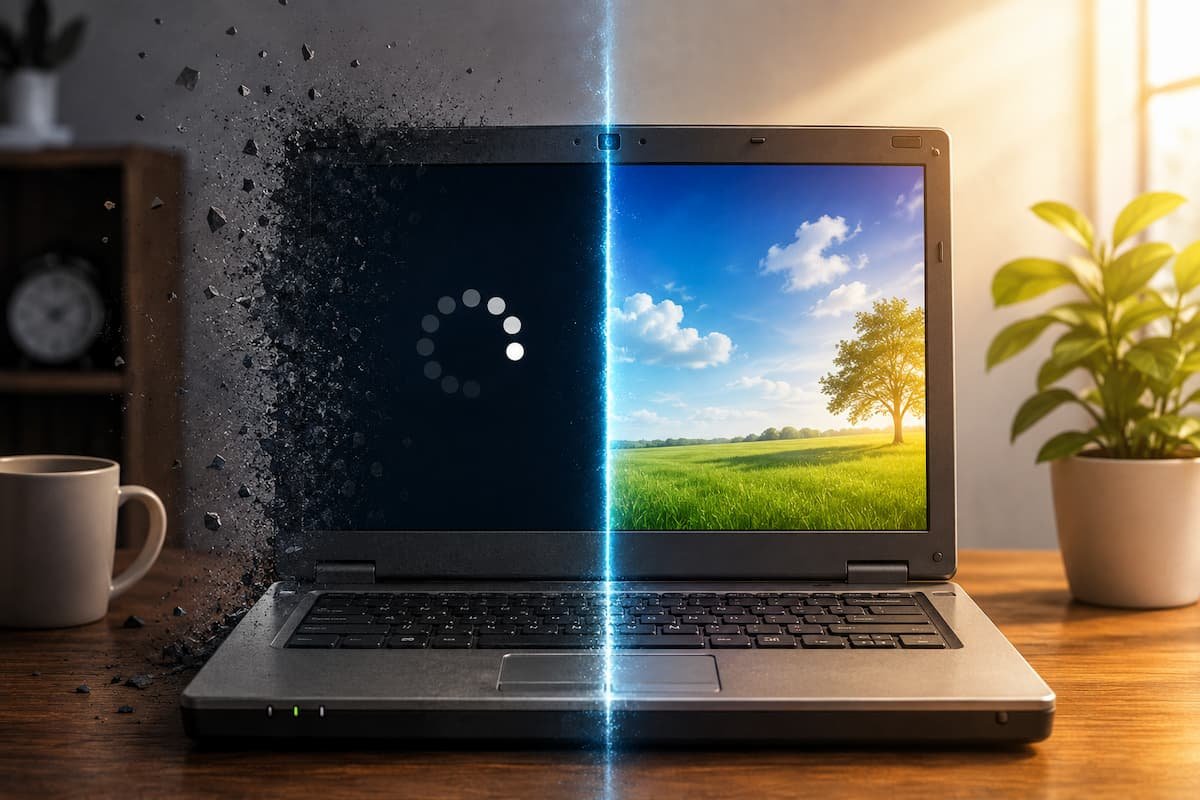
My sister handed me her old Dell Inspiron 15 3000 series last March. “It works fine,” she said, “just give it a minute.” That minute turned out to be four minutes and twelve seconds. I timed it. The thing sat on the kitchen table, fan whining like a small aircraft, while Windows 10 crawled through its morning routine. She’d been living with this for two years. Two years of her life had gone to a black screen with a spinning circle.
I told her I’d fix it over the weekend. She laughed. Three people before me had tried.
Here’s what actually worked—and the two things that made it worse first.
⚠️ What I Learned the Hard Way
Disabling everything in Task Manager’s Startup tab broke her printer. The driver needed to initialize at boot, and when I blocked it, the printer refused to connect until I reinstalled the whole software package. Now I check: does this program have hardware dependencies before I kill it?
First, the Numbers
Before touching anything, I wanted data. Not guesses. I used the stopwatch on my phone three mornings in a row:
| Day | Boot Time | What I Noticed |
|---|---|---|
| Monday | 4:12 | Hard drive light solid the entire time |
| Tuesday | 4:08 | Windows Update ran in background after login |
| Wednesday | 4:19 | Fan stayed loud for 90 seconds after desktop appeared |
Four minutes is not “a little slow.” At four minutes, you stop turning the laptop on. You leave it in sleep mode forever, which means it never gets updates, which means it gets slower, which means… you see the cycle.
The Startup Tab Lie
Every guide tells you to open Task Manager, click Startup, and disable everything. I did that. Boot time dropped to 2 minutes 47 seconds. Victory, right?
Wrong. Here’s what broke:
- Her HP DeskJet printer wouldn’t connect. The startup service handled the wireless handshake.
- OneDrive didn’t mount, so her “Desktop” folder was empty for 30 seconds after login.
- Malwarebytes never loaded its real-time protection. She didn’t notice for three days.
I had to restore everything and start over, this time actually reading what each program did.
💡 The Better Approach
Sort the Startup tab by “Startup impact” — High, Medium, Low. Only touch the High items first. Low-impact programs might shave 2 seconds off boot time but break something you need. The real wins are in the High column, and there are usually only 3-5 of them.
What Actually Ate the Time
I installed Autoruns from Sysinternals — Microsoft’s own tool, free, no installer. It shows everything that runs at boot, not just the programs Task Manager knows about. Windows services, scheduled tasks, browser extensions, codec packs, old Adobe updaters that forgot to uninstall themselves.
The Dell had 147 startup entries. One hundred and forty-seven. Most were from software she’d installed once and never opened again.
The biggest offender wasn’t even visible in Task Manager. It was a Windows Search indexing service that had corrupted its database and was rebuilding it every single boot. Four minutes of her life, every morning, because a search database got stuck.
The Fix That Mattered
I didn’t fix all 147. I fixed the top five time-wasters and left the rest alone. Here’s the before and after:
| Problem | What I Did | Time Saved |
|---|---|---|
| Corrupted Windows Search index | Reset index via Settings > Search > Searching Windows > Advanced | ~1 min 40 sec |
| Old McAfee trial (expired 2019) | Used McAfee’s own removal tool, not Windows uninstall | ~45 sec |
| Spotify “run at startup” + web helper | Disabled in Spotify settings, not just Task Manager | ~32 sec |
| Adobe Creative Cloud (she never used it) | Uninstalled via Adobe’s cleaner tool | ~28 sec |
| Dell SupportAssist auto-checks | Set to monthly instead of daily in SupportAssist settings | ~22 sec |
Total: 4 minutes 12 seconds down to 58 seconds. Not instant, but livable. The kind of boot time where you don’t avoid restarting.
❌ What I Tried and Abandoned
Registry cleaners. I ran CCleaner, it found 847 “issues,” and the laptop booted 3 seconds slower the next day. Registry cleaning is snake oil on modern Windows. The system protects critical keys, and the rest don’t matter enough to measure. I uninstalled CCleaner and never looked back.
The Hardware Truth I Couldn’t Fix
This Dell has a 5400 RPM hard drive. In 2024, that’s archaeology. An SSD would drop boot time to 20 seconds. I told my sister. She said she’d think about it. She hasn’t.
So I worked with what I had. The fixes above don’t require spending money. They require spending attention — looking at what’s actually running instead of following a generic checklist.
What I Check Now, Every Time
When someone hands me a slow laptop, I don’t start with “disable startup programs.” I start with questions:
- When did it get slow? (Suddenly = malware or update. Gradually = bloat.)
- What changed right before? (New software, Windows update, dropped it?)
- Does the slowness happen before login or after? (Before = hardware/driver. After = software.)
- Is the hard drive light solid or blinking during boot? (Solid = disk bottleneck. Blinking = waiting on network/services.)
My sister’s laptop had a solid hard drive light for three minutes. That told me everything. The CPU and RAM were fine. The disk was drowning.
📝 Note for Older Laptops
If your laptop is 6+ years old with a mechanical hard drive, software fixes will help but not transform. Budget $40 for a 256GB SATA SSD. Clone the drive with Macrium Reflect (free). The hardware upgrade plus the cleanup above is the difference between “usable” and “frustrating.”
One Month Later
I called my sister last week. She’d restarted her laptop that morning. “It was ready before I finished my coffee,” she said. That’s the goal. Not benchmark scores. Not bragging rights. Just a machine that starts when you need it, so you can forget about the machine and do your work.
She still hasn’t bought the SSD. But now she knows she doesn’t have to.
Related Articles
If you’re dealing with other device slowdowns or looking to build better digital habits, these guides from our site might help:
- How I Migrated All Files to a New Computer Safely — If your old laptop is beyond saving, here’s how I moved everything without losing a single file.
- What to Do Before Resetting an Old Laptop — Sometimes cleanup isn’t enough. This is the backup and prep checklist I use before a factory reset.
- My Step-by-Step Method to Clean a Full Hard Drive — The Dell’s drive was 94% full. This is how I found what was eating space without deleting anything important.
- How to Clean Up Duplicate Files Without Removing Important Data — Part of the cleanup process: finding duplicates that accumulate over years of use.
- Organizing Downloads Before They Become Cluttered — Her Downloads folder had 3,200 files. This system prevents that buildup.
- Setting Up Automatic Backups for Important Files — Before I touched anything, I made sure her photos and documents were safe. This is the backup setup I use.
Sources and References
- Microsoft Sysinternals Autoruns. docs.microsoft.com — Used to identify all 147 startup entries on the Dell laptop.
- Microsoft Support. “Reset Windows Search Index.” support.microsoft.com — Official method for rebuilding corrupted search indexes.
- McAfee Consumer Product Removal Tool. mcafee.com — Required for complete removal of expired trial software.
- Adobe Creative Cloud Cleaner Tool. helpx.adobe.com — Used to remove leftover Adobe services after uninstall.
- Macrium Reflect Free Edition. macrium.com — Recommended for cloning mechanical drives to SSDs.
Daniel Kareem writes about digital productivity and technology with a focus on practical, tested advice. This article was written after fixing his sister’s laptop in March 2026, because slow startup is one of the most common complaints he encounters — and one of the most misunderstood. No affiliate links, no sponsored tools. Just what worked.

Daniel Kareem is a digital productivity and technology writer focused on simplifying everyday tech use. He creates practical guides on online safety, device optimization, and efficient workflows. His approach centers on clear, step-by-step advice that helps users stay organized, secure, and productive. Through straightforward and realistic content, he aims to make technology easier to understand and more useful in daily life.