
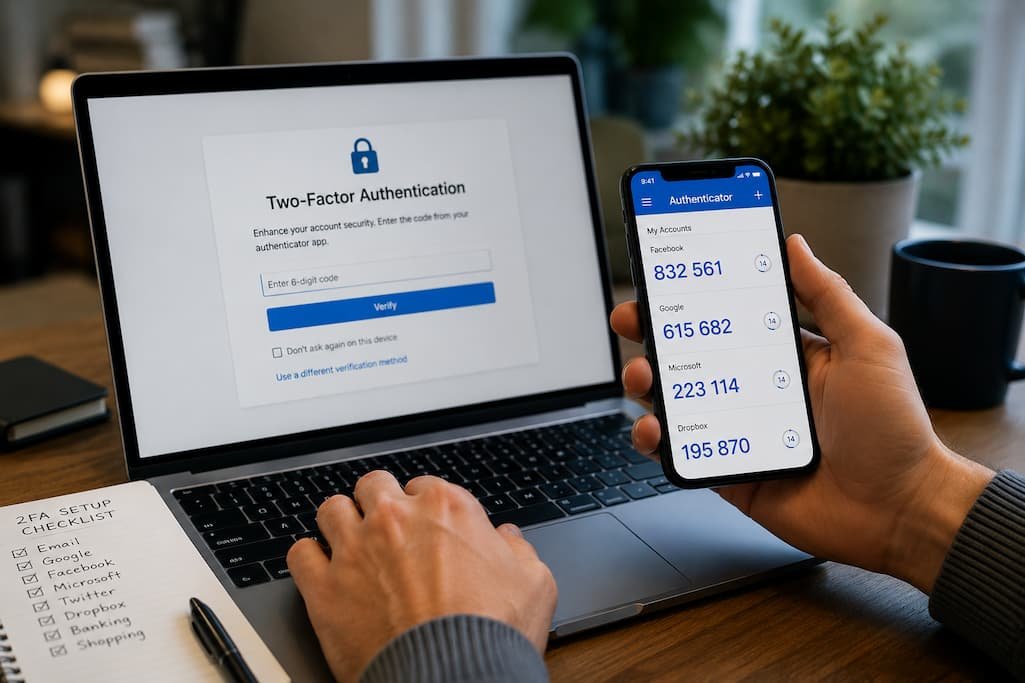
A strong password is one of the best ways to protect your online accounts, but it shouldn’t be your only line of defense. Passwords can be stolen through phishing scams, data breaches, or malware or by simply being reused across multiple websites. Once someone knows your password, logging into your account becomes easy—unless you’ve enabled two-factor authentication.
Two-factor authentication, commonly called 2FA, adds a second verification step before anyone can sign in. Even if an attacker has your password, they still need access to a temporary code, authentication app, hardware security key, or another verification method to complete the login.
The good news is that most major online services now support two-factor authentication, and enabling it usually takes only a few minutes. This guide explains which accounts you should secure first, the different types of 2FA available, and how to enable it safely without locking yourself out of your own accounts.
Start by Securing the Accounts That Matter Most
Not every online account carries the same level of risk. If someone gains access to your favorite discussion forum, it’s inconvenient. If they gain access to your email or banking account, the consequences can be much more serious.
Instead of enabling 2FA randomly, prioritize accounts that could affect your finances, identity, or other online services.
Recommended Priority
| Priority | Account Type |
|---|---|
| 1 | Email accounts |
| 2 | Banking and financial services |
| 3 | Password manager |
| 4 | Cloud storage |
| 5 | Work or school accounts |
| 6 | Government services |
| 7 | Social media |
| 8 | Shopping websites |
| 9 | Messaging apps |
| 10 | Gaming accounts |
Your email account deserves special attention because it’s often used to reset passwords for nearly every other account you own.
Understand the Different Types of Two-Factor Authentication
Not all 2FA methods provide the same level of protection. Understanding the differences helps you choose the most secure option available.
| Authentication Method | Security Level | Convenience |
|---|---|---|
| Authentication app | Excellent | High |
| Hardware security key | Excellent | Medium |
| Passkey (where supported) | Excellent | High |
| SMS text message | Good | Very High |
| Email verification code | Basic | High |
Authentication apps and hardware security keys generally offer stronger protection than SMS verification because they’re less vulnerable to certain types of attacks.
If multiple options are available, choose the strongest method that fits your needs and devices.
Step 1: Sign In Using the Official Website or App
Before enabling any security feature, make sure you’re signing in through the official website or mobile application.
Avoid clicking links in unsolicited emails or text messages claiming that your account requires security updates. Phishing websites often imitate legitimate login pages and may attempt to steal your credentials before you even enable two-factor authentication.
Typing the website address directly into your browser or using a trusted bookmark is usually the safest approach.
Step 2: Locate the Security Settings
Most online services place two-factor authentication within the account’s security or privacy settings.
Although the exact layout differs between platforms, look for sections such as the following:
- Security
- Login & Security
- Sign-In Options
- Account Protection
- Two-Step Verification
- Multi-Factor Authentication
If you can’t find the option immediately, use the service’s search feature or consult its official help documentation.
Step 3: Choose Your Preferred Verification Method
When prompted, you’ll typically be offered one or more authentication methods.
If available, consider using:
- An authentication app
- A hardware security key
- A passkey
SMS verification remains much better than using only a password, but stronger authentication methods provide additional protection against modern attacks.
The best choice depends on your devices, your comfort level, and how frequently you sign in.
Step 4: Complete the Verification Process
Once you’ve selected your preferred authentication method, the service will ask you to verify that it works.
This usually involves:
- Scanning a QR code with an authentication app.
- Entering a temporary verification code.
- Connecting a hardware security key.
- Confirming a passkey on your trusted device.
Complete the verification before leaving the security settings to ensure the setup was successful.
Step 5: Save Your Recovery Codes
This is one of the most overlooked parts of enabling two-factor authentication.
Many services provide one-time recovery codes that allow you to access your account if you lose your phone or authentication device.
Store these recovery codes somewhere secure, such as:
- A password manager
- A secure encrypted document
- A printed copy stored safely at home
Avoid saving recovery codes in unsecured notes or sending them to yourself through email.
Losing both your authentication device and your recovery codes can make account recovery much more difficult.
Step 6: Add a Backup Authentication Method
If your primary authentication method becomes unavailable, a backup option can prevent unnecessary account recovery requests.
Many services allow you to register:
- A second authentication app
- Another trusted phone
- A backup hardware key
- A recovery email
- Backup codes
Having at least one secondary recovery option provides additional flexibility if your primary device is lost or replaced.
Step 7: Test the Login Before Assuming Everything Works
After enabling two-factor authentication, sign out of the account completely.
Then sign in again.
Confirm that:
- Your password works.
- The second verification prompt appears.
- Authentication succeeds normally.
- You can still access account settings.
Testing immediately helps identify configuration issues while you’re still signed in elsewhere.
Common Mistakes People Make When Enabling 2FA
Enabling two-factor authentication improves security, but several mistakes can reduce its effectiveness.
Common examples include:
- Ignoring recovery codes.
- Using an outdated phone number.
- Forgetting to update authentication methods after changing devices.
- Leaving old trusted devices connected.
- Disabling 2FA because it feels inconvenient.
The goal is to make unauthorized access difficult without making it impossible for yourself to sign in.
Enable Two-Factor Authentication on Your Email First
If you’re only going to enable two-factor authentication on one account today, make it your email.
Most online services use email to:
- Reset passwords
- Verify new devices
- Confirm identity
- Send security alerts
If someone gains access to your email account, they may be able to reset passwords for dozens of your other accounts without ever knowing those passwords.
Treat your email account as the foundation of your online security. Protect it with a strong, unique password and the strongest two-factor authentication option available.
Don’t Rely Solely on SMS Verification
Receiving a verification code by text message is certainly better than using only a password, but SMS isn’t the strongest form of two-factor authentication.
Attackers have developed techniques such as SIM swapping and social engineering to intercept text messages in certain situations.
Whenever an account allows you to choose between SMS and an authentication app, the authentication app is generally the better option. Hardware security keys and passkeys provide an even higher level of protection for users who want the strongest available security.
If SMS is your only option, it’s still worth enabling rather than leaving the account protected by only a password.
Keep Your Authentication Device Secure
Enabling two-factor authentication shifts part of your account security to the device that receives verification requests.
Whether you use a smartphone, tablet, or hardware security key, protect that device carefully.
Good practices include the following:
- Locking your device with a PIN, password, or biometrics.
- Installing operating system updates regularly.
- Avoiding unknown apps from untrusted sources.
- Enabling device encryption if available.
- Reporting a lost or stolen device as soon as possible.
A secure authentication device makes your entire account ecosystem more secure.
What to Do When You Buy a New Phone
One situation many people forget to plan for is replacing their phone.
If you simply erase your old device before transferring your authentication methods, you may lose access to your accounts.
Before switching phones:
- Verify your recovery codes are available.
- Check whether your authentication app supports secure backups or transfers.
- Add your new device before removing the old one whenever possible.
- Test logging in with the new device before resetting or selling your old phone.
Planning ahead prevents unnecessary account recovery requests later.
Review Trusted Devices Periodically
Many online services allow you to stay signed in on trusted devices for weeks or months.
Over time, this list may include:
- Old phones
- Previous laptops
- Shared computers
- Devices you no longer own
Review your account’s trusted devices every few months and remove anything you no longer recognize or use.
If you notice an unfamiliar device, sign out of all active sessions immediately and change your password.
Watch for Login Alerts
Most major services notify you when:
- A new device signs in.
- Your password changes.
- Two-factor authentication settings are modified.
- An unusual login attempt is detected.
Don’t ignore these alerts.
Even if a login attempt was blocked by two-factor authentication, repeated notifications may indicate that someone already knows your password.
In that case, change your password immediately instead of assuming the second verification step will always protect you.
What If an Account Doesn’t Support Two-Factor Authentication?
Although most major online services now support two-factor authentication, some smaller websites still don’t.
If an account lacks 2FA, strengthen your security by:
- Using a long, unique password.
- Never reusing that password elsewhere.
- Monitoring the account for unusual activity.
- Updating the password promptly if the service reports a data breach.
A unique password helps ensure that a breach affecting one website doesn’t expose your other accounts.
Signs Your Account Security Needs Attention
Even if you’ve already enabled two-factor authentication, review your account if you notice any of these warning signs:
- Password reset emails you didn’t request.
- Login notifications from unfamiliar locations.
- Unexpected verification codes.
- Unknown devices listed in your account settings.
- Security settings that have changed without your knowledge.
- Messages from friends about suspicious activity coming from your account.
Responding quickly can prevent a minor security incident from becoming a major account compromise.
Common Misconceptions About Two-Factor Authentication
Many people delay enabling 2FA because of misconceptions about how it works.
One common belief is that strong passwords make two-factor authentication unnecessary. While strong passwords are essential, they can’t protect you if they’re stolen in a phishing attack or exposed in a data breach. Two-factor authentication adds another barrier that attackers must overcome.
Another misconception is that enabling 2FA makes accounts impossible to access if you lose your phone. In reality, most services provide recovery codes, backup authentication methods, or account recovery options—as long as you set them up in advance.
Some users also believe that only banking accounts need extra protection. In practice, email accounts, cloud storage, password managers, and social media profiles often contain enough information to compromise many other parts of your digital life.
Build a Simple Security Routine
Two-factor authentication works best as part of an overall security routine rather than a one-time setup.
| Every Month | Every 6 Months | As Needed |
|---|---|---|
| Review login alerts | Check trusted devices | Change passwords after a data breach |
| Install security updates | Verify recovery information | Remove old devices |
| Confirm backup methods still work | Review account recovery options | Update phone numbers or email addresses |
A few minutes of maintenance several times a year can significantly reduce your risk of account compromise.
Which Accounts Should Always Have 2FA Enabled?
If available, these accounts should always use two-factor authentication:
| Account Type | Should You Enable 2FA? |
|---|---|
| ✅ Absolutely | |
| Banking | ✅ Absolutely |
| Password Manager | ✅ Absolutely |
| Cloud Storage | ✅ Absolutely |
| Work or School Accounts | ✅ Yes |
| Social Media | ✅ Yes |
| Shopping Websites | ✅ Yes |
| Messaging Apps | ✅ Yes |
| Gaming Accounts | Recommended |
| Online Forums | If Available |
Prioritizing these accounts provides the greatest improvement in your overall online security.
Frequently Asked Questions
Is two-factor authentication really necessary if I already use a strong password?
Yes. Even strong passwords can be exposed through phishing attacks, malware, or data breaches. Two-factor authentication helps prevent unauthorized access even if your password becomes known.
Which is better: SMS or an authentication app?
An authentication app generally provides stronger protection because it isn’t vulnerable to some of the attacks that can affect text message verification.
What happens if I lose my phone?
If you’ve saved your recovery codes or configured a backup authentication method, you should still be able to regain access to your account. That’s why setting up recovery options is an essential part of enabling 2FA.
Should I enable two-factor authentication on every account?
Start with your most important accounts, including email, banking, password managers, and cloud storage. If other services support 2FA, enabling it adds another layer of protection.
Can hackers bypass two-factor authentication?
While no security measure is perfect, two-factor authentication makes unauthorized access significantly more difficult. Most account compromises occur because users rely only on passwords or fall victim to phishing attacks that target both passwords and verification codes.
Do I need an internet connection to use an authentication app?
Most authentication apps generate verification codes directly on your device, so they usually work even without an internet connection.
Should I disable 2FA if it feels inconvenient?
No. The extra few seconds required during sign-in are usually insignificant compared with the time and effort involved in recovering a compromised account.
Conclusion
Two-factor authentication is one of the simplest and most effective ways to improve the security of your online accounts. While a strong password remains important, adding a second verification step greatly reduces the likelihood that someone can access your account using stolen credentials alone.
If you haven’t enabled 2FA yet, begin with the accounts that matter most—your email, banking services, password manager, and cloud storage. As you work through the rest of your accounts, remember to save your recovery codes, configure a backup authentication method, and periodically review your trusted devices.
Good account security isn’t about making life more complicated. It’s about adding practical layers of protection that keep your personal information, finances, and digital identity safe without requiring constant attention.

Daniel Kareem is a digital productivity and technology writer focused on simplifying everyday tech use. He creates practical guides on online safety, device optimization, and efficient workflows. His approach centers on clear, step-by-step advice that helps users stay organized, secure, and productive. Through straightforward and realistic content, he aims to make technology easier to understand and more useful in daily life.